November 6th, 2008 — 1ShoppingCart, ClickBank, Config, Cron, Email, Integration with Shopping Carts, Paypal, Products, Setup, Users
DAP Currently works with Paypal, ClickBank and 1Shoppingcart (and its private labels).
So here’s how your sales process works:
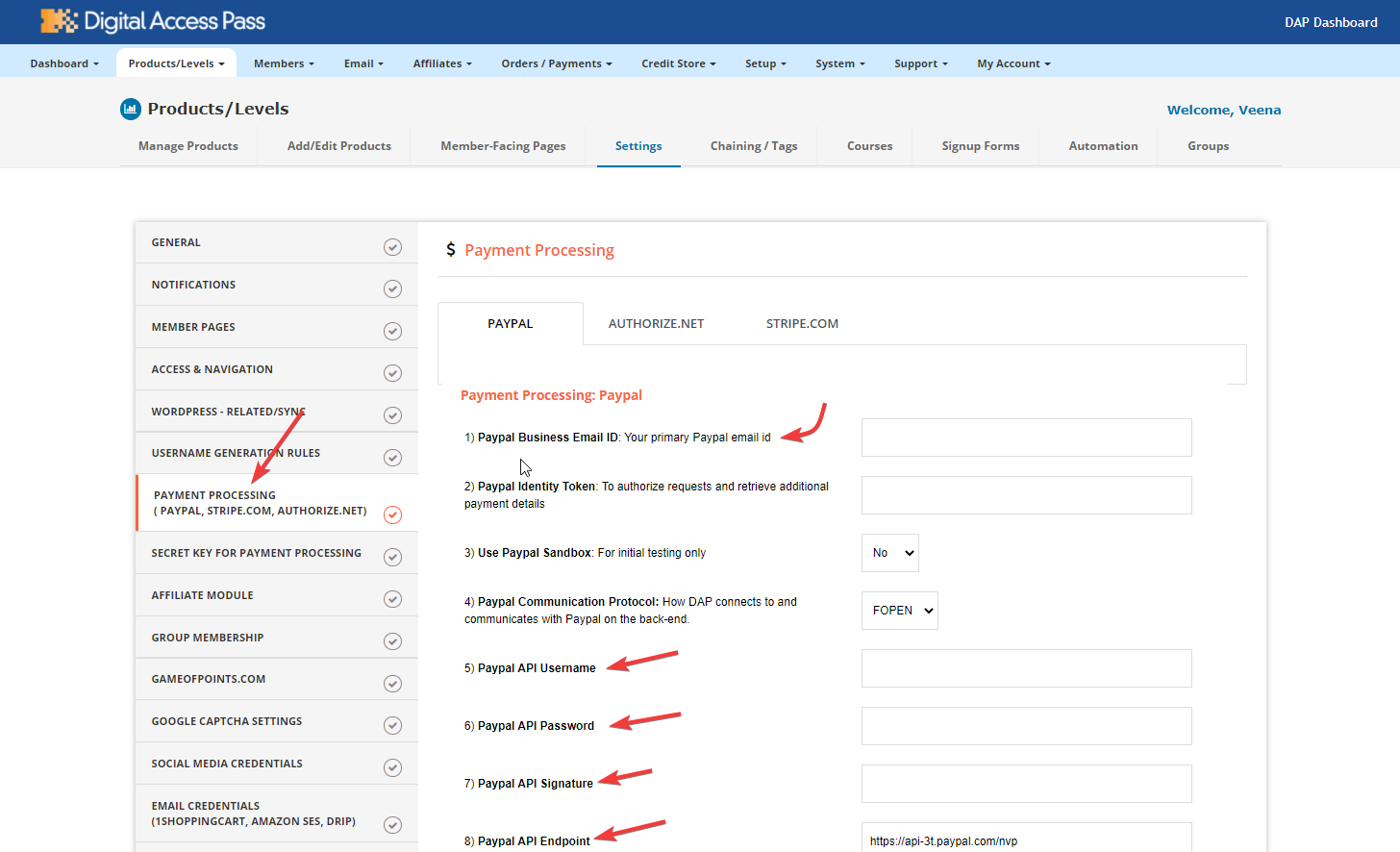
1. Go to DAP admin control panel, go to “Config” screen and set up the “Payment Integration” drop down like shown here. Basically all you are actually doing is to tell DAP where your payment notification emails come in (you tell DAP what that email address is, and provide it with the password).
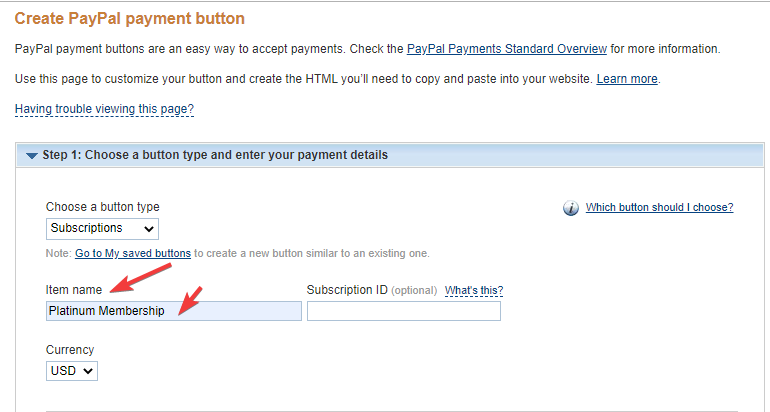
2. Set up your sales page as you would normally do, when accepting payment through Paypal, ClickBank or 1Shoppingcart. The only thing you need to make sure is to use the exact same “Product Name’ in both your buy button as well as within DAP.
So, if you set up a product called “My Membership Site” within DAP, then use the same name “My Membership Site” in your shopping cart too (or Paypal buy button), as the product name.
3. During installation, a Cron job has already been set up to run the “Payment Processing Job” to run every 10 minutes. So, every 10 minutes, DAP will automatically check the “payment email address” that you specified in your “Config” (step 1) and if there is a payment for a product name that matches the product name in DAP, then it will automatically add that customer to DAP as a member.
That’s it!
NOTE: If you ever change the name of your product in your shopping cart or on your web site, make sure to change the product name to the new one within DAP also.
- Ravi Jayagopal
October 24th, 2008 — Installation, Updates
Updating your installation of DAP is very easy.
- Download newest version of DAP files (dap_vXX.zip) from your member page
- Unzip contents of the file to your desktop (or somewhere on your hard disk)
- Overwrite the contents of the dap folder on your web site with the contents of the new dap folder on your desktop
- If you’re logged in as DAP Admin, log out
- Log in as DAP Admin and follow the instructions on the screen (you’ll be asked to click on a link to start the upgrade).
That’s it!
- Ravi Jayagopal
October 1st, 2008 — Admin, Username & Password, Users
If you want to change the password of a user, then just go to the Users > Manage link, search for either that user (if you know her email id), or search for all users. See more about searching in another post.
Then click on the “Name” of the user, and you will go to the “Edit User” screen. There you can change the user’s password.
If you are the admin and looking to change your own password, then you can do the same as above (as the “admin” is also a user in the system, except with the user type “admin”).
Or you can go to “User Home” and click on “Edit Profile” and change your password there.
Now the “User Home” is the page that all your users would see when they are logged into your members-only area powered by DAP. So, we’ve basically provided you, the admin, a way to see what they see, when you visit the “User Home” page.
September 13th, 2008 — ClickBank, Setup
DAP supports ClickBank purchases.
Just point DAP to the email address where you get your ClickBank notification emails.
Configure what your billing email address is, in the “Config” screen (in admin section), where you can put in your billing email address, smtp server name and password.
Try out some test purchases first.
For instance, take an existing CB notification email, change name and email (to your own name and email id), and then send it out by email to your billing email address (as if you are ClickBank, notifying the billing email of the purchase).
Then, assuming you have set up the cron jobs, within about 10 minutes, you should see processing the order correctly and create the username/password for that customer (which is really you).
If it works, you can launch and go live!
If not, enter a support ticket at DigitalAccessPass.com/support/.
September 12th, 2008 — Cron, Setup
There are two cron jobs you need to set up.
1. dap-cron.php: Should be set up to run once every hour. This script sends out all the scheduled bulk emails and processes the different type of “bulk” actions. Don’t worry about what those actions are. This just needs to run once every hour.
2. dap-emailorder.php: Should be set up to run once every 10 minutes. This is the cron script that processes all of your orders from your customers. DAP does almost all email processing. So, if you set this up to run once every 10 minutes, then every 10 minutes, it will log in to your billing email address (you can configure what this email id is within the admin control panel on the “Config” screen) and process the email notifications that you have received from Paypal, ClickBank or 1ShoppingCart (and its private labels).
There are two things you need to figure out:
a) The path to PHP on your host: They usually have this somewhere in your web site control panel. If not, just ask them or read their wiki.
For eg., on Dreamhost.com, it looks like this:
/usr/local/host/cgi-system/php5.cgi
b) You need your local path on your server to your root folder. For this, simply visit the following url:
http://www.Example.com/dap/getpath.php
This will spit out something like this:
/home/.xyz/yoursite/yoursite.com/dap
For the first cron, add the text “/dap-cron.php” to this path.
For the second cron, add the text “/dap-emailorder.php” to this path.
So, the full text to put in where it asks for the “Command to run” is this:
Cron 1:
/usr/local/host/cgi-system/php5.cgi<insert space>/home/.xyz/yoursite/yoursite.com/dap/dap-cron.php
Cron 2:
/usr/local/host/cgi-system/php5.cgi<insert space>/home/.xyz/yoursite/yoursite.com/dap/dap-emailorder.php
Where you see the text <insert space>, replace with an actual space (hitting the space bar).
Set Cron 1 to run hourly, and Cron 2 to run every 10 minutes.
That’s it!
September 10th, 2008 — 1ShoppingCart, ClickBank, Integration with Shopping Carts, Products
The Product Name within DAP should be the exact same (even the case) as the Product Name in your Shopping Cart.
So if you were using a 1ShoppingCart (or private label) to accept payment for selling your digital info product or for access to your membership site, then the Product Name you use in your 1ShoppingCart admin panel should be the exact same name as what you use within DAP.
This is the only way for DAP to know about a new purchase through your 1ShoppingCart cart. And when it parses your 1ShoppingCart notification email, it can figure out that your buyer who purchased that product needs to be added to DAP, so that your buyer can get access to either your info product files, or to your subscription-based site.
September 9th, 2008 — Admin, Control Panel, Cron, Database, Installation
We’ve tried to make DAP installation extremely simple.
To get the basic installation of DAP up and running, it will take about 10 minutes.
There are also advanced installation pieces (like the DAP Cron job, that will send out scheduled autoresponder emails and bulk emails) that require a wee bit more time (like another 10 minutes).
But we’re here to support you every step of the way.
So here are the various pieces of installation:
1. DAP Files and Database Installation
2. Protecting WordPress:
- WP in Root folder (Example.com itself is your blog)
- WP in Sub-folder (Example.com/blog)
3. Protecting Regular Site Files
Eg., (Example.com/product/yourproduct.pdf)
4. Customizing DAP to your site:
- Modifying “Config” data
- Customizing Header and Footer
5. Setting up the Cron job
- Ravi Jayagopal
For DAP Support, open a ticket at http://www.DigitalAccessPass.com/support/
September 9th, 2008 — Admin, Config, Control Panel, Customization
The Configuration data of your DAP installation can be customized online.
- Log in to DAP as admin at:
Example.com/dap/
- Click on the “Config” link in the nav bar at the top.
- You will see a drop-down (showing “Basic” by default). You can modify option by option (”Basic”, “Payment Processing”, etc) or view them all together at one time (”All”).
- WARNING: Save each modified config field individually. This means, every time you modify one row of config data, hit the “Save” button at the end of that row. You will not be able to change multiple rows and have all of them saved all at once. It has to be saved row by row*.
- Change data like “Site Name”, “Admin Name”, “Admin Email” etc.
That’s it!
NOTE: The reason why we allow only one row to be “Saved” at a time, is to prevent you from messing up (by accident) config stuff that was already working. So, this way, you can mess up only one row at a time
- Ravi Jayagopal
September 9th, 2008 — Access Control, Setup
1. Go to following directory within the “dap” folder on your desktop:
dap > client > website
2. Copy the file .htaccess from this folder into the root directory of your web site. [Root directory is where your home page (say, index.html) is].
September 9th, 2008 — Database, Installation
NOTE: Wherever you see reference to “http://www.Example.com”, be sure to replace the text “Example.com” with your web site’s actual domain name.
1. Unzip the zip file you received after purchase, to your desktop (or any location on your hard disk). It should create a folder by name dap on your desktop within which all DAP files are located.
2. Upload the entire dap directory to your root directory on your web site. So, DAP is now accessible by typing in http://www.Example.com/dap/ - but don’t visit that link yet, as installation is not yet complete.
3. Log in to your web site’s control panel and create a new MySQL database, and then create a user name and password to access this database. (COMING SOON: Tutorial on how to do this). Note down the name of the database, the host name of the database, the user name and password.
4. Visit the following link:
http://www.Example.com/dap/install/
5. Enter the database credentials from before into the form you see at the above page.
6. Click on “Start Installation“. If there are any errors, you will see them on the screen. If not, you will see a message that says that installation is complete.
7. You will also see the email and password for the Admin account that has been created for you. Note them down.
8. Now visit the link below to log in as the admin. After you log in as admin, be sure to go the “Config” screen and customize DAP to your needs.
http://www.Example.com/dap/
Next step: Protecting WordPress or your regular Web site?
Protecting WordPress:
- WP in Root folder (Example.com itself is your blog)
- WP in Sub-folder (Example.com/blog)
-OR-
Protecting Regular Site Files:
Eg., Example.com/product/yourproduct.pdf