
DAP Upsells With ClickBank PitchPlus
DAP integrates with ClickBank “PitchPlus”, which is their 1-Click Upsell process.
So you can basically start by selling one front-end product, and then if your buyer purchases that product, you can then upsell them more products right after, and since they’ve already entered their payment information once, ClickBank remembers this information and allows them to purchase further products without having to re-enter all of the information again.
Setting Up DAP & CB PitchPlus Integration
The basic idea is the same for DAP/CB integration, whether it’s one product, or multiple Upsell products .
- You start with CB integration as specified in this document: Integration DAP With ClickBank . That’s how you set up the first product.
- Now, if you were selling just one product, then you would normally send them to a static “Thank You” page where you would tell them to check their email inbox for login details, and by that time CB would have already notified DAP via their “Instant Notification Service” (INS – kind of like Paypal’s IPN), and DAP would have already sent them the welcome email to the buyer’s email address, which contains their login and password to the member’s area.
- But in this case, you are going to offer them an upsell. So instead of sending them to a thank-you page after the first purchase, you basically send them to the sales page of your next upsell, that’s all.
You basically do a one-time set up of INS and the secret key as explained here.
Once that’s done, then for every Front-end product or Upsell-product, they are all integrated with DAP the same way: You just make sure the “Item Name” in CB and the “Product Name” in DAP both match, that’s it!
And for the last product in your upsell, be sure to point it to a static page containing a message like “Thank You, please check your email inbox for login details”.
And since CB notifies DAP separately for each product purchased, right then and there, if they end up buying 3 products during checkout (1 main + 2 upsells), then DAP will send the user 3 separate welcome emails. Of course, that’s optional – you don’t have to send out a welcome email for all products, but we highly recommend that you do.
Plus since they would be using the same email id for all 3 purchases, DAP will give them access to all purchased products under a single DAP account. So they need to log in to just one account to access content from all products that they just purchased.
5
DAP Shopping Cart
WARNING
This is the old, deprecated version of the DAP Shopping Cart add-on. This is still here for archive purposes only, and should only be used with DAP versions 4.4.x or EARLIER.
If you are wanting to use the new DAP Shopping Cart Plugin that supports Stripe and has a unified checkout page, etc, then you can download it from http://digitalaccesspass.com/dappers/new-dap-shopping-cart-plugin/
__________________________________________________________
ARCHIVE ONLY:
This plugin replaces ALL files from both the “Paypal Payments Pro” Upsell-Tree plugin as well as the “Authorize.net” Upsell-Tree Plugin
Starting DAP v4.2, we have consolidated both the Authorize.net & Paypal Payments Pro Upsell-Tree Plugins into one simple set of files, and it has been named the DAP Shopping Cart, which will allow you to both accept one time and recurring payments, as well as do 1-Click Upsells.
This consolidated set of files is named DAPShoppingCart.zip , and is available for download from the members’ area at http://DigitalAccessPass.com/dap/ .
Upgrading from DAP v4.2
If you are upgrading to DAP v4.2 from a previous DAP version, and you’ve been using Authorize.net or Paypal Payments Pro to accept payments, then you must also upgrade to the new DAP Shopping Cart.
So all you need to is…
1) Download the DAPShoppingCart.zip file from the members area
2) Unzip it to your desktop
3) Upload all files inside directly to your main “dap” folder on your site. (do not upload the folder named DAPShoppingCart – upload only the files inside this folder)
4
Troubleshooting 1-Click Upsells
1) Problem: Getting an error that looks like this after purchase – using 1-Click Upsells.
Warning: file_get_contents(/home/mysite/dap/upsell1.html) [function.file-get-contents]: failed to open stream: No such file or directory in /home/mysite/dap/continue.php(1) : eval()'d code on line 20
Solution: Create missing file.
Every buy button generated by DAP for Auth.net or Paypal Payments Pro, will look something like this…
<form name=”generate_authnet” method=”post” action=”https://www.DigitalAccessPass.com/dap/buy.php”>
<input type=”hidden” name=”item_name” value=”DAP Upsell Tree – Auth.net (T)”/>
<input type=”hidden” name=”description” value=”DAP Upsell Tree For Authorize.net” />
<input type=”hidden” name=”amount” value=”97.00″ />
<input type=”hidden” name=”trial_amount” value=”0.01″ />
<input type=”hidden” name=”total_occurrences” value=”1″ />
<input type=”hidden” name=”is_recurring” value=”Y” />
<input type=”hidden” name=”recurring_cycle_1″ value=”365″ />
<input type=”hidden” name=”recurring_cycle_2″ value=”365″ />
<input type=”hidden” name=”recurring_cycle_3″ value=”365″ />
<input type=”hidden” name=”payment_succ_page” value=”https://www.YourSite.com/dap/continue.php?url=/dap/upsell1.html” />
<input type=”hidden” name=”payment_gateway” value=”authnet” />
<input type=”hidden” name=”is_submitted” value=”Y” />
<input type=”submit” value=”Buy Now” />
</form>
If you see the line in bold above, you will see the field…
payment_succ_page
… pointing to the first upsell…
https://www.YourSite.com/dap/continue.php?url=/dap/upsell1.html
What this essentially means, is that once the payment for the front end order is complete, you want the contents of the page /dap/upsell.html to be presented as the first upsell.
So…
a) Either create an HTML page called upsell1.html in the dap folder.
b) Or change the name of the file in the buy-button form code above, to be whatever your actual file name is.
c) Or if you don’t wish to do any upsells, then put the URL of your final thank you page in that field’s value.
2) Question: How do I use my own button with the shopping cart script?
Look for this in the DAP generated button code:
input type=”submit” value=”Buy Now”
Replace it with your own image :
For example –
input type=”image” src=”/images/btn-order.png” value=”Buy Now”
If images folder is at the root of your site, set src = /images/btn-order.png. If it’s under dap folder, the src tag should be set to “/dap/images/btn-order.png”.
24
Paypal Integration Summary
DAP supports 3 different types of Paypal Integration.
1) Paypal Hosted Buttons
2) DAP Generated Buttons For Paypal
3) DAP Shopping Cart with Upsells
Let’s get into more details about each one of them.
[s3mv]DAP-Paypal-Integration-Overview.mp4,640,350,false,false[/s3mv]1) Paypal Hosted Buttons
You generate the button within your Paypal account.
Click Here to find instructions to integrate DAP and Paypal Hosted Buttons.
If the integration is not working, Click Here to find troubleshooting instructions.
Note: you only need to set the following config items for Paypal hosted buttons.
a) If you want to use Paypal Sandbox for testing, then set the following to “Y”.
DAP Setup -> Config -> Paypal -> Use Paypal Sandbox: For initial testing only
If you want to connect to your Paypal live account, then set it to “No”.
b) If your site has trouble connecting to Paypal via CURL and you see this error in DAP orders page => Check Product and Price(Reprocessible), then update the config below to FOPEN.
DAP Setup -> Config -> Paypal -> 4) Paypal Communication Protocol: How DAP connects to and communicates with Paypal on the back-end.
That’s it.
The following config items are NOT needed if you use the Paypal hosted buttons.
Paypal API Username – Only needed if you use the DAP upsell tree plugins for Paypal Payments Pro or Paypal Standard.
Paypal API Password – Only needed if you use the DAP upsell tree plugins for Paypal Payments Pro or Paypal Standard.
Paypal API Signature – Only needed if you use the DAP upsell tree plugins for Paypal Payments Pro or Paypal Standard.
Paypal API Endpoint – Only needed if you use the DAP upsell tree plugins for Paypal Payments Pro or Paypal Standard.
Paypal Business Email ID – Only needed if you use the DAP generated button for Paypal (DAP Payments/Coupons -> Generate paypal button)
Merchant Payment Gateway API Login ID: Only needed if you use e-junkie or the DAP upsell tree plugin for Authorize.net
Merchant Payment Gateway Transaction Key: Only needed if you use e-junkie or the DAP upsell tree plugin for Authorize.net
The following fields in the DAP Products page ONLY need to be set if you use DAP upsell tree plugin or the DAP generated button for Paypal.
Recurring Count, Trial Amount and Product Price
If you are using regular paypal button, you can leave these empty. Even if these are not-empty, DAP will not use it for regular paypal hosted buttons.
2) DAP Generated Buttons For Paypal
With DAP 4.0, we have added support for DAP generated buttons for Paypal. You no longer have to generate buttons within Paypal.
You can generate the button for Paypal from within your DAP Admin Panel -> Payment Processing -> Generate Paypal Button page.
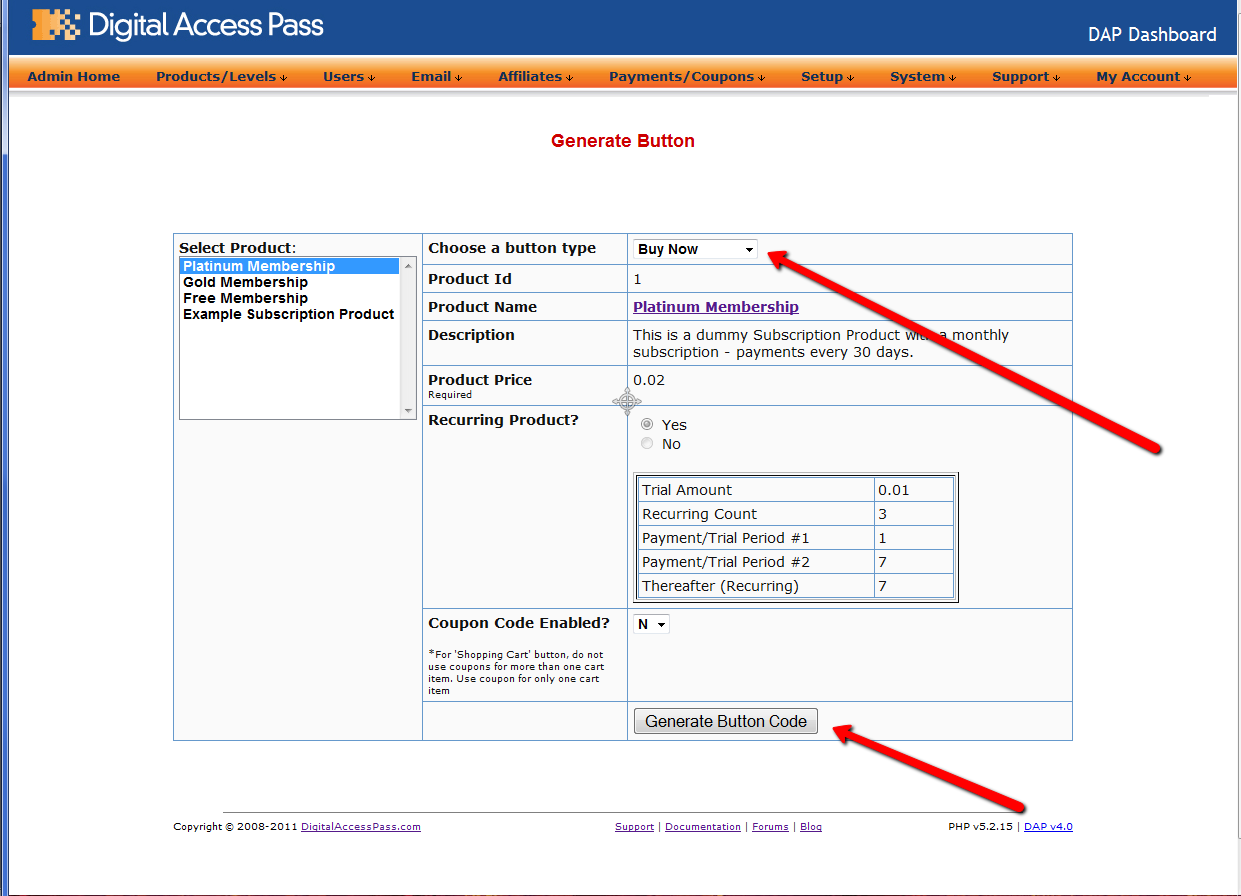
Click Here to find instructions to integrate the DAP generated button with Paypal.
3) DAP Shopping Cart / DAP Upsell Tree Plugins
1) Paypal Standard Upsell Tree Plugin
2) Paypal Payments Pro Upsell Tree Plugin / DAP shopping cart
Click Here for details.
1SiteAutomation.com Upsell Express
DAP integrates with 1SiteAutomation.com‘s (our private label of 1shoppingcart) Upsell Express.
So if you are using 1Shoppingcart or our private label 1SiteAutomation.com to accept payments, then you cannot use DAP’s own free Upsell-Tree plugin. You will have to sign-up for 1SiteAutomation.com’s Upsell Express add on, which has a monthly fee associated with it.
Don’t have a 1shoppingcart account yet, and thinking of signing up for one? You certainly don’t want to do that till you check out our “Get DAP For Free” offer.
35
DAP-Supported Shopping Carts
Last updated: 09/02/2014
Direct Integration with Shopping Carts and Payment Processors
UPDATE: We are now authorized resellers for Authorize.net. If you’re in the US or Canada, click here to apply. If you’re in the UK, then click here.
DAP directly integrates with the following Payment Processors without the need for any additional third-party shopping carts:
- Stripe (new!) – via DAP Shopping Cart
- Authorize.net (US/Canada / UK) – via DAP Shopping Cart
- 2Checkout.com
- CCBill.com
- ClickBank
- ClickBank PitchPlus (1-Click Upsells)
- Digiresults
- DealGuardian
- Google Checkout
- e-Junkie (FYI: e-J does not allow recurring payments)
- JVZoo
- Paypal Standard – direct & via DAP Shopping Cart
- Paypal Express Checkout – direct & via DAP Shopping Cart
- Paypal Website Payments Pro (legacy) – via DAP Shopping Cart
- Plimus
- WorldPay
- WSO Pro (Warrior Plus)
- Zaxaa
DAP also integrates with the following Shopping Carts
- 1SiteAutomation.com (a 1shoppingcart private label)
- InfusionSoft
- Nanacast
- Ontraport (prev. Office Auto Pilot)
- Premium Web Cart
- WooCommerce
- WP eStore
Indirect Integration through 3rd Party Shopping Carts
Since DAP integrates with Shopping carts like WooCommerc, 1SiteAutomation.com (our white label of 1Shoppingcart), e-Junkie, Premium Web Cart and Infusionsoft, that means that it also integrates (albeit indirectly) with all of the Payment processors and gateways that these carts support. So, for example, since DAP works with 1SiteAutomation, it essentially integrates with all payment providers supported by 1SiteAutomation, like:
Bank of America
BluePay
Concord EFSNet
Cybercash
DPI Merchant Services
e-Commerce Exchange
Echo Inc.
ECX QuickCommerce 3.0
Epoch Systems
eProcessing Network
EPS SecureNet
EWAY (Australia)
FastTransact
Firepay
GoRealTime/EPP
GoRealTime
iBill
IntelliPay ExpertLink
IONGate (Costco)
iTransact RediCharge
LinkPoint Secure
MCPS WebLink
MerchantPartners
Moneris
NETbilling
Network Merchants
Paradata
PayCom Processing
Paymentech (direct integration via Authorize.net)
PayPal Payflow Pro (via e-Junkie)
PayReady
Planet Payment
PRIGate
PSiGate
RightConnect
RTWare WebLink
Shift4
SkipJack
StrataPay
Surepay
TrialPay (via e-Junkie)
TrustCommerce
USAEpay
uSight
VeriPayment
VeriSign PayFlow Pro
ViaKlix (Nova Systems)
YourPay
For the full list and more details, click here
1-Click Upsells
If you use the DAP Shopping Cart Plugin, you can do 1-Click Upsells/Downsells like the pros, without the need for any external shopping cart or upsell service provider.
The free DAP shopping cart that comes with your DAP purchase allows you to do unlimited 1-Click Upsells using Stripe, Authorize.net and Paypal Website Payments Pro (legacy).
However, for doing 2-Click Upsells/Downsells with Paypal Standard, you need our Paypal Upsell-Tree plugin that is sold separately. Or you can also get this plugin for free with our Platinum subscription.
Of course, if you need advanced shopping cart features – like ability to calculate shipping, tax, and coupons – then you should consider using 1SiteAutomation.com.
1ShoppingCart & GoDaddy
If you want automated recurring order processing using 1ShoppingCart (1SC) or 1SiteAutomation.com, then DAP needs to be able to process the recurring email notifications sent by 1ShoppingCart, which it does on the back-end when the DAP Cron Job runs every 10 minutes.
However, if you’re using Godaddy as your web host, then because GoDaddy disables a mandatory PHP library (“imap”) on all their servers for some reason, DAP is unable to process the recurring order email notifications from 1ShoppingCart.
This is not an issue if you are using GoDaddy as just your domain name registrar, and using some other service like Liquid Web or Hostgator as your web host.
But if you’re using 1SC & GoDaddy hosting, you will have to end up doing manual cancellations if any member cancels their subscription, or if their credit card fails and their recurring payments don’t get processed.
Please note that 1ShoppingCart order processing works great with all other (non-GoDaddy) hosts.
13
1-Click Upsells With Paypal Standard
1-Click Upsells, Downsells and OTO’s are now extremely simple to implement using the new “Upsell Tree” plugin for DAP.
And this particular plugin works with Paypal Standard! Which means you don’t need a merchant account any more.
All you need is a regular Paypal Business Account.
Please note that this is not “True 1-Click”, like you can do with a real merchant account – because of the very fact that Paypal expects your buyers to log in at least once into their paypal account through Paypal.com, and then at the end of the Upsell-flow, there is one final confirmation page. So it’s more like “2-Click Upsells” really.
If you want true 1-Click Upsells, then you need to have a merchant account through Paypal Website Payments Pro or Authorize.net.
IMPORTANT: What you need before you can use this plugin
- You need a Paypal (Standard) Business or Premier account
- You must have SSL (secure server) enabled on your web site. Ask your web host to enable SSL for your site.
- You must have a working version of DAP 3.7+
- You cannot sell a “Recurring” product as an Upsell – recurring products have to be the first product in the flow.
- Here’s what you CAN do: You can have a recurring product as the very FIRST product that they purchase (when they first click on the “Buy” button on your main sales page, and then you can offer any number of “One-Time” Products as upsells or downsells.
- Here’s what you CANNOT do: Offer a “One-Time” product as your first product that they buy, and then try to upsell them to a “Recurring” Product. Unfortunately, this is a Paypal problem at this time.
Installation & Setup of UpsellTree For Paypal Standard
- You need to be running at least DAP v3.7 for this plugin to work
- Purchase the UpsellTree plugin if you haven’t already done so, login to your DAP account and download the plugin zip file, PaypalStandardUpsellTree.zip .
- Unzip the file to your desktop. That will create a new folder on your desktop, called “PaypalStandardUpsellTree” which will have all of the files inside.
- Upload all the files inside, directly to your “dap” folder on your web site.
- DO NOT upload the folder itself. Just the files inside.
- Installation of Paypal Upsell-Tree Plugin is complete.
- Next, log in to your Paypal account.
- Click on “Profile”
- Click on “Request API Credentials” (under ‘Account Information’ section). It will bring you to the API access page.
- Under Option 2, click on “Request API credentials” to create your own API username and password.
- Click on “Request API signature”
- Click on “Agree & Submit”
- Note down the following pieces of information:
* API Username
* API Password
* API Signature - That’s it as far as your Paypal account is concerned. Now back to DAP on your site.
- Log in to your DAP Dashboard
- Go to “Setup > Config“. On that page, click on the “Paypal” link in the links towards the very top of that page (or scroll down to the “Payment Processing: Paypal” section).
- Enter the 3 pieces of information (from Step #13 above) into the Config fields 7, 8 & 9 on that screen: Paypal API Username, Paypal API Password, and Paypal API Signature. Cick “Update” and save the changes.
- Generating the Paypal Upsell Buy Buttons:
In the DAP Dashboard menu, go to Payment Processing > Generate Buy Button
You will now see that you’re on the default tab “Paypal Standard”. - So now select the DAP Product for which you’re trying to generate the buy button, from the Product list.
- Now, once the page has refreshed, scroll down to the bottom of this page, and you’ll see an expandable section with the heading “Paypal Standard 1-Click Upsells”
Expand that section by clicking on the “+” image. - You will see the following two links in that section…Generate Paypal Standard 1-Click Primary Button
Generate Paypal Standard 1-Click Upsell ButtonThe first one is for generating the buy-button code for your primary product (the very first product in the flow). The second one is for all upsells.So if this is the first time you’re doing this, and for your main product, click on the first link. - If all of your Product’s settings are correct, then you’ll see a small popup that contains the buy-button HTML code. Paste this code into a blank notepad (or text editor) window.
So let’s say this is what the code you got looks like…<form name=”generate_paypal” method=”post” action=”/dap/PaypalSetExpressCheckout.php”>
<input type=”hidden” name=”item_name” value=”Facebook Secrets Subscription”/>
<input type=”hidden” name=”description” value=”This is a Subscription Product with a monthly subscription – payments every 30 days.” />
<input type=”hidden” name=”amount” value=”10.00″ />
<input type=”hidden” name=”trial_amount” value=”0.00″ />
<input type=”hidden” name=”total_occurrences” value=”9999″ />
<input type=”hidden” name=”is_recurring” value=”Y” />
<input type=”hidden” name=”recurring_cycle_1″ value=”365″ />
<input type=”hidden” name=”recurring_cycle_2″ value=”365″ />
<input type=”hidden” name=”recurring_cycle_3″ value=”365″ />
<input type=”hidden” name=”payment_succ_page” value=”https://YourSite.com/dap/continue.php?url=/dap/upsell1-paypalstandard-sample.html” />
<input type=”hidden” name=”payment_err_page” value=”https://YourSite.com/dap/paymentError.php” />
<input type=”hidden” name=”payment_cancel_page” value=”https://YourSite.com/dap/cancel.php” />
<input type=”hidden” name=”payment_gateway” value=”paypal” />
<input type=”hidden” name=”is_submitted” value=”Y” />
<input type=”image” src=”/dap/images/btn_xpressCheckout.gif” align=”left” width=”200″ height=”50″ style=”margin-right:7px;” value=”Submit” alt=”Submit”> - Look at the payment_succ_pagetag in the generated button code and have it point to your sales page for your upsell.In the above example, the upsell page is called upsell1-paypalstandard-sample.htmland it’s under the dap folder.Put this HTML code on the primary product’s sales page. This is the first product in the flow.
- Now, you need to generate a button for your upsell product. So go back to Payment Processing > Generate Buy Button . This time, pick the Upsell product from the list.
- Now scroll down to the bottom of this page, expand the section “Paypal Standard 1-Click Upsells” , and this time, click on the second link there, because you’re now generating a buy-button for the Upsell product.Generate Paypal Standard 1-Click Primary Button
Generate Paypal Standard 1-Click Upsell Button - Say this is the button code you get this time…<form name=”generate_paypal” method=”post” action=”/dap/PaypalAddToCart.php”>
<input type=”hidden” name=”item_name” value=”Upsell 1″/>
<input type=”hidden” name=”description” value=”This is a dummy Subscription Product with a monthly subscription – payments every 30 days.” />
<input type=”hidden” name=”amount” value=”10.00″ />
<input type=”hidden” name=”trial_amount” value=”0.00″ />
<input type=”hidden” name=”total_occurrences” value=”9999″ />
<input type=”hidden” name=”is_recurring” value=”Y” />
<input type=”hidden” name=”recurring_cycle_1″ value=”365″ />
<input type=”hidden” name=”recurring_cycle_2″ value=”365″ />
<input type=”hidden” name=”recurring_cycle_3″ value=”365″ />
<input type=”hidden” name=”payment_succ_page” value=”/dap/PaypalCheckoutConfirm.php” />
<input type=”hidden” name=”payment_gateway” value=”paypal” />
<input type=”hidden” name=”is_submitted” value=”Y” />
<input type=”submit” value=”AddToCart” />
</form> - Now again, notice the payment_succ_page in the generated button code. You will see its pointing to /dap/PaypalCheckoutConfirm.php.
a) If this is the last upsell, then leave it pointed to /dap/PaypalCheckoutConfirm.php.
b) If this is NOT the last upsell, then update it to point to the url of the 2nd Upsell page (like we did for the primary product to point to the first Upsell sales page) and repeat the process above for the next upsell page.Bottom-line: Make sure that both the buy-button code as well as “No Thank You” link on the last upsell or downsell page, points to /dap/PaypalCheckoutConfirm.php - When your buyer reaches the final checkout confirmation page (PaypalCheckoutConfirm.php) then they can review all of the products in their “Upsell Cart”, and buy them all instantly and all together, without having to go back to Paypal ever again.
- Things To Note:
a) If you’re doing upsells, the only thing you need to do is, look for the “payment_succ_page” field in the above form. By default it will point to:
https://www.example.com/dap/continue.php?url=/dap/upsell1.html
b) Modify the file upsell1.html within your dapfolder, to create your 1-Click Upsell offer. Or if you don’t wish to use 1-Click upsells, you can make just about any kind of upsell offer on that page. The upsell1.html that comes with the plugin has a sample upsell page already created for you, just so you get an idea of what that will look like.b) On the upsell page, if you want to upsell say, Product B, then make sure you set up “Product B” ahead of time in DAP, and set up the price and recurring options.
c) Then for upsell products only, click on the “Generate Authnet 1-Click Upsell” link to generate the 1-Click Upsell Buy button code, as the upsell buy button is slightly different than the ‘regular’ buy button code. Now take the upsell buy button code like you did before, and paste it in upsell1.html.Repeat this process for unlimited upsells, downsells and one-time offers. No limits.
“No, Thank You” Buttons & Links
On every upsell page, you must also include a “No, Thank You” button or link that will allow your buyer to skip your upsell or downsell, and go to the next part of the sale.
For all upsells that are not the last upsell, you can link this button or link to the next upsell in the chain. So basically, on Upsell 1, they can either take the upsell1 (whatever your offer is) by clicking on the buy button, or click on the “No, Thank You” button/link, and you could then either taken them to the URL of Upsell2, or Downsell 1, or if this is the last upsell in the flow, then you could send them directly to the Paypal Upsell Summary Page /dap/PaypalCheckoutConfirm.php
Creating a “No, Thank You” button
Button to take them to next Upsell/Downsell:
<form name=”nothankyou”>
<input type=”button” name=”nothankyoubutton” value=”No, thank you, I wish to skip this incredible offer” onClick=”location.href=’https://YourSite.com/dap/continue.php?url=/dap/upsell2.html‘;”>
</form>
Feel free to copy the above HTML button code for the no-thankyou button. However, paste it into a text editor and be careful and don’t delete any of the HTML code, and only change actual URL’s or the button’s value (which is the text your buyer will see on the button).
Button to take them to final Checkout Summary page:
<form name=”nothankyou”>
<input type=”button” name=”nothankyoubutton” value=”No, thank you, please complete my order” onClick=”location.href=’/dap/PaypalCheckoutConfirm.php‘;”>
</form>
Creating a “No, Thank You” link
Link to take them to next Upsell/Downsell:
<a href=”https://YourSite.com/dap/continue.php?url=/dap/upsell2.html“>No, thank you, I wish to skip this incredible offer</a>
Link to take them to final Checkout Summary page:
<a href=”/dap/PaypalCheckoutConfirm.php“>No, thank you, please complete my order</a>
That’s it.
While it looks like a LOT of steps, that is only because we have to explain the steps in detail so they are clear. In reality, it is very simple to set up, and starting from scratch, if you have DAP & SSL already installed, it shouldn’t take you more than 1/2 hour to set up your 1-Click Upsells/Downsells/OTO’s. And if you’re not using Upsells/Downsells, then it can be done even faster.
If you have any further questions, feel free to open a support ticket, and we will assist you in getting this going.
Click here to buy our Paypal Upsell-Tree Plugin
17
Buy Buttons, 1-Click Upsells, Downsells & OTO’s using Authorize.net
Selling through Authorize.net, 1-Click Upsells, Downsells and One-Time Offers (OTO’s) are all now extremely simple to implement using the new Shopping Cart Plugin for DAP.
This post explains how to create buy buttons for selling through Authorize.net.
Your site visitors never have to leave your site in order to make a purchase, if you are selling through Authorize.net. DAP itself will act as your shopping cart, and buyers can checkout and make purchases by staying right on your web site.
The DAP Shopping Cart itself is your actual shopping cart that connects to Authorize.net. You need to install this plugin whether you wish to accept one-time or subscription payments via Authorize.net, or whether you wish to do Upsells, and Downsells.
What you need before you can use this plugin
- You need an Authorize.net merchant account
- If you want to sell subscription-based products, then you also need Automated Recurring Billing (ARB) enabled in your Authorize.net account.
- You must have SSL (secure server) enabled on your web site. Ask your web host to enable SSL for your site.
- You must have a working version of DAP 3.5+.
Installation & Setup of UpsellTree
- You need be using at least DAP v3.5 for this.
- If you haven’t installed DAP already, then install DAP first.
- Log in to our member’s area and download the plugin file, DAPShoppingCart.zip .
- Unzip DAPShoppingCart.zip to your desktop. It will unzip the files to a new folder on your desktop, called DAPShoppingCart.
- Upload ALL of the files inside, DIRECTLY to your “dap” folder on your web site. DO NOT upload the folder itself – just the files inside.
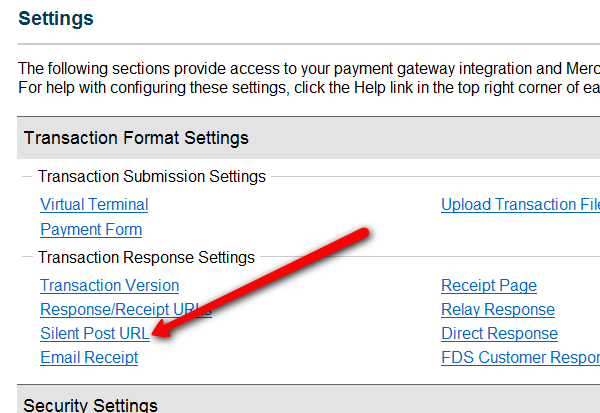
- Log in to your Authorize.net account, and go to the “Settings” page.
- Click on Silent Post URL.
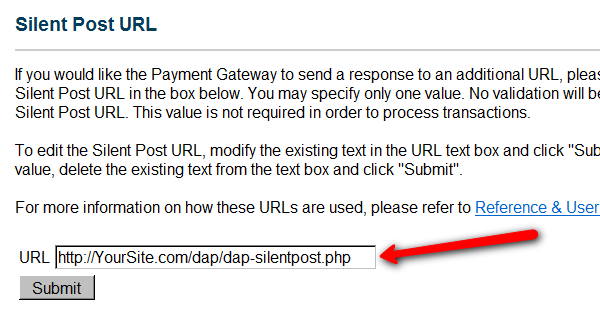
- On the next page, set the URL field, to http://YourSite.com/dap/dap-silentpost.php . Be sure to change the text “YourSite.com” to your actual domain name. Click “Submit”. It will take you back to the Settings page.
- On the Settings page, now click on the “API Login ID and Transaction Key” link towards the bottom.
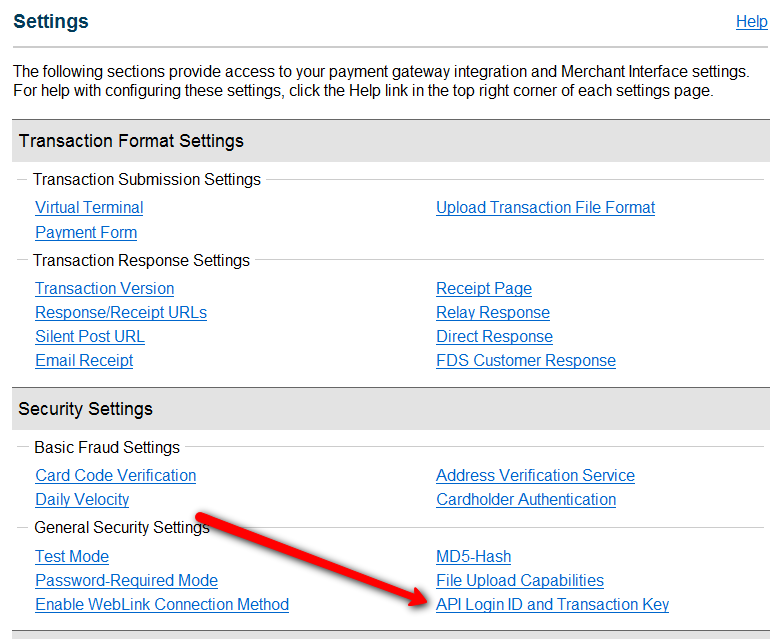
- On the next page, make a note of your “API Login ID” and “Transaction Key” on a piece of paper (or copy/paste it into a text file). That page also lets you create a new Transaction key or modify your existing one.
- That’s it for Authnet.
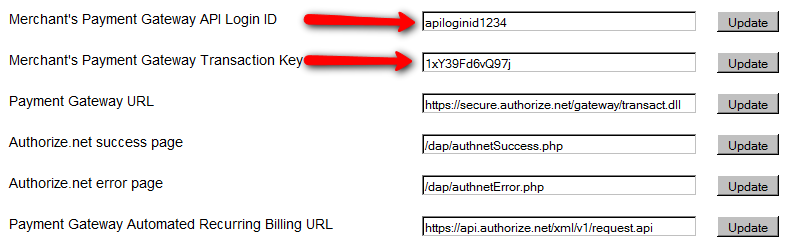
- Now, log in to your DAP Dashboard on your side, and go to “DAP Admin > Setup > Config > Payment Processing“.
- Enter the “API Login ID” and “Transaction Key” that you noted down earlier (Step #9 above) into the respective fields, and click “Update” next to the fields to save the changes.
- This step applies to you only if you are already using 1ShoppingCart with DAP (if not, skip to next step):
Be sure to remove the “Email Order” cron job from your web hosting control panel (“Cron Jobs” screen), because you don’t want your orders to be double-processed. - Go to the Products > Manage.
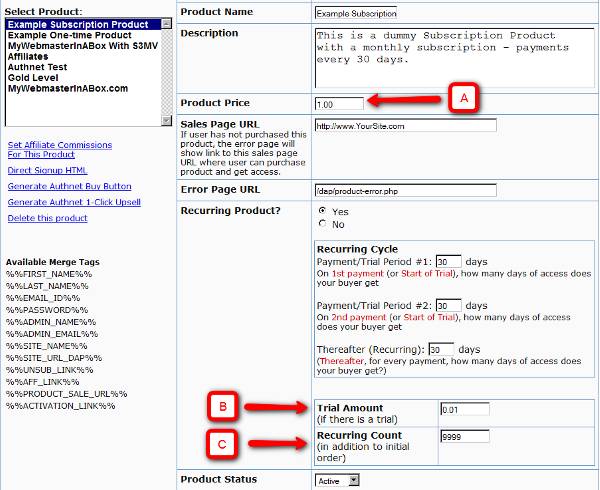
A) Product Price: For a 1-time purchase product, this is the product’s purchase price. For a recurring product, this is the “recurring” price (what the customer gets charged month after month).
B) Trial Amount: This is only if there’s a trial amount. If no trial, leave this empty.
C) Recurring Count: How long is your subscription? If you said “Forever”, then enter the number 9999 here. If it ends after 6 months, then enter 6 here. - Set these fields to valid values.
- NOTE: The DAP Authorize.net allows 1 trial. So in the recurring cycle fields, make sure “Payment/Trial Period #2” and “Payment/Trial Period #3” are both the same (set to same number of days: like 30). Example below shows the setting for a “7 day” trial period, followed by recurring payments every “30 days”.
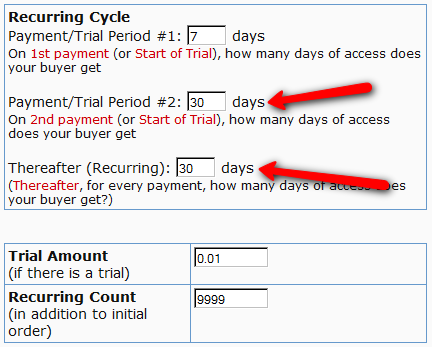
- If you are not offering a trial, then just set the Trial Amount to $0.00. But if you really wanted to offer a FREE TRIAL, then you must set the Trial Amount to at least $0.01 (1 penny).
- Once you’ve saved the product, you can now click on any of the two new “Generate… Button Code” links that are located right below the product list combo box.
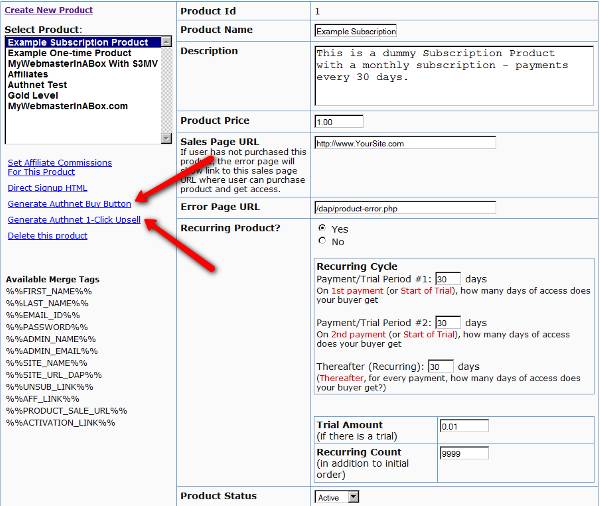
- “Generate Authnet Buy Button” link:
This generates the buy button HTML code for your product, which you can then directly paste into your sales page. When you click on this link, you will get a pop-up that shows the actual HTML code for your button. The price, trial price, and recurring options are all taken from your Product settings. So make sure you have saved your Product changes before you click on this link.
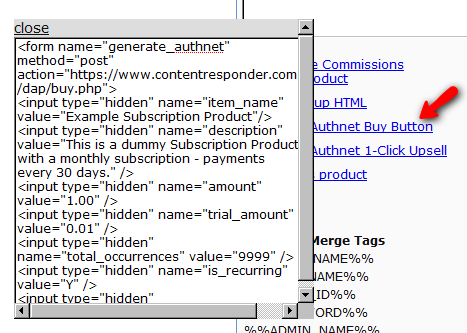
- Here’s what the HTML code looks like:
<form name="generate_authnet" method="post" action="https://www.contentresponder.com/dap/buy.php">

<input type="hidden" name="item_name" value="Example Subscription Product"/>

<input type="hidden" name="description" value="This is a dummy Subscription Product with a monthly subscription - payments every 30 days." />

<input type="hidden" name="amount" value="1.00" />

<input type="hidden" name="trial_amount" value="0.01" />

<input type="hidden" name="total_occurrences" value="9999" />

<input type="hidden" name="is_recurring" value="Y" />

<input type="hidden" name="recurring_cycle_1" value="30" />

<input type="hidden" name="recurring_cycle_2" value="30" />

<input type="hidden" name="recurring_cycle_3" value="30" />

<input type="hidden" name="payment_succ_page" value="https://www.contentresponder.com/dap/continue.php?url=/dap/upsell1.html" />

<input type="hidden" name="payment_gateway" value="authnet" />

<input type="hidden" name="is_submitted" value="Y" />

<input type="submit" value="Buy Now" />

</form> - If you’re doing upsells, the only thing you need to do is, look for the “payment_succ_page” field in the above form. By default it is pointing to:
https://www.contentresponder.com/dap/continue.php?url=/dap/upsell1.html - Modify the “upsell1.html” file within your dap folder, to make your 1-Click Upsell offer. Or if you don’t wish to use 1-Click upsells, you can make just about any kind of upsell offer on that page. The upsell1.html that comes with the plugin has a sample upsell page already created for you, just so you get an idea of what that will look like.
- On the upsell page, if you want to upsell say, Product B, then make sure you set up “Product B” ahead of time in DAP, and set up the price and recurring options. Then for upsell products only, click on the “Generate Authnet 1-Click Upsell” link to generate the 1-Click Upsell Buy button code, as the upsell buy button is slightly different than the ‘regular’ buy button code. Now take the upsell buy button code like you did before, and paste it in upsell1.html. That’s it.
- You can repeat this process for unlimited upsells, downsells and one-time offers. No limits.
That’s it.
While it looks like a LOT of steps, that is only because we have to explain the steps in detail so they are clear. In reality, it is very simple to set up, and starting from scratch, if you have DAP & SSL already installed, it shouldn’t take you more than 1/2 hour to set up your 1-Click Upsells/Downsells/OTO’s. And if you’re not using Upsells/Downsells, then it can be done even faster.
If you have any further questions, feel free to open a support ticket, and we will assist you in getting this going.