
8
Dripping Content
Once you have protected content by adding it from left-to-right on the “ContentResponder” tab of the Products > Manage page, you can set the dripping day/date and link display text and other drip options, by launching the “Drip Settings” popup (see “1” below) by clicking on the “Edit” icon next to the content you wish to drip.
By default, when you add any content (WP page/post or file), it is set to drip on day #1 by default. Which effectively means “no dripping” – and that the content is available to the member from day 1 of their purchase/signup.
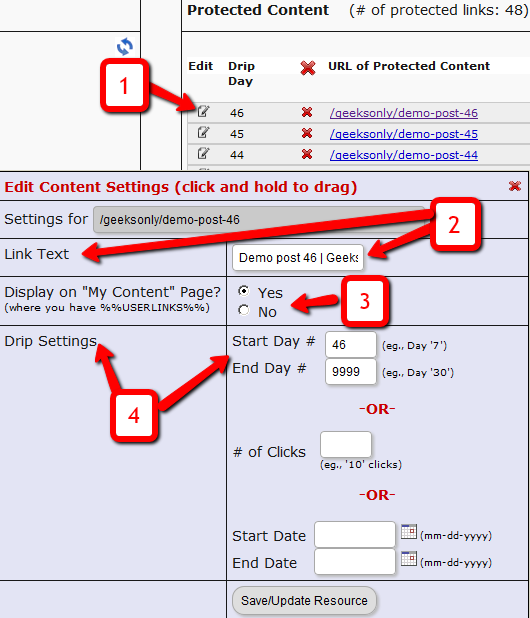
1. Shows the “Edit” icon on the “ContentResponder” tab, and clicking it will bring up the “Drip Settings” popup (that shows 2, 3 & 4).
2. On the drip settings popup, the “Link Text” refers to the display text of the link that will be shown to the member on the “My Content” page.
3. If you wish to protect a link, but just NOT show it in the list of links on the “My Content” page, then set this to “No”.
4. Drip Settings: In DAP, you can drip content by Day, Date or restrict access by # of Clicks. You can only choose one method (eg., you cannot drip by day and date at the same time).
Processing Offline Payments
DAP supports offline payments.
Your buyer does not have to necessarily pay using one of our supported payment processors. You can also use un-supported processors, like say a physical Check/Cheque, Western Union, Wire Transfer, Bank Deposit, etc.
So when someone pays you offline, if you just want to give them access to a product or membership level, then see:
If you also want to record (or book) the payment in DAP, so that DAP can include the payment in the Admin reports, then keep reading.
And normally, when the user logs in after they’ve received the login information from DAP, when they log in, if they had an affiliate cookie on their system, the affiliate will get credit for their purchase, and will get credited the commission within an hour of their logging in (when the hourly DAP cron runs).
But if you want to override this and manually give some other affiliate credit for the purchase, then see:
2
Adding A Manual Transaction
Once you have manually added a user, when you search for them on the Users > Manage page, you’ll see their row with “FREE” or “PAID” under the “Trans Id” column.
1) Enter an order (transaction) into the system by clicking on “Add Trans” (which stands for “Add Transaction”).

2) When you click on the “Add Trans” link, you will see a small popup appear (see image below) that allows you to manually enter an amount. So if the payment you received offline was say $97, then you would enter “97” or “97.00” in the “Order Amount” field and click on “Submit”.
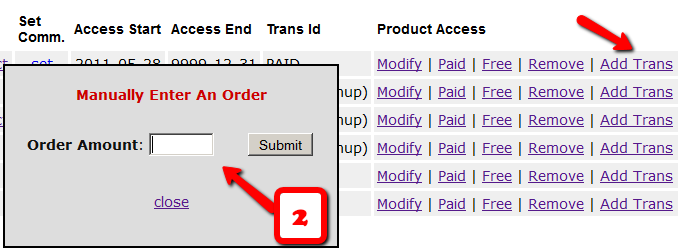
3) Once you’ve entered a manual order, the “Trans Id” column will change from “FREE” or “PAID”, to an actual transaction id (or order id) – in the example below, it turns to Transaction Id “3”.
Affiliate Commissions For Offline Payments
DAP is one of the very few membership platforms that will let affiliates earn commissions on offline payments too.
And in fact, DAP will credit affiliates for not just offline payments, but for any payments that you accepted outside of the payment options listed on your web site.
So, for example, you’re using Paypal and Authorize.net buttons on your site. And someone wants to send you a check (cheque) in the mail, or they want to send you money via Western Union, or wire transfer, or they call you and you accept their credit card information by phone, or any other such offline methods.
In this case, DAP can still give credit to the right affiliate for the sale. Here’s how…
1) Add Manual Transaction
- First you add the user manually, by going to DAP Admin > Users > Add.
- Once you’ve added them to the product, come back to DAP Admin > Users > Manage.
- Search for the user by email
- On the user data row for that Product, initially, under Trans Id column, it will show PAID (see image below)
- Step 1: Enter a manual transaction by clicking on Add Trans (which stands for “Add Transaction”). That will record your offline payment in DAP. So now there’s an actual payment associated with that user’s sign up.
- When you click on the “Add Trans” link, you will see a small popup appear (see image below) that allows you to manually enter an order. So if the offline payment was for say $97, then you would enter “97” or “97.00” in the “Order Amount” field and click on “Submit”.
- Once you’ve entered a manual order, the “Trans Id” column will change from “PAID” to an actual transaction id.
That’s it.
By this time, the user would’ve received their “Welcome Email” from DAP, which will have their login info to log in to your site.
And when they log in, if they have an affiliate cookie set in their browser (which they would, if they had clicked on an affiliate link at some point before they contacted you and asked you about a non-standard, offline payment method), then when they first log in to your member’s area, DAP will pick up the referring affiliate’s id from the affiliate cookie, and give credit to them for the sale.
And when the DAP hourly cron runs at the top of the next hour, that affiliate will be credited with any commissions that you’ve set up for that product.
2
Deleting A User
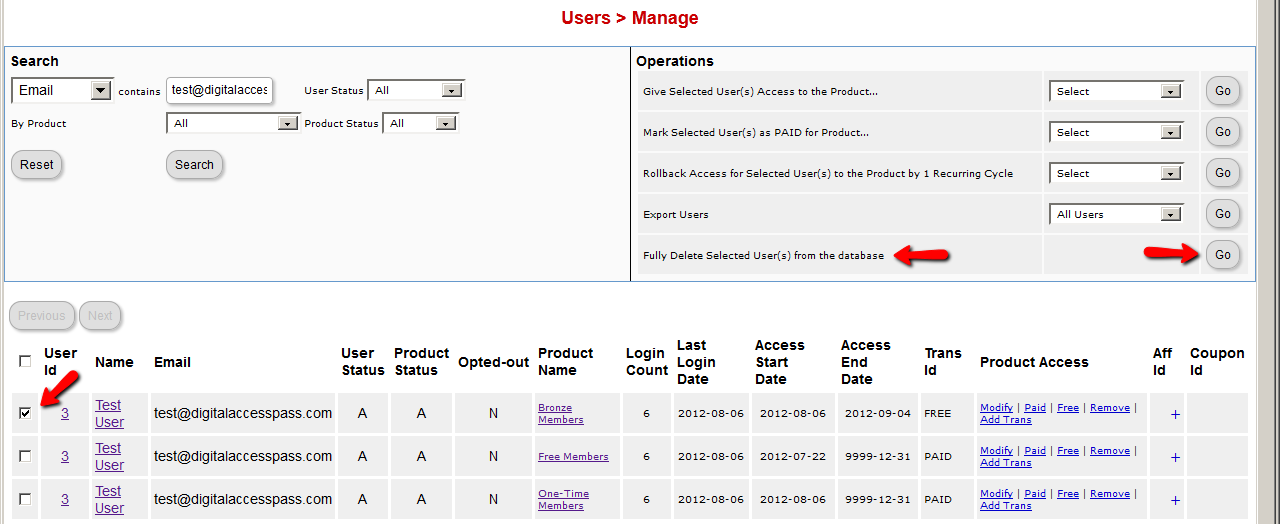
- Go to DAP Admin > Users > Manage
- Search for the user by email or name or id
- Once you find the user, in the search results, check the checkbox next to user’s name
- On the to-right section (Operations), the last row is Fully Delete Selected User(s) from the database. Click on the Go button next to it.
Click image below to enlarge
2
Merging User Accounts
User ID 111 has been created with email id ABC123@somewhere.com
Same user buys a different product using a completely new (Paypal) email id. and DAP creates User ID 999 with PayPal email XYZ789@anothersite.com
User now has 2 accounts and wants only ABC123@somewhere.com (user ID 111) to be active.
So here’s what you should do:
- Place XYZ789@anothersite.com in the PayPal email field of User ID 111 and save.
- Give User ID 111 access to all products that User ID 999 currently has active, with matching start and end dates.
- Delete User ID 999 fully from the system.
If User ID 111 purchases additional products through Paypal, and her primary Paypal email id is still XYZ789@anothersite.com, then that Paypal email id will be recognized by DAP, and all purchased products will be activated under User ID 111 and no additional User IDs will be created.
However, if User ID 111 has changed their primary Paypal email id to be something else like XYZ123@yetanother.com, then the next time they make a purchase, DAP will not know it’s the same person, and will end up creating a completely new user id for the buyer. Which means, you will have to do the merge again, and replace the old Paypal email id in DAP with the new Paypal email id of the buyer.
5
Optimizing Your WordPress Blog For Speed
If you want to speed up your web site, you must address the core issue, which is — your web site is getting more traffic than your web server (web hosting account) can handle.
So here are a few ways in which you can speed up your web site:
- The easiest thing you can do is to revisit all of your plugins that you have enabled and see if you still need all of them. Remember that every single additional plugin running on your site, adds some overhead to (basically, “slows down”) your web site or blog. So use only as few plugins as you absolutely must. With so many cool plugins freely available for WordPress, it is very easy to get carried away, and install tens of plugins, most of them adding very little value, but sometimes causing the most overhead in terms of server resources. So keep only a bare minimum of other plugins (some social plugins are a real pain – making calls to third-party web sites to get their information from).
- Using a “cache” plugin for speeding up your site is like putting band-aid on a gaping wound. It’s only a temporary fix, and not a real long-term solution, but every bit helps. We recommend WP Super Cache, and be sure to whitelist all of your member pages from getting cached.
- Make sure you are always using the latest version of WordPress, or at worst, one version behind the very latest and greatest (you definitely want to be sure first that there are no conflicts with other critical plugins that you’re using on your site).
- Make sure you update all of the plugins and themes you’re using to their individual latest versions (get rid of every single plugin and theme that you’re not using).
- If you are hosting on a shared (a.k.a “cheap”) web host paying just a few dollars a month for hosting, then your web site is basically competing for server resources (like memory and bandwidth and database access) with possibly tens (or even hundreds) of other web sites on that same server (many may not belong to you, but to others with whom you are sharing the server – and hence the name “shared hosting”). Search for the keywords “digg effect” or “slashdot effect” on Google, and you’ll see how many WordPress sites crash when a link to the site appears among the top results in popular social sites like Digg.com, Reddit.com or Slashdot.com.If your traffic levels have outgrown your server, then the best thing you can do is to upgrade to a bigger server, or get a Virtual Private Server, or even get a dedicated host, depending on your budget. See our recommended web hosts list.
4
The “Smart Login” Process
DAP has a very powerful, flexible and easy-to-use log in flow for your users and members.
- Log in from a dedicated log in page, or
- Log in from the login form on the side-bar (login/logout widget), or
- Log in through the log in form shown on “Sorry, you don’t have access to this content. Please log in first…” kind of error messages.
And we call it the Smart Login, because the login process will work differently under different conditions, all designed to make the user-experience for your member more smooth and consistent with general login standards around the web.
So let’s see the various possible login locations in DAP.
But first, it is important to note that DAP has two main types of logins.
Primary Login
This is where it is considered a “generic” login by your member. For eg., a member came to your web site, and then just generally wants to log in to the member’s area – so they have no “context” – it’s NOT as if they were trying to view a specific page or post, got challenged with a login form, and then logged-in from there. That makes this a “Primary Login“.
Examples of this are…
a) Dedicated Login Page: You have a dedicated login page, like http://YourSite.com/login/ – which is what you’ve entered in to “Setup > Config > Login URL“. The body of this page has the DAP merge tag for the login form, which is %%LOGIN_FORM%%
b) Login/Logout Widget on any page of your web site. This is also considered a primary login. The reasoning here is that if they’re logging in through a sidebar widget, it means that they just want to log in to the member’s area, so it is considered primary login.
Secondary Login
This is a login action that HAS “context”. Say, a member landed deep into your site (not the home page, not the dedicated login page) and were challenged by the “In Page Error Message” that says something like “Sorry, you must log in before you can view this content” and are presented with a login form right on that very same page. They were trying to read something before they were asked to log in first – which means, they must be returned to the same page they were trying to view BEFORE they were asked to login. So that makes this a “Secondary Login“.
Examples of this are…
a) Any custom “Error Page”, where you have inserted the DAP merge tag for the login form, %%LOGIN_FORM%%.
b) DAP’s “In-Page Error Message” which says “Sorry, this is private content – you must log in first before you can view this”.
c) Log in form showing up on a page when “Sneak-Peek” is enabled.
Redirection Rules
Based on whether it’s a Primary Login or a Secondary Login, your member will be redirected to a different location.
1) If it is a Primary Login action, then…
a) They’re taken to the “Post-Login URL” if set at a Product-level AND they have access to just one Product.
b) They’re taken to the GLOBAL “Post Login URL” (under Setup > Config) if you have NOT set anything at a Product-level, OR if they have access to more than one Product.
This scenario is the only one where the Post-Login URL is ever used (whether it’s the Product-level or Global-level).
1) If it is a Secondary Login action, then…
They’re always redirected back to the same page they were on (or were trying to access) before they were challenged to log in first to view the content.
Bottom-line:
Primary Login is predictable, and you (the DAP Admin) control where they go right after they login.
Secondary Login depends on “context”, and they’re taken back to whatever page they were on, before they logged in.
Troubleshooting Weird-Looking Text
Problem
I just upgraded to DAP 4.x. The login page when clicked after successful login shows the message
[MSG_ALREADY_LOGGEDIN_1 MSG_ALREADY_LOGGEDIN_2]
Solution
Did you previously customize the dap/inc/language/english.php and save it as dap/inc/language/custom.php? (you have done this for internationalization, or for customizing DAP’s messages).
A) If you answered “NO”, then simply delete the file dap/inc/language/custom.php from your server.
B) If you answered “YES”, then then there are new messages in dap/inc/language/english.php that you need to copy over to dap/inc/language/custom.php
5
Secure RSS Feeds
Once you protect a post in DAP, you can …
a) Make it completely disappear from your feed except for authorized users who have valid access to the post and are using a member-specific RSS feed URL
-OR-
b) You can show a “Summary” of every post, by turning on sneak-peek and making sure you have inserted the “<!–more–>” tag entered into each of your posts.
Troubleshooting RSS Feeds
If your blog post is showing in its entirety in your feed, then….
1) You may not have protected the post in DAP at all, so it’s an unprotected post, which will (and should) show up in your feed
-OR-
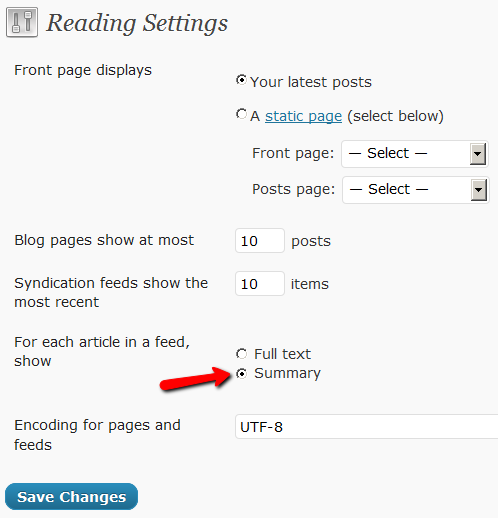
2) You have turned on Sneak-Peek and haven’t inserted the WordPress “more” tag (<!–more–>) into each of your posts. If you turn on Sneak-peek, then you must insert more tags into all posts. Also, if you have turned on Sneak-Peek, then you must also do this…
Go to “Settings > Reading” in WP admin, then set “For each article in a feed, show” to “Summary“.
If it is set to “Full text”, then it will show the full text in the feed, which is not what you want.
Custom RSS Feed Links For Members
Starting DAP v4.2, each of your members can now get their own unique RSS feed link that they can use with a feed reader (like Google Reader, FeedBlitz, iTunes, etc) to get a custom RSS feed with content that they’re eligible to view.
To give each of your members their own unique RSS Feed URL, just insert the following line of code into the top of the “Member Links” or “My Content” type page, or wherever you want your users to see their personalized RSS feed link…
If your blog is in the root…
http://YourSite.com/feed/?key=%%ACTIVATION_KEY%%
If your blog is in a sub-folder (say “/blog”)…
http://YourSite.com/blog/feed/?key=%%ACTIVATION_KEY%%
The text %%ACTIVATION_KEY%% in the above URL will be replaced with their own custom key, like…
http://YourSite.comcom/feed/?key=123456789
They can then copy that link, enter that into any feed reader, and it will show content specific to their account.
Custom Feed Link Security
Another useful feature we’ve added, is that the custom feed link also does IP count validation. So if they share the feed link with others, then after “X” unique IP login attempts (where “X” is configurable by you, the DAP Admin, in Setup > Config), their account will automatically get locked out.