
16
Affiliate Program Overview
Overview
DAP’s built-in affiliate module makes every one of your members an affiliate by default.
You can have 1-tier or 2-tiers of commissions. Up to you.
If a user has an account in DAP (on your site), it means they have a User Id in the system, which means they are also instant and automatic affiliates – regardless of whether you actually choose to show them their affiliate link or not, regardless of whether you have set up commissions for products or not.
Now obviously, if you have not setup commissions for your Products, and are not showing them the affiliate details page, maybe because you’re not using DAP as your affiliate program manager, then of course they won’t get to see their affiliate link, which means they won’t be promoting your DAP affiliate link.
If you want to show them their affiliate link and other affiliate stats, then you simply need to create a “Affiliate Info” page (merge tags available).
If your site is YourSite.com , and if your member’s user id is 123, then their default affiliate link is:
http://YourSite.com/dap/a/?a=123
So basically, their user id (123) is also their affiliate id.
If you’re the DAP Admin, then your user id is probably 1. In which case, your own affiliate id for your site would then be:
http://YourSite.com/dap/a/?a=1
Affiliate Link With Custom Landing Page
If your affiliate (say, id #123) wishes to link to a specific page on your site, then this is what the link would look like:
http://YourSite.com/dap/a/?a=123&p=/custom-landing-page
Which is the same as…
http://YourSite.com/dap/a/?a=123&p=http://YourSite.com/custom-landing-page
Both of them will set the affiliate cookie for affiliate id #123, and then redirect the visitor to the landing page URL custom-landing-page, which is basically the same as http://YourSite.com/custom-landing-page
How The DAP Affiliate Program Works
- You first set up the commissions for each product on the Affiliates > Commissions page in your DAP Admin Dashboard.
- Your affiliate takes their affiliate link http://YourSite.com/dap/a/?a=123 and promotes it on their blog, web site, FaceBook, Twitter, etc.
- When prospect/visitor clicks on their affiliate link and arrives at your web site, a cookie gets set on the prospect’s computer with the affiliate’s id (123 in this example).
- The user then goes on to purchase a product from your web site.
- Immediately after purchase, they are redirected to the member’s area.
- At this time, the affiliate is instantly given credit for the new member referral. Please note that at this time, the only thing that is recorded by DAP, is that new member with user id 456 has been referred by affiliate 123. And if you have set up a “Pay Per Lead” commission, then it is instantly credited to the affiliate’s account. So if you had set up a “Pay Per Lead” of $1 per lead, then a sum of $1 is credited to affiliate 123’s account at this time.
- If the affiliate were to log in to their account at this time, they will only see the credit for the “Lead” and not (yet) for the Sale.
- Within an hour of the purchase, the DAP hourly cron job will run as usual (it runs at the top of every hour, 24 times a day).
- When this hourly cron job runs, it will carefully comb through all purchases made recently, for which there is a recorded affiliate, go and see what kind of commissions have been set up for this product, see if there are any special overrides for the referring affiliate, identify the right commission (Pay-per-sale fixed or Pay-per-sale percentage), and then at that time, the referring affiliate’s account will be “credited” with the actual commission for the sale, if any. So if the purchase was for $100, and you have set up a “Pay-Per-Sale” commission of 33%, then $33 is “credited” to the referring affiliate’s account.
- So if the affiliate were to view their affiliate info page, then they will see an new credit of $33 in their account.
Lifetime Affiliates
Once an affiliate is “tied” to a member’s account, that association is forever. And the member now forever belongs to this affiliate. So any future purchases made by this same member (using same account) will always result in commissions being credited to the same original affiliate, regardless of which other affiliate’s id they click on before making a purchase. See example below.
- Affiliate John refers customer Mary
- Mary buys, John gets affiliate commission
- A while (days, months or years) later, Mary clicks on a different affiliate link belonging to Paul
- Mary buys another product from your web site using the same email id as before
- John will still get the commission for the new product that Mary just bought, because John is the lifetime affiliate for Mary.
- So no matter how many times Mary makes a purchase, regardless of which affiliate link she used (even her own), John will get the commission every time, for life.
We have plenty more documentation available about our affiliate program. Check it out here: https://digitalaccesspass.com/doc/category/affiliates/
4
Creating A Ready-Made Affiliate Toolbox
You already know that DAP has a built-in affiliate program, and everyone who joins your site (or gets a free or paid account) is automatically made into an “Instant Affiliate”.
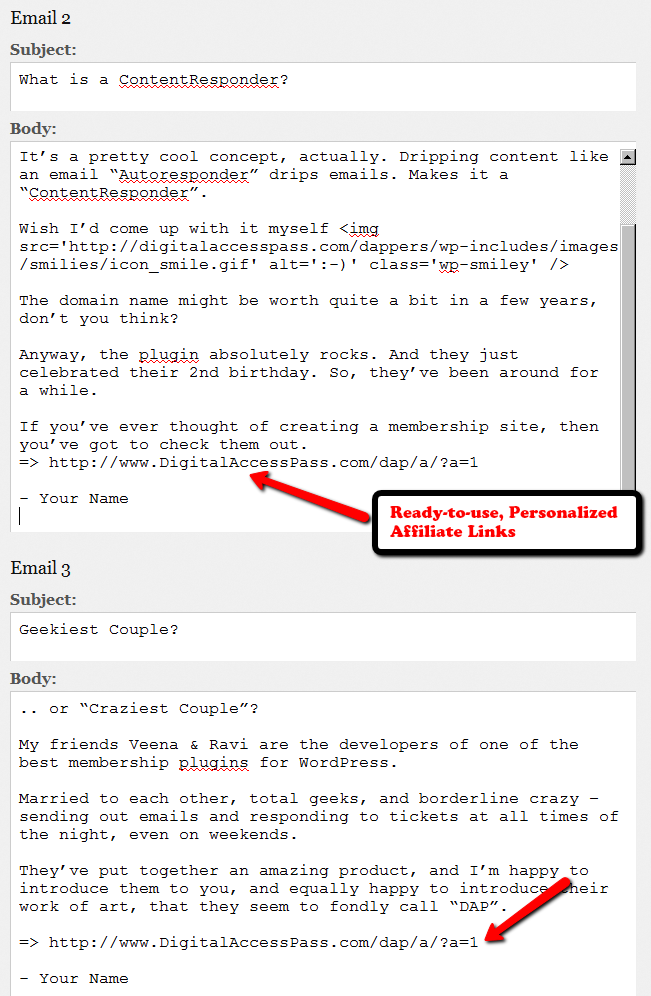
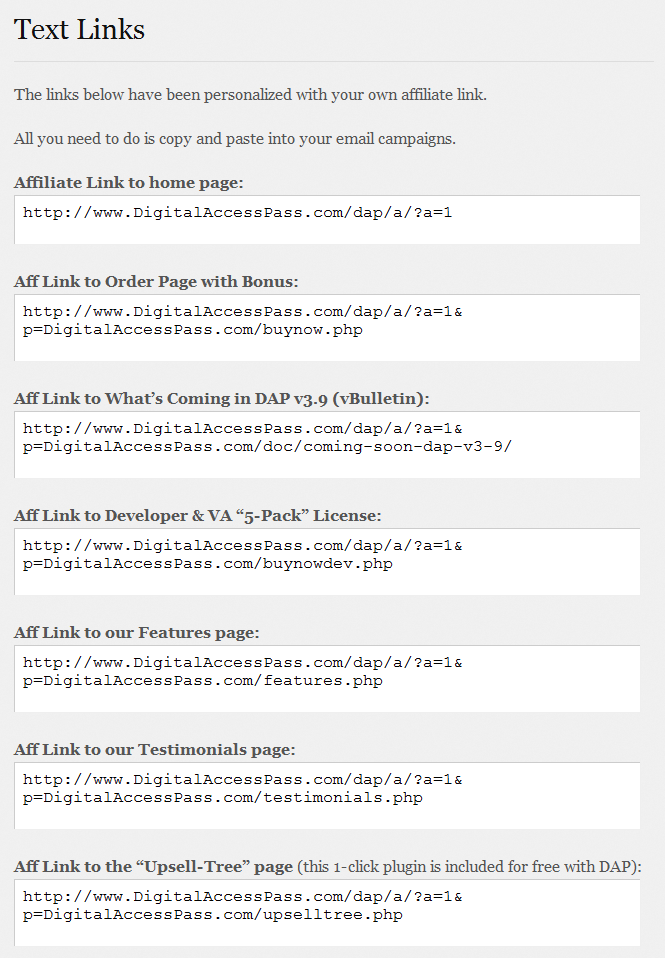
DAP also lets you create an Affiliate Tool Box for your affiliates, with ready-to-use banners, emails, subjects, signatures and text links – all with their own personalized affiliate link embedded into it already.
So all they have to do is copy, paste, and hit send.
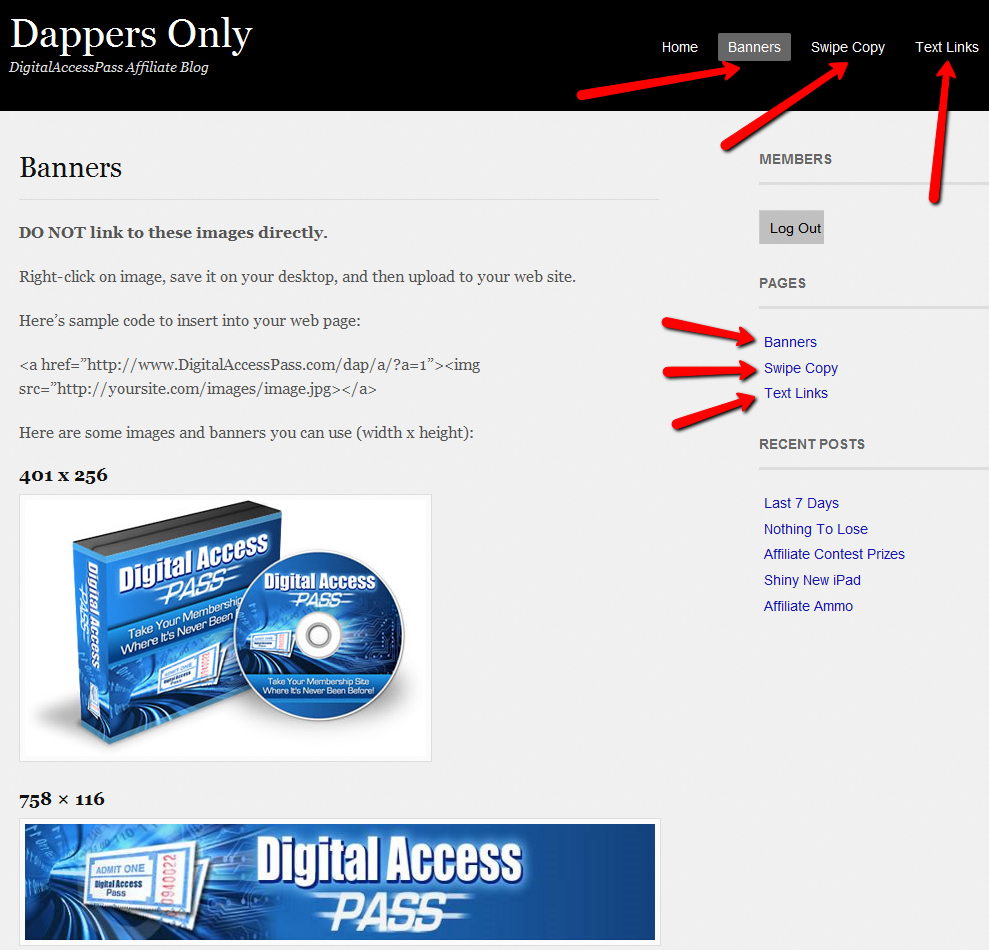
See the sample screen-shots below that show what our own affiliate tool box looks for DAP affiliates who wish to promote DigitalAccessPass.com to others.
Banners
Email Copy
Text Links
How To Create The Affiliate Tool Box
Create as many different pages you want on your blog – like “Banners”, “Email Swipe Copy” or “Text Links”.
Or create just one big page for all of this – like “Affiliate Tool Box”.
Download this text file which has all of the ready-made HTML code that you need to insert into the WordPress pages.
Feel free to modify the text as required, and be careful not to delete any of the special characters that are in there just for the formatting.
=> Download Sample Affiliate ToolBox Code
10
DAP As A Global Content + Affiliate Hub
DAP can only protect content on the same domain where it is installed.
So, if you install DAP on SiteA.com, then DAP can only protect content (blog posts/pages and files) on SiteA.com.
If you install DAP on subdomain1.SiteA.com, then DAP can only protect content (blog posts/pages and files) on subdomain1.SiteA.com.
DAP on SiteA.com cannot protect content on SiteB.com.
DAP on SiteA.com cannot protect content on subdomain.SiteA.com.
Similarly, DAP installed on subdomain.SiteA.com cannot protect content on the main domain, SiteA.com
Now, let’s say you own a network of web sites, some sell a product, some sell a membership course, some sell a physical product, and some just exist to build a list.
So let’s say you have 10 sites in all.
And you want someone who’s an affiliate on Site A, to be an affiliate for all ten, and be able to get commissions if the person he referred goes on to purchase a product from any of your 10 web sites.
Yup, DAP can handle that. And here’s how…
Configuration #1
Summary: Parent.com has DAP. Your sales pages are all on different sites, like ChildA.com, ChildB.com and ChildC.com. But all buy buttons point right back to the main DAP site (Parent.com) and that’s where all buyers from all child sites are eventually added to, regardless of where the sale was initiated from. So all members are actually created on Parent.com, and that’s where everyone would log in to access the member content.
1) Install DAP on your main “Parent” site where you have all of your content that needs to be protected/delivered. Make sure all of your content for all of your sites is on this main “Parent” (hub) site.
2) You can then have multiple “Child” sites – completely different domains from your parent site – which are basically just “sales page only” sites. Of course you can have a wordpress blog on each of them and have as much content as you want. Just put the main content to be delivered on the Parent site.
2A) On each of these child sites, you can use any DAP-supported payment processors to sell your products. So for eg., on one “child” site, you can use ClickBank, on another, you can use Paypal, on another you use e-junkie, etc.
3) All buyers end up with an account on your “Parent” site, which is where they get to access their content too. You can set up multiple blogs on one site for different look & feel for all of your various products, and deliver content from the specific blog for the specific product. DAP can support multiple blogs on one site, so that’ll work fine.
4) Since all of your actual products are on one DAP installation, your affiliates can use the same affiliate link for promoting all of your “child” sites. Which means, anyone buying any product across your network, will result in a commission for your affiliate
5) Since all of your users are in one database, email marketing also becomes extremely simple. You can send autoresponders & broadcasts all from within DAP
6) And anyone purchasing any product across your entire network, instantly and automatically becomes a “global” affiliate – which means they can straightaway start promoting any of your web sites. So if your parent site is Parent.com, and you have 3 child sites called childA.com, childB.com and childC.com, then your affiliates’ global affiliate link would be:
http://Parent.com/dap/a/?a=1234
Now if they wanted to promote childA.com, they just use the redirection feature of DAP like this:
http://Parent.com/dap/a/?a=1234&p=www.ChildA.com
Or if they want to point to a specific page on childA, they can do this:
http://Parent.com/dap/a/?a=1234&p=www.ChildA.com/specificpage.php
or
http://Parent.com/dap/a/?a=1234&p=www.ChildA.com/blog/specific-post/
Plus we’re coming up with a “N”-tier affiliate program in 4.0, which will make it even more powerful when you club it with the ‘global’ concept explained above, as every new member becomes a global affiliate, and will also get multi-tiered commissions across ALL purchases across ALL of your child sites.
DAP now supports Coupon codes – which again means your global affiliate will be able to use coupon codes for any product across your network. So the extensions are unlimited, and the possibilities are infinite.
Configuration #2
Summary: There’s only one site – Parent.com. That’s where DAP is installed. All child sites and content for those sites, are created in “sub-folders” on the same Parent.com site.
Parent.com has “dap” in its root folder.
Parent.com/site1/ is a blog for Site 1 which has all of the content for whatever is being sold on Site 1. Sales page can be the root of the “site1” blog itself, or in a separate WordPress Page on that blog.
So you will have one blog per site, each installed as a separate WP installation, in sub-folders of Parent.com.
Parent.com/site1/
Parent.com/site2/
Parent.com/site3/
Parent.com/site4/
Each of the above blogs should have their own copy of the “DAP-WP-Livelinks” plugin.
But only one installation of the “dap” folder itself. DAP is in root.
Parent.com/dap/
The blogs must be in sub-folders of the main domain – they may not be in sub-domains.
So, in a nutshell…
- DAP enables to you have one, large, global “store”.
- This is also your content and affiliate hub, while unifying and standardizing content delivery for all of your products,
- This gives your members a “Single Sign-on” facility, where if they log in to your “Hub Store”, they basically never have to log in again
- All of the content can be made available from one “Content Delivery” site
- Your affiliate program goes “Global” – which means if you’re an affiliate for one site, you can promote all sites and all products in the network using just one affiliate link. Which will help you recruit more affiliates, and help get them excited about promoting your network sites.
| what i wish to do is have a central dap install, that looks after all my sites and affiliate programs, of course i would like different site members to access the down load they bought in they same style of the site they bought i would like different site members to access the affiliate programs that they enrolled in affiliate program , but also let them taste my others, so each product wold have its own tools affiliate links, my current set up is a hep desk in my root folder, as that is generic name which will work for all my products,i wold then like to deliver products within this system so each has its own download pages , in its own styleall im asking is do i need 10 wp blogs to do this or just one or none can blogs and pages be sub-domains or only folders ( you answered this in your last post )thanks for your help |
|||
|
|||
| » Reply by: Ravi Jayagopal |   |
| Here’s how you would do it…Parent.com has “dap” in its root folder.Parent.com/site1/ is a blog for Site 1 which has all of the content for whatever is being sold on Site 1. Sales page can be the root of the “site1” blog itself, or in a separate “WP Page” in that blog.So you will have one blog per site, each installed as a separate WP installation, in sub-folders of Parent.com
Parent.com/site1/ Each of the above blogs have their own copy of the “DAP-WP-Livelinks” plugin. But only one installation of the “dap” folder itself. DAP is in root. Parent.com/dap/ Each of the blogs may not be sub-domains – must be sub-folders. |
|
2
Affiliate: DAP vs ClickBank
We are frequently asked, why should someone use DAP’s built-in affiliate program, rather than using ClickBank’s affiliate program.
Here’s the difference in a nutshell.
Advantage: DAP
When you use DAP’s built-in affiliate module, …
- You don’t have to send your members over to Clickbank to sign up separately for an affiliate account
- Every member (or buyer) becomes (at your option, of course) an “automatic” and “instant” affiliate the second they purchase any product or membership level
- You can do Pay-Per-Lead (can’t do that with CB)
- You can choose your commission level to whatever you want (CB forces minimum & maximum commission percentages)
- You control who signs up for your Affiliate program (can’t do that with CB)
- You can kick spammers and abusers out of your affiliate program (can’t do that with CB)
- If you use CB, then every person who arrives at your web site through another CB affiliate’s link, can easily screw the original affiliate, and end up purchasing your product through their own CB affiliate link. But your affiliates can’t screw other affiliates when you use DAP. So DAP helps you protect your affiliates’ commissions. Which means, your affiliates will promote you more happily and aggressively, because they know their commissions are safe.
- CB is a bad choice of affiliate program in the IM and web-savvy niches, because everyone knows about CB, and everyone knows how to replace your affiliate nickname with theirs, and steal your affiliate’s commissions from right under your nose. And there’s nothing you can do about it.
- If you use CB, if an affiliate didn’t get credited for a sale you know that they brought in (for whatever reason), there’s no way to manually credit that affiliate for the purchase. Using DAP, you can do this (starting v3.9)
- You cannot credit or pay affiliates for offline payments with CB. You can do that with DAP (starting v3.9).
Advantage: ClickBank
Of course, you should also be aware of the flip side.
- CB has a large built-in community of affiliates that you can take advantage of to promote your product (of course, actually finding them and getting them excited enough to promote you is another thing altogether)
- CB takes care of handling commission payments and refunds and charge-backs – so it is less work for you as the admin.
- When you use a 3rd party like CB, some affiliates may prefer that, especially if they don’t know you, don’t trust you to make the payments on time, or your site is new (or not popular yet).
Related Reading: Leveraging Multiple Affiliate Networks
2
Affiliate Link Chaining
Updated: 09/03/2013
This will be very useful to you if you own multiple DAP-Powered membership sites, and you want your affiliates to set affiliate cookies for multiple DAP sites all at once.
DAP allows your affiliates to set the cookie, and then redirect the visitor to any web site URL they want. That second link could be yet another affiliate link from another DAP site, or any affiliate link for that matter.
This allows your affiliates the ability to drop their affiliate cookie on the visitor’s computer for multiple DAP sites. So if they visitor goes on to buy from any of the “network” sites (all powered by DAP), they will get the credit for the sale.
This article is about setting 2 separate DAP affiliate cookies (from two separate membership sites) with one single user-click.
A Tale Of Two Cookies 🙂
Let’s say you have DAP running on two separate web sites. SiteA.com and SiteB.com
You have someone who is an affiliate on both sites. They have user id 1111 on SiteA.com, and user id 2222 on SiteB.com
So here’s how they can create a link that drops two separate DAP affiliate cookies from two different domains on the visitor’s computer, so the affiliate can get credit for any sales happening on either web site.
- Your affiliate’s link for SiteA.com is http://SiteA.com/dap/a/?a=1111
- Now redirect that to a intermediate auto-redirecting page on any of those two sites (doesn’t matter. So let’s pick SiteA.com. And this redirect page – let’s call it redirect.html – is a simple HTML page with a meta-refresh tag as shown below:<html>
<head>
<META HTTP-EQUIV=”Refresh” CONTENT=”0;URL=http://SiteB.com/dap/a/?a=2222“>
</head>
</html> - If you see the URL value in the above text, you’ll see that the above page is basically doing a simple and instant redirect to the 2nd affiliate link – which is http://SiteB.com/dap/a/?a=2222
- So the main affiliate link becomes http://SiteA.com/dap/a/?a=1111&p=www.SiteA.com/redirect.html
That’s it!
So basically, here’s what’s happening:
The first affiliate link (with extra redirection at the end)…
http://SiteA.com/dap/a/?a=1111&p=www.SiteA.com/redirect.html
Redirects to…
www.SiteA.com/redirect.html
And redirect.html in turn redirects the visitor to…
http://SiteB.com/dap/a/?a=2222
That ends the chain. But if you want to take it further, keep reading.
If you want the final landing page to be say SiteC.com/some-page/ then your HTML code for redirect.html becomes…
<html>
<head>
<META HTTP-EQUIV=”Refresh” CONTENT=”0;URL=http://SiteB.com/dap/a/?a=2222&p=www.SiteC.com/some-page/“>
</head>
</html>
Hope this helps.
4
Creating Ready-made Banners & Copy For Affiliates
DAP lets you create a “Affiliate Promo Materials” page that has ready-made, ready-to-copy-paste banner images, HTML code, and email copy, that includes the affiliate link of the affiliate viewing the page, already readily embedded and customized just for her.
Here’s all you need to know:
Wherever you insert the Affiliate Merge Tag….
%%AFF_LINK%%
…into your blog posts/pages, it will get automatically get replaced by the affiliate’s actual affiliate link, that looks like this…
http://YourSite.com/dap/a/?a=1234
So, that’s all you really need to know to create a custom, affiliate promo page.
Creating Customized Banners
Normally, your banner code for affiliates would look like this:
<img src=”/path/to/banner/image.jpg”>
That would simply display a banner that is not linked to any link.
Then, here’s how you would link it to any link.
<a href=”http://LinkToSomething.com”><img src=”/path/to/banner/image.jpg”></a>
Now, instead of the link above, you would insert your Affiliate Merge Tag in there, like this:
<a href=”%%AFF_LINK%% “><img src=”/path/to/banner/image.jpg”></a>
That would display the image, as well as link it to the affiliate’s own custom affiliate link. The above code is what you would enter into the promo page in the “Visual” tab, because you want the affiliate to see the actual raw HTML code that she can copy/paste and publish on their web site.
So when the affiliate views your promo page, they would not see an actual image that is linked to their affiliate link, but the raw HTML – just like what you see below – which they can copy and publish on their web site.
<a href=”http://YourSite.com/dap/a/?a=1234 “><img src=”/path/to/banner/image.jpg”></a>
Obviously, you don’t want them to directly link to the image on your site. So you just tell them that they need to download the image/banner and upload to their web site.
The same can be done for email copy too.
That’s how simple it is.
%%AFF_LINK%%
11
Disabling The Built-In Affiliate Program
There are many reasons for wanting to have more control over the affiliate program – or even completely disable it for the entire web site.
1) You simply don’t wish to let people know that you have an affiliate program – maybe it is because you don’t want to confuse the mom-and-pop niche that you are in with crazy words like “Affiliate” and “Commission” :-). Or you just don’t need affiliates and don’t wish to pay commissions
2) You want to allow only certain users to be affiliates. You don’t want every member to automatically become affiliates.
3) You are using a 3rd party affiliate service – like ClickBank – and don’t wish to use DAP’s built-in affiliate program.
Completely Disabling The Affiliate Program
This is easy to do. Don’t announce any affiliate program. Don’t say anywhere that you have one, or that you’re offering commissions. Do not setup commissions for your products. Do not create an “Affiliate Info” page, so no one will know what their affiliate link is, and since no commissions are set, no one will get paid anything.
Basically, don’t do anything to set up any of the the affiliate stuff, and that’s as good as having no affiliate program.
Signing Up Affiliates
Allowing Only Hand-Picked Affiliates
If you do not want all members to become affiliates, and only want people you want – like your business associates and JV partners – to be the only affiliates, then…
a) Create a separate product called Affiliates. But do not publish a public sign-up form for that product. So no one can sign-up for that, and the only way to get access to it is if you manually added them in from the DAP Admin Users > Add screen.
b) Create the Affiliate Info page that displays all of the affiliate information and stats. But add that page only to this Affiliates product, and not to any other product. So only those with access to the Affiliates product can even get to the Affiliate Info page.
Hide Affiliate Info On dap/index.php (Non WP)
If you are using DAP with a non-WordPress site, or simply using the the default http://YourSite.com/dap/index.php page as your members’ area, then all you have to do is go to…
DAP Admin > Setup > Config > Display Affiliate Details
… and set it to “N”.
That will essentially “hide” the affiliate section from showing up on the default DAP home page (at http://YourSite.com/dap/index.php)
—
NOTE: In a future version of DAP, we will have the ability to selectively turn off an individual’s ability to use their affiliate link, so DAP will completely ignore all referrals from the affiliate, and won’t track anything from them.
5
Troubleshooting the Affiliate Program
The reason why your affiliate program may not be working as intended, is almost always because of incorrect setup and/or testing parameters.
Quick Troubleshooting Tips
- A good clean test was not carried out, allowing the proper cookies to be set
- You were already logged in as DAP admin, and did not log in correctly as your new buyer
- You were using the same browser to log in as DAP admin, DAP user, new buyer, etc, thus causing a problem for DAP to set and track the affiliate cookies.
- Affiliate commissions had not been set up in advance of the purchase
- You used an existing user in the system (who may or may not have been previously attached to an affiliate) to test, which is incorrect – you must create brand new user.
- Login Xpress was not setup for the payment integration – which means the buyer has to actually log in to the member’s area in order for the tracking to be completed
- The hourly Cron job hasn’t run twice yet (which is when the commissions are credited to the affiliate)
- Resulting affiliate commission is too low to be calculated (eg. when using a test purchase of a 1 penny product)
A Clean Test
- Make sure you have set up affiliate commissions for the Product on the “Affiliates > Commissions” page
- Delete the email id of the test user – with which you are going to make a purchase – from Users > Manage page.
- Log out of DAP admin, WordPress admin, clear your browser cookies, and restart your browser (unless you are going to use a completely different browser where you are not logged in as DAP admin or WordPress admin – double check that anyway).
- Click on an affiliate link (that you have previously sent yourself via email). Don’t manually type it in the browser window, lest you make an error in the affiliate id. Make sure you use a valid link.
- When you land at your web site, now make a real purchase as a new user. Don’t use email of existing user. If the email you wish to use is already used up by a test user in the system, then be sure to delete that user from your system before making the purchase. This is very critical, because an existing user who is currently not attached to an affiliate, cannot be made to get attached to another affiliate just because you clicked on that affiliate’s link before making a purchase (using existing user).
- If you haven’t already set up Login Xpress (where buyers are automatically logged in to member’s area), then you MUST log into the members’ area using the user id that you used to make the purchase (you DO NOT need to log in separately if Login Xpress is setup, because then you would get auto-logged in upon purchase).
- Now in a separate browser (like Chrome or Firefox), log in as DAP Admin, go to “Users > Manage” page to make user the new user account has been created, and that there is actually a transaction id listed under the Trans ID column of the user’s row.
- There should be one. Click on that transaction id, it will bring you to the transaction details page
- Look at the status of the transaction – it should say SUCCESS at this point.
- Now wait for the top of the hour, for the DAP hourly cron job to run. When the cron finishes running, refresh the transaction details page. The status of the transaction should have changed to Processed Affiliations Successfully. (If you don’t wish to wait for the top of the hour, you can always run the cron manually by going to http://YourSite.com/dap/dap-cron.php – remember that if you run it manually for this one time, then there will be no way to know if the cron has actually been set up correctly and running on it’s own. But that’s a whole another topic).
- Now when you log in as the affiliate in yet another browser, you will find the commissions credited for this buyer’s purchase.
Here are some more troubleshooting steps:
1A) Affiliate was not credited with a sale
There could be many reasons for why the affiliate was not credited to the sale.
a) Buyer didn’t click on any affiliate links before purchasing the product
b) Buyer did click on an affiliate link, but somehow (intentionally – or not) cleared her cookies before buying the product
c) If you haven’t set up Login Xpress, then buyer needs to log in to your membership site – which they probably haven’t done yet (if this is the case, see if DAP supports Login Xpress for your payment processor)
d) The hourly cron job on your DAP site hasn’t run yet (hourly cron has to have run *after* the buyer has logged in to their account)
e) You have not set up any affiliate commissions for the Product on the “Affiliates > Set Commissions” page
1B) Affiliate was credited with the “Lead”, but not the “Sale” (no commissions awarded)
Short answer: You’re not using “Login Xpress”. And you probably forgot to initially set up the affiliate commission for the Product in question, under “Affiliates > Commissions“, and only set up the commission record 7 days (or more) after the actual sale happened (the sale for which your affiliate got the “Lead”, but not the “Sale” (and in effect, no commissions). We call this the “7 Day Commission Cutoff Period”. So affiliate will not be awarded the commission. You just have to pay them offline.
Long answer: DAP has two ways of awarding commissions:
a) Using Login-Xpress, where affiliates are attached to buyers instantly after purchase, and when the cron job runs at the top of the next hour, the affiliate commissions are credited to the affiliate’s account.
b) In situations where Login-Xpress is not possible (due to restrictions with the specific payment processor), the affiliate is attached to the buyer only when the buyer actually logs in to your membership site. Believe it or not, not everyone logs in the same day (sometimes not even for a few days after) they’ve purchased your product. So it’s possible that the affiliate/buyer connection is not made by DAP until a couple of days later.
Now consider these scenarios…
Case X: Buyer clicked on affiliate link at work. They purchased the product at work. You don’t have Login-Xpress setup. So only way for affiliate/buyer connection to be made, is when your member logs in to your site for the first time. So they went home that evening, logged in for the first time from home, but there’s no affiliate cookie at home. Normally your affiliate is screwed. But DAP goes the extra mile to be fair to affiliates. If your buyer logs in to your membership site even a couple of days later from work, since the cookie is still on their work computer, the affiliate and buyer are now connected, and affiliate gets credit for the sale.
Case Y: Buyer never clicked on any affiliate link. They bought your product. You did not have Login-Xpress setup. So only way for affiliate/buyer connection to be made, is when your member logs in to your site for the first time. So since they never clicked on any affiliate link, there’s no affiliate cookie. They buy your product, log in to your site, and their account has no affiliate attached to it. Then a couple of days later, they’re surfing the web, and happen to read an article from one of your affiliates, and intentionally or not, click on that affiliate’s link. Now that affiliate’s cookie is stored on their computer. The next time they login, DAP thinks “Ah, this is the same as Case X (above): No affiliate attached already, but now finding affiliate cookie – same as the buy at work/login at home example. So DAP will go ahead and give that affiliate credit for the sale, even though the referral was not made prior to purchase. So to avoid awarding affiliates incorrectly (after the sale), DAP is deliberately programmed to look for transactions only for the last 7 days, every time the DAP hourly cron job runs.
2) Affiliate Program Life Cycle
- You have already set up a “Per Sale” commission for the Product being purchased.
- Visitor clicks on affiliate link and affiliate cookie is set on her computer
- Visitor goes on to buy the product
- a) If you HAVE setup Login Xpress, then member is logged right into the members’ area.
b) If your payment processor does not support (or you HAVE NOT setup) Login Xpress, then buyer gets welcome email and logs in to your member’s area: This is when the affiliate is actually credited with the referral. So it is critical that if you’re testing the affiliate program, make sure you log in to the new member’s account. - So regardless of whether they’re auto-logged in right after purchase, or whether they log in a few minutes after the purchase after they’ve received their log in information via email, the login action takes place at this point.
- At the time of this login, the only thing that happens is:
a) DAP records in the database that this buyer was referred by the affiliate set in the affiliate cookie.
b) If you have set up any “Per Lead” commission, then this lead commission amount is instantly credited to the affiliate’s account. So if the affiliate were to log in to his account exactly at this second, they would just see that they have gotten the “Per Lead” commission credited to their account. If there is no “Per Lead” commission, then nothing is credited to Affiliate account at this point. So the affiliate would see no “Sale” commissions yet. - At the top of the hour after the buyer has logged in to their member’s area, the DAP Hourly Cron (dap-cron.php) runs. It sees that Buyer X has been referred by Affiliate Y. It also sees that no “Sale” commissions have yet been credited to the affiliate for the purchase. It then looks up the Affiliate Commissions that you have previously set up at “Affiliates > Set Commissions”, calculates the commission to be credited (“Per Sale Fixed” or “Per Sale Percentage”), and then credits affiliate’s account with that amount.
- If the affiliate were to log in to his account at this point, they would just see that they have gotten the “Per Sale” commission credited to their account.
3) Affiliate is unable to access the Affiliate-Info page.
So you created an “Affiliate” product, created a free sign-up form, and an affiliate signed up to this product, and is trying to log in and access the page, but is unable to, and is getting the “Sorry, you don’t have access to this product” error.
There could be many reasons for that (main one is #1 below):
a) Anyone who signs up through the “Direct Signup HTML Form” is added as a “Free” user. Which means, they can only access content that has been marked as free. So if you have created an “Affiliate” Product, and have added the affiliate-info page to that product, make sure that page is accessible by free users too, by clicking on the “edit” link next to the page, and on the resulting popup, set “Accessible to
Free users too?” to “Y”.
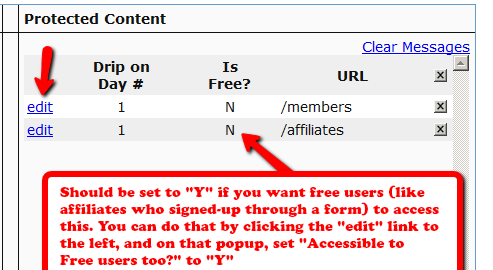
b) You have not even made the affiliate-info page protected under the “Affiliate” product
4) Double Credit of Affiliate Commissions for the same purchase
This is not really a double-credit for the same purchase, even though it appears to be so.
Sometimes you may enter a manual transaction for a purchase around the same time that DAP is processing an automated transaction for that purchase.
That means, there are now two transactions in DAP for the same purchase – one manual, and one automated – which can cause problems in accounting.
That’s usually how you end up crediting double commissions to the affiliate who referred the user, because all affiliate commissions are calculated from sales, and if you have two separate transactions for the same purchase, then the affiliate will get credited twice for the same referral.
So if you see two credits for the affiliate, you must first note that it is not for the same transaction, but for different transactions (note the different Trans Id‘s) on the Affiliates > Reports page.
So be careful when you’re entering Manual transactions. Those are meant only for when there is no way to automate the recording of a purchase (because they paid offline) and you’re unable to bring the transaction into DAP automatically.
If you see two affiliate commission credits (one for the automated transaction that DAP picked up, and one for the Manual transaction that you entered), then just refund the manual transaction in DAP. There will probably be a change to the user’s access because of the refund. So make a note of the current access of the user BEFORE you do the refund, and then AFTER you’ve processed the refund, go back to the User’s details on the Users > Manage page, and manually adjust their access to make sure it’s accurate.
12
Last Cookie
Last Cookie Before Initial Signup Wins
DAP uses “Last Cookie” to award commissions.
So if someone (who has never purchased anything from you before) clicks on the affiliate link of Jack, and then a few hours (or days) later, clicks on the affiliate link of Jill, and then goes on to purchase your product, then DAP awards the commission to Jill, whose affiliate link was the one clicked most recently.
So, in general, to protect your affiliates, you shouldn’t be promoting your site generally on the web using your own affiliate link (as DAP admin). That way, you never compete with them for commissions on your own site.
However, using your own affiliate link works great, say, when you’re marketing in specific markets, like say on Adwords. Even though Adwords allows you to set up and track goals, using a special affiliate can help you figure out exactly how much revenue you have earned through this affiliate.
So, for Adwords marketing, you could create a new user called “Adwords Affiliate” and then use this user’s affiliate link as your landing page URL. Of course, you could also customize this affiliate’s link to land on any page of your web site (or any site for that matter) by adding the text “&p=yoursite.com/anypage.html” to the end of your standard affiliate link, like this…
http://YourSite.com/dap/a/?a=1234&p=yoursite.com/googleoffer1.html
LifeTime Affiliates: Cookie Not Relevant
Once a member has signed up and is attached to an affiliate, then it’s that same affiliate who will get lifetime commissions for all purchases made by that member, for life. Once an affiliate is assigned to a user, it cannot change again for life. So after someone has become a member and is credited to an affiliate, it does not matter what cookie they have on their computer when they make a purchase – the credit will always go to original affiliate that they’re already attached to.
50
DAP’s Incredibly Powerful Affiliate Program
DAP offers you a built-in Affiliate Program for your web site, where all your Members can automatically and instantly be enrolled as Affiliates.
And here are a few, rare and powerful features in DAP, that you won’t find in most other affiliate providers:
1) Instant Affiliates
This means that as soon as a buyer purchases any product, or even signs up for a free product, they can get an instant affiliate link that they can immediately start using to promote your membership site.
In fact, you can even send them their own unique affiliate link right in their welcome email itself, the same email where you send them their login info! So even before they’ve logged in to your site to download or view the content that they’ve just purchased, they’re already and affiliate and can start promoting your site to others, and earn back their investment even before they’ve reached your refund period.
2) Global Affiliate Link
There’s just one “core” (default) affiliate link that your affiliates can use to promote your web site, and regardless of which product the referral ends up buying, your affiliate gets paid on all of those purchased products.
So it’s like an Amazon affiliate link. One global link that gets you paid on any resulting purchases. So your specific affiliate link could be promoting a book, electronic gadget, shoe or clothing. And once your referral gets to Amazon.com after clicking your affiliate link, even if they don’t purchase that specific product that you just them to, and go on to purchase ANY other product from the entire Amazon.com catalog (which are commission-eligible, of course), then you’ll make commissions on any resulting sale. That’s exactly how the DAP affiliate program works too. Just one default affiliate link. Affiliate can redirect visitor to any landing page (see details below), and affiliate gets paid for any resulting sales.
3) Affiliate Link Redirection
Let’s say you were an Affiliate of Amazon.com. Now imagine if Amazon gave you just one, static affiliate link to promote ALL of their products across their ENTIRE web site. That is, one standard affiliate link to promote millions of products, and anyone who clicked on that standard link would always land at Amazon’s home page, no matter what – and that there was no way to direct affiliate traffic directly to any of the actual product pages.
Imagine if you saw a link on our blog that read “Click here to check out the amazing Bamboo Fun tablet” and the link, instead of taking you directly to the product page of the Bamboo fun, took you to Amazon’s home page? How incredibly annoying would that be for the visitor to always be taken to Amazon’s home page no matter what product someone were recommending? Think Amazon would be the e-commerce juggernaut it is today without that implementing that simple feature?
But Amazon lets you link directly to the product pages of the product you are referring to (or recommending, or promoting).
Like….
“Check out the amazing Bamboo Fun tablet” (links directly to product page)
“Check out my best-selling book ‘No Business Like E-Business’ on Amazon” (links directly to the book page)
We are amazed that so many affiliate software providers do not offer this simple, basic feature. And that is the ability to set the affiliate cookie, and then redirect the referred visitor to any page on any web site the affiliate wants the visitor to land on.
So when you use DAP, your affiliates are not forced to always send traffic to your home page. They can redirect the visitor (who just clicked on their affiliate link) to any part of your web site. In fact, they can redirect the visitor to any web page on any web site anywhere online! So they could be sending traffic to one of your free videos, one of your blog posts, or even to one of your articles published on someone else’s web site!
3) Multi-Tier Affiliate Program
DAP allows you to offer multiple tiers of commissions, not just one. So you can create an incredible revenue stream for your affiliates, where they get paid on the sales generated by their 1st level referrals. Which means more incentive for them to join and promote your affiliate program!
4) Paying A Per-Lead Commission To Your ClickBank Affiliates
You already know that DAP supports ClickBank purchases, and you can turn off the display of your affiliate section if you are using ClickBank’s own affiliate program, instead of DAP.
But wait – that does not mean that you can’t use the two affiliate programs IN TANDEM to pull of something really crazy – like awarding your ClickBank affiliates with a commission just for sending you a lead – meaning, the lead just signs up for your “free” newsletter – and of course, if they go on to purchase something from your web site (assuming you are selling through ClickBank), then they get the usual CB commissions.
So here’s how it works:
- Every member on your DAP-powered site gets their own affiliate link that looks like:
http://YourSite.com/dap/a/?a=1234 - And their CB affiliate link for your product would look like
http://affnick.merchantnick.hop.clickbank.net - Now DAP’s affiliate link has the capability of redirecting to any page on your site (or any page on any web site) by adding the destination URL to the affiliate link.
- So, now your affiliate adds their CB affiliate link to the END of their DAP affiliate link, like this:
http://YourSite.com/dap/a/?a=1234&p=http://affnick.merchantnick.hop.clickbank.net - So when someone clicks on this above link that your affiliate is promoting, then two things happen:
a) The DAP affiliate cookie is set
b) The CB cookie is also set - So within DAP, you can set up just a Per-Lead Affiliate Commission for your Product (which is say, a free newsletter or a free PDF, or whatever)
- So when the referred user signs up at your membership site, they first get paid the Per-Lead Commission
- If they then go on to purchase other products from your web site (which obviously you’re selling through ClickBank, otherwise, this whole section is of no meaning to you), then they get the Per-Sale commission from ClickBank too!
So that sums up some of the best features that are part of DAP.
Other Built-In Affiliate Features
Of course, there’s still all the other cool affiliate features in DAP, like…
- Commission Override: Give special treatment to your Top Affiliates and JV partners by giving them higher commissions than the rest of your affiliates.
- Pay affiliates both one-time or monthly recurring commissions for the life of the subscriber.
- Pay-Per-Lead and Pay-Per-Sale
- Ready-made Affiliate Links Displayed for Users
- Ready-made Affiliate Toolbox for your affiliates
- Affiliate-Analytics:
* Real-time Earnings Reporting
* Real-time Payment Report
* Real-time Traffic Stats for both Affiliates and Admin (with referers) - Paypal Mass-Pay Ready: You get a Paypal Mass-Pay ready, fully formatted affiliate list with all commissions listed.
- Offline Payments: Export Affiliates for payment, pay them using any offline means (eg., checks), and then once the checks have been mailed, you can mark them all as “Paid”.
- Process Refund for Affiliates: When you process a refund, DAP will also reverse the affiliate commission. It will not reverse the Pay-per-lead amounts. Only the Pay-per-sale amount is negated.
So these are the features available to right out-of-the-box, just waiting for you to start signing up an army of affiliates from day 1!
For more information about the Affiliate Module, check out our documentation page at http://DigitalAccessPass.com/documentation/ and see the