
Customizing User Profile Fields
The old shortcode for displaying the user profile on a page, was %%USERLINKS%% which just displayed the entire user profile with all fields, without the ability to customize which fields to show.
That one is still valid. But starting DAP v4.4.3, we have a new shortcode to display userprofile.
[DAPUserProfile]
Allows you to selectively display profile fields on a page. Entering just the shortcode [DAPUserProfile] within a WP page, will show the default user profile form with all default fields being displayed.
So entering just [DAPUserProfile] on a pagem is the same as entering the full version below:
[DAPUserProfile showFirstName=”Y” showLastName=”Y” showUserName=”Y” showEmail=”Y” showPassword=”Y” showAddress1=”Y” showAddress2=”Y” showCity=”Y” showState=”Y” showZip=”Y” showCountry=”Y” showPhone=”Y” showFax=”Y” showCompany=”Y” showTitle=”Y” showPaypalEmail=”Y” showOptedOut=”Y” showCustomFields=”Y”]Not Show Certain Fields
Just set the profile field that you don’t want shown to “N” in the shortcode.
Default is “Y”. So Leaving out the text showLastName=”Y” entirely from the shortcode, is the same as setting it “Y”, which means it will be displayed.
To NOT SHOW Phone and Fax
[DAPUserProfile showPhone=”N” showFax=”N”]So all other fields will be displayed, except those two.
To SHOW just First Name, Last Name and Email
[DAPUserProfile showFirstName=”Y” showLastName=”Y” showUserName=”N” showEmail=”Y” showPassword=”N” showAddress1=”N” showAddress2=”N” showCity=”N” showState=”N” showZip=”N” showCountry=”N” showPhone=”N” showFax=”N” showCompany=”N” showTitle=”N” showPaypalEmail=”N” showOptedOut=”N” showCustomFields=”N”]To SHOW just Password field
[DAPUserProfile showFirstName=”N” showLastName=”N” showUserName=”N” showEmail=”N” showPassword=”Y” showAddress1=”N” showAddress2=”N” showCity=”N” showState=”N” showZip=”N” showCountry=”N” showPhone=”N” showFax=”N” showCompany=”N” showTitle=”N” showPaypalEmail=”N” showOptedOut=”N” showCustomFields=”N”](both main password field and repeat password will always be displayed together)
Modifying Link Text For Content
When you protect a page, post or file URL in DAP on the “ContentResponder” tab, every protected link – and eligible (for display, based on dripping) link will show up on the “My Content” page.
If you wish to modify the “Link Text” (the actual text that is displayed when the user sees the link), then…
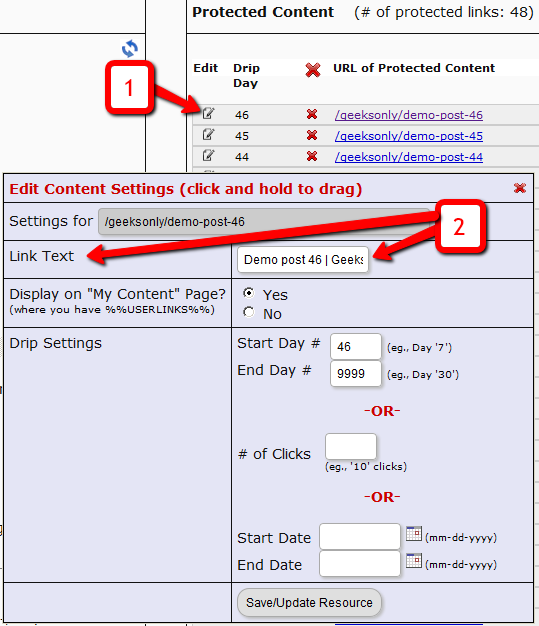
1) Click on the “Edit” icon next to any protected link under the “Protected Content” section, and that will bring up the “Drip Settings” popup.
2) In that popup, you can customize the “Link Text” field with any text you want.
5
Gmail Integration With DAP
WARNING: Gmail integration may not work for everyone. Many factors – including, but not limited to, your physical location, the location associated with your Gmail account, location of server, IP address, etc – appear to play a role in whether or not this will work for you with your Gmail account. So please note, that if it doesn’t work for you, then there isn’t anything the DAP team can do to overcome or “fix” that. It’s Google, after all. We don’t know what rules and monitoring they have in place for this. So, if Gmail integration doesn’t work for you, then you may want to consider Amazon SES integration, which has a 100% success rate with DAP users at this time.
To increase deliverability of your autoresponder, broadcast and instant emails (like “Welcome” email), you can make DAP completely by-pass your web host’s email server, and send emails out through third-party email servers, like Gmail or Amazon SES. This article is about setting up DAP to send out emails through Gmail’s email servers.
Sending Email Through Google’s Gmail Servers
Before you start sending out mass emails through Google’s Gmail Servers, please note this…
Sending out emails through Gmail instead of your web host, will surely boost your deliverability, no doubt. But remember that Gmail is NOT meant to use for mass emails. It is not really meant to be used as a list service. Plus they have a very strict restriction of 500 emails per 24-hour period.
You exceed that quota even by one, and they probably will temporarily disable your Gmail account for about 24 hours. Sending a large number of un-deliverable emails (resulting in bounces) could also get your entire Gmail account permanently suspended. And if you lose your Google username, it may (no confirmation available) affect your other Google accounts too – like AdWords or AdSense.
Anyway, DAP has a round-robin emailing system – so you could set up and use multiple Gmail accounts – each with its own 500 email limit per day – and combine them to send out a larger broadcast. However, remember – we’re talking about Google here – which means they can suspend/cancel/delete your account for any reason at all, even more so when you’re going against their TOS.
So use Gmail with caution, and only for smaller lists. If you want a larger sending email limit, check out the DAP integration with Amazon SES which allows you to send out tens of thousands of emails a day.
- Log in to your DAP Admin Panel, and go to DAP Admin > Email > SMTP.
- On this screen, use the section Add a New SMTP Serverto create a new SMTP row as follows:Description: Gmail (can be anything really)
Server: tls://smtp.gmail.com (must be exactly that)
Port: 465 (must be exactly that)
SSL: N (must be exactly that)
User Id: youremail@gmail.com (your gmail email id)
Password: yourpassword (your gmail password)
Email Sending Limit Per Hour: 500 (don’t go more – less is ok) - Click on the Add button to create and save the new Gmail SMTP server setting.
- Once it is saved, now you will see 2 rows on the screen: One for “Localhost”, and the other is the new “Gmail”.
- Towards the end of each row, you’ll see a setting called “Activated?”. Set it to “N” for Localhost and “Y” for Gmail.
- That will now make all of your outgoing emails (listed below) go out only through Gmail, totally bypassing your web host’s email server. Which means, your email deliverability will go up substantially.
- List of outgoing emails for which your Gmail account will be used, include:
– Real-time Welcome Emails
– Third-party Notification Emails (to Admin, other third-parties, Aweber, etc)
– All notification and transactional emails to DAP Admin – like payment receipt, new user signup, error notifications, user unsubscription notifications, etc
– All autoresponder and broadcast emails
– etc…
2
Customizing Logout Button
If you wish to change the default “Logout” button that shows up in the Login/Logout sidebar widget, then here’s what you need to do…
Rename the file
wp-content/plugin/DAP-WP-LiveLinks/DAP-WP-LogoutHTML.html
To…
wp-content/plugin/DAP-WP-LiveLinks/customDAP-WP-LogoutHTML.html
Open this new file customDAP-WP-LogoutHTML.html and inside you’ll see just this one line…
<input type=’button’ name=’dap-logout-button’ value=’Log Out’ onClick=”javascript:location.href=’/dap/logout.php’;” style=”margin-top:5px” />
Change that to…
<input type=’image’ src=”/path/to/button/image.jpg” name=’dap-logout-button’ value=’Log Out’ onClick=”javascript:location.href=’/dap/logout.php’;” style=”margin-top:5px” />
5
Customizing vBulletin Login For Single-Signon
Here’s what you need to do to disable the standard vB login form at the top-right corner of your forum pages, and customize it so that you force your members to log in via the DAP login form, so that they’re logged in to your membership site as well as DAP.
- Log in to VB Admin control panel at http://yoursite.com/forums/admincp/
- Go to Styles & Templates > Style Manager > Default (or whatever style you’re currently using)
- From the big list on the left, select the “header” template. Then on the right, under the “Controls” section, click on Edit
- On the resulting page, copy the full code from this text file and paste into the main “Template” body, and click on “Save”
- Next, download the file forums/register.php from your server, to your desktop and save the original copy somewhere safe.
- Replace the contents of that file with the contents of this text file.
That’s it!
15
Creating Member-specific Content
If you have a coaching program, or have clients for whom you’re doing custom work (like if you were a teacher, CPA, web designer, personal trainer or coach) and wish to publish content that is available to and downloadable by only that specific client/student/customer, then there are THREE ways in which you can do Member-Specific Content in DAP.
1) BEST SOLUTION: Using a combination of a special page for each member PLUS DAP’s “For Your Eyes Only” Shortcode
2) Creating Separate Products for each Member
3) Using DAP’s “For Your Eyes Only” Shortcode
Let’s take a look at each one in detail.
SOLUTION #1: BEST OPTION: Special page for each member PLUS DAP’s “For Your Eyes Only” Shortcode
This is partly manual, partly automated, but is the absolute best solution for multiple reasons, as explained below.
1) For each new member, you would create a separate page. So, for Joe Customer, you would create a new page in WP – http://YourSite.com/joe-customer/
This page would be created after someone has become a member, of course. But creating a WP page for every member will probably take you about what, 30 seconds? So it’s not going to be a big deal (unless you wish to make it one 😉
2) Then, assuming Joe Customer’s “userid” in DAP is 144 (you can find this out on the Users > Manage page). So within the above new page, you would add the following shortcode…
[DAP userId=”144″]protected content[/DAP]
(See DAP’s “Member-Specific Content” Shortcodes )
3) You can start adding any amount of private content between the shortcode start and end tags (where you see protected content above).
4) You can use a simple, free plugin like Exclude Pages to make sure the customer’s page http://YourSite.com/joe-customer/ does not show up in any of your menu’s. Even if it did, it’s not like anyone else can see the contents of the page – only Joe Customer – after he’s logged in to DAP – can see the contents of the page. So it’s secure from everyone else.
Solution #2: Separate Products for each Member
Here, you would create separate products, one per member – and only give that member access to that product. The advantage here, is that you can protect the entire page (not just the content section) and make it available just to that one client, so you can be a lot more creative with this page, use special templates, add sidebar widgets that show content just for that client, use the commenting system to communicate back and forth with the client.
So if you had a client named John Customer, then you would create a DAP Product by name “John Customer”, then take John’s email id and give John access to his product.
And within this DAP Product, you would’ve protected files, pages and posts that only John should get access to. So since only John has access to the product, only he can get access to the content protected as part of this product.
Obviously, it takes a few minutes of additional setup per customer to create a DAP Product specifically for him, but then the few extra minutes of creating a DAP Product would be nothing compared to the few hours (or tens of hours) that you’re actually going to be taking to create the actual custom content for John. So it’s a very small overhead compared to the whole process, where you are actually creating custom content for each member.
Solution #3: No special pages, just DAP’s “Member-Specific Content” Shortcode
If you wish to automated this a bit more than Option #2, then one way is to implement this is using DAP’s “Member-Specific Content” Shortcodes, which look like this:
Using the “userId” parameter in the DAP shortcode, you can now protect a piece of content so that only John Customer (who has the user id “144” in your membership site) user can see it.
[DAP userId=”144″]protected content[/DAP]
So on a single page, you may publish a number of these shortcodes, with content meant only for specific members protected within those shortcodes.
And doesn’t matter which one of your members visits the above page, they will all only see content intended only for them, and will be unable to see content intended for others.
So those are the three ways in which you can create Member-Specific Content.
Member-specific Chat Room
Using our WPChatR Chatroom plugin for WordPress, you can also create a separate page per user, then put a chat room on that page specific to that user, so you can have unlimited back-and-forth real-time or off-line chats with one specific member.
4
The “Smart Login” Process
DAP has a very powerful, flexible and easy-to-use log in flow for your users and members.
- Log in from a dedicated log in page, or
- Log in from the login form on the side-bar (login/logout widget), or
- Log in through the log in form shown on “Sorry, you don’t have access to this content. Please log in first…” kind of error messages.
And we call it the Smart Login, because the login process will work differently under different conditions, all designed to make the user-experience for your member more smooth and consistent with general login standards around the web.
So let’s see the various possible login locations in DAP.
But first, it is important to note that DAP has two main types of logins.
Primary Login
This is where it is considered a “generic” login by your member. For eg., a member came to your web site, and then just generally wants to log in to the member’s area – so they have no “context” – it’s NOT as if they were trying to view a specific page or post, got challenged with a login form, and then logged-in from there. That makes this a “Primary Login“.
Examples of this are…
a) Dedicated Login Page: You have a dedicated login page, like http://YourSite.com/login/ – which is what you’ve entered in to “Setup > Config > Login URL“. The body of this page has the DAP merge tag for the login form, which is %%LOGIN_FORM%%
b) Login/Logout Widget on any page of your web site. This is also considered a primary login. The reasoning here is that if they’re logging in through a sidebar widget, it means that they just want to log in to the member’s area, so it is considered primary login.
Secondary Login
This is a login action that HAS “context”. Say, a member landed deep into your site (not the home page, not the dedicated login page) and were challenged by the “In Page Error Message” that says something like “Sorry, you must log in before you can view this content” and are presented with a login form right on that very same page. They were trying to read something before they were asked to log in first – which means, they must be returned to the same page they were trying to view BEFORE they were asked to login. So that makes this a “Secondary Login“.
Examples of this are…
a) Any custom “Error Page”, where you have inserted the DAP merge tag for the login form, %%LOGIN_FORM%%.
b) DAP’s “In-Page Error Message” which says “Sorry, this is private content – you must log in first before you can view this”.
c) Log in form showing up on a page when “Sneak-Peek” is enabled.
Redirection Rules
Based on whether it’s a Primary Login or a Secondary Login, your member will be redirected to a different location.
1) If it is a Primary Login action, then…
a) They’re taken to the “Post-Login URL” if set at a Product-level AND they have access to just one Product.
b) They’re taken to the GLOBAL “Post Login URL” (under Setup > Config) if you have NOT set anything at a Product-level, OR if they have access to more than one Product.
This scenario is the only one where the Post-Login URL is ever used (whether it’s the Product-level or Global-level).
1) If it is a Secondary Login action, then…
They’re always redirected back to the same page they were on (or were trying to access) before they were challenged to log in first to view the content.
Bottom-line:
Primary Login is predictable, and you (the DAP Admin) control where they go right after they login.
Secondary Login depends on “context”, and they’re taken back to whatever page they were on, before they logged in.
Troubleshooting Weird-Looking Text
Problem
I just upgraded to DAP 4.x. The login page when clicked after successful login shows the message
[MSG_ALREADY_LOGGEDIN_1 MSG_ALREADY_LOGGEDIN_2]
Solution
Did you previously customize the dap/inc/language/english.php and save it as dap/inc/language/custom.php? (you have done this for internationalization, or for customizing DAP’s messages).
A) If you answered “NO”, then simply delete the file dap/inc/language/custom.php from your server.
B) If you answered “YES”, then then there are new messages in dap/inc/language/english.php that you need to copy over to dap/inc/language/custom.php
5
Secure RSS Feeds
Once you protect a post in DAP, you can …
a) Make it completely disappear from your feed except for authorized users who have valid access to the post and are using a member-specific RSS feed URL
-OR-
b) You can show a “Summary” of every post, by turning on sneak-peek and making sure you have inserted the “<!–more–>” tag entered into each of your posts.
Troubleshooting RSS Feeds
If your blog post is showing in its entirety in your feed, then….
1) You may not have protected the post in DAP at all, so it’s an unprotected post, which will (and should) show up in your feed
-OR-
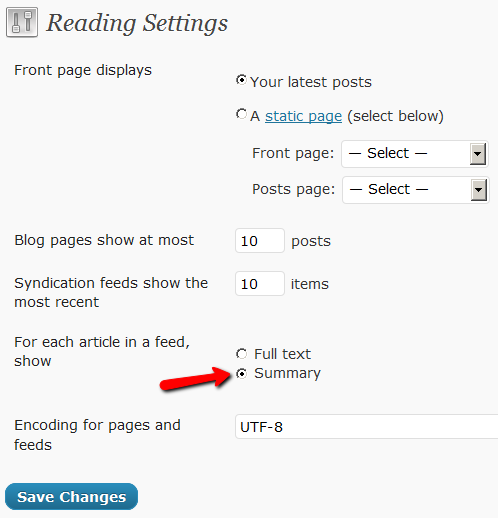
2) You have turned on Sneak-Peek and haven’t inserted the WordPress “more” tag (<!–more–>) into each of your posts. If you turn on Sneak-peek, then you must insert more tags into all posts. Also, if you have turned on Sneak-Peek, then you must also do this…
Go to “Settings > Reading” in WP admin, then set “For each article in a feed, show” to “Summary“.
If it is set to “Full text”, then it will show the full text in the feed, which is not what you want.
Custom RSS Feed Links For Members
Starting DAP v4.2, each of your members can now get their own unique RSS feed link that they can use with a feed reader (like Google Reader, FeedBlitz, iTunes, etc) to get a custom RSS feed with content that they’re eligible to view.
To give each of your members their own unique RSS Feed URL, just insert the following line of code into the top of the “Member Links” or “My Content” type page, or wherever you want your users to see their personalized RSS feed link…
If your blog is in the root…
http://YourSite.com/feed/?key=%%ACTIVATION_KEY%%
If your blog is in a sub-folder (say “/blog”)…
http://YourSite.com/blog/feed/?key=%%ACTIVATION_KEY%%
The text %%ACTIVATION_KEY%% in the above URL will be replaced with their own custom key, like…
http://YourSite.comcom/feed/?key=123456789
They can then copy that link, enter that into any feed reader, and it will show content specific to their account.
Custom Feed Link Security
Another useful feature we’ve added, is that the custom feed link also does IP count validation. So if they share the feed link with others, then after “X” unique IP login attempts (where “X” is configurable by you, the DAP Admin, in Setup > Config), their account will automatically get locked out.
43
Displaying Custom Fields On Your Site
Using Custom Fields In DAP Emails
Custom Fields
1) Support for Admin-Defined Custom Fields in DAP
In DAP 4.2, we have added the support for admin defined custom-fields. You can define your own custom fields in DAP admin panel, accept/store the custom fields via DAP Free Signup/Registration form and it can be viewed/managed in the DAP admin panel.
We have also added the ability to allow the admins to refer to the custom field values via merge tags within DAP email messages (auto-responder/broadcast).
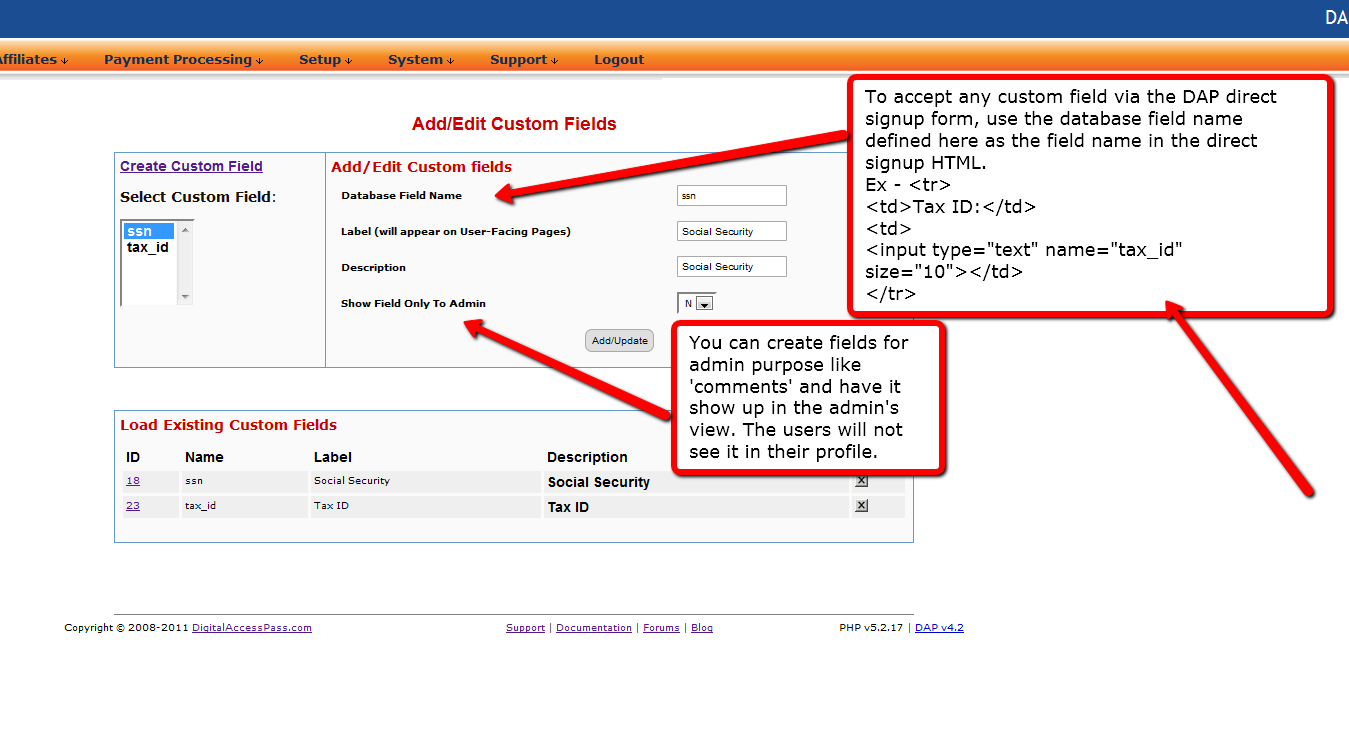
Here’s a screenshot of the DAP admin panel => Users => Custom Fields page.
(Click to enlarge)
Here’s the steps to define your own ‘custom’ field in DAP admin panel => Users => Custom Fields page.
Step 1: Database Field Name
Define the fieldname. DAP will use the name defined here to manage this field. The database field name is also used within the dap direct signup form/html so when the user’s enter a value for the field during sign-up, DAP will store it in the right database field.
If you want to accept any custom field via the DAP direct signup form, then use the database field name defined here as the field name in the direct signup HTML code generated from DAP products page.
Ex –
<tr>
<td>Tax ID:</td>
<td>
<input type=”text” name=”custom_tax” size=”10″></td>
</tr>
<tr>
Step 2: Label (will appear on User-Facing Pages)
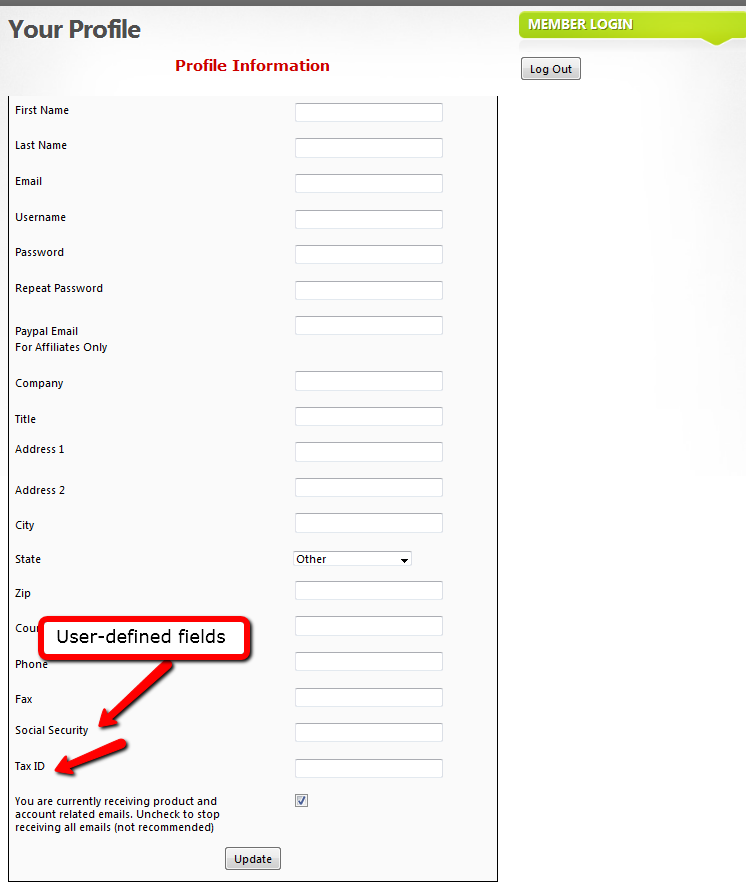
The Label will appear on the user’s profile page. The database field name is only for internal use… the label is what the user’s will see.
Screenshot of user profile page with sample custom fields – Social Security and Tax ID.
Here the label names are Social Security and Tax ID.
(Click to enlarge)
Step 3: Description
Just for Admin User to describe the custom fields. Not displayed to the user.
Step 4: Show Field Only To Admin
NOTE: If you want the users to see and update the custom field, set ‘Show Field Only To Admin’ to ‘N’.
If this is set to “Y”, then only admin will see this field in the DAP admin -> manage users page (when you click on the user’s name).
2) Using Custom Fields in Signup Form
Say you want to include a field called “Tax Id” in your Free Signup Form that you generated in DAP Products page.
So first define a custom field with the database field name tax_id in the Custom Fields page in DAP Admin (as shown above).
Here’s the default free signup form code generated from dap products page (if your form code looks different, see the last section at the end of this post).
<div id=”stylized” class=”dap_direct_signup_form”>
<form id=”dap_direct_signup” name=”dap_direct_signup” method=”post” action=”http://techizens.com/dap/signup_submit.php”>
<label>First Name</label>
<input type=”text” name=”first_name” id=”first_name” />
<label>Email</label>
<input type=”text” name=”email” id=”email” />
<button type=”submit”>Sign Up</button>
<input type=”hidden” name=”productId” value=”1″ />
<input type=”hidden” name=”redirect” value=”http://yoursite.com/login/?msg=SUCCESS_CREATION” />
</form>
</div>
Just add this to the signup form code:
<label>Tax Id</label>
<input type=”text” name=”custom_tax_id” id=”custom_tax_id” />
So basically, you add the word ‘custom_‘ in front of the custom field’s database field name. So if the database field name is “tax_id“, then in the form, it becomes custom_tax_id (as you see above)
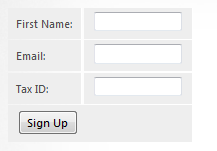
So your final free signup form will look like this:
<div id=”stylized” class=”dap_direct_signup_form”>
<form id=”dap_direct_signup” name=”dap_direct_signup” method=”post” action=”http://techizens.com/dap/signup_submit.php”>
<label>First Name</label>
<input type=”text” name=”first_name” id=”first_name” />
<label>Email</label>
<input type=”text” name=”email” id=”email” />
<label>Tax Id</label>
<input type=”text” name=”custom_tax_id” id=”custom_tax_id” />
<button type=”submit”>Sign Up</button>
<input type=”hidden” name=”productId” value=”1″ />
<input type=”hidden” name=”redirect” value=”http://yoursite.com/login/?msg=SUCCESS_CREATION” />
</form>
</div>
That’s it.
Put the signup form code on your WP page/post/sidebar, and the form is displayed like this…
You can do the same for each custom field you want to accept in the dap free signup form:
1) Create the custom field in DAP Admin -> Users -> Custom Fields Page
2) Add the field to the free signup form as shown in the example above for tax_id.
Displaying Custom Fields On Your Site
You can display the value of the user’s own custom fields on your pages, using the merge tag like this:
%%DAPCUSTOMFIELD_tax_id%%
Using Custom Fields In DAP Emails
You can send custom field values in the DAP emails by using merge tags like this – %%custom_tax_id%%
Add ‘custom_’ in front of the custom field’s database field name.
So if you have defined a custom field called tax_id in your database, to include this field in the autoresponder/broadcast email, just add this – %%custom_tax_id%% to the body of your email.
That’s it. When the user receives the email, dap will automatically replace the merge tag with the user’s tax id value.
So if your email message body contains the following text:
Your Tax Id: %%custom_tax_id%%
When the user receives the message, it will look like this (in this example, the user’s taxId = 9999):
Your Tax Id: 9999
If you are using an older version of DAP < 4.4.3, then see the section below.
Older versions of DAP < 4.4.3
Your default code will look like this…
<form name=”dap_direct_signup” method=”post” action=”http://contentresponder.com/dap/signup_submit.php”>
<table>
<tr> <td>First Name: </td> <td><input type=”text” name=”first_name” size=”10″></td></tr>
<tr> <td>Email:</td> <td><input type=”text” name=”email” size=”10″></td></tr>
<tr> <td colspan=”2″><input type=”submit” name=”Submit” value=”Sign Up”></td></tr>
</table>
<input type=”hidden” name=”productId” value=”1″><input type=”hidden” name=”redirect” value=”/blog/login?msg=SUCCESS_CREATION”>
</form>
Add this to your code
<tr>
<td>Tax ID:</td>
<td>
<input type=”text” name=”custom_tax_id” size=”10″></td>
</tr>
<tr>
Final version looks like this
<form name=”dap_direct_signup” method=”post” action=”http://contentresponder.com/dap/signup_submit.php”>
<table>
<tr> <td>First Name: </td> <td><input type=”text” name=”first_name” size=”10″></td></tr>
<tr> <td>Email:</td> <td><input type=”text” name=”email” size=”10″></td></tr>
<tr> <td>Tax ID:</td> <td><input type=”text” name=”tax_id” size=”10″></td></tr>
<tr> <td colspan=”2″><input type=”submit” name=”Submit” value=”Sign Up”></td></tr>
</table>
<input type=”hidden” name=”productId” value=”1″><input type=”hidden” name=”redirect” value=”http://yoursite.com/login/?msg=SUCCESS_CREATION”>
</form>
you defined a custom field with the database field name = tax_id in the dap custom fields page)