
13
DAP Login Xpress
What Is “Login Xpress”?
“Login Xpress” is a DAP feature that enables your members to be logged right into your membership site immediately upon completion of their purchase.
This is roughly how it works:
- Visitor arrives at your web site
- On your sales page, they click on any “Buy” button to purchase a Product (or Membership Level)
- They’re taken to the checkout page (depending on Payment processor being used) and they enter their payment information and hit “Submit”
- When they hit “Submit” to complete their payment, their payment is processed right away, and the buyer is immediately transferred back to your web site, in real time, and automatically logged in to your membership site, and they are taken to the “Welcome” page or “Members” page (you may choose what this page is going to be at a per-Product level)
Payment Processors That Work With Login Xpress
DAP supports this feature with the following payment processors:
- Paypal Standard (DAP-generated buttons only – will not work with Paypal-hosted buy buttons that you generate from within your Paypal account)
- 1Shoppingcart / 1SiteAutomation.com
- Authorize.net
If you use any of the payment options above, then you can set up your sales funnel in such a way that buyers are logged in right away immediately after purchase.
Payment Processors That DO NOT Work With Login Xpress (Yet)
- Paypal Website Payments Pro
- ClickBank
- e-Junkie
- WorldPay
DAP integrates with the above processors via some kind of “back-end payment notification” – similar to Paypal’s “IPN” (Instant Payment Notification). Which means the notification between the payment processor and DAP on your site only happens on the “back-end”. Which is why DAP can only deliver the login details to the buyer via an email, and cannot log them in right away (like it can do with “Login Xpress”), because the buyer’s information is available to DAP only when the payment processor sends out the IPN notification behind-the-scenes, so to speak.
So if you’re using the above processors to accept online payments, then what you need to do, is to redirect your buyers to a static “Thank You” page that has a message similar to the one below…
“Thank you for your purchase. In a few minutes, please check your email address used during purchase for your log in details to log in to the members’ area and access the product you just purchased.”
And behind the scenes, DAP would’ve already received the payment notification from the payment processor, and it would’ve created an account for your buyer, given them access to the purchased product, and sent them the “Thank-you Email” for the product(s).
4
Troubleshooting 1-Click Upsells
1) Problem: Getting an error that looks like this after purchase – using 1-Click Upsells.
Warning: file_get_contents(/home/mysite/dap/upsell1.html) [function.file-get-contents]: failed to open stream: No such file or directory in /home/mysite/dap/continue.php(1) : eval()'d code on line 20
Solution: Create missing file.
Every buy button generated by DAP for Auth.net or Paypal Payments Pro, will look something like this…
<form name=”generate_authnet” method=”post” action=”https://www.DigitalAccessPass.com/dap/buy.php”>
<input type=”hidden” name=”item_name” value=”DAP Upsell Tree – Auth.net (T)”/>
<input type=”hidden” name=”description” value=”DAP Upsell Tree For Authorize.net” />
<input type=”hidden” name=”amount” value=”97.00″ />
<input type=”hidden” name=”trial_amount” value=”0.01″ />
<input type=”hidden” name=”total_occurrences” value=”1″ />
<input type=”hidden” name=”is_recurring” value=”Y” />
<input type=”hidden” name=”recurring_cycle_1″ value=”365″ />
<input type=”hidden” name=”recurring_cycle_2″ value=”365″ />
<input type=”hidden” name=”recurring_cycle_3″ value=”365″ />
<input type=”hidden” name=”payment_succ_page” value=”https://www.YourSite.com/dap/continue.php?url=/dap/upsell1.html” />
<input type=”hidden” name=”payment_gateway” value=”authnet” />
<input type=”hidden” name=”is_submitted” value=”Y” />
<input type=”submit” value=”Buy Now” />
</form>
If you see the line in bold above, you will see the field…
payment_succ_page
… pointing to the first upsell…
https://www.YourSite.com/dap/continue.php?url=/dap/upsell1.html
What this essentially means, is that once the payment for the front end order is complete, you want the contents of the page /dap/upsell.html to be presented as the first upsell.
So…
a) Either create an HTML page called upsell1.html in the dap folder.
b) Or change the name of the file in the buy-button form code above, to be whatever your actual file name is.
c) Or if you don’t wish to do any upsells, then put the URL of your final thank you page in that field’s value.
2) Question: How do I use my own button with the shopping cart script?
Look for this in the DAP generated button code:
input type=”submit” value=”Buy Now”
Replace it with your own image :
For example –
input type=”image” src=”/images/btn-order.png” value=”Buy Now”
If images folder is at the root of your site, set src = /images/btn-order.png. If it’s under dap folder, the src tag should be set to “/dap/images/btn-order.png”.
3
DAP-Generated Paypal Button – FAQ/Troubleshooting
NOTE: If you wish to set up your Paypal IPN URL to be broadcast to multiple sites, you may also consider our IPN Redirect plugin from WickedCoolPlugins.com
_____________________________________________
Question 1A: How can I share one Paypal account with multiple DAP and non-DAP sites?
-OR-
Question 1B: If I use “DAP” generated buy-buttons, and I have to set up the “auto-return URL” in Paypal, which is limited to just one URL. How can I use that if I’m selling from multiple web sites and using the same Paypal account?
Answer: You can share same Paypal account between multiple DAP and other non-DAP sites if you use DAP-generated Paypal buttons or Paypal-hosted buttons or a combination of both.
If you use DAP generated Paypal buttons:
DAP sends button-level return value to Paypal. By default, DAP sets the button level return to point to a DAP script on the site where you generated the button ( http://yoursite.com/dap/dap-thankyou.php ). Upon payment, the users are returned to that dap-thankyou.php. And then the dap-thankyou.php script creates the membership account , auto-logs in users to their membership area and redirects users upon login to whatever you have in DAP product-level or DAP global-level login redirect. So the users automatically land at the ‘DAP product-level or DAP global-level login redirect‘ upon successful payment.
If you want the users to be redirected to a different URL upon login, then you can add a redirect tag to dap generated button code:
<input type=”hidden” name=”redirect” value=”http://yoursite.com/thankyou” />
The auto-return needs to be set and pointed to some URL – any URL – otherwise Paypal will not be able to automatically return users back to your website upon payment for non-paypal hosted buttons. DAP does not care what you set it to – but if you do set it, then make sure that all the Paypal buttons you use (DAP-generated or Paypal-hosted) have their own auto-return value.
If you use a DAP-generated Paypal button, you do not have to worry about the auto-return URL, because DAP will set it and send it to Paypal at a button level. But if you use Paypal-hosted buttons, then make sure you set the button level ‘return’ value.
If you do not set the button level return value, then the Paypal profile -> global level auto-return will get used. So if your global auto-return (under Paypal -> Profile -> Website Payment Preferences) is set to some URL on Site B and say you use a Paypal button to sell something on SITE A but that paypal button does not have a return value set, then upon purchase, the users will get returned to the URL on SITE B and that is probably not what you want. so make sure you set the button level return value for paypal-hosted buttons.
Question 2:
I added DAP hosted buttons and did a test purchase. After purchase the user was redirected to the login page and but the user was NOT automatically logged in. The login page states: SUCCESS! Thank you for completing the purchase. Please check your email for further details. Have I setup something incorrect?
Answer:
What do you see in DAP Payments/Coupons -> Orders page for this transaction ?
Hit the search button in the orders page and it will bring up all orders.
Is the payment status “Pending” or is it “Complete” ?
If it’s pending, it could be why the user is not getting logged in. Click on the transaction Id hyperlink for that order and it will take you to the transactions page… here you can see what Paypal sent in the transaction blob.
See if Paypal sent Payment Status = pending. It yes, it can happen if the buyer didnot confirm their email in paypal.
But if payment status is complete, then do this.
Set DAP setup -> config -> log level to 5
Then go to dap system -> logs and Empty log content
Then rerun the paypal purchase and send us the log snippet.
Question 3: Users are not getting auto-logged in.
I see these errors in the dap log.
>> 2011-03-29 10:54:02:dap-thankyou: after fopen
2011-03-29 10:54:02:dap-thankyou.php: paypal communication failed <<
Answer: In dap-thankyou.php script, dap uses fopen to connect to paypal to retrieve purchase details and to auto-login users.
If it is failing, then there is probably a fopen connection issue between your host and paypal.
Try this:
In dap config -> payment processing -> Set “Use CURL to connect to Paypal” to FOPEN.
If you set it to fopen, the the IPN script (dap-paypal.php) will use FOPEN to talk to Paypal also. Otherwise it will use CURL.
If the dap-paypal.php (backend ipn script) works, the user account will get created successfully in DAP but for auto-login to work, the front-end script (dap-thankyou.php) needs to work. But for front-end dap-thankyou.php script to work, FOPEN needs to work on your server/host.
So to test if FOPEN is working, do this:
Set DAP setup -> config -> log level to 5
Then go to dap system -> logs and Empty log content
Make the backend IPN script also use FOPEN (by setting dap config -> “Use CURL to connect to Paypal” to FOPEN)
Now rerun purchase and see if you notice dap-paypal.php lines in there with fopen communication error in DAP Logs.
If yes, then the problem is that your host is preventing fopen communication with paypal.
If no, then open a ticket with us and we will look into it.
Question 4: How do I replace the DAP generated PP button with my own image?
Look for this line in the button code:
<input type=”image” src=”http://www.paypal.com/en_US/i/btn/btn_buynow_LG.gif” border=”0″ name=”submit” alt=”Make payments with PayPal – its fast, free and secure!” />
Replace the “src” tag with the path to your own image file.
Ex – <input type=”image” src=”/dap/images/myimage,gif” border=”0″ name=”submit” alt=”Make payments with PayPal – its fast, free and secure!” />
Question 5: How to redirect Paypal buyers to a custom URL after purchase?
Answer:
If you’re using buy button form code, then you can add a redirect tag to dap generated buy button code:
<input type=”hidden” name=”redirect” value=”http://yoursite.com/thankyou” />
If you are using a buy button link, then add the text below at the end of your link.
&redirect=http://yoursite.com/thankyou/
Like this:
http://YourSite.com/dap/paypalCoupon.php?cmd=_xclick-subscriptions&item_number=10¤cy_code=USD&redirect=http://yoursite.com/thankyou/
Or
http://YourSite.com/dap/paypalCoupon.php?cmd=_xclick-subscriptions&item_number=10¤cy_code=USD&redirect=/thankyou/
10
DAP Plugin Framework
How To Setup Notifications/Triggers From DAP to 3rd Party APIs
We have now created a plugin framework that will allow DAP to trigger calls to 3rd party services when a user is added to a product (subscription/registration event) or when a user loses access to product (unsubscribe/unregister event).
In fact, we used the same framework to develop DAP -> Mailchimp integration in DAP 4.1.
Here’s the steps :
1) If you want DAP to trigger calls to the APIs/methods you wrote upon an addUserToProduct event or removeUserFromProduct event in DAP, then in the DAP products page – > notify plugin field, use the following format to integrate the APIs/class files. You can integrate multiple systems with DAP using this framework.

Say you want to integrate classname1 (that has the necessary APIs to register/unregister users to 3rd party service like Mailchimp ) and classname 2 (that has the necessary APIs to register/unregister users to another 3rd party service like GetResponse), then use this format in the notify plugins field above.
classname1:VALUE 1 you want to pass to the api: VALUE 2 you want to pass to the api: VALUE 3 you want to pass to the api
If you want DAP to call multiple APIs/ Classes, then just create a comma seperated list of classes that DAP should notify.
classname1:VALUE 1 you want to pass to the api: VALUE 2 you want to pass to the api: VALUE 3 you want to pass to the api,
classname2:VALUE 1 you want to pass to the api: VALUE 2 you want to pass to the api,
classname3:VALUE 1 you want to pass to the api
Whatever values (VALUE1, VALUE2.. ) you put next to the class name (all values should be “:” separated), DAP will forward those params/values to your APIs when a user is added to product or user is removed from product.
To integrate say classname1 which consists of the methods/apis to talk to your 3rd party services, create a folder called classname1 under /dap/plugins folder. Then under the classname1 folder, create a php script called classname1.class.php (just the way you notice a folder called mailchimp and under mailchimp a class file called mailchimp.class.php).
So you will have something like this:
/dap/plugins/classname1/classname1.class.php
Here’s what you need to have in classname1.class.php ( skleton class implementation ) :
< ?php
class classname1 {
function classname1() // constructor
{ }
//======== USER REGISTRATION===========
// this function is called by dap when a user is added to a product
function register($userId, $productId, $params) {
logToFile(“classname1.class.php: register(): “, LOG_INFO_DAP);
$dapuser = Dap_User::loadUserById($userId);
$email = trim($dapuser->getEmail());
$username = trim($dapuser->getUser_name());
$firstname = trim($dapuser->getFirst_name());
$lastname = trim($dapuser->getLast_name());
$data = explode(“:”,$params);
}
function unregister($userId, $productId, $params)
{
logToFile(“classname1.class.php: register(): “, LOG_INFO_DAP);
$dapuser = Dap_User::loadUserById($userId);
$email = trim($dapuser->getEmail());
$data = explode(“:”,$params);
}
}
?>
NOTE:
You MUST have same name methods (called register() and unregister() ) and the exact method signature as you see above.
You can call other methods/functions from register/unregister and/or
You can call 3rd party APIs from register/unregister methods and/or
You can include other class files.
Whatever values you pass (VALUE1, VALUE2 etc) via notify plugin, you can access those values in these methods. The values are available in the $params array.
That’s it.
You can add a test user to a product in DAP (via dap admin -> add users) and see if things work as expected.
20
Instant Payment Notification (IPN)
DAP IPN Script Generator – 3rd party Shopping Cart integration
While DAP already supports a large number of shopping cart systems and payment providers, if you wish to integrate DAP with one that we don’t support yet, then you can custom create DAP integration for any 3rd party shopping cart providers that support Instant Payment Notification (IPN) via HTTP POST to 3rd party scripts.
NOTE: While you’re welcome to use the documentation below and develop your own custom integration with any payment processor that supports IPN, during development if you need our support, then we charge an hourly fee if you want help with your code.
Instant Payment Notification (IPN)
Instant Payment Notification (IPN) is basically a message service provided by a shopping cart service or payment processor, that enables them to notify third-party systems like DAP about events related to Payment transactions. You can use it to automate membership sign-ups and cancellations, and extend membership access (for recurring products).
Paypal pioneered the concept of IPN, and different systems may have a different name for it (for eg., ClickBank calls it “INS – Instant Notification Service”). But they all essentially mean the same.
So, using IPN, the cart/processor notifies DAP when a payment-related event occurs. Typically, these events represent various kinds of payments. The notification includes info about the buyer’s email id, product name purchased, product price, payment status etc.
And you can use the DAP IPN Generator script below to generate a PHP script that can receive (and understand) the IPN notification from your cart/processor.
DAP – IPN Script Generator
DAP provides the ability to generate an IPN Script/handler for any 3rd party shopping cart that support IPN. Once the script is generated, upload it to the dap folder on your site and update the shopping cart IPN URL settings with the URL to this script.
1) Go to DAP Admin > Setup > Generate IPN Script
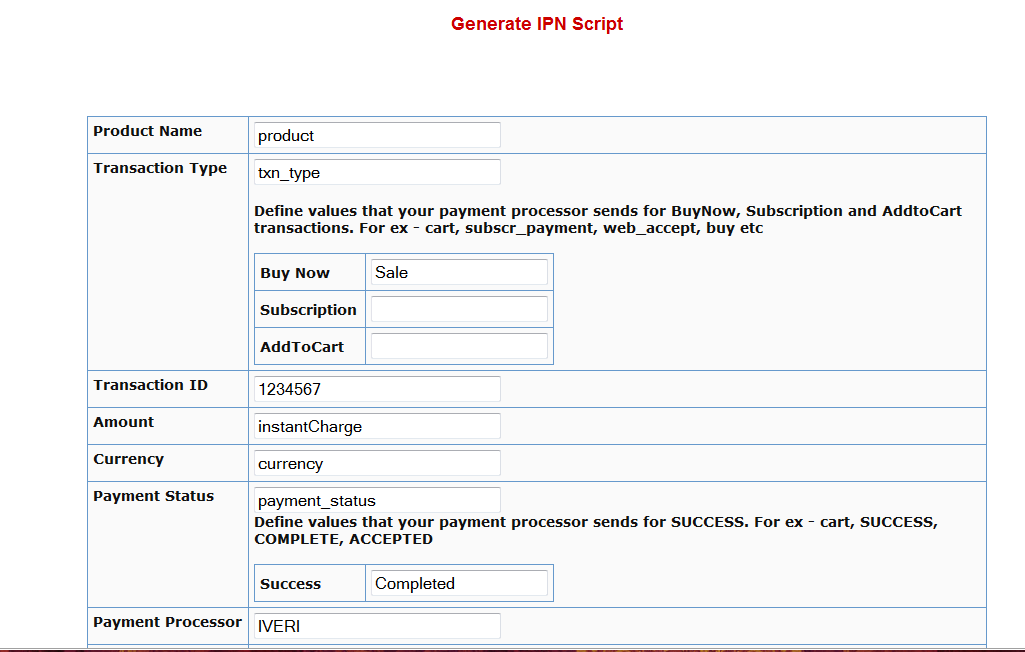
2. Fill in the boxes with the exact TAG NAME / FIELD NAME that your shopping cart sends for each of the fields listed there.
Say that in the IPN notification, your shopping cart sends the product name in the tag/field called item_name. Then you need to enter item_name in the product name text box.
The transaction type indicator tells DAP what type of transaction it is… whether it’s an add-to-cart or buy now or subscription type of transaction. The tag name itself goes into the Transaction Type text box but the actual value for each type (buynow, cart, subscription) goes into the text boxes that say BUY NOW, Subscription, AddToCart.
In the text box in the picture above, the value of ‘Sale’ is an example value that a shopping cart might send to identify a ‘buy now’ transaction/button. Check your shopping cart’s IPN documentation and make sure you fill in the right values in each of the text boxes in the dap generate ipn page.
3. After filling up all the text boxes, hit the ‘Generate IPN’ button. It will open a small window with the actual dap IPN script.
Copy the whole script and put it in a file and lets say you call this file – dap-IPN-script.php.
Upload this file to the dap folder on your site.
4. Go back to Generate IPN Page in your DAP admin panel.
Now click on the ‘Test IPN Script’ button at the bottom. It will bring up a form where you can fill in actual values (you can give this form to your shopping cart provider so they know what fieldnames/tags to send to dap ipn handler/script). In the IPN URL text box, put in the full URL of the IPN Script you generated in step 3 (for ex – http://yoursite.com/dap/dap-IPN-script.php).
Run the test. It will simulate a real purchase transaction by a buyer and show you how DAP automatically manages the creation of membership account upon successful purchase.
13
E-Junkie Integration
Customer Flow
- Buyer comes to your web site and clicks on your buy button and is taken to e-junkie to checkout
- Buyer finishes paying, and then they are redirected to a static page on your site that says something to the effect of “Thank you for your purchase. Please check your email id that you just used during purchase, for information about how to login and access the product you just purchased.”
- While this is happening, in the background, e-junkie would’ve already notified DAP via their back-end notification process called “Common Notification”, and DAP would’ve already created an account for the buyer, and emailed the buyer the login details.
- Buyer checks their email id, and they see the email from you giving them their login details.
- They login to your site using that information.
That’s the big picture. Now for the specifics on how to integrate DAP & e-Junkie.
E-Junkie Integration with DAP
1) Create a product in DAP that you want to be able to sell via e-junkie
2) Create a product in e-junkie with exactly the same name as the DAP Product name, and create a buy button for it.
3) Go to the e-junkie Seller Admin > Edit Account Preferences > Common Notification URL field
Set it to point to…
http://yoursite.com/dap/dap-ejunkie.php
(replace yoursite.com with the name of your site)
4) Go back to DAP Setup -> config -> payment processing section.
Look for these config items:
Merchant’s Payment Gateway API Login ID
Merchant’s Payment Gateway Transaction Key
And set these to match your ejunkie merchant login Id and password. This is needed for security validation.
That’s it!
Go ahead and test your purchase and see if it makes it to DAP Payment/Coupons => Orders page and if the users get added.
24
Paypal Integration Summary
DAP supports 3 different types of Paypal Integration.
1) Paypal Hosted Buttons
2) DAP Generated Buttons For Paypal
3) DAP Shopping Cart with Upsells
Let’s get into more details about each one of them.
[s3mv]DAP-Paypal-Integration-Overview.mp4,640,350,false,false[/s3mv]1) Paypal Hosted Buttons
You generate the button within your Paypal account.
Click Here to find instructions to integrate DAP and Paypal Hosted Buttons.
If the integration is not working, Click Here to find troubleshooting instructions.
Note: you only need to set the following config items for Paypal hosted buttons.
a) If you want to use Paypal Sandbox for testing, then set the following to “Y”.
DAP Setup -> Config -> Paypal -> Use Paypal Sandbox: For initial testing only
If you want to connect to your Paypal live account, then set it to “No”.
b) If your site has trouble connecting to Paypal via CURL and you see this error in DAP orders page => Check Product and Price(Reprocessible), then update the config below to FOPEN.
DAP Setup -> Config -> Paypal -> 4) Paypal Communication Protocol: How DAP connects to and communicates with Paypal on the back-end.
That’s it.
The following config items are NOT needed if you use the Paypal hosted buttons.
Paypal API Username – Only needed if you use the DAP upsell tree plugins for Paypal Payments Pro or Paypal Standard.
Paypal API Password – Only needed if you use the DAP upsell tree plugins for Paypal Payments Pro or Paypal Standard.
Paypal API Signature – Only needed if you use the DAP upsell tree plugins for Paypal Payments Pro or Paypal Standard.
Paypal API Endpoint – Only needed if you use the DAP upsell tree plugins for Paypal Payments Pro or Paypal Standard.
Paypal Business Email ID – Only needed if you use the DAP generated button for Paypal (DAP Payments/Coupons -> Generate paypal button)
Merchant Payment Gateway API Login ID: Only needed if you use e-junkie or the DAP upsell tree plugin for Authorize.net
Merchant Payment Gateway Transaction Key: Only needed if you use e-junkie or the DAP upsell tree plugin for Authorize.net
The following fields in the DAP Products page ONLY need to be set if you use DAP upsell tree plugin or the DAP generated button for Paypal.
Recurring Count, Trial Amount and Product Price
If you are using regular paypal button, you can leave these empty. Even if these are not-empty, DAP will not use it for regular paypal hosted buttons.
2) DAP Generated Buttons For Paypal
With DAP 4.0, we have added support for DAP generated buttons for Paypal. You no longer have to generate buttons within Paypal.
You can generate the button for Paypal from within your DAP Admin Panel -> Payment Processing -> Generate Paypal Button page.
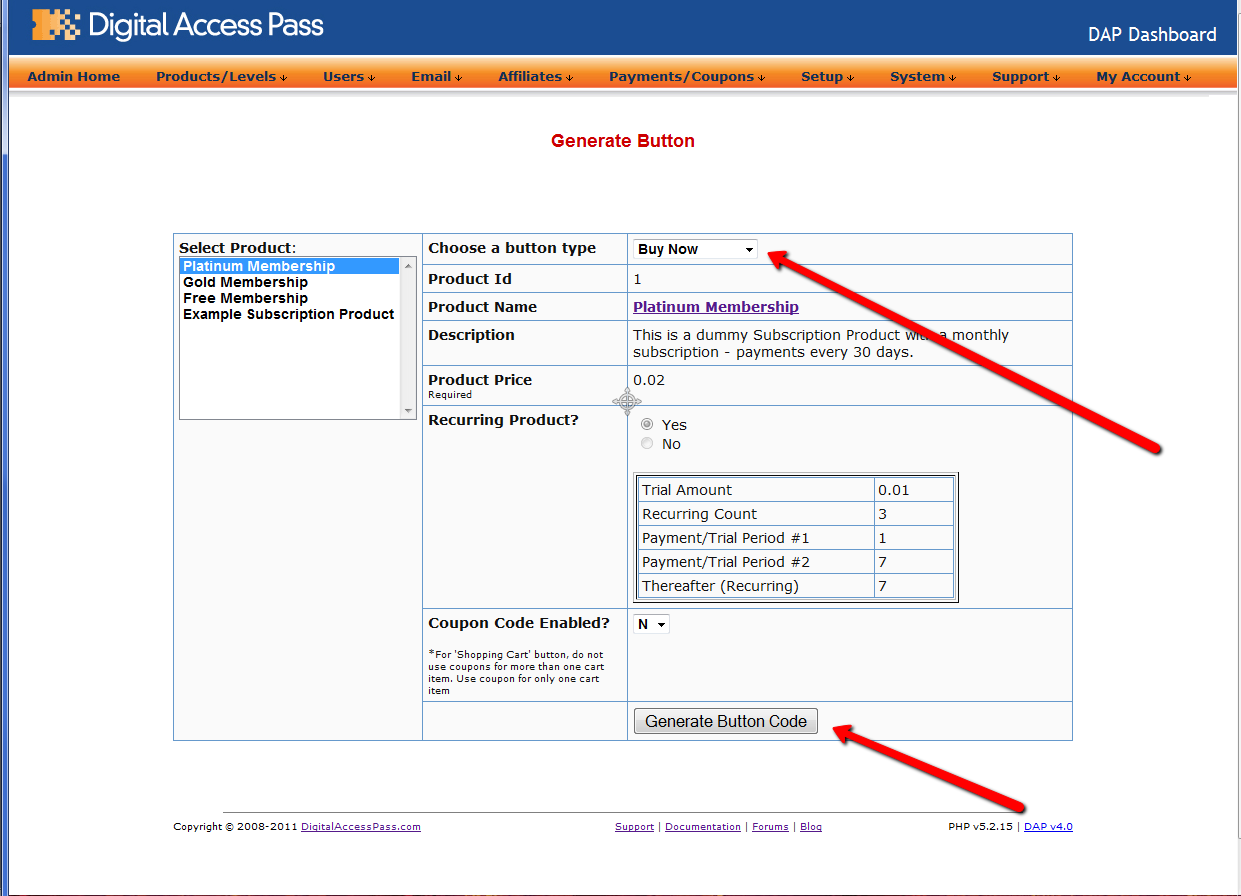
Click Here to find instructions to integrate the DAP generated button with Paypal.
3) DAP Shopping Cart / DAP Upsell Tree Plugins
1) Paypal Standard Upsell Tree Plugin
2) Paypal Payments Pro Upsell Tree Plugin / DAP shopping cart
Click Here for details.
2
DAP-1SC Login Xpress
DAP Supports instant auto-login to the member’s area immediately after completing the 1ShoppingCart (or private label) purchase. We call this Login Xpress with 1ShoppingCart (Read more about Login Xpress)
The documentation below will show you how to setup 1ShoppingCart and DAP, so that your buyers can be automatically logged in to your “Member’s Area” upon completion of their purchase.
Note About Processing Recurring Orders via 1SC
If you only sell ONE-TIME products at this time, then the Login Xpress flow below is all you will need to setup as far DAP & 1SC integration is concerned.
If you are selling RECURRING products via 1SC , but DO NOT WANT your users to be automatically logged in to the “Members’ Area” right after their purchase, and you prefer sending them their membership login info (email & password) via email, then you DO NOT need to read this post any further – simply head over to this post: 1ShoppingCart Recurring Payment Processing via Email
But if you sell RECURRING products via 1SC and you DO WANT your users to be automatically logged in to the “Members’ Area” right after their purchase, then continue reading this post for Login Xpress setup.
Login Xpress Setup
1) Set up your sales page as you would normally do when accepting payment through 1ShoppingCart.
Make sure to use the exact same Product Name in 1SC as well as within DAP.
So, if you set up a product called “Platinum Members” within DAP, then use the exact same name “Platinum Members” as your 1SC product name. In fact, just to be sure, copy the product name from DAP and paste it into the product name field within 1SC (or vice-versa). That way, there will be no typos.
2) Log in to your 1ShoppingCart account.
Go to Products > Manage Products. Edit the Product you are setting up.
Go to the “Links” tab of that Product.
Set up the Thank You URL to point to this DAP script on your site, as shown below:
http://YourSite.com/dap/dap-1shopcart.php?cartId=SecretKey
YourSite.com should be replaced by the name of your site
SecretKey should be set to the same value that you set in DAP Dashboard > Setup > Config > Secret Key For Payment Processing
This secret key can be alphanumeric. No special characters or spaces.
For eg., if you set Secret Key For Payment Processing in DAP to be 12345
Then your 1ShoppingCart Thank You URL would look like this:
http://YourSite.com/dap/dap-1shopcart.php?cartId=12345
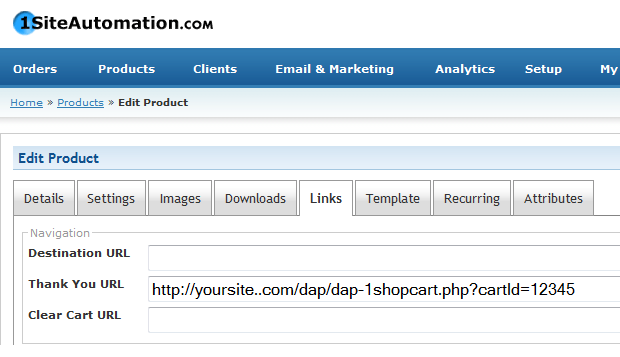
DAP Secret Key Setup (under DAP Admin > Setup > Config)

3) Now open a brand new browser session where you are not logged in as DAP admin or WP admin. Complete a test purchase using an email id that is not already in your DAP. If the integration worked correctly, then a new user account will automatically get created in DAP, and you (the buyer) will also be automatically logged in to DAP, and will be redirected to one of the following URL’s:
a) If this buyer has access to just 1 product, then user will be redirected to the Post-Login URL set up under that Product, at DAP Admin > Products > Manage
-OR-
b) If this buyer has previously purchased other products, then for security reasons, buyer will be redirected to the login URL that you have set up under DAP Admin > Setup > Config > Login URL. And at the same time, the buyer will be sent the Welcome Email from the Product’s settings.
Redirecting To A Custom URL After Checkout
The above setup will log new members right into the member’s area immediately after completing their purchase through your 1SiteAutomation.com or 1Shoppingcart check out page.
But if you wanted them to be redirected to a different page of your choice after the purchase, then set up the thank-you URL like this:
http://YourSite.com/dap/dap-1shopcart.php?cartId=SecretKey&redirect=yoursite.com/another-page/
So basically you are just adding the text in red to the end of the standard DAP/1SC thank-you page URL.
Now note that even though user is being redirected to “another-page” in the above example, they have been logged in to your membership site already. So if you publish a link to your member’s area somewhere on “another-page”, then they can go right to that page without having to log in, because they’re already auto-logged in at this point.
NOTE:
If you are setting up a recurring subscription product, then after completing the above Login Xpress set up, next step is to set up DAP to process RECURRING payment notifications from 1SC as described here.
35
DAP-Supported Shopping Carts
Last updated: 09/02/2014
Direct Integration with Shopping Carts and Payment Processors
UPDATE: We are now authorized resellers for Authorize.net. If you’re in the US or Canada, click here to apply. If you’re in the UK, then click here.
DAP directly integrates with the following Payment Processors without the need for any additional third-party shopping carts:
- Stripe (new!) – via DAP Shopping Cart
- Authorize.net (US/Canada / UK) – via DAP Shopping Cart
- 2Checkout.com
- CCBill.com
- ClickBank
- ClickBank PitchPlus (1-Click Upsells)
- Digiresults
- DealGuardian
- Google Checkout
- e-Junkie (FYI: e-J does not allow recurring payments)
- JVZoo
- Paypal Standard – direct & via DAP Shopping Cart
- Paypal Express Checkout – direct & via DAP Shopping Cart
- Paypal Website Payments Pro (legacy) – via DAP Shopping Cart
- Plimus
- WorldPay
- WSO Pro (Warrior Plus)
- Zaxaa
DAP also integrates with the following Shopping Carts
- 1SiteAutomation.com (a 1shoppingcart private label)
- InfusionSoft
- Nanacast
- Ontraport (prev. Office Auto Pilot)
- Premium Web Cart
- WooCommerce
- WP eStore
Indirect Integration through 3rd Party Shopping Carts
Since DAP integrates with Shopping carts like WooCommerc, 1SiteAutomation.com (our white label of 1Shoppingcart), e-Junkie, Premium Web Cart and Infusionsoft, that means that it also integrates (albeit indirectly) with all of the Payment processors and gateways that these carts support. So, for example, since DAP works with 1SiteAutomation, it essentially integrates with all payment providers supported by 1SiteAutomation, like:
Bank of America
BluePay
Concord EFSNet
Cybercash
DPI Merchant Services
e-Commerce Exchange
Echo Inc.
ECX QuickCommerce 3.0
Epoch Systems
eProcessing Network
EPS SecureNet
EWAY (Australia)
FastTransact
Firepay
GoRealTime/EPP
GoRealTime
iBill
IntelliPay ExpertLink
IONGate (Costco)
iTransact RediCharge
LinkPoint Secure
MCPS WebLink
MerchantPartners
Moneris
NETbilling
Network Merchants
Paradata
PayCom Processing
Paymentech (direct integration via Authorize.net)
PayPal Payflow Pro (via e-Junkie)
PayReady
Planet Payment
PRIGate
PSiGate
RightConnect
RTWare WebLink
Shift4
SkipJack
StrataPay
Surepay
TrialPay (via e-Junkie)
TrustCommerce
USAEpay
uSight
VeriPayment
VeriSign PayFlow Pro
ViaKlix (Nova Systems)
YourPay
For the full list and more details, click here
1-Click Upsells
If you use the DAP Shopping Cart Plugin, you can do 1-Click Upsells/Downsells like the pros, without the need for any external shopping cart or upsell service provider.
The free DAP shopping cart that comes with your DAP purchase allows you to do unlimited 1-Click Upsells using Stripe, Authorize.net and Paypal Website Payments Pro (legacy).
However, for doing 2-Click Upsells/Downsells with Paypal Standard, you need our Paypal Upsell-Tree plugin that is sold separately. Or you can also get this plugin for free with our Platinum subscription.
Of course, if you need advanced shopping cart features – like ability to calculate shipping, tax, and coupons – then you should consider using 1SiteAutomation.com.
1ShoppingCart & GoDaddy
If you want automated recurring order processing using 1ShoppingCart (1SC) or 1SiteAutomation.com, then DAP needs to be able to process the recurring email notifications sent by 1ShoppingCart, which it does on the back-end when the DAP Cron Job runs every 10 minutes.
However, if you’re using Godaddy as your web host, then because GoDaddy disables a mandatory PHP library (“imap”) on all their servers for some reason, DAP is unable to process the recurring order email notifications from 1ShoppingCart.
This is not an issue if you are using GoDaddy as just your domain name registrar, and using some other service like Liquid Web or Hostgator as your web host.
But if you’re using 1SC & GoDaddy hosting, you will have to end up doing manual cancellations if any member cancels their subscription, or if their credit card fails and their recurring payments don’t get processed.
Please note that 1ShoppingCart order processing works great with all other (non-GoDaddy) hosts.
14
Cancellation or Refund Requests
The Question
How does a customer, once they have signed up and become a member, cancel their membership (or get for a refund)?
Cancellations
If it’s Paypal, they could go into their Paypal account, and cancel their subscription themselves.
If it’s ClickBank, they can log in to their CB account, and cancel their subscription themselves.
If it’s any other payment processor or cart – like 1SiteAutomation.com, Authorize.net, Paypal Payments Pro, etc – then they have to ask you (the membership site owner) to cancel.
Refunds
Except with CB, in all other cases, they have to ask you for a refund
Action Steps For DAP Admin
Whether it’s a cancellation or a refund, log in to your Payment Processor (1shoppingcart, Authorize.net, etc), and make sure you perform the cancellation or refund there. DAP does not store any of the payment information of your subscriber. So both cancellations and refunds have to be performed at your Payment Processor.
Now that you’ve cancelled the actual charging of the customer at the payment processor level, you have to also take care of the customer within DAP – only for refunds.
Cancellation Of Ongoing Subscription in DAP
If this is the cancellation of an ongoing subscription, then no action required within the DAP Dashboard as far as the User is concerned. DAP already does “Pay As You Go” processing – which means, their account will automatically expire at the end of the current recurring period (eg., end of current month). The “Access End Date” of the user’s access to the Product will automatically expire if no new payments come in. And then they’ll automatically lose all access to the content that is part of that Product.
However, if this is the cancellation of a “trial”, where if the user comes back and signs up again for another trial a few weeks or months later, then you want the user to start all the way AT THE BEGINNING. So if it’s the cancellation of a “trial” then you must manually remove the user’s access to the product. So for that, follow the process below.
Refunds (and Cancellation of Trial) in DAP
If it’s a refund of the entire purchase, then…
- Search for that user by email on the “Orders” page, which will bring up their Order (a.k.a “Transaction”)
- Click on the “Refund” button on that screen. That will create a new negative transaction in the Orders table. Then it also roll-backs any affiliate commissions earned on that sale and make a negative entry in the database for that affiliate. Then it rolls back user access by the number of days entered in one of the “Recurring Cycles” entered on that Product’s page (depending on how far along they were in as a member).
- Now search for that user by email on the “Users > Manage” screen. Make sure that they no longer have access to the Product.
If it’s a refund of just one recurring payment from among a series of subscription payments, or the cancellation of a trial, then you can go into the “Users > Manage” screen, search for the user, and do a “Rollback Access for Selected User(s) to the Product by 1 Recurring Cycle“.
For a big-picture view, also see Cancellations & Refunds