
13
Partial Content Protection Using Sneak-Peek
DAP has a feature called “Sneak-Peek” where you can show a part of your blog post or page to casual visitors (as well as to search engines like Google) and then when they click on the “Read more…” link, the protection will kick in for the rest of the post, and DAP will say something to the effect of “Sorry, you must be logged in to access this content. Please login below or click here to get access”.
And that error page will contain both the login form, as well as a link to your sales page. Of course, you can customize this error page to say whatever you want, but that’s another topic altogether.
Advantages of Sneak-Peek
Sneak-Peek allows you to show “teaser” content to potential members, instead of fully locking it up and showing just an error page. Using Sneak-Peek allows you to show some content to casual visitors in order to get them to subscribe to see the rest of the content, as well as keep some content open so that search engines like Google will have some content to index in their search databases, so that the open part of the content can show up in search results for potentially matching keywords, and bring you some free organic search traffic to your site.
How this works
WordPress has a feature called the “more” tag. Basically it is a bunch of text (<!–more–>) that you insert into your posts or pages. And WP will then break up your post right at the point where you inserted the more tag, and replace that tag (and everything that follows) with a “Read more…” link
Fig A: “More” icon in WP. Click to enlarge.
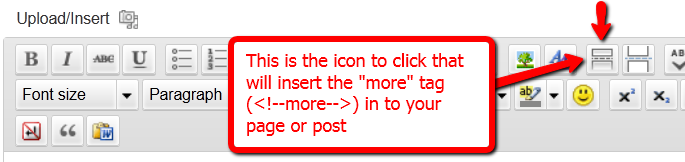
You can also insert the more tag in to your post or page, by clicking on the icon shown in the image above – that looks like two rectangles separated by a dotted line – on the WordPress page/post edit screen.
Of course, exactly what that “Read more” link will say (it could say, for eg., “Click here to read the rest of this post”) is determined by your actual WP theme.
Regardless of what it says, when you have a protected post, by default (when sneak peek is off) that post will completely disappear from your blog for non-members and those who are logged in, but don’t have access to it yet. And even to Google.
But if you insert the “More” tag in to all of your pages and posts, then on your blog’s summary page (which lists all of your posts), all posts with the more tag (protected and un-protected will show up to the more tag, and when someone clicks on the “Read more’ link, that’s when DAP’s security kicks in and if the user has access to that content, it will show her the rest of the post. But if the user is either not logged in, or is logged in and does not have access to that content (either access is yet to come because of the drip, or content has already expired), then it will show the appropriate error message.
Enabling Sneak-Peek
In your DAP Admin Dashboard, go to…
“DAP Admin > Setup > Config > WordPress Sneak Peek: Show snippets of post (upto the `More` break) even for protected posts?“
… and set the above setting to “Y” (for ‘yes’),
Update on 09/07/2014
To protect your content, if you turn on “Sneak-Peek” in DAP, and you inadvertently (or intentionally) don’t insert the “more” tag into a post, then the entire post will get hidden and protected by default, and nothing will be shown except the error message.
25
WordPress User Sync
NOTE: This content is for advanced users only, who understand the concept of user tables, database, etc. If you don’t understand any of this, then just ignore this – you don’t really need to know this in order to use DAP. This is only an explanation for those who wish to go under the hood of DAP and its integration with WordPress.
As you probably already know, WordPress has its own user database.
DAP has its own User database, and doesn’t use the WordPress database – for many reasons, not limited to the following…
1) Ability to store more user information than what WordPress allows
2) More powerful user search, profile updates, affiliate information, etc.
So, if you want to use any WordPress based plugins – like WordPress Forums or Subscribe2Blog – these forums are looking at WordPress’ native user database.
Now comes the necessity of “syncing” the DAP user data and your WordPress user data.
In the DAP Dashboard, in “Setup > Config > Advanced“, you will see two settings for syncing DAP & WP user data.

(1) Sync DAP User data and WP User data
If you turn this to “Y” (for “Yes”), then every time someone logs into DAP, their DAP user data (just name and email) is automatically “synced” with WordPress user data. If you set this to “N”, then no data will be transferred from DAP to WordPress.
(2) Sync WP data only for PAID users
This one matters only if you have set (1) above to “Y”.
If you want only your “PAID” members to be synced with WordPress, then set this to “Y“.
If you want both “FREE” and “PAID” members synced with WordPress, then set this to “N“.
Here’s how it actually works:
- For the sync to work, you must first setup and save the above 2 config settings
- After you save the above two config settings, make sure you log out of DAP and re-log in (if you are/were logged in and testing as a regular user), because only then, the Config settings above will take effect.
- Your user must log in through a DAP login form (not the WP login form).
- Make sure the user is redirected to any part of your WordPress blog after log in. This can be done via “Logged In URL” setting in DAP Config.
- The user can be redirected to any WP page, WP post or even your blog home page – that’s the only time the ‘syncing’ kicks in.
- When user lands on any page/post of your WP blog, then the DAP LiveLinks plugin (which you have already installed & enabled) kicks of the “sync”, copies the logged in member’s name and email over to the WordPress user table, and also automatically logs him into your WordPress blog.
That’s all there is to it.
Also see: Forum Integration
19
Merge Tags For WordPress Posts & Pages
Here are the merge-tags that you can use in your WP posts, and what they mean. (Click here for merge tags for Autoresponder & Broadcast Emails)
This is better suited for a WP “page”. This text will be replaced by a login form using which your members can log in to your membership site.
%%AFFDETAILS%%
This will be replaced by the entire Affiliate section from the default home page at YourSite.com/dap/ . Better suited for a Page.
This will be replaced by the user profile from the default home page at YourSite.com/dap/. Better suited for a Page.
This will be replaced by the user links section (the list of what products and what links user currently has access to) from the default home page at YourSite.com/dap/. Better suited for a Page.
%%FIRST_NAME%%
This will be replaced by the first-name of the user.
%%EMAIL%%
This will be replaced by the email id of the user.
%%AFF_LINK%%
This will be replaced by the raw affiliate link of the member. If you want it to show up as a link in your blog post, use it like this:
<a href=”%%AFF_LINK%%”>%%AFF_LINK%%</a>
%%USER_NAME%%
This will display the DAP user’s “Username” on the page.
%%USER_ID%%
This will display the DAP user’s ID on the page (ID is a number).
%%FEEDLINK%%
Replaces with user’s personalized RSS feed URL.
%%PRODUCT_DETAILS_<insert-product-id>%%
Replaces merge tag with Product-specific details (including links available to the member as part of that Product) on a specific WordPress page/post.
%%DAPCUSTOMFIELD_<insert-custom-field-name>%%
You can display the value of the user’s own custom fields on your pages, using a merge tag like this:
%%DAPCUSTOMFIELD_tax_id%%
In the above example, tax_id is the custom field that you have created in DAP. So if the name of the custom field in DAP were “ssn”, then the above merge tag would become %%DAPCUSTOMFIELD_ssn%%
Displays data of the user’s “upline” affiliate.
Displays upcoming drip-feed scheduled content.
[DAPRefAffId]
Displays id of affiliate who referred visitor to site. If no affiliate set, displays DAP Admin’s id.
[DAPShowTransactions]
Shows list of all transactions/orders by logged-in user.
[DAPUserSubscriptions]
Shows list of all subscriptions by logged-in user.
6
Upgrading to the latest version of LiveLinks
- DO NOT DELETE your DAP-WP-LiveLinks folder.
- DO NOT DISABLE or DE-ACTIVATE the DAP-WP-LiveLinks plugin.
- If you wish to make a back up of your existing DAP-WP-LiveLinks folder, DO NOT DO IT in the same folder, as WP will treat it as a duplicate copy of the plugin, and you can have unexpected results. If you wish to take a backup, then download it to your computer, or move it away from the wp-content/plugins/ folder. DO NOT KEEP more than one copy of the LiveLinks plugin files in the wp-content/plugins/ folder
- Download the latest version of DAP-WP-LiveLinks.zip from the members area.
- Unzip the zip file to your desktop.This will create a folder by name DAP-WP-LiveLinks on your desktop.
- Simply Upload the entire DAP-WP-LiveLinks folder (including the folder too) to your WordPress plugins directory (which is
wp-content/plugins/). You are essentially over-writing your existing plugin files, that's all.
That's it!
Note: The above ALL-CAPS, that too in RED does not mean we're yelling at you :-). We just want to OVER-EMPHASIZE the importance of the text, that's all.