
2
Merging User Accounts
User ID 111 has been created with email id ABC123@somewhere.com
Same user buys a different product using a completely new (Paypal) email id. and DAP creates User ID 999 with PayPal email XYZ789@anothersite.com
User now has 2 accounts and wants only ABC123@somewhere.com (user ID 111) to be active.
So here’s what you should do:
- Place XYZ789@anothersite.com in the PayPal email field of User ID 111 and save.
- Give User ID 111 access to all products that User ID 999 currently has active, with matching start and end dates.
- Delete User ID 999 fully from the system.
If User ID 111 purchases additional products through Paypal, and her primary Paypal email id is still XYZ789@anothersite.com, then that Paypal email id will be recognized by DAP, and all purchased products will be activated under User ID 111 and no additional User IDs will be created.
However, if User ID 111 has changed their primary Paypal email id to be something else like XYZ123@yetanother.com, then the next time they make a purchase, DAP will not know it’s the same person, and will end up creating a completely new user id for the buyer. Which means, you will have to do the merge again, and replace the old Paypal email id in DAP with the new Paypal email id of the buyer.
5
DAP Shopping Cart
WARNING
This is the old, deprecated version of the DAP Shopping Cart add-on. This is still here for archive purposes only, and should only be used with DAP versions 4.4.x or EARLIER.
If you are wanting to use the new DAP Shopping Cart Plugin that supports Stripe and has a unified checkout page, etc, then you can download it from http://digitalaccesspass.com/dappers/new-dap-shopping-cart-plugin/
__________________________________________________________
ARCHIVE ONLY:
This plugin replaces ALL files from both the “Paypal Payments Pro” Upsell-Tree plugin as well as the “Authorize.net” Upsell-Tree Plugin
Starting DAP v4.2, we have consolidated both the Authorize.net & Paypal Payments Pro Upsell-Tree Plugins into one simple set of files, and it has been named the DAP Shopping Cart, which will allow you to both accept one time and recurring payments, as well as do 1-Click Upsells.
This consolidated set of files is named DAPShoppingCart.zip , and is available for download from the members’ area at http://DigitalAccessPass.com/dap/ .
Upgrading from DAP v4.2
If you are upgrading to DAP v4.2 from a previous DAP version, and you’ve been using Authorize.net or Paypal Payments Pro to accept payments, then you must also upgrade to the new DAP Shopping Cart.
So all you need to is…
1) Download the DAPShoppingCart.zip file from the members area
2) Unzip it to your desktop
3) Upload all files inside directly to your main “dap” folder on your site. (do not upload the folder named DAPShoppingCart – upload only the files inside this folder)
12
Setting up Paypal IPN
1. Enabling Instant Payment Notification (IPN) within your Paypal account.
a) Log in to your Paypal account and click on the “Profile” link in the menu, then on the next page, click “My selling tools.”
b) Under “Getting paid and managing risk” section, click “Update” beside “Instant payment notifications”

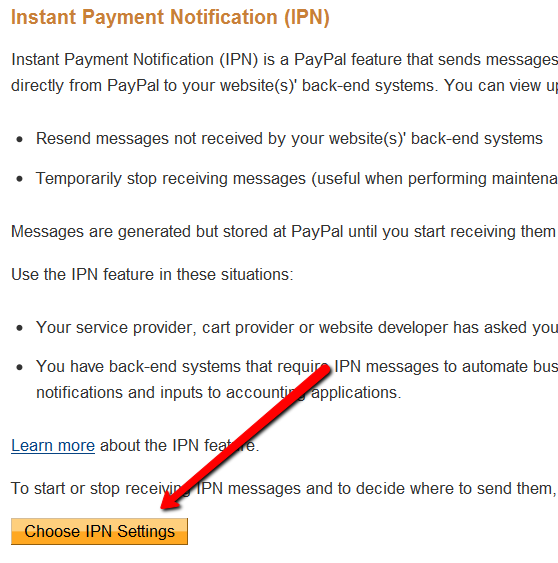
c) If IPN is already enabled, you are all set. If IPN is not already enabled, then click on “Choose IPN Settings”
d) On the next screen, in the Notification URL field, enter…
http://YourSite.com/dap/dap-paypal.php
Don’t forget to replace “YourSite.com” with your actual web site’s domain name.
e) Make sure “Receive IPN Messages” is selected.
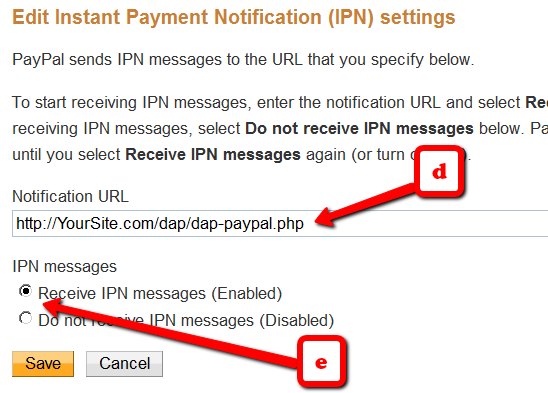
f) Click on “Save”.
27
Warrior+ WSO Pro Integration
Starting version 4.1, DAP supports integration with Warrior Plus (WSO Pro Standard).
And starting version 4.3.1, DAP now also supports Warrior Plus’s new Adaptive Payments system (WSO Pro Adaptive).
DAP supports both WSO Pro Standard and WSO Pro Adaptive. The same dap script (/dap/dap-wsopro.php) supports both standard and adaptive payments. Only the version of the script that’s included in DAP v4.3.1 has support for WSO Pro Adaptive – older versions of the above script will NOT support WSO Adaptive, and will only support WSO Pro Standard.
How to set it up
If you are on DAP 4.1 or later, you will find a script called dap-wsopro.php in the dap folder.
Set the IPN (instant payment notification) url in your WSO Pro account, to point to the following URL:
http://yoursite.com/dap/dap-wsopro.php
(NOTE: replace yoursite.com with the name of your site).
Make sure product name in DAP exactly matches the product name in WSO Pro.
Also, make sure you have the “Welcome Email” Subject & Body configured in the DAP Product page with the right merge tags to send out user login/password.
How it works
When a user completes purchase of your WSO, WSOPro will send payment notification to DAP to the IPN URL specified above.
DAP will then automatically create the membership account, allow user access to the product and send out the thank-you email configured under the DAP product with the login details.
13
DAP Login Xpress
What Is “Login Xpress”?
“Login Xpress” is a DAP feature that enables your members to be logged right into your membership site immediately upon completion of their purchase.
This is roughly how it works:
- Visitor arrives at your web site
- On your sales page, they click on any “Buy” button to purchase a Product (or Membership Level)
- They’re taken to the checkout page (depending on Payment processor being used) and they enter their payment information and hit “Submit”
- When they hit “Submit” to complete their payment, their payment is processed right away, and the buyer is immediately transferred back to your web site, in real time, and automatically logged in to your membership site, and they are taken to the “Welcome” page or “Members” page (you may choose what this page is going to be at a per-Product level)
Payment Processors That Work With Login Xpress
DAP supports this feature with the following payment processors:
- Paypal Standard (DAP-generated buttons only – will not work with Paypal-hosted buy buttons that you generate from within your Paypal account)
- 1Shoppingcart / 1SiteAutomation.com
- Authorize.net
If you use any of the payment options above, then you can set up your sales funnel in such a way that buyers are logged in right away immediately after purchase.
Payment Processors That DO NOT Work With Login Xpress (Yet)
- Paypal Website Payments Pro
- ClickBank
- e-Junkie
- WorldPay
DAP integrates with the above processors via some kind of “back-end payment notification” – similar to Paypal’s “IPN” (Instant Payment Notification). Which means the notification between the payment processor and DAP on your site only happens on the “back-end”. Which is why DAP can only deliver the login details to the buyer via an email, and cannot log them in right away (like it can do with “Login Xpress”), because the buyer’s information is available to DAP only when the payment processor sends out the IPN notification behind-the-scenes, so to speak.
So if you’re using the above processors to accept online payments, then what you need to do, is to redirect your buyers to a static “Thank You” page that has a message similar to the one below…
“Thank you for your purchase. In a few minutes, please check your email address used during purchase for your log in details to log in to the members’ area and access the product you just purchased.”
And behind the scenes, DAP would’ve already received the payment notification from the payment processor, and it would’ve created an account for your buyer, given them access to the purchased product, and sent them the “Thank-you Email” for the product(s).
4
Troubleshooting 1-Click Upsells
1) Problem: Getting an error that looks like this after purchase – using 1-Click Upsells.
Warning: file_get_contents(/home/mysite/dap/upsell1.html) [function.file-get-contents]: failed to open stream: No such file or directory in /home/mysite/dap/continue.php(1) : eval()'d code on line 20
Solution: Create missing file.
Every buy button generated by DAP for Auth.net or Paypal Payments Pro, will look something like this…
<form name=”generate_authnet” method=”post” action=”https://www.DigitalAccessPass.com/dap/buy.php”>
<input type=”hidden” name=”item_name” value=”DAP Upsell Tree – Auth.net (T)”/>
<input type=”hidden” name=”description” value=”DAP Upsell Tree For Authorize.net” />
<input type=”hidden” name=”amount” value=”97.00″ />
<input type=”hidden” name=”trial_amount” value=”0.01″ />
<input type=”hidden” name=”total_occurrences” value=”1″ />
<input type=”hidden” name=”is_recurring” value=”Y” />
<input type=”hidden” name=”recurring_cycle_1″ value=”365″ />
<input type=”hidden” name=”recurring_cycle_2″ value=”365″ />
<input type=”hidden” name=”recurring_cycle_3″ value=”365″ />
<input type=”hidden” name=”payment_succ_page” value=”https://www.YourSite.com/dap/continue.php?url=/dap/upsell1.html” />
<input type=”hidden” name=”payment_gateway” value=”authnet” />
<input type=”hidden” name=”is_submitted” value=”Y” />
<input type=”submit” value=”Buy Now” />
</form>
If you see the line in bold above, you will see the field…
payment_succ_page
… pointing to the first upsell…
https://www.YourSite.com/dap/continue.php?url=/dap/upsell1.html
What this essentially means, is that once the payment for the front end order is complete, you want the contents of the page /dap/upsell.html to be presented as the first upsell.
So…
a) Either create an HTML page called upsell1.html in the dap folder.
b) Or change the name of the file in the buy-button form code above, to be whatever your actual file name is.
c) Or if you don’t wish to do any upsells, then put the URL of your final thank you page in that field’s value.
2) Question: How do I use my own button with the shopping cart script?
Look for this in the DAP generated button code:
input type=”submit” value=”Buy Now”
Replace it with your own image :
For example –
input type=”image” src=”/images/btn-order.png” value=”Buy Now”
If images folder is at the root of your site, set src = /images/btn-order.png. If it’s under dap folder, the src tag should be set to “/dap/images/btn-order.png”.
3
DAP-Generated Paypal Button – FAQ/Troubleshooting
NOTE: If you wish to set up your Paypal IPN URL to be broadcast to multiple sites, you may also consider our IPN Redirect plugin from WickedCoolPlugins.com
_____________________________________________
Question 1A: How can I share one Paypal account with multiple DAP and non-DAP sites?
-OR-
Question 1B: If I use “DAP” generated buy-buttons, and I have to set up the “auto-return URL” in Paypal, which is limited to just one URL. How can I use that if I’m selling from multiple web sites and using the same Paypal account?
Answer: You can share same Paypal account between multiple DAP and other non-DAP sites if you use DAP-generated Paypal buttons or Paypal-hosted buttons or a combination of both.
If you use DAP generated Paypal buttons:
DAP sends button-level return value to Paypal. By default, DAP sets the button level return to point to a DAP script on the site where you generated the button ( http://yoursite.com/dap/dap-thankyou.php ). Upon payment, the users are returned to that dap-thankyou.php. And then the dap-thankyou.php script creates the membership account , auto-logs in users to their membership area and redirects users upon login to whatever you have in DAP product-level or DAP global-level login redirect. So the users automatically land at the ‘DAP product-level or DAP global-level login redirect‘ upon successful payment.
If you want the users to be redirected to a different URL upon login, then you can add a redirect tag to dap generated button code:
<input type=”hidden” name=”redirect” value=”http://yoursite.com/thankyou” />
The auto-return needs to be set and pointed to some URL – any URL – otherwise Paypal will not be able to automatically return users back to your website upon payment for non-paypal hosted buttons. DAP does not care what you set it to – but if you do set it, then make sure that all the Paypal buttons you use (DAP-generated or Paypal-hosted) have their own auto-return value.
If you use a DAP-generated Paypal button, you do not have to worry about the auto-return URL, because DAP will set it and send it to Paypal at a button level. But if you use Paypal-hosted buttons, then make sure you set the button level ‘return’ value.
If you do not set the button level return value, then the Paypal profile -> global level auto-return will get used. So if your global auto-return (under Paypal -> Profile -> Website Payment Preferences) is set to some URL on Site B and say you use a Paypal button to sell something on SITE A but that paypal button does not have a return value set, then upon purchase, the users will get returned to the URL on SITE B and that is probably not what you want. so make sure you set the button level return value for paypal-hosted buttons.
Question 2:
I added DAP hosted buttons and did a test purchase. After purchase the user was redirected to the login page and but the user was NOT automatically logged in. The login page states: SUCCESS! Thank you for completing the purchase. Please check your email for further details. Have I setup something incorrect?
Answer:
What do you see in DAP Payments/Coupons -> Orders page for this transaction ?
Hit the search button in the orders page and it will bring up all orders.
Is the payment status “Pending” or is it “Complete” ?
If it’s pending, it could be why the user is not getting logged in. Click on the transaction Id hyperlink for that order and it will take you to the transactions page… here you can see what Paypal sent in the transaction blob.
See if Paypal sent Payment Status = pending. It yes, it can happen if the buyer didnot confirm their email in paypal.
But if payment status is complete, then do this.
Set DAP setup -> config -> log level to 5
Then go to dap system -> logs and Empty log content
Then rerun the paypal purchase and send us the log snippet.
Question 3: Users are not getting auto-logged in.
I see these errors in the dap log.
>> 2011-03-29 10:54:02:dap-thankyou: after fopen
2011-03-29 10:54:02:dap-thankyou.php: paypal communication failed <<
Answer: In dap-thankyou.php script, dap uses fopen to connect to paypal to retrieve purchase details and to auto-login users.
If it is failing, then there is probably a fopen connection issue between your host and paypal.
Try this:
In dap config -> payment processing -> Set “Use CURL to connect to Paypal” to FOPEN.
If you set it to fopen, the the IPN script (dap-paypal.php) will use FOPEN to talk to Paypal also. Otherwise it will use CURL.
If the dap-paypal.php (backend ipn script) works, the user account will get created successfully in DAP but for auto-login to work, the front-end script (dap-thankyou.php) needs to work. But for front-end dap-thankyou.php script to work, FOPEN needs to work on your server/host.
So to test if FOPEN is working, do this:
Set DAP setup -> config -> log level to 5
Then go to dap system -> logs and Empty log content
Make the backend IPN script also use FOPEN (by setting dap config -> “Use CURL to connect to Paypal” to FOPEN)
Now rerun purchase and see if you notice dap-paypal.php lines in there with fopen communication error in DAP Logs.
If yes, then the problem is that your host is preventing fopen communication with paypal.
If no, then open a ticket with us and we will look into it.
Question 4: How do I replace the DAP generated PP button with my own image?
Look for this line in the button code:
<input type=”image” src=”http://www.paypal.com/en_US/i/btn/btn_buynow_LG.gif” border=”0″ name=”submit” alt=”Make payments with PayPal – its fast, free and secure!” />
Replace the “src” tag with the path to your own image file.
Ex – <input type=”image” src=”/dap/images/myimage,gif” border=”0″ name=”submit” alt=”Make payments with PayPal – its fast, free and secure!” />
Question 5: How to redirect Paypal buyers to a custom URL after purchase?
Answer:
If you’re using buy button form code, then you can add a redirect tag to dap generated buy button code:
<input type=”hidden” name=”redirect” value=”http://yoursite.com/thankyou” />
If you are using a buy button link, then add the text below at the end of your link.
&redirect=http://yoursite.com/thankyou/
Like this:
http://YourSite.com/dap/paypalCoupon.php?cmd=_xclick-subscriptions&item_number=10¤cy_code=USD&redirect=http://yoursite.com/thankyou/
Or
http://YourSite.com/dap/paypalCoupon.php?cmd=_xclick-subscriptions&item_number=10¤cy_code=USD&redirect=/thankyou/
3
Recommended Refund Policy
There really is no one-size-fits-all when it comes to refund policies.
There are so many factors involved. The main one being, that Visa/Master/Amex/Paypal all give a buyer up to 60 days to ask for a refund, at least with most merchants.
Unless you’ve already negotiated the refund terms with your merchant account provider, and have both specifically agreed that there would be no refunds (like say, if you were selling an expensive item, like a car, or a boat, or a service), or that it’s only going to be a 30-day refund period, then you really have no control over the refund period. You just have to comply with at least the mandatory 60-day refund period required by the credit card companies.
So that brings us to the question:
How much should you set your refund period to be within DAP?
Now remember, it is this Refund Period setting (under Setup > Config > Advanced) that also makes affiliates eligible for payment.
So it really comes down to the question:
What is the waiting period for an affiliate to get paid for a referral?
Our recommendation: 60 days.
That’s because if you end up paying too soon (say like within 15 or 30 days), and then the buyer comes back and asks for a refund, now you’re out-of-pocket for the affiliate commissions that you have already paid on a purchase that you just refunded.
Now remember that when you do the actual refund within DAP, DAP will roll-back any commissions credited towards this purchase. If you have not yet paid your affiliates, then in the next report, it will ignore the refunded purchase, and will not calculate commissions on that purchase.
But if you have already paid your affiliates (like within 15 or 30 days after purchase), then DAP will include the negative commission in the next pay-period’s report. And any future commissions earned by this affiliate will be accordingly adjusted.
However, if the affiliate doesn’t refer any more members, then you have two choices at this point:
1) Ask the affiliate to pay back the over-paid commissions
2) Just swallow the loss, write it up to the cost of doing business, and move on.
20
Instant Payment Notification (IPN)
DAP IPN Script Generator – 3rd party Shopping Cart integration
While DAP already supports a large number of shopping cart systems and payment providers, if you wish to integrate DAP with one that we don’t support yet, then you can custom create DAP integration for any 3rd party shopping cart providers that support Instant Payment Notification (IPN) via HTTP POST to 3rd party scripts.
NOTE: While you’re welcome to use the documentation below and develop your own custom integration with any payment processor that supports IPN, during development if you need our support, then we charge an hourly fee if you want help with your code.
Instant Payment Notification (IPN)
Instant Payment Notification (IPN) is basically a message service provided by a shopping cart service or payment processor, that enables them to notify third-party systems like DAP about events related to Payment transactions. You can use it to automate membership sign-ups and cancellations, and extend membership access (for recurring products).
Paypal pioneered the concept of IPN, and different systems may have a different name for it (for eg., ClickBank calls it “INS – Instant Notification Service”). But they all essentially mean the same.
So, using IPN, the cart/processor notifies DAP when a payment-related event occurs. Typically, these events represent various kinds of payments. The notification includes info about the buyer’s email id, product name purchased, product price, payment status etc.
And you can use the DAP IPN Generator script below to generate a PHP script that can receive (and understand) the IPN notification from your cart/processor.
DAP – IPN Script Generator
DAP provides the ability to generate an IPN Script/handler for any 3rd party shopping cart that support IPN. Once the script is generated, upload it to the dap folder on your site and update the shopping cart IPN URL settings with the URL to this script.
1) Go to DAP Admin > Setup > Generate IPN Script
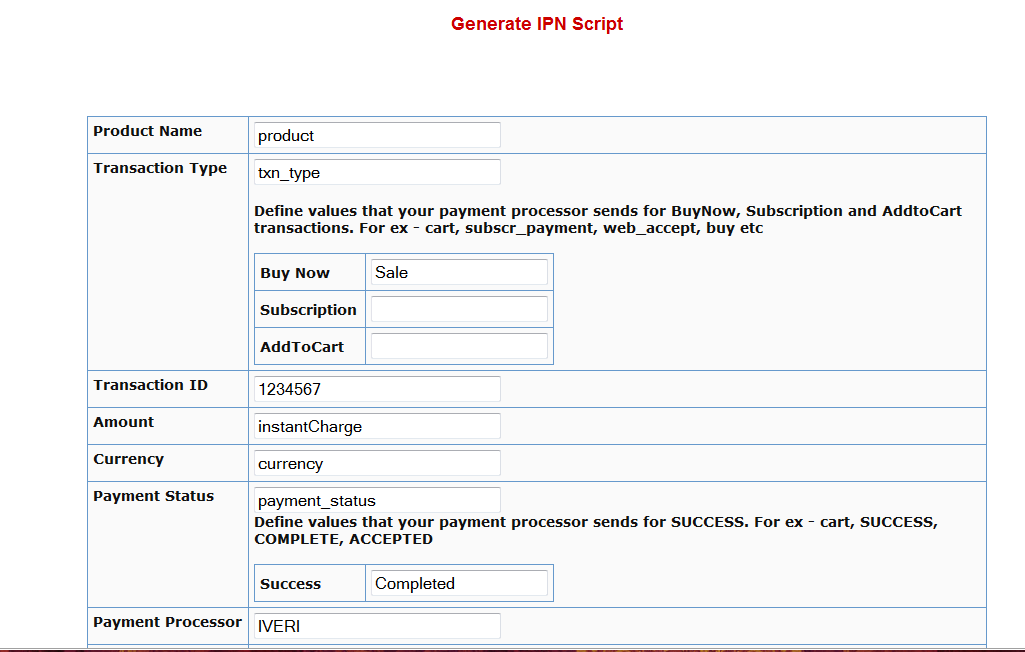
2. Fill in the boxes with the exact TAG NAME / FIELD NAME that your shopping cart sends for each of the fields listed there.
Say that in the IPN notification, your shopping cart sends the product name in the tag/field called item_name. Then you need to enter item_name in the product name text box.
The transaction type indicator tells DAP what type of transaction it is… whether it’s an add-to-cart or buy now or subscription type of transaction. The tag name itself goes into the Transaction Type text box but the actual value for each type (buynow, cart, subscription) goes into the text boxes that say BUY NOW, Subscription, AddToCart.
In the text box in the picture above, the value of ‘Sale’ is an example value that a shopping cart might send to identify a ‘buy now’ transaction/button. Check your shopping cart’s IPN documentation and make sure you fill in the right values in each of the text boxes in the dap generate ipn page.
3. After filling up all the text boxes, hit the ‘Generate IPN’ button. It will open a small window with the actual dap IPN script.
Copy the whole script and put it in a file and lets say you call this file – dap-IPN-script.php.
Upload this file to the dap folder on your site.
4. Go back to Generate IPN Page in your DAP admin panel.
Now click on the ‘Test IPN Script’ button at the bottom. It will bring up a form where you can fill in actual values (you can give this form to your shopping cart provider so they know what fieldnames/tags to send to dap ipn handler/script). In the IPN URL text box, put in the full URL of the IPN Script you generated in step 3 (for ex – http://yoursite.com/dap/dap-IPN-script.php).
Run the test. It will simulate a real purchase transaction by a buyer and show you how DAP automatically manages the creation of membership account upon successful purchase.
13
E-Junkie Integration
Customer Flow
- Buyer comes to your web site and clicks on your buy button and is taken to e-junkie to checkout
- Buyer finishes paying, and then they are redirected to a static page on your site that says something to the effect of “Thank you for your purchase. Please check your email id that you just used during purchase, for information about how to login and access the product you just purchased.”
- While this is happening, in the background, e-junkie would’ve already notified DAP via their back-end notification process called “Common Notification”, and DAP would’ve already created an account for the buyer, and emailed the buyer the login details.
- Buyer checks their email id, and they see the email from you giving them their login details.
- They login to your site using that information.
That’s the big picture. Now for the specifics on how to integrate DAP & e-Junkie.
E-Junkie Integration with DAP
1) Create a product in DAP that you want to be able to sell via e-junkie
2) Create a product in e-junkie with exactly the same name as the DAP Product name, and create a buy button for it.
3) Go to the e-junkie Seller Admin > Edit Account Preferences > Common Notification URL field
Set it to point to…
http://yoursite.com/dap/dap-ejunkie.php
(replace yoursite.com with the name of your site)
4) Go back to DAP Setup -> config -> payment processing section.
Look for these config items:
Merchant’s Payment Gateway API Login ID
Merchant’s Payment Gateway Transaction Key
And set these to match your ejunkie merchant login Id and password. This is needed for security validation.
That’s it!
Go ahead and test your purchase and see if it makes it to DAP Payment/Coupons => Orders page and if the users get added.