
3
Troubleshooting: Paypal Coupon Error Emails
Problem: You see emails sent to your DAP Admin email account that look like this:
paypalCoupon.php: missing item_name
-or-
paypalCoupon.php: No such Product found – SomeProductNameHere
This could be happening because….
a) Some robot software somewhere is auto-posting to that URL.
b) It’s possible that a search engine spider or spambot is hopping from link to link, submitting the form repeatedly from the backend, and because the form is being submitted in an illegal/invalid fashion, DAP is complaining about a missing coupon code.
So for now, if everything else is working ok, and the annoying email is the the only issue, then you can just ignore those emails. Or better yet, simply put a filter on that email subject and have it directly sent to the trash folder in your email client.
13
DAP Login Xpress
What Is “Login Xpress”?
“Login Xpress” is a DAP feature that enables your members to be logged right into your membership site immediately upon completion of their purchase.
This is roughly how it works:
- Visitor arrives at your web site
- On your sales page, they click on any “Buy” button to purchase a Product (or Membership Level)
- They’re taken to the checkout page (depending on Payment processor being used) and they enter their payment information and hit “Submit”
- When they hit “Submit” to complete their payment, their payment is processed right away, and the buyer is immediately transferred back to your web site, in real time, and automatically logged in to your membership site, and they are taken to the “Welcome” page or “Members” page (you may choose what this page is going to be at a per-Product level)
Payment Processors That Work With Login Xpress
DAP supports this feature with the following payment processors:
- Paypal Standard (DAP-generated buttons only – will not work with Paypal-hosted buy buttons that you generate from within your Paypal account)
- 1Shoppingcart / 1SiteAutomation.com
- Authorize.net
If you use any of the payment options above, then you can set up your sales funnel in such a way that buyers are logged in right away immediately after purchase.
Payment Processors That DO NOT Work With Login Xpress (Yet)
- Paypal Website Payments Pro
- ClickBank
- e-Junkie
- WorldPay
DAP integrates with the above processors via some kind of “back-end payment notification” – similar to Paypal’s “IPN” (Instant Payment Notification). Which means the notification between the payment processor and DAP on your site only happens on the “back-end”. Which is why DAP can only deliver the login details to the buyer via an email, and cannot log them in right away (like it can do with “Login Xpress”), because the buyer’s information is available to DAP only when the payment processor sends out the IPN notification behind-the-scenes, so to speak.
So if you’re using the above processors to accept online payments, then what you need to do, is to redirect your buyers to a static “Thank You” page that has a message similar to the one below…
“Thank you for your purchase. In a few minutes, please check your email address used during purchase for your log in details to log in to the members’ area and access the product you just purchased.”
And behind the scenes, DAP would’ve already received the payment notification from the payment processor, and it would’ve created an account for your buyer, given them access to the purchased product, and sent them the “Thank-you Email” for the product(s).
3
DAP-Generated Paypal Button – FAQ/Troubleshooting
NOTE: If you wish to set up your Paypal IPN URL to be broadcast to multiple sites, you may also consider our IPN Redirect plugin from WickedCoolPlugins.com
_____________________________________________
Question 1A: How can I share one Paypal account with multiple DAP and non-DAP sites?
-OR-
Question 1B: If I use “DAP” generated buy-buttons, and I have to set up the “auto-return URL” in Paypal, which is limited to just one URL. How can I use that if I’m selling from multiple web sites and using the same Paypal account?
Answer: You can share same Paypal account between multiple DAP and other non-DAP sites if you use DAP-generated Paypal buttons or Paypal-hosted buttons or a combination of both.
If you use DAP generated Paypal buttons:
DAP sends button-level return value to Paypal. By default, DAP sets the button level return to point to a DAP script on the site where you generated the button ( http://yoursite.com/dap/dap-thankyou.php ). Upon payment, the users are returned to that dap-thankyou.php. And then the dap-thankyou.php script creates the membership account , auto-logs in users to their membership area and redirects users upon login to whatever you have in DAP product-level or DAP global-level login redirect. So the users automatically land at the ‘DAP product-level or DAP global-level login redirect‘ upon successful payment.
If you want the users to be redirected to a different URL upon login, then you can add a redirect tag to dap generated button code:
<input type=”hidden” name=”redirect” value=”http://yoursite.com/thankyou” />
The auto-return needs to be set and pointed to some URL – any URL – otherwise Paypal will not be able to automatically return users back to your website upon payment for non-paypal hosted buttons. DAP does not care what you set it to – but if you do set it, then make sure that all the Paypal buttons you use (DAP-generated or Paypal-hosted) have their own auto-return value.
If you use a DAP-generated Paypal button, you do not have to worry about the auto-return URL, because DAP will set it and send it to Paypal at a button level. But if you use Paypal-hosted buttons, then make sure you set the button level ‘return’ value.
If you do not set the button level return value, then the Paypal profile -> global level auto-return will get used. So if your global auto-return (under Paypal -> Profile -> Website Payment Preferences) is set to some URL on Site B and say you use a Paypal button to sell something on SITE A but that paypal button does not have a return value set, then upon purchase, the users will get returned to the URL on SITE B and that is probably not what you want. so make sure you set the button level return value for paypal-hosted buttons.
Question 2:
I added DAP hosted buttons and did a test purchase. After purchase the user was redirected to the login page and but the user was NOT automatically logged in. The login page states: SUCCESS! Thank you for completing the purchase. Please check your email for further details. Have I setup something incorrect?
Answer:
What do you see in DAP Payments/Coupons -> Orders page for this transaction ?
Hit the search button in the orders page and it will bring up all orders.
Is the payment status “Pending” or is it “Complete” ?
If it’s pending, it could be why the user is not getting logged in. Click on the transaction Id hyperlink for that order and it will take you to the transactions page… here you can see what Paypal sent in the transaction blob.
See if Paypal sent Payment Status = pending. It yes, it can happen if the buyer didnot confirm their email in paypal.
But if payment status is complete, then do this.
Set DAP setup -> config -> log level to 5
Then go to dap system -> logs and Empty log content
Then rerun the paypal purchase and send us the log snippet.
Question 3: Users are not getting auto-logged in.
I see these errors in the dap log.
>> 2011-03-29 10:54:02:dap-thankyou: after fopen
2011-03-29 10:54:02:dap-thankyou.php: paypal communication failed <<
Answer: In dap-thankyou.php script, dap uses fopen to connect to paypal to retrieve purchase details and to auto-login users.
If it is failing, then there is probably a fopen connection issue between your host and paypal.
Try this:
In dap config -> payment processing -> Set “Use CURL to connect to Paypal” to FOPEN.
If you set it to fopen, the the IPN script (dap-paypal.php) will use FOPEN to talk to Paypal also. Otherwise it will use CURL.
If the dap-paypal.php (backend ipn script) works, the user account will get created successfully in DAP but for auto-login to work, the front-end script (dap-thankyou.php) needs to work. But for front-end dap-thankyou.php script to work, FOPEN needs to work on your server/host.
So to test if FOPEN is working, do this:
Set DAP setup -> config -> log level to 5
Then go to dap system -> logs and Empty log content
Make the backend IPN script also use FOPEN (by setting dap config -> “Use CURL to connect to Paypal” to FOPEN)
Now rerun purchase and see if you notice dap-paypal.php lines in there with fopen communication error in DAP Logs.
If yes, then the problem is that your host is preventing fopen communication with paypal.
If no, then open a ticket with us and we will look into it.
Question 4: How do I replace the DAP generated PP button with my own image?
Look for this line in the button code:
<input type=”image” src=”http://www.paypal.com/en_US/i/btn/btn_buynow_LG.gif” border=”0″ name=”submit” alt=”Make payments with PayPal – its fast, free and secure!” />
Replace the “src” tag with the path to your own image file.
Ex – <input type=”image” src=”/dap/images/myimage,gif” border=”0″ name=”submit” alt=”Make payments with PayPal – its fast, free and secure!” />
Question 5: How to redirect Paypal buyers to a custom URL after purchase?
Answer:
If you’re using buy button form code, then you can add a redirect tag to dap generated buy button code:
<input type=”hidden” name=”redirect” value=”http://yoursite.com/thankyou” />
If you are using a buy button link, then add the text below at the end of your link.
&redirect=http://yoursite.com/thankyou/
Like this:
http://YourSite.com/dap/paypalCoupon.php?cmd=_xclick-subscriptions&item_number=10¤cy_code=USD&redirect=http://yoursite.com/thankyou/
Or
http://YourSite.com/dap/paypalCoupon.php?cmd=_xclick-subscriptions&item_number=10¤cy_code=USD&redirect=/thankyou/
20
Making Affiliate Payments
DAP’s affiliate program works the same regardless of which DAP-supported payment processor or shopping cart you’re using.
DAP does not directly make any affiliate payments. Instead, at the beginning of each month (or however often you wish to pay your affiliates), with one click on the Affiliates > Run Reports page, DAP will give you a list of all affiliates to whom payment is due, and the actual amount due to each one of them.
The format of the payment list that DAP provides you with, is already “Paypal Mass-Pay Ready” – which means, you could simply upload the file that DAP gives you, upload it to your Paypal account, and then pay all affiliates in one click (details further below).
Or if you don’t wish to pay by Paypal, and wish to use any other form of offline payment (like sending them a physical “check” in the mail, doing wire-transfers, etc), you’re free to use any external means for paying your affiliates. Once you have paid (by Paypal, or other external means), you just come back to DAP and mark all those affiliates as “Paid” – which is when DAP actually reports to all of those affiliates that a payment has been sent to them. Until the actual payment is made, they only see that they are owed a certain amount.
How To Pay Your Affiliates In DAP
1) Go to “Affiliates > Reports”
2) Click on “Pay Affiliates as of mm-dd-yyyy” on the right/top part of the page (in older versions of DAP, this would be called “View Due Payments as of mm-dd-yyyy“)
3) DAP will bring up a list of affiliates to be paid. Click on “Export affiliates for payment”
4) DAP will create an export of only those affiliates. Only those affiliates can be paid now, as per DAP.
5) You take the exported list that DAP gives you. Pay them via Paypal MassPay (details in the next section below).
6) Once you’ve actually sent them the payment via Paypal, come back to “Affiliates > Reports“, pick the previously exported list from “Mark affiliates from ……. as Paid” drop down (your last un-paid export will be shown in the drop-down list).
7) Mark that export as “Paid”.
That’s it!
Making Payments Via Paypal Mass-Pay
1. Copy all of the text from export field that DAP provides you with, and save it as a text file on your desktop, with a file name like, say, “February 2012 Commissions.txt”
2. Log in to your Paypal account
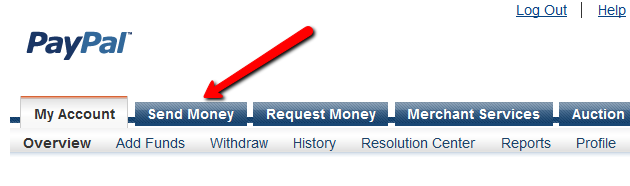
3. Click on “Send Money”
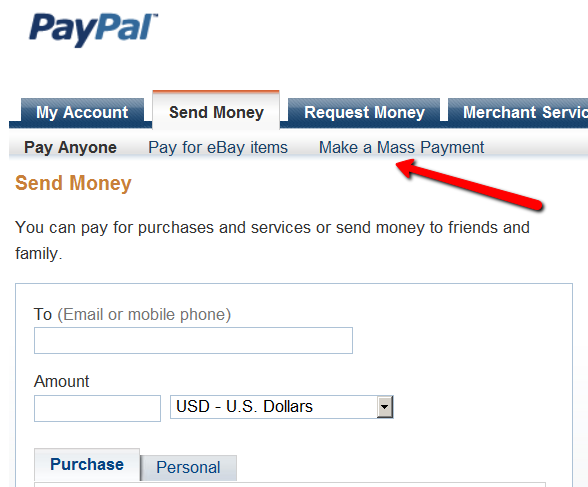
4. Click on”Make a Mass Payment”
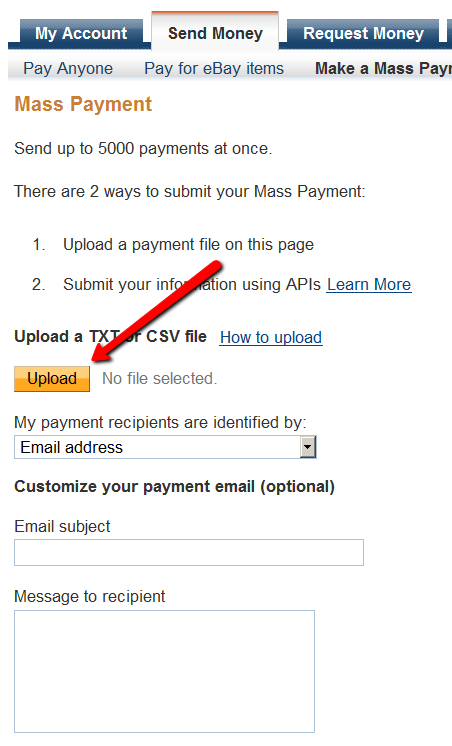
5. Upload previously saved text file on this next screen.
You may also enter a custom subject and body for the email that Paypal will send to all those receiving a payment.
6. Follow the rest of the on-screen instructions and hit “Send”, and you will see a confirmation from Paypal that your payment has been scheduled.
At this point, the money would have already been debited from your Paypal account.
Soon thereafter (usually within 10 minutes), Paypal would’ve actually deposited your payments in to the affiliates’ Paypal accounts.
3
Recommended Refund Policy
There really is no one-size-fits-all when it comes to refund policies.
There are so many factors involved. The main one being, that Visa/Master/Amex/Paypal all give a buyer up to 60 days to ask for a refund, at least with most merchants.
Unless you’ve already negotiated the refund terms with your merchant account provider, and have both specifically agreed that there would be no refunds (like say, if you were selling an expensive item, like a car, or a boat, or a service), or that it’s only going to be a 30-day refund period, then you really have no control over the refund period. You just have to comply with at least the mandatory 60-day refund period required by the credit card companies.
So that brings us to the question:
How much should you set your refund period to be within DAP?
Now remember, it is this Refund Period setting (under Setup > Config > Advanced) that also makes affiliates eligible for payment.
So it really comes down to the question:
What is the waiting period for an affiliate to get paid for a referral?
Our recommendation: 60 days.
That’s because if you end up paying too soon (say like within 15 or 30 days), and then the buyer comes back and asks for a refund, now you’re out-of-pocket for the affiliate commissions that you have already paid on a purchase that you just refunded.
Now remember that when you do the actual refund within DAP, DAP will roll-back any commissions credited towards this purchase. If you have not yet paid your affiliates, then in the next report, it will ignore the refunded purchase, and will not calculate commissions on that purchase.
But if you have already paid your affiliates (like within 15 or 30 days after purchase), then DAP will include the negative commission in the next pay-period’s report. And any future commissions earned by this affiliate will be accordingly adjusted.
However, if the affiliate doesn’t refer any more members, then you have two choices at this point:
1) Ask the affiliate to pay back the over-paid commissions
2) Just swallow the loss, write it up to the cost of doing business, and move on.
23
2-Tier Affiliate Program
DAP supports (up to) a 2-tier affiliate program. So you could pay just one level (“tier”) of commissions (A gets paid when he refers B), or you could also set up DAP to pay 2 “tiers” of commissions (User 1 gets paid when he refers User 2 AND User 1 also gets paid something when User 2 refers User 3).
[NOTE: Paypal has an Acceptable Use Policy – especially for a product or service that could be considered “MLM” or “Pyramid”. Make sure you’re not violating their terms. For eg., requiring your members to keep paying subscription fees in order to remain an affiliate, could be considered a Pyramid scheme. So, in general (nothing to do with using DAP or paying 2 levels of commissions), if you are running an affiliate program and will be paying out commissions via Paypal, make sure you are not violating their terms.]
How The 2-Tier Affiliate Program Works
In a typical “1-Tier” affiliate program, when a buyer makes a purchase, the affiliate who referred the buyer is the only one who gets paid an affiliate commission. Which is why it’s called “1-tier”, because there’s only one level of commissions paid.
However, in a “2-tier” affiliate program, the “Affiliate’s Affiliate” (2nd level above) can also be paid a portion of the sale in commissions.
So consider this this example…
You are selling Product A that costs $100.
You’ve set up your commission structure for Product A as follows:
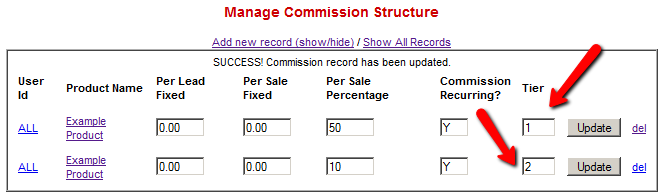
Tier 1: 50% Per Sale
Tier 2: 10% Per Sale
Joe Customer is referred by Charlie to your web site. Joe went on to purchase Product A for which commissions are set up above.
So Charlie (tier-1 affiliate) gets paid 50% of the sale – which is $50.
Now, normally a 1-tier affiliate program would stop there, and that would be the end of affiliate commissions for that purchase. But you have set up 2 tiers.
So now DAP looks at who referred Charlie, the affiliate. It finds that David originally referred Charlie to your web site (regardless of how Charlie got in to your membership site).
So now David (tier-2 affiliate) gets paid 10% of the sale – which is $10.
So for that one sale of $100, $50 was paid to Charlie, and $10 was paid to David, which totals $60.
So $40 is your earnings, as the site owner.
How To Set It Up
The 2-tier or “n” tier setup is the exact same as the 1-tier setup.
Only difference is, set up a new record on the “Affiliates > Set Commissions” page for each tier – one for Tier 1, one for Tier 2, and so on.
24
Paypal Integration Summary
DAP supports 3 different types of Paypal Integration.
1) Paypal Hosted Buttons
2) DAP Generated Buttons For Paypal
3) DAP Shopping Cart with Upsells
Let’s get into more details about each one of them.
[s3mv]DAP-Paypal-Integration-Overview.mp4,640,350,false,false[/s3mv]1) Paypal Hosted Buttons
You generate the button within your Paypal account.
Click Here to find instructions to integrate DAP and Paypal Hosted Buttons.
If the integration is not working, Click Here to find troubleshooting instructions.
Note: you only need to set the following config items for Paypal hosted buttons.
a) If you want to use Paypal Sandbox for testing, then set the following to “Y”.
DAP Setup -> Config -> Paypal -> Use Paypal Sandbox: For initial testing only
If you want to connect to your Paypal live account, then set it to “No”.
b) If your site has trouble connecting to Paypal via CURL and you see this error in DAP orders page => Check Product and Price(Reprocessible), then update the config below to FOPEN.
DAP Setup -> Config -> Paypal -> 4) Paypal Communication Protocol: How DAP connects to and communicates with Paypal on the back-end.
That’s it.
The following config items are NOT needed if you use the Paypal hosted buttons.
Paypal API Username – Only needed if you use the DAP upsell tree plugins for Paypal Payments Pro or Paypal Standard.
Paypal API Password – Only needed if you use the DAP upsell tree plugins for Paypal Payments Pro or Paypal Standard.
Paypal API Signature – Only needed if you use the DAP upsell tree plugins for Paypal Payments Pro or Paypal Standard.
Paypal API Endpoint – Only needed if you use the DAP upsell tree plugins for Paypal Payments Pro or Paypal Standard.
Paypal Business Email ID – Only needed if you use the DAP generated button for Paypal (DAP Payments/Coupons -> Generate paypal button)
Merchant Payment Gateway API Login ID: Only needed if you use e-junkie or the DAP upsell tree plugin for Authorize.net
Merchant Payment Gateway Transaction Key: Only needed if you use e-junkie or the DAP upsell tree plugin for Authorize.net
The following fields in the DAP Products page ONLY need to be set if you use DAP upsell tree plugin or the DAP generated button for Paypal.
Recurring Count, Trial Amount and Product Price
If you are using regular paypal button, you can leave these empty. Even if these are not-empty, DAP will not use it for regular paypal hosted buttons.
2) DAP Generated Buttons For Paypal
With DAP 4.0, we have added support for DAP generated buttons for Paypal. You no longer have to generate buttons within Paypal.
You can generate the button for Paypal from within your DAP Admin Panel -> Payment Processing -> Generate Paypal Button page.
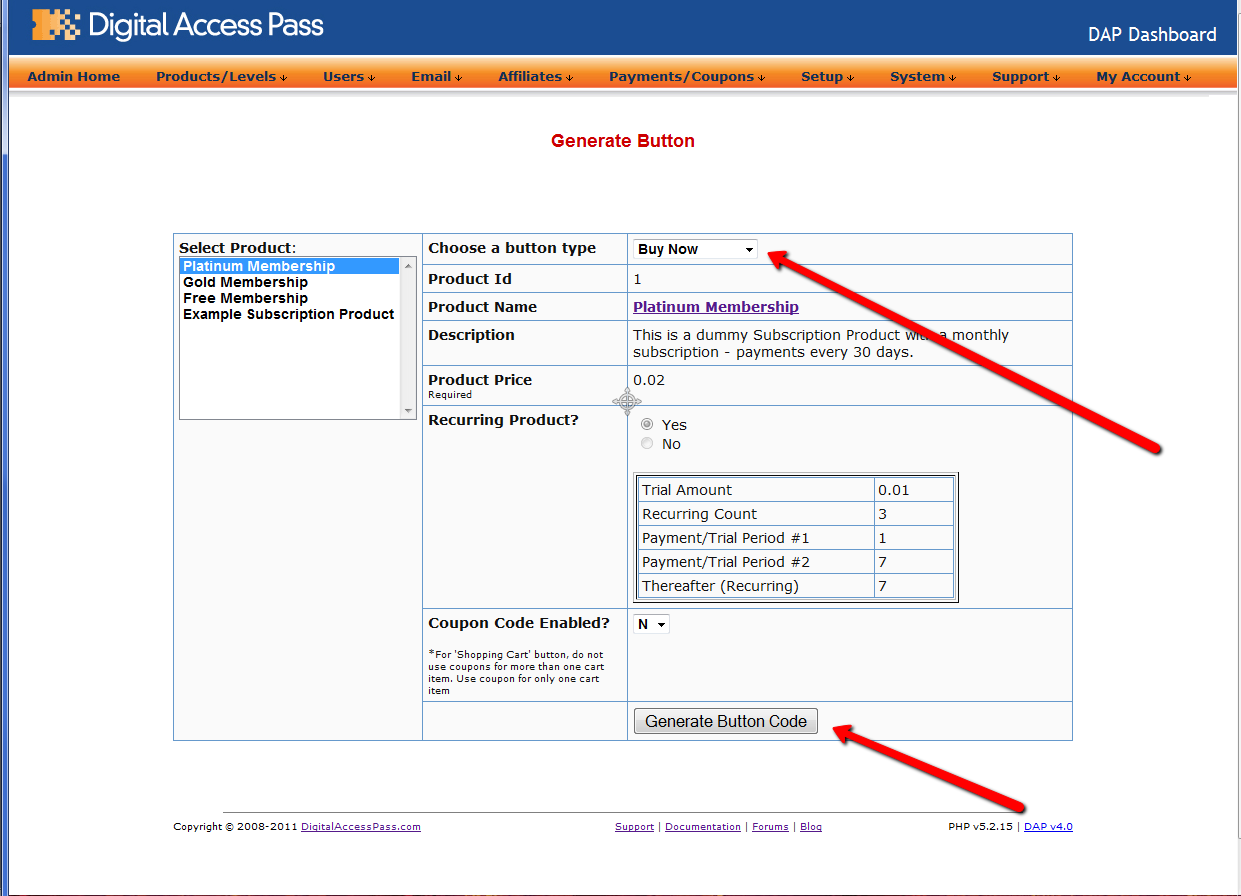
Click Here to find instructions to integrate the DAP generated button with Paypal.
3) DAP Shopping Cart / DAP Upsell Tree Plugins
1) Paypal Standard Upsell Tree Plugin
2) Paypal Payments Pro Upsell Tree Plugin / DAP shopping cart
Click Here for details.
32
Testing
Integrating Clickbank via INS
DAP has built-in support for ClickBank’s Instant Notification Services (INS) (starting v3.9)
This is very similar to Paypal’s Instant Payment Notification (IPN).
The ClickBank INS notification will be processed instantly in real time, and your members will receive their welcome email with their membership login info instantly after purchase.
For high-level ClickBank user-flow, see this post.
Integrating with ClickBank is the same whether it’s a one-time product, a subscription product with recurring payments, or a PitchPlus (one-click upsells) product.
CB INS Setup
1. Login to your ClickBank account
2. Go to the “Account Settings” tab at the top
3. Click on “My Site” from the sub-menu at the top.
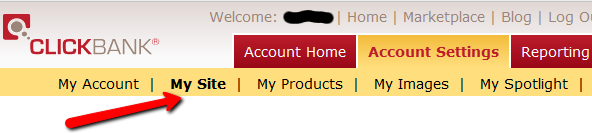
4. Under Advanced Tools, update the Instant Notification Service URL (accept the terms of service etc), and make sure the URL points to:
http://YourSite.com/dap/dap-clickbank.php
Replace YourSite.com above with your actual domain name.
5. Screenshot below shows Version 1.0, but starting DAP v4.2, we have added support for CB INS 2.1.
So if you’re using DAP v4.2 or later, then select INS Version 2.0 and set the CB INS URL TO :
http://YourSite.com/dap/dap-clickbank-2.1.php
But if you’re using DAP v4.1 or earlier, then select Version 1.0
and set INS URL TO:
http://YourSite.com/dap/dap-clickbank.php

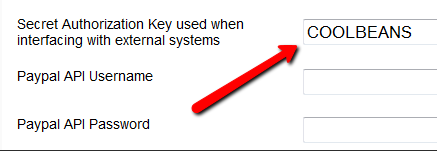
6. Whatever value you put in the Secret Key field in ClickBank (see image above), put the same value (must be ALL UPPERCASE) in to your DAP Admin Dashboard on your web site, at:
Setup > Config > Payment Processing > Secret Authorization Key used when interfacing with external systems
7. The Product Title in CB must match the Product Name in DAP.
8. The Thank You Page url in CB product settings page, should be set to point a static thank-you page you create in your WordPress blog – something like http://YourSite.com/thank-you/ .
And the page should state something to the effect of…
Thank you for your purchase. The download information for the product you just purchased has been sent to the email id you just use during the purchase.
Please check that email id in a few minutes, and you will see an email from us with your login information.
That’s it!
Testing
Make a test purchase.
If the integration was setup correctly, the user will be registered in DAP. You will find the user account in the DAP Users > Manage screen and you will find the completed transaction / order details on the DAP Orders page.
If the test order is listed in DAP Orders page, then CB is correctly integrated with DAP. Check the payment status in DAP Orders page. If it says Success, but no welcome/thank-you email got sent, then make sure you set the thank-you email for that product in DAP products page.
Troubleshooting
If no order is listed in DAP orders page for the test purchase, then CB is not integrated with DAP.
To troubleshoot, do the following:
- Set DAP Setup > Config > Log Level to 5.
- Empty log content under System -> Logs.
- Run another test purchase.
- Send us the log snippet from System -> Logs.
14
Instant Affiliate Payments
There are some scripts out there that will allow you to “pay affiliates instantly”.
What this essentially means, is that the “seller email” in your Paypal button, is actually replaced with your affiliate’s Paypal email id. Which means the payment from your buyer is going straight into your affiliate’s Paypal account, not yours.
This means that when your buyer looks at her Paypal account, it does not say payment made to you “John Seller” (you), but to “Joe Affiliate” (your affiliate).
This is a poor business practice on so many levels.
1) Customer bought a product from you. Why is her Paypal account showing that she just made a payment of $97 to “Joe Affiliate”? Your customer is thinking, “Wait a minute… Who the heck is Joe Affiliate? I did not buy anything from any Joe Affiliate. Why is my Paypal account showing that I paid him money? HELP!… Fraud… Paypal Dispute… Scammer… I want a REFUND!”. Well, that’s what we would think too if we bought something from one merchant, and saw the payment going to someone else.
2) What happens when your customer wants a refund? Now you’re going to have to ask Joe Affiliate to return the payment, because you never got it – he did. What if Joe Affiliate doesn’t respond on time? What if he doesn’t return the money on time? What if he doesn’t want to return it at all? Will you hold up your customer’s refund, or are you going to keep paying out of your pocket and “hope” that Joe Affiliate returns your payment to you this time, and not to the buyer, because you have already send the buyer their money back?
So yes, this is just bad for business. Not to forget, looks extremely unprofessional on your part too.
The only way to properly handle instant payments, is by using Paypal’s Adaptive Payments technology, which allows you to do something called “Chained Payments”. And using Chained Payments, your customer always pays YOU first. And you can set up a chain, so that as soon as their payment hits your Paypal account, Paypal in turn will instantly send a money from YOUR account to your AFFILIATE’s account. So Customer pays you, you pay the affiliate. And that’s how it should be.
Anything else will only get you in trouble with Paypal, maybe even get your account banned, piss your customers off, dilute your brand, your reputation may get trashed, and just about everything that is not good for your business could happen.
Now DAP does allow you to instantly ‘credit’ your affiliate’s account with the payment due, but you still have to push a couple of buttons before the affiliate can actually get paid.
And that’s how it’s going to be until we develop support for Paypal Adaptive Payments (which has its own complications, by the way).
What is your take on this? Feel free to leave your comments below.
5
WishList Migration Kit
We get many requests from folks wanting to switch their existing membership site from WishList to DAP, or from Amember to DAP, from Magic Member, YourMembers, eMember, Membergate, etc. We’ve honestly lost count of the number of migrations we’ve done over the years. And every single one of those users who switched to DAP, has been thrilled with DAP and has continued to stay with DAP ever since.
In almost all cases, they all wanted to switch their main “bread-and-butter” membership site over to DAP, because of many things that DAP does that the others don’t. Or maybe because their current membership plugin doesn’t let them do what they want to do, or because their developers stopped supporting it (or support is non-existent), or they’ve gone out of business, or simply because the plugins just don’t scale well for a large membership site, like DAP can.
Anyway, we decided to write a blog post about how to do that for those of you considering doing it yourself.
[NOTE] You don’t have to do this yourself – we can do the migration for you for a fee. See this link for details about purchasing our WishList-To-DAP Migration. [/NOTE]
1) Migrating “Free Members”
Moving free members over to DAP is very simple. Export your old members as a CSV (comma-separated) file containing just email, first name and last name(optional) in the following order:
Email,FirstName,LastName
Lastname is optional. No spaces before or after the comma’s.
And then import them on the “Users > Add” screen.
You can read more about importing users into DAP in this post.
2) Migrating “Paying Members” With Current Subscriptions
This is a bit trickier than migrating just free members. You not only have to import existing member information, but you also need to migrate over their existing subscriptions to point to DAP.
How this is done, primarily depends on what payment processor you were already using, and wish to continue to use while making sure all new incoming subscription payments get processed by DAP.
But before you migrate over their existing subscriptions, you have to import all of them first using DAP’s “Users > Add” screen, which allows you to import multiple users into a Product, while also marking them as “Paid”.
Before you do the import, be sure to empty both the “Double Optin” and “Thank-you” email subject and body on the Product page, because you don’t want DAP sending out any double-optin or thank-you emails to the members you are about to import. We can send them a broadcast email at a later point, when we’ve fully set them up correctly in the system.
Then once you’ve imported them all, you can modify each of their records quickly to modify their start and end dates, to sync with wherever they were in your previous WL site.
Then once you have all of their dates set up, all that remains is to integrate DAP with your payment processor, such that both payments from both new members as well existing members, all get processed by DAP, so that DAP continue to manage their subscriptions, and start giving them access to the member’s area, going forward.
Paypal Integration
Your current WishList subscriptions are probably already pointing to a WishList specific “virtual” URL. Unfortunately, Paypal will not allow you to modify the IPN url in existing “stored” subscriptions that are current.
So you will need to put in a new rule into your .htaccess file at the root of your web site, to simply redirect all incoming IPN notifications (that come to your WL virtual URL) to DAP’s Paypal-specific file on your site, which is http://YourSite.com/dap/dap-paypal.php
Here’s the exact line of text to place within your .htaccess file that’s in your root…
RewriteRule ^index.php/register/pgiotv$ /dap/dap-paypal.php [L]
Be sure to replace the text “index.php/register/pgiotv$” by the IPN URL given to you by wishlist.
Once this is done, DAP will start processing all future subscription payments from existing members.
3) IMPORTANT
Before you create any DAP Products and start protecting content within DAP, make sure you have disabled the Wishlist plugin. Also be sure to disable any other “content protection” plugins, like “Maintenance Mode”, and Cache plugins.