
21
Protecting Videos
There are many ways in which you can protect videos.
Case 1: The video file is stored on your web site
By default, DAP can only protect files that are stored on the same web site where DAP is installed.
So if you install DAP on YourSite.com , then your files must also be located on YourSite.com. DAP installed on YourSite.com cannot protect files (.mp4, .mp3, .html, .pdf, .doc) that are stored on AnotherSite.com.
So assuming the files are stored on the same site as DAP, you can (and should) protect both the actual video file, as well as the blog post or page in which the embed-code for your video is published, by adding both to a Product.
This gives you 2 levels of protection for your videos:
Level 1: The blog post or page containing the video player code, itself is accessible only by authorized members.
Level 2: When an authorized user gets legitimate access to the page where the video is published (because they’re a paying member, say), even if they try to do a view source and figure out the location of the video (eg., http://yoursite.com/videos/howtovideo1.mp4) , and pass it around by email to their friends (or post the link in an online forum), their friends still can’t view the video, because the video link itself is protected by DAP.
If you have some text that you want the casual visitor (and Google) to read, but wish to protect only the video, then you could turn Sneak-Peek on (in Setup > Config > Advanced), insert a WordPress more tag (<!–more–>) into your post just where you want the content to start being protected, and put the video player’s embed code after the more tag.
Case 2: Video file is stored on Amazon S3
The only 3rd-party-stored video files that DAP can protect at this time are videos (and other files) that are stored on Amazon S3. DAP cannot do this by itself, but uses a special WordPress plugin called S3MediaVault.com , which is a plugin we developed specifically to make Amazon S3 videos play in your WordPress blog posts/pages. So again you get 2 levels of protection for your videos…
Level 1: DAP protects the post/page where the special S3MV video player code is embedded
Level 2: The S3MediaVault plugin makes sure that even if someone tried to do a view source and figure out the actual link to your Amazon S3 video, they still won’t be able to view the video.
WARNING: Video stored on other 3rd party video sites
DAP cannot protect, say, videos that are embedded from other 3rd party web sites like YouTube or Hulu. Of course, DAP can always protect the blog post or page itself that contains the video, but once an authorized user gets valid access to that blog page, they can see that it is a YouTube video (say), and then pass that YouTube video link to their friends, in which case DAP cannot protect that external YouTube video link.
Check out my podcast episode at http://subscribeme.fm/video-hosting-for-your-membership-site/ which goes into detail about video hosting for your membership site.
4
Customizing Login Widget
Here’s how you can customize the HTML, look & feel of the DAP Sidebar Login Widget.
There is a file in the following folder…
/wp-content/plugins/DAP-WP-LiveLinks/
by name…
DAP-WP-LoginForm-LoginLogout.html
Make a copy of that file on your desktop, rename it to…
customDAP-WP-LoginForm-LoginLogout.html
(just added the text “custom” at the front of the original file’s name).
You can then modify this new file however you want, including altering spacing, and that’s what will be displayed.
Just be careful what you change – do not modify the field names or the submit URL. Feel free to change other visual elements.
13
1-Click Upsells With Paypal Standard
1-Click Upsells, Downsells and OTO’s are now extremely simple to implement using the new “Upsell Tree” plugin for DAP.
And this particular plugin works with Paypal Standard! Which means you don’t need a merchant account any more.
All you need is a regular Paypal Business Account.
Please note that this is not “True 1-Click”, like you can do with a real merchant account – because of the very fact that Paypal expects your buyers to log in at least once into their paypal account through Paypal.com, and then at the end of the Upsell-flow, there is one final confirmation page. So it’s more like “2-Click Upsells” really.
If you want true 1-Click Upsells, then you need to have a merchant account through Paypal Website Payments Pro or Authorize.net.
IMPORTANT: What you need before you can use this plugin
- You need a Paypal (Standard) Business or Premier account
- You must have SSL (secure server) enabled on your web site. Ask your web host to enable SSL for your site.
- You must have a working version of DAP 3.7+
- You cannot sell a “Recurring” product as an Upsell – recurring products have to be the first product in the flow.
- Here’s what you CAN do: You can have a recurring product as the very FIRST product that they purchase (when they first click on the “Buy” button on your main sales page, and then you can offer any number of “One-Time” Products as upsells or downsells.
- Here’s what you CANNOT do: Offer a “One-Time” product as your first product that they buy, and then try to upsell them to a “Recurring” Product. Unfortunately, this is a Paypal problem at this time.
Installation & Setup of UpsellTree For Paypal Standard
- You need to be running at least DAP v3.7 for this plugin to work
- Purchase the UpsellTree plugin if you haven’t already done so, login to your DAP account and download the plugin zip file, PaypalStandardUpsellTree.zip .
- Unzip the file to your desktop. That will create a new folder on your desktop, called “PaypalStandardUpsellTree” which will have all of the files inside.
- Upload all the files inside, directly to your “dap” folder on your web site.
- DO NOT upload the folder itself. Just the files inside.
- Installation of Paypal Upsell-Tree Plugin is complete.
- Next, log in to your Paypal account.
- Click on “Profile”
- Click on “Request API Credentials” (under ‘Account Information’ section). It will bring you to the API access page.
- Under Option 2, click on “Request API credentials” to create your own API username and password.
- Click on “Request API signature”
- Click on “Agree & Submit”
- Note down the following pieces of information:
* API Username
* API Password
* API Signature - That’s it as far as your Paypal account is concerned. Now back to DAP on your site.
- Log in to your DAP Dashboard
- Go to “Setup > Config“. On that page, click on the “Paypal” link in the links towards the very top of that page (or scroll down to the “Payment Processing: Paypal” section).
- Enter the 3 pieces of information (from Step #13 above) into the Config fields 7, 8 & 9 on that screen: Paypal API Username, Paypal API Password, and Paypal API Signature. Cick “Update” and save the changes.
- Generating the Paypal Upsell Buy Buttons:
In the DAP Dashboard menu, go to Payment Processing > Generate Buy Button
You will now see that you’re on the default tab “Paypal Standard”. - So now select the DAP Product for which you’re trying to generate the buy button, from the Product list.
- Now, once the page has refreshed, scroll down to the bottom of this page, and you’ll see an expandable section with the heading “Paypal Standard 1-Click Upsells”
Expand that section by clicking on the “+” image. - You will see the following two links in that section…Generate Paypal Standard 1-Click Primary Button
Generate Paypal Standard 1-Click Upsell ButtonThe first one is for generating the buy-button code for your primary product (the very first product in the flow). The second one is for all upsells.So if this is the first time you’re doing this, and for your main product, click on the first link. - If all of your Product’s settings are correct, then you’ll see a small popup that contains the buy-button HTML code. Paste this code into a blank notepad (or text editor) window.
So let’s say this is what the code you got looks like…<form name=”generate_paypal” method=”post” action=”/dap/PaypalSetExpressCheckout.php”>
<input type=”hidden” name=”item_name” value=”Facebook Secrets Subscription”/>
<input type=”hidden” name=”description” value=”This is a Subscription Product with a monthly subscription – payments every 30 days.” />
<input type=”hidden” name=”amount” value=”10.00″ />
<input type=”hidden” name=”trial_amount” value=”0.00″ />
<input type=”hidden” name=”total_occurrences” value=”9999″ />
<input type=”hidden” name=”is_recurring” value=”Y” />
<input type=”hidden” name=”recurring_cycle_1″ value=”365″ />
<input type=”hidden” name=”recurring_cycle_2″ value=”365″ />
<input type=”hidden” name=”recurring_cycle_3″ value=”365″ />
<input type=”hidden” name=”payment_succ_page” value=”https://YourSite.com/dap/continue.php?url=/dap/upsell1-paypalstandard-sample.html” />
<input type=”hidden” name=”payment_err_page” value=”https://YourSite.com/dap/paymentError.php” />
<input type=”hidden” name=”payment_cancel_page” value=”https://YourSite.com/dap/cancel.php” />
<input type=”hidden” name=”payment_gateway” value=”paypal” />
<input type=”hidden” name=”is_submitted” value=”Y” />
<input type=”image” src=”/dap/images/btn_xpressCheckout.gif” align=”left” width=”200″ height=”50″ style=”margin-right:7px;” value=”Submit” alt=”Submit”> - Look at the payment_succ_pagetag in the generated button code and have it point to your sales page for your upsell.In the above example, the upsell page is called upsell1-paypalstandard-sample.htmland it’s under the dap folder.Put this HTML code on the primary product’s sales page. This is the first product in the flow.
- Now, you need to generate a button for your upsell product. So go back to Payment Processing > Generate Buy Button . This time, pick the Upsell product from the list.
- Now scroll down to the bottom of this page, expand the section “Paypal Standard 1-Click Upsells” , and this time, click on the second link there, because you’re now generating a buy-button for the Upsell product.Generate Paypal Standard 1-Click Primary Button
Generate Paypal Standard 1-Click Upsell Button - Say this is the button code you get this time…<form name=”generate_paypal” method=”post” action=”/dap/PaypalAddToCart.php”>
<input type=”hidden” name=”item_name” value=”Upsell 1″/>
<input type=”hidden” name=”description” value=”This is a dummy Subscription Product with a monthly subscription – payments every 30 days.” />
<input type=”hidden” name=”amount” value=”10.00″ />
<input type=”hidden” name=”trial_amount” value=”0.00″ />
<input type=”hidden” name=”total_occurrences” value=”9999″ />
<input type=”hidden” name=”is_recurring” value=”Y” />
<input type=”hidden” name=”recurring_cycle_1″ value=”365″ />
<input type=”hidden” name=”recurring_cycle_2″ value=”365″ />
<input type=”hidden” name=”recurring_cycle_3″ value=”365″ />
<input type=”hidden” name=”payment_succ_page” value=”/dap/PaypalCheckoutConfirm.php” />
<input type=”hidden” name=”payment_gateway” value=”paypal” />
<input type=”hidden” name=”is_submitted” value=”Y” />
<input type=”submit” value=”AddToCart” />
</form> - Now again, notice the payment_succ_page in the generated button code. You will see its pointing to /dap/PaypalCheckoutConfirm.php.
a) If this is the last upsell, then leave it pointed to /dap/PaypalCheckoutConfirm.php.
b) If this is NOT the last upsell, then update it to point to the url of the 2nd Upsell page (like we did for the primary product to point to the first Upsell sales page) and repeat the process above for the next upsell page.Bottom-line: Make sure that both the buy-button code as well as “No Thank You” link on the last upsell or downsell page, points to /dap/PaypalCheckoutConfirm.php - When your buyer reaches the final checkout confirmation page (PaypalCheckoutConfirm.php) then they can review all of the products in their “Upsell Cart”, and buy them all instantly and all together, without having to go back to Paypal ever again.
- Things To Note:
a) If you’re doing upsells, the only thing you need to do is, look for the “payment_succ_page” field in the above form. By default it will point to:
https://www.example.com/dap/continue.php?url=/dap/upsell1.html
b) Modify the file upsell1.html within your dapfolder, to create your 1-Click Upsell offer. Or if you don’t wish to use 1-Click upsells, you can make just about any kind of upsell offer on that page. The upsell1.html that comes with the plugin has a sample upsell page already created for you, just so you get an idea of what that will look like.b) On the upsell page, if you want to upsell say, Product B, then make sure you set up “Product B” ahead of time in DAP, and set up the price and recurring options.
c) Then for upsell products only, click on the “Generate Authnet 1-Click Upsell” link to generate the 1-Click Upsell Buy button code, as the upsell buy button is slightly different than the ‘regular’ buy button code. Now take the upsell buy button code like you did before, and paste it in upsell1.html.Repeat this process for unlimited upsells, downsells and one-time offers. No limits.
“No, Thank You” Buttons & Links
On every upsell page, you must also include a “No, Thank You” button or link that will allow your buyer to skip your upsell or downsell, and go to the next part of the sale.
For all upsells that are not the last upsell, you can link this button or link to the next upsell in the chain. So basically, on Upsell 1, they can either take the upsell1 (whatever your offer is) by clicking on the buy button, or click on the “No, Thank You” button/link, and you could then either taken them to the URL of Upsell2, or Downsell 1, or if this is the last upsell in the flow, then you could send them directly to the Paypal Upsell Summary Page /dap/PaypalCheckoutConfirm.php
Creating a “No, Thank You” button
Button to take them to next Upsell/Downsell:
<form name=”nothankyou”>
<input type=”button” name=”nothankyoubutton” value=”No, thank you, I wish to skip this incredible offer” onClick=”location.href=’https://YourSite.com/dap/continue.php?url=/dap/upsell2.html‘;”>
</form>
Feel free to copy the above HTML button code for the no-thankyou button. However, paste it into a text editor and be careful and don’t delete any of the HTML code, and only change actual URL’s or the button’s value (which is the text your buyer will see on the button).
Button to take them to final Checkout Summary page:
<form name=”nothankyou”>
<input type=”button” name=”nothankyoubutton” value=”No, thank you, please complete my order” onClick=”location.href=’/dap/PaypalCheckoutConfirm.php‘;”>
</form>
Creating a “No, Thank You” link
Link to take them to next Upsell/Downsell:
<a href=”https://YourSite.com/dap/continue.php?url=/dap/upsell2.html“>No, thank you, I wish to skip this incredible offer</a>
Link to take them to final Checkout Summary page:
<a href=”/dap/PaypalCheckoutConfirm.php“>No, thank you, please complete my order</a>
That’s it.
While it looks like a LOT of steps, that is only because we have to explain the steps in detail so they are clear. In reality, it is very simple to set up, and starting from scratch, if you have DAP & SSL already installed, it shouldn’t take you more than 1/2 hour to set up your 1-Click Upsells/Downsells/OTO’s. And if you’re not using Upsells/Downsells, then it can be done even faster.
If you have any further questions, feel free to open a support ticket, and we will assist you in getting this going.
Click here to buy our Paypal Upsell-Tree Plugin
10
Paypal Website Payments Pro Integration
IMPORTANT: PLEASE NOTE
The latest version of Paypal Payments Pro (called PAYFLOW) is not compatible with DAP and Recurring Billing Cycles, You will have to open a Paypal account with the older version of their Payments Pro Merchant service that is compatible with DAP. Please make sure to use the older version of PPP which has to be specially requested through their support team. In a future DAP release, we will make it compatible with the new version of PPP.
Please read this for more on Payflow and Paypal Payments PRO :
http://www.digitalaccesspass.com/forums/threads/1044-Recurring-transaction-failed-in-paypal?highlight=payflow
This post includes information about generating buy buttons for Paypal Website Payments Pro. It also has information about setting up 1-Click Upsells.
Even if you don’t wish to do upsells, you should follow the setup instructions in this page, for integrating your site with Paypal Website Payments Pro .
What you need before you can use this plugin
- You need a Paypal Website Payments Pro merchant account with Recurring Billing enabled.
- You must have SSL (secure server) enabled on your web site. Ask your web host to enable SSL for your site.
- You must have a working version of DAP 4.2+.
- Login to the DigitalAccessPass.com member’s area and download the file, DAPShoppingCart.zip .
- Unzip it to your desktop. It will unzip the files to a new folder on your desktop, called “DAPShoppingCart”.
- Upload all the files inside, directly to your “dap” folder on your web site. DO NOT upload the folder itself.
- After the files are uploaded, check to make sure that you find the files checkout.php and checkout-submit.php (just to name 2) directly under the dap folder. If you don’t, then you haven’t uploaded the files to the right directory.
Installation & Setup
-
Enabling Instant Payment Notification (IPN) within your Paypal account.
a) Log in to your Paypal account and click on the “Profile” link.
b) Go to Instant Payment Notification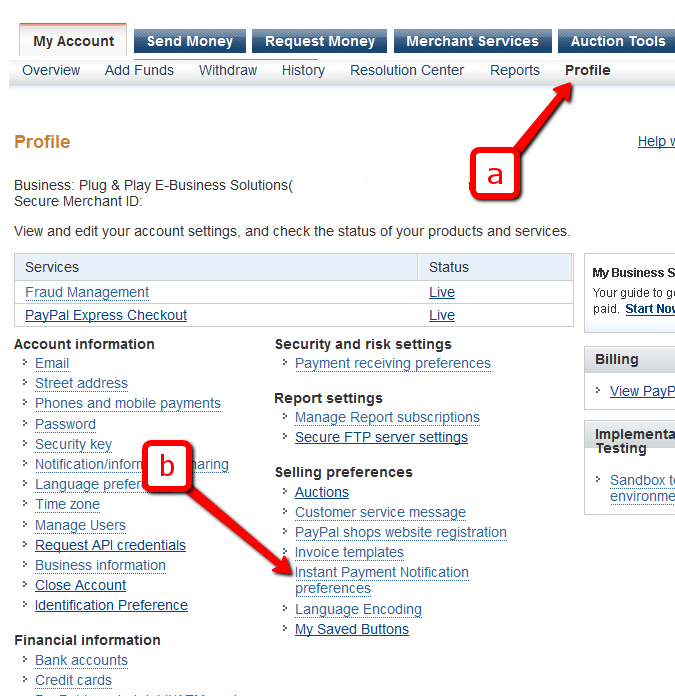
c) If IPN is already enabled, and you already have a URL in that field, then skip ahead to Step 2.
Else, if IPN is not already enabled, then click on “Choose IPN Settings”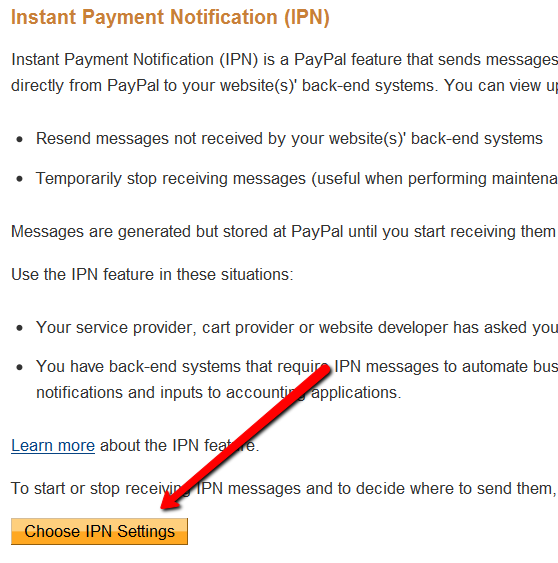
d) On the next screen, in the Notification URL field, enter…
http://YourSite.com/dap/dap-paypal.phpDon’t forget to replace “YourSite.com” with your actual web site’s domain name.
e) Make sure “Receive IPN Messages” is selected.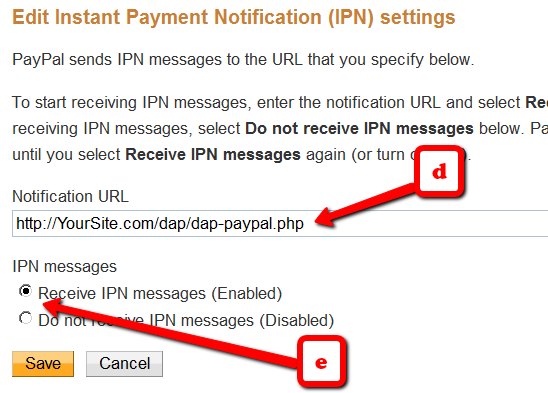
f) Click on “Save”.
-
Enable “Auto-Return” and “Payment Data Transfer”
Log in to your Paypal account.
Go to Profile.
Click on Website Payment Preferences
Turn Auto Return to On (see image below)
Set Return URL to http://YourSite.com/dap/dap-thankyou.php
Scroll down further to the Payment Data Transfer (optional) section
Set Payment Data Transfer to On
Scroll all the way to the bottom of the page, and then Save the changes.
You will now see a green check mark image, with a long string of characters on line 2. That is your Paypal Identity Token. Copy that string.
Go back to DAP Dashboard > Setup > Config > Payment Processing > Paypal Identity Token field, and enter this string there, and save it.

- Log in to your Paypal account and retrieve the following 3 pieces of information:
Paypal API Username
Paypal API Password
Paypal API Signature - Now log in to your DAP Dashboard and go to “Setup > Config“. Click on the “Paypal” link in the sub-menu at the top. The current page will then skip to the “Payment Processing: Paypal” section about half-way down the page.
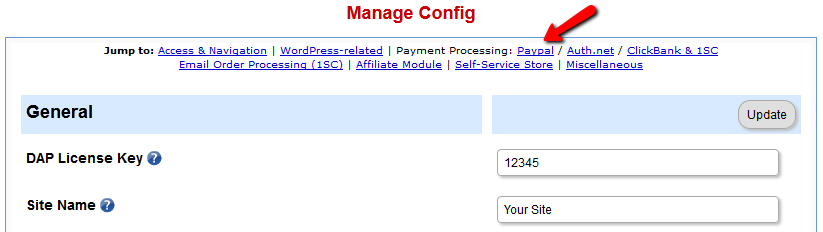 The current page will then skip to the “Payment Processing: Paypal” section about half-way down the page.
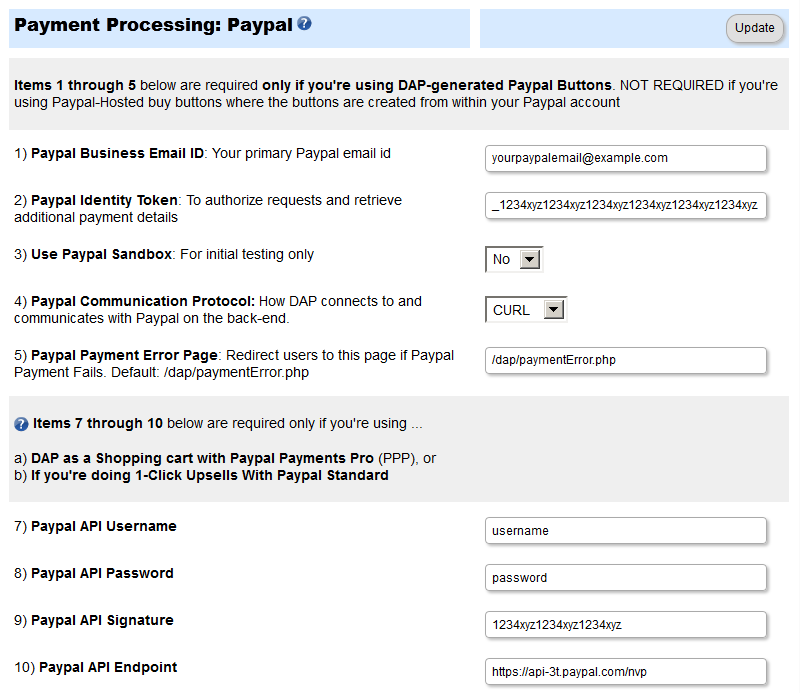
- Fill out items (1) through (10).
- Into fields 7, 8 and 9, enter the Paypal API Username, Paypal API Password, and Paypal API Signature that you noted down earlier.
- This step applies to you only if you are already using 1ShoppingCart with DAP (if not, skip to next step):
Be sure to disable the “Email Order” cron job from your web hosting control panel (“Cron Jobs” screen), because you don’t want your orders to be double-processed. - We’re going to assume that you’ve already setup the pricing and recurring options on the Products/Levels > Manage page, on the Pricing & Recurring tab.
- Now click on Payment Processing > Generate Buy Button on the DAP Admin Main Menu.
- Switch to Auth.net & Paypal Pro tab.
- Select the product name for which you wish to generate the buy button. Sections 1 and 2 are self-explanatory.
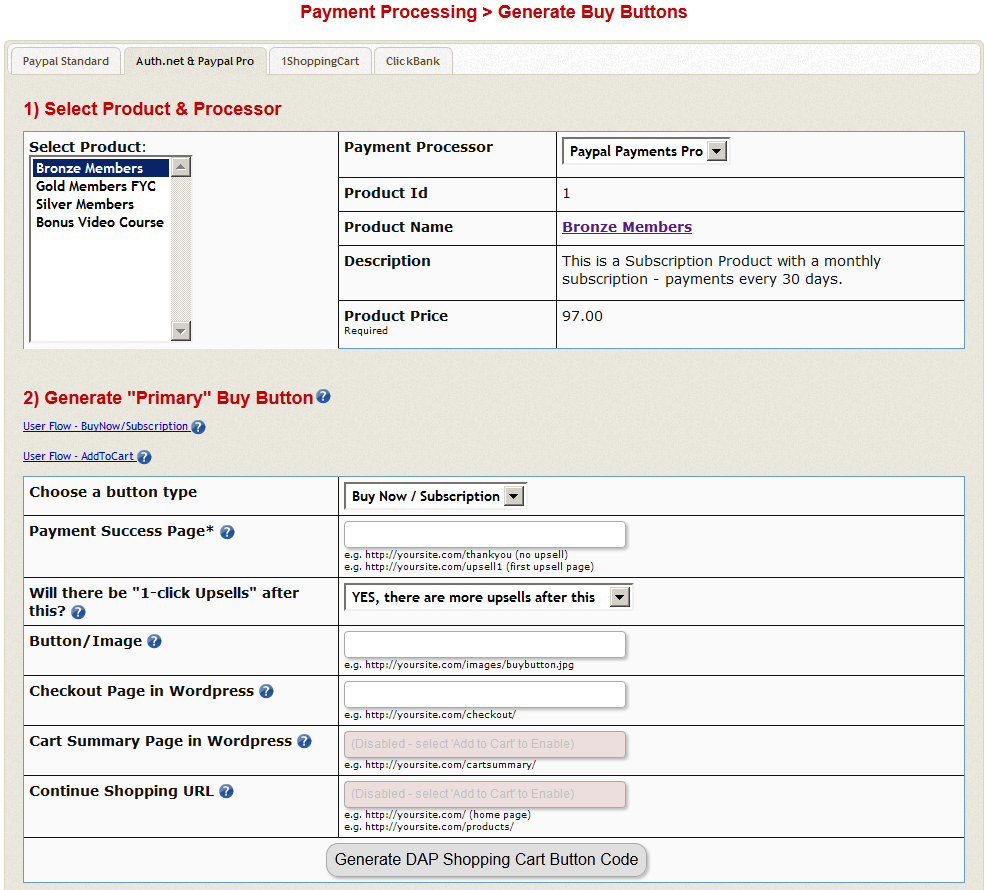
- If you want to put the shopping cart page right within a WordPress page, then do this…
a) Set the Payment Success Page to point to the page where you want users to be redirected upon purchase. It can be your login page, or a static thank-you page that informs the buyer to check their email id
b) Create a WP Page with the title Checkout containing the tag %%DAPCART%% tag and publish it. The permalink of this page would now become https://yoursite.com/checkout. Remember to add the “s” to “http” to make it “https://”. This page is not something you should access directly, but only through clicking a buy-button.
c) In the above screenshot, where it asks for “Checkout Page in WordPress”, enter the URL of your new checkout page from Step (b) above. Replace yoursite.com with the name of your site.
NOTE: The checkout page URL should start with https (SSL-enabled) and not http. - When done with sections 1 & 2, at the bottom of section 2, click on the Generate DAP Shopping Cart Button Code
This generates the buy button HTML code for your product, which you can then directly paste into your sales page. When you click on this link, you will get a pop-up that shows the actual HTML code for your button. The price, trial price, and recurring options are all taken from your Product settings. So make sure you have saved your Product changes before you click on this link. - Here’s what the HTML code looks like:
<form name="DAPCartPaymentForm" method="post" action="https://yoursite.com/dap/checkout.php">

<input type="hidden" name="payment_succ_page" value="http://yoursite.com/members/"/>

<input type="hidden" name="item_name" value="Bronze Members" />

<input type="hidden" name="is_submitted" value="Y" />

<input type="hidden" name="btntype" value="buynow" />

<input type="hidden" name="is_last_upsell" value="N" />

<input type="hidden" name="payment_gateway" value="paypal" />

<div align="center"><input type="image" src="https://yoursite.com/dap/images/addtoorder1click.jpg" width="200" height="100" border="0" name="submit" /></div>

</form> - Put the button code on your sales page. Now click on the button, it will take you to the checkout page (if you customized the checkout page as per step 12 above, then you’ll be taken to https://yoursite.com/checkout).
- Enter the CC details and other info and hit submit.
- The purchase will complete and DAP will redirect you to whatever you set in the Payment Success Page in the button.
That’s it for Paypal Pro button generation.
1-Click Upsells
- If you’re doing upsells, the only thing you need to do is, look for the “payment_succ_page” field in the above form.
- Point it to the URL of your Upsell offer. This can be either a static HTML page, or a WordPress Page.
- On the upsell page, if you want to upsell say, Product B, then make sure you set up Product B ahead of time in DAP, and set up the price and recurring options. Then generate the buy button code for Product B and have it already published on that page.
- You can repeat this process for unlimited upsells, downsells and one-time offers. No limits.
Creating Custom Header & Footer for Checkout Page
You can either use the standalone cart page, and then customize the header and footer.php file.
Or you can put the cart right within a WordPress page on your site, so the cart will then take on your theme’s look and feel, and look like it were completely a part of your wordpress site.
Header & Footer for Stand-alone Cart page
To create custom header and footer, create two files by name cartheader.php & cartfooter.php
Upload them to the dap/inc/ folder.
Whatever HTML snippet you put in the above two files will show up as header & footer on the check out page.
Shopping Cart Overview
See http://www.digitalaccesspass.com/doc/dap-shopping-cart-overview/
Summary
While it looks like a LOT of steps, that is only because we have to explain the steps in detail so they are clear. In reality, it is very simple to set up, and starting from scratch, if you have DAP & SSL already installed, it shouldn’t take you more than 1/2 hour to set up your 1-Click Upsells/Downsells/OTO’s. And if you’re not using Upsells/Downsells, then it can be done even faster.
If you have any further questions, feel free to open a support ticket, and we will assist you in getting this going.
19
Merge Tags For WordPress Posts & Pages
Here are the merge-tags that you can use in your WP posts, and what they mean. (Click here for merge tags for Autoresponder & Broadcast Emails)
This is better suited for a WP “page”. This text will be replaced by a login form using which your members can log in to your membership site.
%%AFFDETAILS%%
This will be replaced by the entire Affiliate section from the default home page at YourSite.com/dap/ . Better suited for a Page.
This will be replaced by the user profile from the default home page at YourSite.com/dap/. Better suited for a Page.
This will be replaced by the user links section (the list of what products and what links user currently has access to) from the default home page at YourSite.com/dap/. Better suited for a Page.
%%FIRST_NAME%%
This will be replaced by the first-name of the user.
%%EMAIL%%
This will be replaced by the email id of the user.
%%AFF_LINK%%
This will be replaced by the raw affiliate link of the member. If you want it to show up as a link in your blog post, use it like this:
<a href=”%%AFF_LINK%%”>%%AFF_LINK%%</a>
%%USER_NAME%%
This will display the DAP user’s “Username” on the page.
%%USER_ID%%
This will display the DAP user’s ID on the page (ID is a number).
%%FEEDLINK%%
Replaces with user’s personalized RSS feed URL.
%%PRODUCT_DETAILS_<insert-product-id>%%
Replaces merge tag with Product-specific details (including links available to the member as part of that Product) on a specific WordPress page/post.
%%DAPCUSTOMFIELD_<insert-custom-field-name>%%
You can display the value of the user’s own custom fields on your pages, using a merge tag like this:
%%DAPCUSTOMFIELD_tax_id%%
In the above example, tax_id is the custom field that you have created in DAP. So if the name of the custom field in DAP were “ssn”, then the above merge tag would become %%DAPCUSTOMFIELD_ssn%%
Displays data of the user’s “upline” affiliate.
Displays upcoming drip-feed scheduled content.
[DAPRefAffId]
Displays id of affiliate who referred visitor to site. If no affiliate set, displays DAP Admin’s id.
[DAPShowTransactions]
Shows list of all transactions/orders by logged-in user.
[DAPUserSubscriptions]
Shows list of all subscriptions by logged-in user.
15
Login/Logout Widget
DAP has a Login/Logout Widget that you can use in any widget-ready theme.
Log in as WP admin, and look under “Appearance > Widgets”.
You’ll see the widget. Drag this widget on to any customizable part of your theme.
The widget puts the DAP login form right on your sidebar.
When a user is not logged in, they will see the login form.
When they are logged in, they just see a “Logout” button.
6
Plugin Errors
(1) When Activating LiveLinks
If you are seeing an error that looks like this when you try to activate LiveLinks…
Fatal error: Cannot redeclare dap_filter_posts() (previously declared in /home/sitename/public_html/wp-content/plugins/DAP-WP-LiveLinks/DAP-WP-LiveLinks.php:11) in /home/sitename/public_html/wp-content/plugins/DAP-WP-LiveLinks/DAP-WP-LiveLinks.php on line 11
First click on the DigitalAccessPass link on the left side bar of your WP admin panel and see if you able to login to the DAP Admin Panel successfully.
If yes, then you can ignore this error. If not, try out these solutions one-at-a-time.
Solution A) This could be because you have incorrectly named the DAP or Livelinks folders.
Remember, the dap folder must always be named dap (all lower case – and not, say, dap_v4.3). And the livelinks folder must be named DAP-WP-LiveLinks .
Solution B) Make sure you have installed dap to the root of your site/domain. If you installed it right, you will be able to access this URL:
http://yoursite.com/dap/phpinfo.php
Note: Replace yoursite.com with the name of your site.
Now go back to WP admin panel -> plugins and de-activate and re-activate the DAP-WP-LiveLinks plugin.
Solution C) Go to /dap folder on your site
Rename dap-config.php to dap-config.old.php
Now go back to WP Admin -> Plugins -> de-activate and re-activate DAP live links plugin.
Solution D) Go to WP admin panel -> plugins
Try to de-activate all active plugins. Just activate DAP-WP-LiveLinks first. See if it works. Then re-activate all other plugins one-at-a-time to find out if there is a plugin conflict.
Solution E) Go to WP admin panel -> Appearance -> Theme
Try to de-activate the currently active theme and use the WP default theme. Now go back to WP admin -> plugins and de-activate and re-activate DAP Live Links plugin and see if that resolves the issue. If yes, it points to a theme issue and you might have to consider switching the theme or contact the theme developer for a possible fix.
Solution F) This applies to DAP installation on a sub-domain or add-on domain.
If you are installing DAP on a sub-domain or an add-on domain, then this problem is likely because the path to the root of your site does NOT match the server document_root.
Here’s how you can figure out the siteroot and document root.
Run this command in a browser window:
http://yoursite.com/dap/getpath.php and note down the path. That’s the path to the root of your site.
Run this command in a browser window:
http://yoursite.com/dap/phpinfo.php and search for document_root. Note down the path. That’s the path to the document root of your site.
NOTE: replace yoursite.com above with the name of your site.
If the only difference is that the first one (getpath.php) has a /dap at the end, then it’s fine. But if getpath.php results in a different path than the one returned by phpinfo.php, then you will have to update wp-config.php with a new siteroot definition using the value returned by getpath.php.
Copy the results of getpath upto /dap as shown below and add it to wp-config.php.
For ex – if getpath.php returns – /home/yoursite/yoursite.com/dap, then this will be what goes into wp-config.php
if ( !defined(‘SITEROOT’) )
define(‘SITEROOT’, ‘/home/yoursite/yoursite.com’);
Please Note :
Replace backticks (‘) above with single quotes in the define statement. When this document is updated, wordpress replaces single quote with backticks, but if you copy and paste the define statement above directly from this document to your wordpress config file, remember to change backticks back to single quote.
Now try to re-activate dap live links plugin.
If it succeeds and installs DAP successfully, then go back to /dap folder on your site. You will now see a new file called dap-config.php. Edit the dap-config.php file.
Add the same line to dap-config.php also.
if ( !defined(‘SITEROOT’) )
define(‘SITEROOT’, ‘/home/yoursite/yoursite.com’);
That’s it. You will not see any of these warning/errors after that.
NOTE: here ‘/home/yoursite/yoursite.com’ is just a sample, you need to use the path returned by http://yoursite.com/dap/getpath.php on your site.
Solution G) It is possible that your web site does not meet the minimum requirements to run DAP .
If you open a ticket and give us your FTP info and your WordPress Admin login info, we can confirm this to you right away.
— *** —
If you are seeing an error that looks like this when you try to activate LiveLinks…
Oops! Could not create the config file (dap-config.php). Please make the ‘dap’ folder writable by doing CHMOD 755 (and if that doesn’t work, then try CHMOD 777.)
Installation failed. Please de-activate LiveLinks and re-activate it when you’ve fixed the issue. (106)
* CHMOD just the dap directory to 777.
* Then de-activate and activate the LiveLinks plugin.
* This time around, it should be able create the dap-config.php file within the dap directory. You should see the successful installation message.
* CHMOD just the dap directory back to 755.
If that doesn’t work, then open a ticket with the FTP info and WP admin info.
————————————————————
(2) Session Error
If you see an error that looks like this…
Fatal error: Dap_Session::isLoggedIn() [dap-session.isloggedin]: The script tried to execute a method or access a property of an incomplete object. Please ensure that the class definition “Dap_Session” of the object you are trying to operate on was loaded _before_ unserialize() gets called or provide a __autoload() function to load the class definition in /home/site/public_html/dap/inc/classes/Dap_Session.class.php on line 41
This is basically caused by someone else’s 3rd-party WordPress plugin that is wiping out the “session” data (or user data stored in memory) which DAP relies on to store the user information. So there are two things you can try…
- See if you have a plugin by name “WordPress Automattic Upgrade” in your wordpress plugins page.This has created many issues for so many other plugins too, including LiveLinks. Just de-activate this plugin, and your error should go away. Also, if you are using WordPress version 2.7.1, you don’t really need this plugin any more – the automatic upgrade feature has been built right into this version.
- See if you have a plugin for doing “Captcha” – this is where to prevent bots from spamming your comments, your visitor is presented with some kind of an image to verify that they are human. Try with that de-activated.
- If none of the above worked, or if you don’t have any of the above plugins active and you’re still seeing the error, then just try de-activating all other plugins temporarily (except LiveLinks, of course), and turn them back on one-by-one.
Refresh your blog page every time you activate a plugin. That way, you will know which is the plugin that is causing the error.
If that still doesn’t help, just open a support ticket and we’ll take care of it.
————————————————————
(3) PDO Error
You see an error like this:
Fatal error: Class ‘PDO’ not found in /home1/knowlee3/public_html/buildamagneticnetwork/dap/inc/classes/Dap_Connection.class.php on line 19
If DAP had been working fine on your web site, and you all of a sudden see this error, then your host quietly pulled the rug from under your feet :-). This appears because they either deliberately or mistakenly disabled the “PDO” library, which is a must-have requirement for DAP to run.
So check with your host and ask them “if they disabled PHP/PDO for MySQL on your server recently”.
————————————————————
(4) Memory Allocation
You see an error like this:
Fatal error: Allowed memory size of 33554432 bytes exhausted (tried to allocate 16 bytes) in /home/yoursite.com/public_html/dap/inc/classes/Dap_Connection.class.php on line 19
Or you see a blank screen after activating DAP LiveLinks.
a) Your server has a low memory limit set by your host, and your host needs to increase the memory allocated to PHP/PDO.
Add this line to the top of your wp-config.php file:
ini_set('memory_limit', '64M');
OR…
b) Sometimes, this is not really related to memory at all, even though the message appears to indicate so. Instead, the issue could be that the database connection parameters in /dap/dap-config.php file are invalid/incorrect. And that manifests itself appearing to be a memory issue.
So, maybe you recently made some changes to your DAP files or web site files, and overwrote/updated your dap-config.php file with the wrong database information. For whatever reason, it’s possible that DAP is unable to connect to the database because of incorrect information in the dap config file. Check the database settings within your dap-config.php file and make sure it matches your wp-config.php file.
————————————————————
(5) Simple-Pie & Memory Allocation
You see an error like this:
Fatal error: Allowed memory size of 37423432 bytes exhausted (tried to allocate 371520 bytes) in /…/public_html/~username/wp-includes/class-simplepie.php
Open the file wp-config.php (which is in your blog’s main folder)
Add this line at the top…
define('WP_MEMORY_LIMIT', '64M');
That should take care of the error.
————————————————————
(6) Data Inserting/Saving/Updating Issues
- You get a 403/404 error when updating things, or data doesn’t get saved and nothing gets updated, when (for eg.) you try to save the DAP license key in Setup > Config
- Same kind of issues when trying to update Product settings or Product page doesn’t even load and comes up blank, or
- You try saving something in DAP and it doesn’t get saved
- Clicking on double-optin activation link (after going through DAP free signup) ends up in a “Sorry, missing fields” type of message and takes you to the link http://YourSite.com/dap/error.php?msg=MSG_MANDATORY
- You get random blank pages in DAP Admin
- You randomly get the “License Error” page even when you’ve actually entered the license key and all pages work most of the time.
- You were simply sent here by the DAP support team because they suspect it’s this issue (even if you don’t have the same issues listed above)
Weird, inexplicable, illogical stuff happening: This is the typical symptom of something called “Mod Security” being installed on your host, that is preventing DAP from accessing the database.
So please open a ticket with your host, and tell them this…
“I have a WordPress plugin on my site that is showing unexpected behavior and database errors when I try to save any data. The developers tell me that there is probably Mod Security installed on the server where mysite.com is hosted. So ideally, please disable it, in case it is enabled. Or at the very least, please white-list all requests coming from yoursite.com/dap/ so that the plugin is able to do its job.”
Once they fix that, then try whatever was not working before, and this time, it should work fine.
————————————————————
(7) Installation Errors With DAP v4.4.x
a) After installing (or upgrading to) DAP v4.4, your site doesn’t load properly.
b) Or you get a an error that looks like the one below and your WP admin doesn’t load, won’t let you log in, or shows a blank screen.
Fatal error: Call to undefined function mcrypt_decrypt() in /home/XYZ/public_html/yoursite.com/dap/inc/functions_admin.php on line 3839
This means that your server is missing a standard PHP library – usually installed on most web servers – called “mcrypt_decrypt” that is used by the new DAP v4.4 for encrypting users’ passwords. Please ask your web host to enable that library, and after that, if you activate the DAP LiveLinks plugin in WordPress, it should work fine.
If your site is not loading, then temporarily rename the wp-content/plugins/DAP-WP-LiveLinks plugin’s folder name (add an underscore at the beginning or the end) so that your site can load.
————————————————————
(8) PHP Notice: Undefined index
You are seeing errors like this on your site…
PHP Notice: Undefined index: HTTP_HOST in /var/www/my/site/httpdocs/dap/dap-settings.php on line 108
PHP Notice: Undefined index: HTTP_HOST in /var/www/my/site/httpdocs/dap/dap-settings.php on line 110
PHP Strict Standards: Only variables should be passed by reference in /var/www/my/site/httpdocs/dap/inc/classes/Dap_User.class.php on line 272
It’s probably because the PHP error reporting has been set to “Strict” on your server.
Just paste the following line of code towards the top of the dap/dap-config.php file, right after the PHP opening tag (“<?php”)
error_reporting(0);
That should resolve this issue.
Fatal error: Allowed memory size of 33554432 bytes exhausted (tried to allocate 491520 bytes) in /home8/paladinc/public_html/equityarb/wp-includes/class-simplepie.php