
Pay-Per-Post with DAP
One way of setting up Pay-Per-Post in DAP, is to create one product per post, and then sell access to each one separately.
However, if you have a lot of posts, this can be a lot of work.
An easier and more efficient way is to use our credits plugin, “Credit Store“.
Using the Credit Store plugin, you can setup individual pieces of content – like a post, page, category, or even a file – to be Redeemed via Credits, instead of cash. You sell credits, your members buy those credits, then use their credits towards redeeming individual content.
Just like when you buy an iTunes gift card and purchase individual songs or movies with it. Or like buying credits on a stock photo site and then redeeming it for individual images.
Whether that content is a bunch of content all bundled together, or individual posts/pages/files, is up to how you configure and set up your own Store.
The Credit Store plugin is a true game-changer, and allows you to be a lot more creative, and for your content to be delivered in a much more flexible yet powerful manner to your buyers and members.
We already have a few DAP users using the Credit Store (beta) this way, and they’re all loving the power and flexibility of this plugin.
See this for more details on the Credit Store:
http://wickedcoolplugins.com/the-plugins/dap-credit-store/
As the Credit Store is currently in Beta, if you wish to purchase it now, we will make it available for download in a few weeks and give you access to the plugin for a big discount compared to the price it will be launching at. So feel free to email us or open at ticket if you want more details.
2
Custom Error Page-1
Problem
You try to visit a protected page that you’re not eligible to view, and don’t see the proper error message you are supposed to see.
Solution
- Create a custom error page in WP – like http://YourSite.com/error/
- In the body of that error page, enter something like this:
Sorry, you do not have access to this content.
If you are already a member, click here to login.
If you are not a member yet, then click here to get access. - In the above example, link the text “click here to login” to your DAP login page (eg., http://YourSite.com/login/). And link the “get access” text to your sales page.
- Then take this error page’s URL – which is http://YourSite.com/error/ – and enter it into the “Error Page URL” field of all DAP Products.
- Also enter this same URL into DAP Admin > Setup > Config > “Error Page URL (Global)”.
Save the changes.
Now, in a different browser, first visit your logout link – http://YourSite.com/dap/logout.php – so that the config changes can be reloaded. Now go back to that original protected page, and you should now be redirected to the above custom error page you created above.
5
Cache Plugin Setup
DAP works great with the WP Super Cache plugin. Probably works with others too – but we have officially tested it with just Super Cache at this time.
And this page below walks you through the full set up of the WP Super Cache plugin.
___________________________________________________________
Go to Settings > WP Super Cache
You are now on the “Easy” tab. Don’t do anything here just yet.
Go to Advanced tab.
Be sure to put a “Check” (or “Select” the radio button) next to each of the following items
Caching
Cache hits to this website for quick access. (Recommended)
Use mod_rewrite to serve cache files. (Recommended)
Miscellaneous
Compress pages so they’re served more quickly to visitors. (Recommended)
Don’t cache pages for known users. (Recommended)
Don’t cache pages with GET parameters. (?x=y at the end of a url)
Cache rebuild. Serve a supercache file to anonymous users while a new file is being generated. (Recommended)
Advanced
Clear all cache files when a post or page is published or updated.
Extra homepage checks. (Very occasionally stops homepage caching) (Recommended)
Only refresh current page when comments made.
List the newest cached pages on this page.
Click on Update Status button.
Keep scrolling down until you see the Accepted Filenames & Rejected URIs section.
You’ll see a big text area under the text “Add here strings (not a filename) that forces a page not to be cached”. +
There, add the following, one per line.
/dap/
/dap/.*\.php
/dap/admin/
/dap/admin/.*\.php
/login/
/members/
/my-profile/
/my-content/
Obviously, your member content page URL’s may be slightly different. So make sure you customize it to suit your own URL’s.
Next to back to Easy tab at the top.
Now you select the “Caching On” option and save.
That’s it for the setup.
Now, on to testing.
Content Organization Tips
If you organize all of your member content under a main parent page, say “members”, then all you need to exclude from caching, is /members/
For example, if your URLs include year and you don’t wish to cache last year posts, it’s enough to specify the year, i.e. /2004/. WP-Cache will search if that string is part of the URI and if so, it will not cache that page.
So basically, excluding just one single URL – /members/ – from caching, will make sure all of the following as well remain UN-CACHED.
/members/login/
/members/home/
/members/my-content/
/members/my-profile/
/members/my-affiliate-info/
/members/course-1/
/members/course-1/module-1/
/members/course-1/module2/
/members/course-2/module-1/
/members/course-2/module2/
You get the idea. When you exclude “/members/”, any URL that starts with that same text, will be excluded.
So here’s how you set up the “hierarchy” of the pages.
First, create the page “members“.
Then, when you create the “login” page, make sure you select the “parent” of the page, to be the “members” page.
So, instead of the login page URL looking like… http://YourSite.com/login/
… because the parent page is “members”, that also gets added to the URL, and the login page URL becomes like this:
http://YourSite.com/members/login/
If you created a page called “example” and made the “login” page as its parent, then the URL for this new page becomes:
http://YourSite.com/members/login/example/
So you see how that hierarchy works. Use that to arrange all of your member content under the main “ancestor”, which is “members”, here in our example.
But if you have already completed creation of all of your content, then you’re just going to have to do a little extra work to identify all of your pages and posts and exclude the member content from the list. DAP makes this a little bit easier as well.
Getting A Full List Of Pages & Posts
If you log in via FTP and go to the “dap” folder, inside, you will see a file called “dap_permalink_dump.php”. If you download that file to your desktop, and open it with any text editor (Notepad, Dreamweaver, etc), inside you will see a full list of URL’s of all posts and pages from your WordPress site. You can just take that list, remove separator text like “Posts” and “Pages”, and trim the list of URL’s down to just your member content, you can take that and paste it right into the WP Super Cache > Advanced tab > Accepted Filenames & Rejected URIs section.
Testing Caching Impact
Now open multiple browsers – like Firefox, Chrome and Internet Explorer (or Safari). Use at least 3 separate browsers.
Next, go to your login page in one of them, and then log in. Then go to same login page in another browser – make sure it doesn’t say “You are already logged in”. It should show you the DAP login form. Same on third browser.
Next go to the profile page while logged in as member. Do the same in other two browsers, while logging in as three different people. Each profile page should you show you different information.
If you crated 3 separate products, with 3 different users, then logging in as those 3 different users on the 3 different browsers, should show you 3 different sets of pages.
All this is just to make sure there’s no caching going on of your membership content, that’s all.
If all of this works, then you’re all set with caching for your non-membership content, and no caching for your dynamic member content.
8
Dripping Content
Once you have protected content by adding it from left-to-right on the “ContentResponder” tab of the Products > Manage page, you can set the dripping day/date and link display text and other drip options, by launching the “Drip Settings” popup (see “1” below) by clicking on the “Edit” icon next to the content you wish to drip.
By default, when you add any content (WP page/post or file), it is set to drip on day #1 by default. Which effectively means “no dripping” – and that the content is available to the member from day 1 of their purchase/signup.
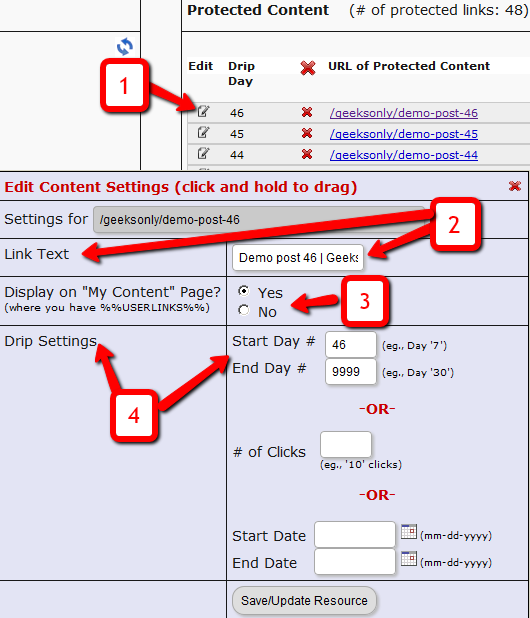
1. Shows the “Edit” icon on the “ContentResponder” tab, and clicking it will bring up the “Drip Settings” popup (that shows 2, 3 & 4).
2. On the drip settings popup, the “Link Text” refers to the display text of the link that will be shown to the member on the “My Content” page.
3. If you wish to protect a link, but just NOT show it in the list of links on the “My Content” page, then set this to “No”.
4. Drip Settings: In DAP, you can drip content by Day, Date or restrict access by # of Clicks. You can only choose one method (eg., you cannot drip by day and date at the same time).
Modifying Link Text For Content
When you protect a page, post or file URL in DAP on the “ContentResponder” tab, every protected link – and eligible (for display, based on dripping) link will show up on the “My Content” page.
If you wish to modify the “Link Text” (the actual text that is displayed when the user sees the link), then…
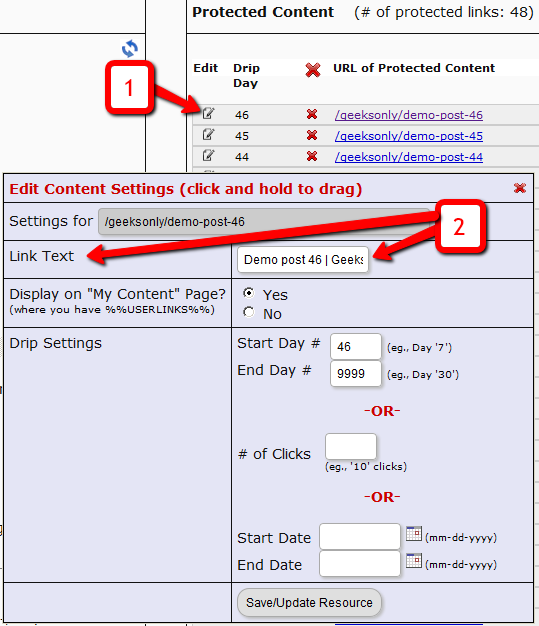
1) Click on the “Edit” icon next to any protected link under the “Protected Content” section, and that will bring up the “Drip Settings” popup.
2) In that popup, you can customize the “Link Text” field with any text you want.
Protecting Draft Content
Now, normally, links to pages or posts show up in the left-hand side of the ContentResponder tab of the DAP Product only after they’ve been published.
But sometimes, for whatever reason, you may wish to protect pages or posts even before they are published – like in a “Draft” or “Pending Review” status. So here’s what you do.
As soon as you first create a new post or page, and tab out of the title field, and even before you save the post as a draft, or publish it, WordPress will create and display the permalink for that post/page, based on the text in your title.
So, if your page title is “Protecting Draft Pages”, then the default permalink will take on the structure http://YourSite.com/protecting-draft-pages – basically a lower-case version of the title, with hyphens separating the words. Like this…
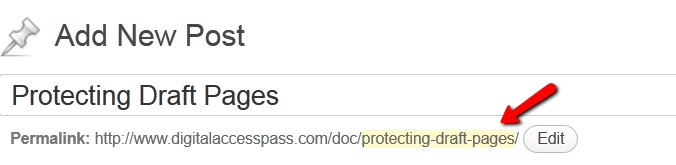
You can then copy that entire permalink from where it is displayed, go to the DAP Product’s ContentResponder section, scroll down to the section that says “Protect a URL”, and then paste the entire permalink there (http://YourSite.com/protecting-draft-pages), and click “Add URL”.
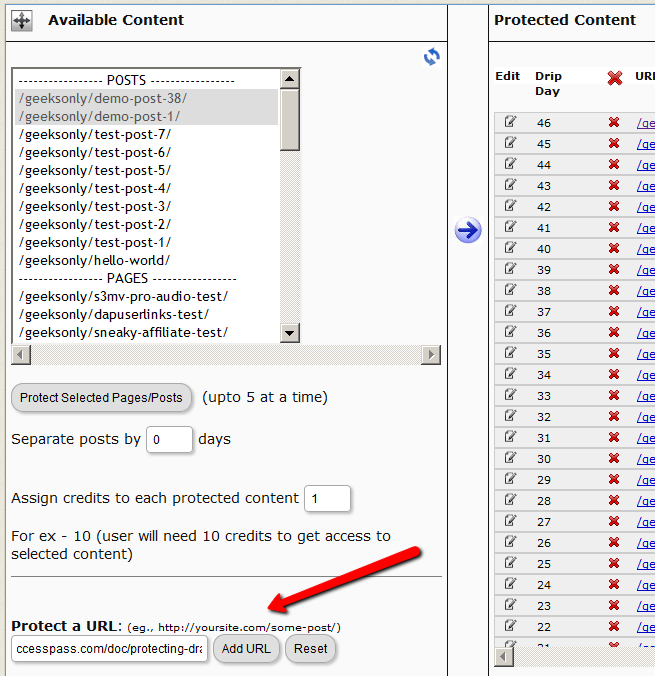
That will protect this page or post in advance of it being published.
2
Download Protection: Fact & Fiction
FACT: Anything that you put out on the web, can be downloaded – one way or the other.
FACT: People who are out to steal stuff, will steal it no matter what.
FACT: By taking security too far, you will only annoy and irritate 99% of your members who have absolutely no intention of ripping you off or stealing your content in any way.
DAP provides built-in security for files and video and just about any other type of file extension – like .pdf, .zip, .doc, etc. DAP will make sure that even if the URL to the actual file gets passed around, the person trying to access the file will have to log in first before they can access the content. So your content is safe from un-authorized users, with DAP protecting it.
However, what about a valid, paying member? When they get access to a protected PDF or .zip or even a video, can DAP prevent them from downloading the file to their desktop? If a paying member who has legitimate access to a PDF file, can download the PDF to their desktop, can they not then turn around and upload it to their own web site, or send it as an attachment via email to their friends? Is there any way to make files not downloadable at all?
Sure they can. But trying to build a Fort Knox around your content, is not really the best thing for your members.
Taking Security Too Far
Like we mentioned above, anything that’s out there on the web, can be duplicated, copied, downloaded – in one way or the other. Nothing is 100% secure.
- You could use “Streaming Only” technology to make sure even legitimate, paying members cannot download videos from your member’s area. But guess what? There are screen-capture tools – even free ones – that can be used to rip your video, and convert it into a file that can then be passed around on pirate sites. So preventing download of videos would only result in upsetting your legitimate members, because people like to watch videos even when they’re away from their computer – like on their ipad when sitting on a bed or a couch. Making everything “streaming only” means that they must be online and logged in to your member’s area every single time to watch your videos. Not a good thing for your members. You want to upset 99% of your members just to prevent that 1% who may (or may not) steal your content?
- PDF’s can’t really be prevented from being downloaded. Once the PDF reader opens a PDF file, even if it’s by clicking on a link on your web site, it means it’s already downloaded on to the computer in some kind of a “temp” folder. So it has already left your web site and landed on the user’s computer. Nothing much you can do from there. Sure, you could make your PDF’s password protected, but they can pass on the password too to others. You could make your PDF files so that they cannot be copy/pasted, or cannot be printed. But guess what? There are tools out there that will break any kind of encryption or restriction you put on your PDF files, within seconds. And those who want to actually steal your content, also know what those tools are and how to use them.
So can your content be “too secure”? Absolutely. You can make it too hard for 99% of your legitimate members, just to prevent the 1% from stealing it (but they’re going to find a way to steal anyway). What’s the point, really? Those who want to steal, know how to pick your lock. So why make it harder for your real members?
Can people pass on their username/password to their friends to log in to your member’s area? Sure. But DAP will lock their account from further access, if it detects an account getting logins from more than, say “5” (or whatever you set as admin) IP addresses.
Can people download your videos from your site after getting legit access to it, using screen-capture tools, then re-upload to a torrent or black-hate site? Sure, they can.
Can people break your “password-lock”, “print-lock” or any other kind of restriction you place on your PDF files, within seconds? Sure, they can.
No, your content can never be 100% secure. Any one who tells you so, is either lying, or doesn’t have a clue.
Your only goal should be to make it hard for the “casual” abusers, that’s all. Not to make it so hard that even your legitimate members have to jump through hoops to get to it.
The best membership sites we have seen, provide access to their content in multiple formats.
Do you publish video content? Then right below the video, also give them a link to “download” the video and “watch it at their leisure”, publish an “Audio Version” in .mp3 format, publish a “PDF Transcript” of everything said in the video, so they can even “read” the content from your video.
Is your content mostly text? Then offer a PDF version of your blog post or page, so they can download it, print it, and read it offline. Or make a “Read Aloud” version of your blog post and offer it as a .mp3 file, so they can “listen” to your content while at the gym, or while going for a walk, or while driving in their car.
Bottom-line: Don’t worry about the 1% who will never pay you, probably will steal your content, and pass it on to others one way or the other. Just focus on creating great value for the 99% of your paying members who pay you, support you, promote you, and keep coming back month after month after month. And that’s the best use of your time and resources, and that’s the only way to build a successful membership site.
15
Creating Member-specific Content
If you have a coaching program, or have clients for whom you’re doing custom work (like if you were a teacher, CPA, web designer, personal trainer or coach) and wish to publish content that is available to and downloadable by only that specific client/student/customer, then there are THREE ways in which you can do Member-Specific Content in DAP.
1) BEST SOLUTION: Using a combination of a special page for each member PLUS DAP’s “For Your Eyes Only” Shortcode
2) Creating Separate Products for each Member
3) Using DAP’s “For Your Eyes Only” Shortcode
Let’s take a look at each one in detail.
SOLUTION #1: BEST OPTION: Special page for each member PLUS DAP’s “For Your Eyes Only” Shortcode
This is partly manual, partly automated, but is the absolute best solution for multiple reasons, as explained below.
1) For each new member, you would create a separate page. So, for Joe Customer, you would create a new page in WP – http://YourSite.com/joe-customer/
This page would be created after someone has become a member, of course. But creating a WP page for every member will probably take you about what, 30 seconds? So it’s not going to be a big deal (unless you wish to make it one 😉
2) Then, assuming Joe Customer’s “userid” in DAP is 144 (you can find this out on the Users > Manage page). So within the above new page, you would add the following shortcode…
[DAP userId=”144″]protected content[/DAP]
(See DAP’s “Member-Specific Content” Shortcodes )
3) You can start adding any amount of private content between the shortcode start and end tags (where you see protected content above).
4) You can use a simple, free plugin like Exclude Pages to make sure the customer’s page http://YourSite.com/joe-customer/ does not show up in any of your menu’s. Even if it did, it’s not like anyone else can see the contents of the page – only Joe Customer – after he’s logged in to DAP – can see the contents of the page. So it’s secure from everyone else.
Solution #2: Separate Products for each Member
Here, you would create separate products, one per member – and only give that member access to that product. The advantage here, is that you can protect the entire page (not just the content section) and make it available just to that one client, so you can be a lot more creative with this page, use special templates, add sidebar widgets that show content just for that client, use the commenting system to communicate back and forth with the client.
So if you had a client named John Customer, then you would create a DAP Product by name “John Customer”, then take John’s email id and give John access to his product.
And within this DAP Product, you would’ve protected files, pages and posts that only John should get access to. So since only John has access to the product, only he can get access to the content protected as part of this product.
Obviously, it takes a few minutes of additional setup per customer to create a DAP Product specifically for him, but then the few extra minutes of creating a DAP Product would be nothing compared to the few hours (or tens of hours) that you’re actually going to be taking to create the actual custom content for John. So it’s a very small overhead compared to the whole process, where you are actually creating custom content for each member.
Solution #3: No special pages, just DAP’s “Member-Specific Content” Shortcode
If you wish to automated this a bit more than Option #2, then one way is to implement this is using DAP’s “Member-Specific Content” Shortcodes, which look like this:
Using the “userId” parameter in the DAP shortcode, you can now protect a piece of content so that only John Customer (who has the user id “144” in your membership site) user can see it.
[DAP userId=”144″]protected content[/DAP]
So on a single page, you may publish a number of these shortcodes, with content meant only for specific members protected within those shortcodes.
And doesn’t matter which one of your members visits the above page, they will all only see content intended only for them, and will be unable to see content intended for others.
So those are the three ways in which you can create Member-Specific Content.
Member-specific Chat Room
Using our WPChatR Chatroom plugin for WordPress, you can also create a separate page per user, then put a chat room on that page specific to that user, so you can have unlimited back-and-forth real-time or off-line chats with one specific member.
4
The “Smart Login” Process
DAP has a very powerful, flexible and easy-to-use log in flow for your users and members.
- Log in from a dedicated log in page, or
- Log in from the login form on the side-bar (login/logout widget), or
- Log in through the log in form shown on “Sorry, you don’t have access to this content. Please log in first…” kind of error messages.
And we call it the Smart Login, because the login process will work differently under different conditions, all designed to make the user-experience for your member more smooth and consistent with general login standards around the web.
So let’s see the various possible login locations in DAP.
But first, it is important to note that DAP has two main types of logins.
Primary Login
This is where it is considered a “generic” login by your member. For eg., a member came to your web site, and then just generally wants to log in to the member’s area – so they have no “context” – it’s NOT as if they were trying to view a specific page or post, got challenged with a login form, and then logged-in from there. That makes this a “Primary Login“.
Examples of this are…
a) Dedicated Login Page: You have a dedicated login page, like http://YourSite.com/login/ – which is what you’ve entered in to “Setup > Config > Login URL“. The body of this page has the DAP merge tag for the login form, which is %%LOGIN_FORM%%
b) Login/Logout Widget on any page of your web site. This is also considered a primary login. The reasoning here is that if they’re logging in through a sidebar widget, it means that they just want to log in to the member’s area, so it is considered primary login.
Secondary Login
This is a login action that HAS “context”. Say, a member landed deep into your site (not the home page, not the dedicated login page) and were challenged by the “In Page Error Message” that says something like “Sorry, you must log in before you can view this content” and are presented with a login form right on that very same page. They were trying to read something before they were asked to log in first – which means, they must be returned to the same page they were trying to view BEFORE they were asked to login. So that makes this a “Secondary Login“.
Examples of this are…
a) Any custom “Error Page”, where you have inserted the DAP merge tag for the login form, %%LOGIN_FORM%%.
b) DAP’s “In-Page Error Message” which says “Sorry, this is private content – you must log in first before you can view this”.
c) Log in form showing up on a page when “Sneak-Peek” is enabled.
Redirection Rules
Based on whether it’s a Primary Login or a Secondary Login, your member will be redirected to a different location.
1) If it is a Primary Login action, then…
a) They’re taken to the “Post-Login URL” if set at a Product-level AND they have access to just one Product.
b) They’re taken to the GLOBAL “Post Login URL” (under Setup > Config) if you have NOT set anything at a Product-level, OR if they have access to more than one Product.
This scenario is the only one where the Post-Login URL is ever used (whether it’s the Product-level or Global-level).
1) If it is a Secondary Login action, then…
They’re always redirected back to the same page they were on (or were trying to access) before they were challenged to log in first to view the content.
Bottom-line:
Primary Login is predictable, and you (the DAP Admin) control where they go right after they login.
Secondary Login depends on “context”, and they’re taken back to whatever page they were on, before they logged in.
5
Secure RSS Feeds
Once you protect a post in DAP, you can …
a) Make it completely disappear from your feed except for authorized users who have valid access to the post and are using a member-specific RSS feed URL
-OR-
b) You can show a “Summary” of every post, by turning on sneak-peek and making sure you have inserted the “<!–more–>” tag entered into each of your posts.
Troubleshooting RSS Feeds
If your blog post is showing in its entirety in your feed, then….
1) You may not have protected the post in DAP at all, so it’s an unprotected post, which will (and should) show up in your feed
-OR-
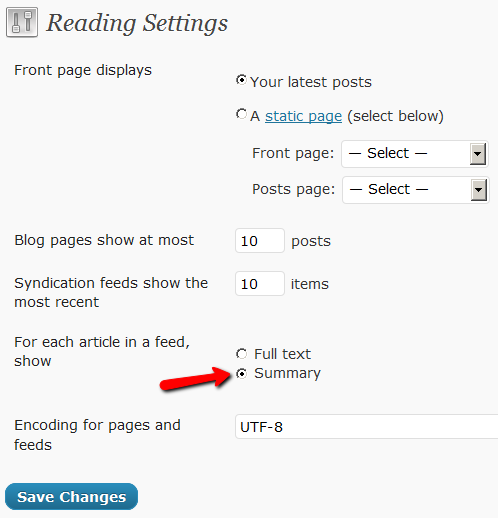
2) You have turned on Sneak-Peek and haven’t inserted the WordPress “more” tag (<!–more–>) into each of your posts. If you turn on Sneak-peek, then you must insert more tags into all posts. Also, if you have turned on Sneak-Peek, then you must also do this…
Go to “Settings > Reading” in WP admin, then set “For each article in a feed, show” to “Summary“.
If it is set to “Full text”, then it will show the full text in the feed, which is not what you want.
Custom RSS Feed Links For Members
Starting DAP v4.2, each of your members can now get their own unique RSS feed link that they can use with a feed reader (like Google Reader, FeedBlitz, iTunes, etc) to get a custom RSS feed with content that they’re eligible to view.
To give each of your members their own unique RSS Feed URL, just insert the following line of code into the top of the “Member Links” or “My Content” type page, or wherever you want your users to see their personalized RSS feed link…
If your blog is in the root…
http://YourSite.com/feed/?key=%%ACTIVATION_KEY%%
If your blog is in a sub-folder (say “/blog”)…
http://YourSite.com/blog/feed/?key=%%ACTIVATION_KEY%%
The text %%ACTIVATION_KEY%% in the above URL will be replaced with their own custom key, like…
http://YourSite.comcom/feed/?key=123456789
They can then copy that link, enter that into any feed reader, and it will show content specific to their account.
Custom Feed Link Security
Another useful feature we’ve added, is that the custom feed link also does IP count validation. So if they share the feed link with others, then after “X” unique IP login attempts (where “X” is configurable by you, the DAP Admin, in Setup > Config), their account will automatically get locked out.