
7
Hiding Protected Links On Member Home Page
When you have hundreds of posts or pages protected as part of a DAP Product, the list of links on the DAP Member Home Page (that is the result of using the merge tag %%USERLINKS%%) can get quite long and unwieldy.
So you can choose to hide some of those links from being displayed on the member’s home page.
Here’s how you hide a link from being shown on the member’s home page…
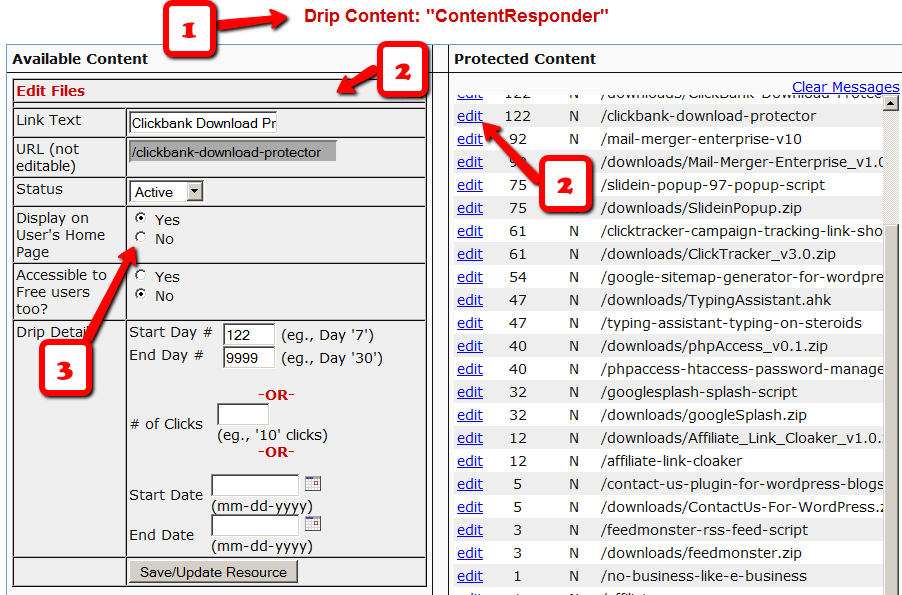
1) Go to the DAP Product in question, scroll down to the ContentResponder section
2) Click on the edit link next to the content in question on the right. The “Edit Files” popup will then show up on the left.
3) Set “Display On User’s Home Page” to “N”.
That’s it.
The content is still part of that product, it is still being protected, but the link simply won’t be displayed on the member home page.
4
DAP’s “Pause Membership” Feature
How It Works
Joe Member joins your site on 01/01/2011.
He stays a member for about 3 months. Let’s say it’s now mid March. He wants to take a couple of months break. So he goes on a 2 month break. Comes back end of May and wants to resume his membership.
DAP allows him to pick up right where he left off – which is continuing to receive content as of April (04/01/2011), even though today’s date is May 25th, 2011.
So while he took a break, other members who did not take a break in membership, continued to pay for those 2 months, and continued to receive content dripped through those months. So it is only fair that when he does come back end of May and resumes his subscription, he does not resume from June’s content, but from April’s content (when he last put his membership on “Pause”).
It’s ok if you’re not dripping content on a monthly-basis, but rather on a “day” basis. So to put it in terms of “days”, when Joe resumes his subscription, since he was already 90 days old in the system when he put his subscription “On Hold”, and comes back another 60 days later (roughly about 2 months), then DAP will start dripping Day #91 content onwards for him, and NOT Day #151 onwards (he didn’t pay for 2 months in between).
This is how DAP works right out of the box. Nothing special to configure. And DAP automatically takes care of pausing the dripping when he is not paying.
WARNING: Just remember that in order for you to put his actual payments on hold, you will need to have a payment gateway like Authorize.net or Paypal Website Payments Pro. Or you must be using a shopping cart like http://1SiteAutomation.com . Using something like Paypal Standard or ClickBank will not allow you to put the actual charging of his credit card on hold.
NOTE: If you actually did want him to start receiving current content even though he left for 2 months, then all you have to do is, once he comes back and starts paying again, just extend his access end date on his account (which will initially be showing 03/31/2011 – end of March, when he left) and modify it and make it 05/31/2011. So when his next payment comes in after he resumes, DAP will extend his access end date to 06/30/2011 – which means, he can now access all of the current content.
22
Conflict With “Cache” Related Plugins
DAP Now Works With WP Super Cache
If you’re having weird issues – like members logging in and seeing other people’s profile information, or logging in as a valid user and being told “Sorry, you don’t have access to this content” – then it’s probably because of a “cache” plugin.
Do not use cache plugins on your membership site
DAP now fully works with WP Super Cache (and possibly other cache plugins too).
You just need to make sure that you exclude your member content (including the login page) from being cached.
Cleaning Up After Your Cache Plugin
Follow the steps below to clean up some the junk left behind by cache plugins (regardless of whether you see them in your plugins section, and regardless of whether they are currently active).
1) You wish to disable your cache plugin that is currently enabled
2) You previously had one enabled at some point in the past
3) You don’t believe you ever had a cache plugin enabled in the past
4) You were redirected to this page by the DAP support team because of potential caching-related issues
- De-activate the plugin if it is still active
- Open your wp-config.php file.
- If there are lines in there that look like this…
define(‘WP_CACHE’, true); //Added by WP-Cache Manager
define( ‘WPCACHEHOME’, ‘/home/wp-content/plugins/wp-super-cache/’ ); //Added by WP-Cache Manager - Then comment out both lines, by adding a “//” at the beginning of each line, like this.
- //define(‘WP_CACHE’, true); //Added by WP-Cache Manager
//define( ‘WPCACHEHOME’, ‘/home/wp-content/plugins/wp-super-cache/’ ); //Added by WP-Cache Manager - Go to your /wp-content/plugins/ folder. See if there’s a folder in there called “cache”. If yes, then rename it to “_cache”.
Now re-test whatever the issue was before, and it would have probably been resolved now.
That should do it.
If the issue still persists, let us know via a support ticket.
Content Protection, Security and DRM
We frequently get asked questions like…
“Can DAP protect my Videos/PDF’s/Audio files from being copied? Is there some kind of tracking that I can build into my videos that will let me track the video on torrent sites?”
“Can DAP prevent people from downloading my videos/audio/pdf and uploading it to a torrent or third-party site?”
“Can DAP force people to only watch my videos online? I don’t want my members to download any of my content to their hard disk – I want to force them to see/read/hear/watch everything online.”
Short Answer: No.
Long Answer: Keep reading…
The Nitty-Gritty
There are so many ways to steal your content from your web site – no matter what technology you use.
Let us explain what that means…
1) Let’s say you implement a technology where only paying members can even get to your videos. Like you can already do with DAP. So then a paying member can download your video because they are already a paying member, and they actually have access to the videos. And once your video has been downloaded to their hard disk, you have lost all control over it – no matter what anyone tells you, that’s the truth. Because they can upload it to any illegal warez sharing site, and there’s nothing you can do about it.
Of course, you could spend all your time, money and efforts monitoring the thousands of illegal sharing sites whether your video or ebook is found anywhere – assuming you can even find it in the first place, which would be like finding a needle in a hay stack – no, make that “hay factory” – wait, make that “finding a needle in New York City” – and then write to those site owners and ask them to take it down.
Or you could focus on the 99% of legitimate members of your site, and create great content for them, and keep them paying month after month, and sell more products to them, and keep them happy.
2) Let’s say you use a plugin that only allows true-streaming – like one based on Amazon CloudFront technology, that will not allow the users to directly download your videos, but force them to watch online only. Then there’s any number of “screen-capture” tools – even free ones – that your members can use to capture another video of your video, and then share it with their friends, or upload to illegal sharing sites.
The list goes on and on. No matter how hard you make it, there’s always going to be a way around.
So, unless you’re a NASA, NetFlix, or Amazon or Apple who has a real reason to protect their content that is worth real millions of dollars, there is *no technology* available today that will let you track a video or pdf *after* it has been downloaded. If someone is saying they can do this, then they’re outright lying to you, and playing on your fears.
DAP already has a built-in password-sharing prevention security built in. If someone tries to share their account info with others, DAP will lock their account the moment their account gets log-ins from multiple IP’s (you can configure this setting) and deny further access to any of their content, until you investigate the user and “un-lock” their account.
DAP already protects all of your media from illegal access.
DAP also prevents your Amazon S3 videos and audio and other content from being accessed by anyone directly. Using a script like http://S3MediaVault.com , you can make it such that your videos and audio and other media can only be downloaded from approved sites (where the plugin is installed), and then on top of that, there’s DAP already sitting like a monster watch-dog, making sure only authorized users can even get into the site in the first place.
So hope that helps if you’ve gotten too worried about protecting your content – so worried that you’re missing the big picture.
Don’t Forget What Is Important (Hint: It starts with “Mem” and ends with “bers”)
The best membership sites allow people to consume the content they’ve paid for in multiple ways – view the video, download the video, download mp3 audio version of the video, download the presentation as a powerpoint, download the transcripts as a PDF, and so on.
Instead of making it easy for your members to download the content, if you’re going to spend your limited resources trying to figure out how to prevent people from downloading content that they’ve actually paid for, and force people to only view your content online and not be able to view it offline (like in their spare time or when going for a jog in the park), you run the risk of upsetting 99% of your legitimate paying members, in order to secure your content from the 1% of pirates, who will steal and share your content no matter what.
So forget about the 1%, and focus on the 99%. DAP already has enough security in place to stop the 1%. So don’t worry about that. Your content is very secure with DAP.
Anything else is just a total waste of your time. So don’t get distracted by the noise, and just get on with the real important tasks on hand: Building a long-term recurring income stream by building a large community of highly satisfied, loyal fans who are thrilled about what you have to offer, and will continue to pay month after month because whatever it is that you’re selling, is making their life better in some way.
The hardest thing to do online, with a membership site is still this: Creating great content, Attracting buyers, and then getting your members to keep paying month after month.
And that, is the big picture.
Un-Protecting Content
Once a post or page is added to ANY DAP product, then it becomes protected, and will be available to only those who have authorized access to that Product.
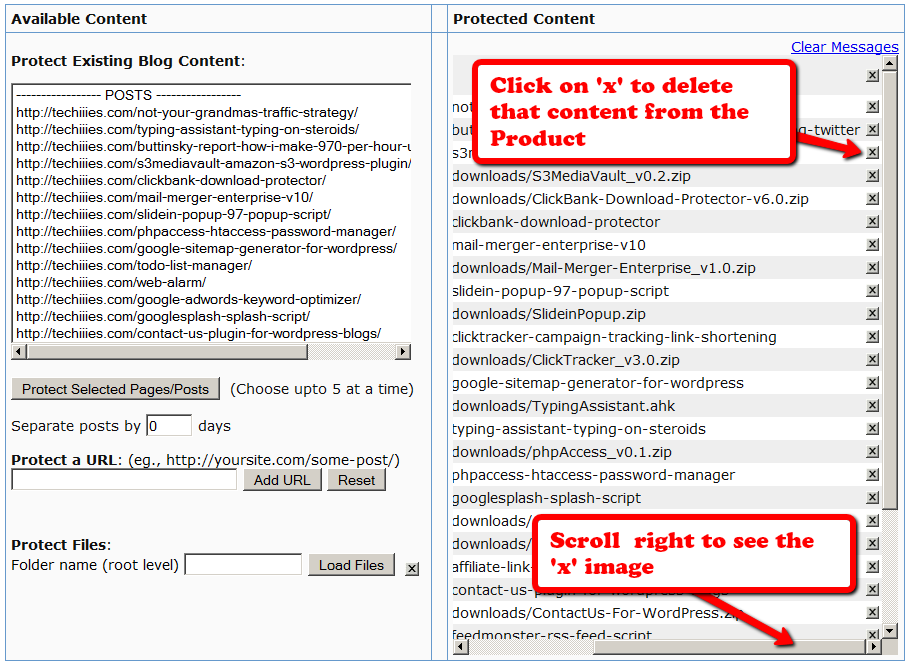
So to completely Un-protect a page or post that you have protected previously, and make it “public” (a.k.a “open”) again, so that any casual visitor to your blog or web site can see it, you just scroll to the right in the “Protected Content” section, and click on the “X” image next to the content that you wish to Un-protect.
Of course, also make sure that you do the same for all products – because if you forget to delete it from even one Product, then it will continue to remain protected.
2
Protect Entire Blog
If you, for some reason, need to protect your ENTIRE blog from “non-logged in users” – meaning, any part of your blog (menus, sidebars, widgets, etc), including the un-protected pages, should be seen only by someone who is already logged in – be it a free user or a paid user, then here’s how you do it…
- Go into your WordPress Admin, click on Appearance > Editor
- Make sure your current theme is selected in the drop-down towards the right/top corner.
- Click on “Header” (header.php) of your theme.
- Enter the following text right towards the very top of that file.
<?php
include_once “./dap/dap-config.php”;if( !Dap_Session::isLoggedIn() ) {
header(“Location: /dap/login.php”);
exit;
}
?>
The only thing you need to make sure is that you have the path to the dap-config.php correct.
If your blog is in the root, then use the code above as is.
If your blog is in a sub-folder, then replace line in red above, with the line in red below…
include_once “../dap/dap-config.php”;
That’s it!
WARNING
Please remember that if you do this, then you must use the default DAP login page /dap/login.php , and you won’t be able to put the login form within WordPress.
The reason for this, is that the protection code is being applied at the theme level, and the protection will also apply to all WordPress pages and posts – and if you put the DAP login form inside a WP page, then that page will also get protected from everyone, and no one will even be able to get to the login form in order to log in. That makes your site impossible to log in to, which of course makes no sense.
54
DAP Shortcodes
DAP has a feature called “DAP Shortcodes” that allows you to do partial or in-page content protection.
(RELATED: If you are looking for merge tags to place into WordPress posts, then see Merge Tags for WordPress. For email-related merge tags, see Merge Tags for Email).
So if you had a blog post or page with 3 paragraphs of text and a video, you can protect just the video from certain groups of viewers, and leave the text portions open for anyone to read.
And you can…
a) Replace the text that is enclosed by the short codes with an error message.
So entering this in to your page/post’s body…
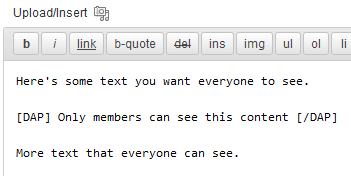
… then becomes this…
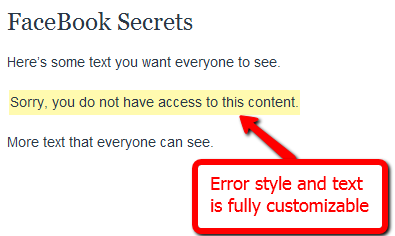
You can fully customize the style and text of the error message.
Or…
b) You can make the private text completely disappear from the page
By adding an additional parameter to the shortcode, you can make the error message completely disappear.
So this…
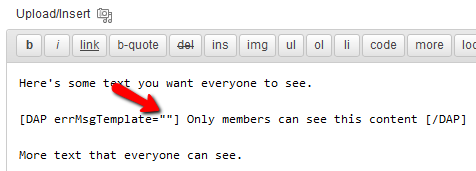
…is seen like this by the visitor…
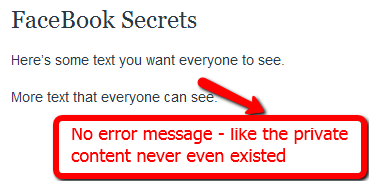
No error message at all – like that section of content never even existed, and no errors or warnings shown either.
Teaser On Steroids
The DAP Shortcodes may be used to quickly protect content that you don’t necessarily wish to create a DAP Product for.
So if you don’t care about dripping some content, but just wish to protect it from say, non-members, or make it available only to certain “levels”, then you can do it by using the DAP Shortcode, and not have to worry about adding it to any particular level first.
These Shortcodes may or may not be used within content that is already protected as part of a DAP Product. Totally up to you.
Shortcode Summary
This section just lists all of the available shortcodes so you can quickly see everything in one glance. Details about each shortcode is available in the next section below.
Basic DAP Shortcode
[DAP]...private content...[/DAP]
Expanded DAP Shortcode Options
[DAP]...private...[/DAP]
[DAP hasAccessTo="1" errMsgTemplate=""]...private...[/DAP]
[DAP hasAccessTo="1,2,3" errMsgTemplate="SHORT"]...private...[/DAP]
[DAP hasAccessTo="1" errMsgTemplate="SHORT"]...private...[/DAP]
[DAP hasAccessTo="1,2,3" errMsgTemplate="LONG"]...private...[/DAP]
Member-Specific Content
[DAP userId="144"]protected content[/DAP]
In-Page Dripping
[DAP startday="1" endday="9999" hasAccessTo="1"]Video 1 Embed Code[/DAP]
[DAP startday="2" endday="9999" hasAccessTo="1"]Video 2 Embed Code[/DAP]
[DAP startday="3" endday="9999" hasAccessTo="1"]Video 3 Embed Code[/DAP]
If you don’t include endday in your shortcode, then the default value for endday is taken as 9999 – which means forever access.
Hiding Content From Logged-In Members
(a.k.a showing content only to visitors)
[DAP isLoggedIn="N"]....content to show only to NON-members... [/DAP]
Showing Different Content To Visitors -vs- Members
Use both codes as shown below (one following the other):
[DAP isLoggedIn="N"]....sales page content shown only to visitors (and members who have not yet logged in)...[/DAP][DAP isLoggedIn="Y"]...member content that will replace sales content shown only to logged-in members...[/DAP]
publicUntil
[DAP publicUntil="2012-12-31" hasAccessTo="1"]This message will be completely public UNTIL (and including) December 31st, 2012 after which it will be protected as part of product 1[/DAP]
publicAfter
[DAP publicAfter="2012-01-01" hasAccessTo="1"]This message will be completely public AFTER (and including) January 1st, 2012 until which time it will be protected as part of product 1[/DAP]
hasNoAccessTo
[DAP hasAccessTo="2" hasNoAccessTo="1,3" ]This message will appear only to active users of product 2 but only for those who DO NOT also have access to products 1 or 3[/DAP]
startday / endday
[DAP hasAccessTo="2" startday="1" endday="1"]This message will appear to you only to users of Product 2, on Day 1 and no further[/DAP]
startdate / enddate
[DAP hasAccessTo="2" startdate="2012-01-01" enddate="2012-01-31"]This message will appear to you only to users of Product 2, between the dates of Jan 1st, 2012 and Jan 31st, 2012 - and no further[/DAP]
Negative Days
[DAP hasAccessTo="2" startDay="-6" endDay="-3"]Howdy[/DAP]
Error Message From File
[DAP hasAccessTo="2" startday="1" endday="1" errMsgTemplate="file:http://YourSite.com/customMessage.html"]This message will appear to you only today[/DAP]
[DAPUserLinks]
[DAPUserLinks showProductName="Y" showAccessStartDate="Y" showAccessEndDate="Y" showDescription="Y" showLinks="Y" orderOfLinks="NEWESTFIRST" howManyLinks="10000" errMsgTemplate="SHORT" productId="ALL" dateFormat="YYYY-MM-DD" showproductcount="Y"]
orderOfLinks
orderOfLinks can have one of two values…
NEWESTFIRST will drip newly dripped links at the top. So day 7 link will be above day 1 link.
OLDESTFIRST will drip newly dripped links towards the bottom. So day 1 link will be above day 7 link.
showproductcount=”N” will disable the heading “You have access to X products” at the top of the “My Content” section.
So, here’s another version of the DAPUserLinks shortcode:
[DAPUserLinks showProductName="Y" showAccessStartDate="Y" showAccessEndDate="Y" showDescription="Y" showLinks="Y" orderOfLinks="OLDESTFIRST" howManyLinks="10000" errMsgTemplate="SHORT" productId="ALL" dateFormat="YYYY-MM-DD" showproductcount="N"]
[DAPComingSoon]
[DAPComingSoon showProductName="Y" showAccessStartDate="Y" showAccessEndDate="Y" showDescription="Y" showLinks="Y" orderOfLinks="NEWESTFIRST" howManyLinks="10000" errMsgTemplate="SHORT" productId="ALL" makelinksclickable="N" dateFormat="YYYY-MM-DD"]
[DAPUserProfile]
[DAPUserProfile showFirstName="Y" showLastName="Y" showUserName="Y" showEmail="Y" showPassword="Y" showAddress1="Y" showAddress2="Y" showCity="Y" showState="Y" showZip="Y" showCountry="Y" showPhone="Y" showFax="Y" showCompany="Y" showTitle="Y" showPaypalEmail="Y" showOptedOut="Y" showCustomFields="Y"]
[DAPUpline]
To show affiliate’s/sponsor’s first name:
[DAPUpline showField="first_name"]
To show affiliate’s/sponsor’s last name:
[DAPUpline showField="last_name"]
To show affiliate’s/sponsor’s custom field (say “ssn”):
[DAPUpline showField="custom_ssn"]
More examples and details in the “Shortcode Details” section below.
—————————————————————————————————————-
Shortcode Details
All of the shortcodes listed in the above “Shortcode Summary” section, are explained here.
Basic DAP Shortcode
[DAP]…private content…[/DAP]
This is the shortest version of the DAP Shortcode. In this version, anything you put between the [DAP] and [/DAP] tags, will be viewable only by a logged-in user.
No other restrictions for the content to be viewed, except that the viewer has to be logged in to your membership site (via DAP). So basically all free and paid members, regardless of which product they have access to, regardless of whether their product access is active or expired, can view the private content.
Full DAP Shortcode
[DAP hasAccessTo=”1,2,3″ errMsgTemplate=”SHORT”]…private…[/DAP]
This is the full version of the DAP Shortcode. All inner tags – hasAccessTo and errMsgTemplate – are all OPTIONAL.
hasAccessTo: Comma-separated list of one or more Product Id’s that you want the user to have access to before they can view the content. So if you enter 3 different product id’s (like hasAccessTo=”2,7,14″) it means “Anyone with access to AT LEAST ONE of those products with the product Id’s 2, 17 or 14. It does NOT mean they have to have access to all of them at once. Access to any one is fine.
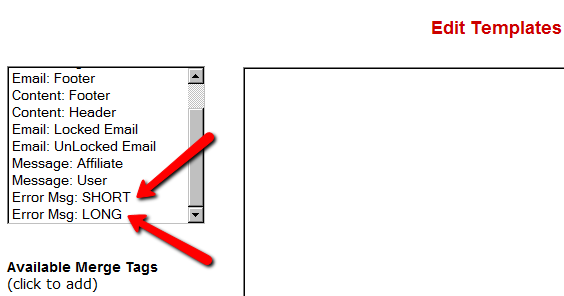
errMsgTemplate: This determines the HTML/text of the error message displayed, if user DOES NOT have access to the content being protected.
Values may be Can be SHORT, LONG or “” (empty). NOT mandatory. If omitted entirely from the tag, then the default template used is SHORT.
If you want no error message to be displayed, and want the protected content to silently disappear completely if user does not have access to it, then include the tag, but set it to “” (blank/empty), like this…
[DAP errMsgTemplate=””]…private…[/DAP]The HTML/text displayed by the SHORT and LONG templates can be configured via the Setup > Templates screen, as shown below.
Examples
[DAP]...private content...[/DAP]
Viewable by Any Logged-in User
[DAP hasAccessTo="1" errMsgTemplate="SHORT"]...private...[/DAP]
Viewable by ANY logged in user (FREE or PAID – doesn’t matter) who is a user of the product with the ID “1” (you can get the Product id from the “Products > Manage” screen). Display HTML/text from the SHORT template if user does not have access to the private content.
[DAP hasAccessTo="1,2,3" errMsgTemplate="LONG"]...private...[/DAP]
Viewable by ANY logged in user (FREE or PAID – doesn’t matter) who has access to EITHER of the Products – 1, 2 or 3. Display HTML/text from the LONG template if user does not have access to the private content.
Member-Specific Content
“For Your Eyes Only”
Let’s say you run a coaching program. You have 10 clients. You want Joe Customer to see a tailor-made custom video meant only for Joe, and Jill Member to see a specific PDF report written specifically for Jill’s business. Now using the new “userId” parameter in the DAP shortcode, you can now protect a piece of content so that only a specific DAP user can see it.
[DAP userId="144"]protected content[/DAP]
In-Page Dripping
DAP Shortcodes now include the ability to specify a “Day” right within the shortcode itself. So you can now publish, say, 10 videos on one page, and you can enclose each video’s embed code with a separate DAP Shortcode that has a different “Day” setting, so the very same page will show 1 video on Day 1, 2 videos on Day 2, 3 videos on Day 3, and so on.
Like this…
[DAP day="1" hasAccessTo="1"]Video 1 Embed Code[/DAP]
[DAP day="2" hasAccessTo="1"]Video 2 Embed Code[/DAP]
[DAP day="3" hasAccessTo="1"]Video 3 Embed Code[/DAP]
NOTE: Please remember that you may not omit the hasAccessTo field – you must use the hasAccessTo field to specify a product id, because all start “days” for a user are associated with a product.
Hiding Content From Logged-In Members
Starting DAP v4.1, you can now mark content such that it will NOT be displayed to members who ARE logged in. To put it another way, it will HIDE content from members, and show it ONLY to NON-Members.
For example, this could be your sales copy or your buy-button, that you don’t want your logged in members (who may have already purchased the product) to see.
Here’s the shortcode for that.
[DAP isLoggedIn="N"]....content to show only to NON-members... [/DAP]
publicUntil
You can set a date UNTIL which a blog post is public (no protection or rules will be applied from any other shortcode parameters.
[DAP publicUntil="2012-12-31" hasAccessTo="1"]This message will be completely public UNTIL (and including) December 31st, 2012[/DAP]
publicAfter
You can set a date AFTER which a blog post will become public (no protection or rules will be applied from any other shortcode parameters.
[DAP publicAfter="2012-01-01" hasAccessTo="1"]This message will be completely public AFTER (and including) January 1st, 2012[/DAP]
hasNoAccessTo
A much requested feature. You can now specify a list of products that a user does NOT have access to, like this:
[DAP hasAccessTo="2" hasNoAccessTo="1,3" ]This message will appear only to active (current) users of product 2 but don't have access to 1 or 3[/DAP]
startday / endday
Now you can specify “startday” and “endday” in the shortcodes to make the contents stop being shown after a certain end “day”. Previously available “day” variable has been deprecated and replaced by “startday” instead. However, if you already are using it somewhere, it will continue to work as is. However, if you wish to use the “endday” variable, you must now also use “startday” instead of “day”. Very useful for, say, displaying a message on the Welcome page only on the first day.
[DAP hasAccessTo="2" startday="1" endday="1"]This message will appear to you only to users of Product 2, on Day 1 and no further[/DAP]
startdate / enddate
You can also specify actual dripping “dates” (instead of “days”) by using “startdate” and “enddate” in the shortcodes to make the contents stop being shown after a certain end “date”.
[DAP hasAccessTo="2" startdate="2012-01-01" enddate="2012-01-31"]This message will appear to you only to users of Product 2, on between the dates of Jan 1st, 2012 and Jan 31st, 2012 - and no further[/DAP]
Negative Days
“startday” and “endday” can also be a negative number.
For eg., [DAP hasAccessTo="2" startDay="-6" endDay="-3"]Howdy[/DAP]
This basically means, the message “Howdy” will be shown starting 6 days before the “Access End Date” of the user’s access to the product with Id “2” (specified in hasAccessTo). So you can use this to display a special message – or specially priced offer (buy button) – for those whose access has not yet expired. Last day (same day of access end date) is day 0. Day before that is -1.
Error Message From File
You can now specify a file name whose contents are to be used as error message. Use the existing errMsgTemplate field, but add a “file:…” to the beginning, and make sure the file name is a fully qualified URL starting with http:// and your domain name. So you can say…
[DAP hasAccessTo="2" startday="1" endday="1" errMsgTemplate="file:http://YourSite.com/customMessage.html"]This message will appear to you only today[/DAP]
[DAPUserLinks]
Allows you to heavily customize how the links are displayed when you use the merge tag %%USERLINKS%%…
[DAPUserLinks showProductName="N" showAccessStartDate="Y" showAccessEndDate="Y" showDescription="Y" showLinks="Y" orderOfLinks="NEWESTFIRST" howManyLinks="10000" errMsgTemplate="SHORT" productId="ALL" dateFormat="YYYY-MM-DD"]
[DAPComingSoon]
Allows you to display links that are coming soon.
[DAPComingSoon showProductName="Y" showAccessStartDate="Y" showAccessEndDate="Y" showDescription="Y" showLinks="Y" orderOfLinks="NEWESTFIRST" howManyLinks="10000" errMsgTemplate="SHORT" productId="ALL" makelinksclickable="N" dateFormat="YYYY-MM-DD"]
[DAPUserProfile]
Allows you to selectively display profile fields on a page. Just set the profile field that you don’t want shown to “N” in the tag below.
Default is “Y”. So Leaving out the text showLastName=”Y” entirely from the shortcode, is the same as setting it “Y”, which means it will be displayed.
So just entering the text [DAPUserProfile] into a page, will show ALL fields.
And to not show say, Phone and Fax, you would do something like this:
[DAPUserProfile showPhone="N" showFax="N"]
So all other fields will be displayed, except those two.
[DAPUpline]
This shortcode shows a user their referring Affiliate’s (a.k.a Sponsor’s) information. So when a user visits the page that has this shortcode, it will display information of that user’s referring Affiliate – either from cookie (if exists), or if they’re already a member, then their current Affiliate’s information. And if neither the cookie is set, nor the user has an Affiliate attached to their account already, then it will show the info of the DAP Admin). So you can use it to show the user information of the person (affiliate) who referred them to the page. Think of it as a “Your Sponsor” tag.
To show affiliate’s first name, use this:
[DAPUpline showField="first_name"]
To show affiliate’s last name, use this
[DAPUpline showField="last_name"]
[DAPUpline showField="user_name"]
[DAPUpline showField="email"]
[DAPUpline showField="address1"]
[DAPUpline showField="address2"]
[DAPUpline showField="city"]
[DAPUpline showField="state"]
[DAPUpline showField="zip"]
[DAPUpline showField="country"]
[DAPUpline showField="phone"]
[DAPUpline showField="fax"]
[DAPUpline showField="company"]
[DAPUpline showField="title"]
[DAPUpline showField="paypal_email"]
For Custom fields…
[DAPUpline showField="custom_customfieldname"]
10
DAP As A Global Content + Affiliate Hub
DAP can only protect content on the same domain where it is installed.
So, if you install DAP on SiteA.com, then DAP can only protect content (blog posts/pages and files) on SiteA.com.
If you install DAP on subdomain1.SiteA.com, then DAP can only protect content (blog posts/pages and files) on subdomain1.SiteA.com.
DAP on SiteA.com cannot protect content on SiteB.com.
DAP on SiteA.com cannot protect content on subdomain.SiteA.com.
Similarly, DAP installed on subdomain.SiteA.com cannot protect content on the main domain, SiteA.com
Now, let’s say you own a network of web sites, some sell a product, some sell a membership course, some sell a physical product, and some just exist to build a list.
So let’s say you have 10 sites in all.
And you want someone who’s an affiliate on Site A, to be an affiliate for all ten, and be able to get commissions if the person he referred goes on to purchase a product from any of your 10 web sites.
Yup, DAP can handle that. And here’s how…
Configuration #1
Summary: Parent.com has DAP. Your sales pages are all on different sites, like ChildA.com, ChildB.com and ChildC.com. But all buy buttons point right back to the main DAP site (Parent.com) and that’s where all buyers from all child sites are eventually added to, regardless of where the sale was initiated from. So all members are actually created on Parent.com, and that’s where everyone would log in to access the member content.
1) Install DAP on your main “Parent” site where you have all of your content that needs to be protected/delivered. Make sure all of your content for all of your sites is on this main “Parent” (hub) site.
2) You can then have multiple “Child” sites – completely different domains from your parent site – which are basically just “sales page only” sites. Of course you can have a wordpress blog on each of them and have as much content as you want. Just put the main content to be delivered on the Parent site.
2A) On each of these child sites, you can use any DAP-supported payment processors to sell your products. So for eg., on one “child” site, you can use ClickBank, on another, you can use Paypal, on another you use e-junkie, etc.
3) All buyers end up with an account on your “Parent” site, which is where they get to access their content too. You can set up multiple blogs on one site for different look & feel for all of your various products, and deliver content from the specific blog for the specific product. DAP can support multiple blogs on one site, so that’ll work fine.
4) Since all of your actual products are on one DAP installation, your affiliates can use the same affiliate link for promoting all of your “child” sites. Which means, anyone buying any product across your network, will result in a commission for your affiliate
5) Since all of your users are in one database, email marketing also becomes extremely simple. You can send autoresponders & broadcasts all from within DAP
6) And anyone purchasing any product across your entire network, instantly and automatically becomes a “global” affiliate – which means they can straightaway start promoting any of your web sites. So if your parent site is Parent.com, and you have 3 child sites called childA.com, childB.com and childC.com, then your affiliates’ global affiliate link would be:
http://Parent.com/dap/a/?a=1234
Now if they wanted to promote childA.com, they just use the redirection feature of DAP like this:
http://Parent.com/dap/a/?a=1234&p=www.ChildA.com
Or if they want to point to a specific page on childA, they can do this:
http://Parent.com/dap/a/?a=1234&p=www.ChildA.com/specificpage.php
or
http://Parent.com/dap/a/?a=1234&p=www.ChildA.com/blog/specific-post/
Plus we’re coming up with a “N”-tier affiliate program in 4.0, which will make it even more powerful when you club it with the ‘global’ concept explained above, as every new member becomes a global affiliate, and will also get multi-tiered commissions across ALL purchases across ALL of your child sites.
DAP now supports Coupon codes – which again means your global affiliate will be able to use coupon codes for any product across your network. So the extensions are unlimited, and the possibilities are infinite.
Configuration #2
Summary: There’s only one site – Parent.com. That’s where DAP is installed. All child sites and content for those sites, are created in “sub-folders” on the same Parent.com site.
Parent.com has “dap” in its root folder.
Parent.com/site1/ is a blog for Site 1 which has all of the content for whatever is being sold on Site 1. Sales page can be the root of the “site1” blog itself, or in a separate WordPress Page on that blog.
So you will have one blog per site, each installed as a separate WP installation, in sub-folders of Parent.com.
Parent.com/site1/
Parent.com/site2/
Parent.com/site3/
Parent.com/site4/
Each of the above blogs should have their own copy of the “DAP-WP-Livelinks” plugin.
But only one installation of the “dap” folder itself. DAP is in root.
Parent.com/dap/
The blogs must be in sub-folders of the main domain – they may not be in sub-domains.
So, in a nutshell…
- DAP enables to you have one, large, global “store”.
- This is also your content and affiliate hub, while unifying and standardizing content delivery for all of your products,
- This gives your members a “Single Sign-on” facility, where if they log in to your “Hub Store”, they basically never have to log in again
- All of the content can be made available from one “Content Delivery” site
- Your affiliate program goes “Global” – which means if you’re an affiliate for one site, you can promote all sites and all products in the network using just one affiliate link. Which will help you recruit more affiliates, and help get them excited about promoting your network sites.
| what i wish to do is have a central dap install, that looks after all my sites and affiliate programs, of course i would like different site members to access the down load they bought in they same style of the site they bought i would like different site members to access the affiliate programs that they enrolled in affiliate program , but also let them taste my others, so each product wold have its own tools affiliate links, my current set up is a hep desk in my root folder, as that is generic name which will work for all my products,i wold then like to deliver products within this system so each has its own download pages , in its own styleall im asking is do i need 10 wp blogs to do this or just one or none can blogs and pages be sub-domains or only folders ( you answered this in your last post )thanks for your help |
|||
|
|||
| » Reply by: Ravi Jayagopal |   |
| Here’s how you would do it…Parent.com has “dap” in its root folder.Parent.com/site1/ is a blog for Site 1 which has all of the content for whatever is being sold on Site 1. Sales page can be the root of the “site1” blog itself, or in a separate “WP Page” in that blog.So you will have one blog per site, each installed as a separate WP installation, in sub-folders of Parent.com
Parent.com/site1/ Each of the above blogs have their own copy of the “DAP-WP-Livelinks” plugin. But only one installation of the “dap” folder itself. DAP is in root. Parent.com/dap/ Each of the blogs may not be sub-domains – must be sub-folders. |
|
Global Login & Password
Creating 1 Single Login & Password For All Users
This is for when you don’t care about assigning unique usernames and passwords to your users, and would rather given all of your members (or site visitors) a single email id and password to log in to your membership site.
Here’s how you can do it:
- Most important: Go to Setup > Config > Advanced > “Max. # of User Logins From Different IP`s” and set it to a very high number – like 99999999. You’ll need to do this because everyone will be logging in using the same email/password, and you don’t want DAP to lock out the public account (you’re about to create below).
- Create a “public” user manually, with an email id like, say, “demo@yoursite.com” . DAP will assign a random password to the user (unless of course you have set the “Default” password in Config).
- Change this password also to something public – like ‘demo’ 🙂
- Then if you don’t care about collecting anyone’s email id, then you could publish this info publicly on your web site
- But if you wish to collect people’s email id’s, and *then* give them this public email/password, then you can still sign them up using the “Direct Signup Form”. And in the welcome email, instead of sending them their own email id and password, send them the public email id and password.