
1
Leveraging Multiple Affiliate Networks
DAP is so powerful and flexible, that you can sell access to your membership through different payment processors, all at the same time.
And we often get asked how to leverage different affiliate networks like ClickBank and JVZoo and Warrior Plus at the same time while making sure no affiliate commissions are lost, and every affiliate gets credited their commissions for sending potential buyers to your site.
The Big Picture
1) If buyer arrives ONLY through DAP affiliate link, and ends up purchasing through ANY payment processor, then DAP affiliate will get credit.
2) If buyer arrives ONLY through CB affiliate link, and ends up purchasing through CB payment processor, but the buyer has a different DAP affiliate’s cookie from a link he clicked on at some point before (but did not purchase at that time, say), then both CB affiliate and DAP affiliate will get credit (double commissions on same purchase, but to two different affiliates).
If there’s no DAP cookie on his computer, then only CB affiliate will get the commission.
If the DAP affiliate “chains” two of his own affiliate links – his DAP affiliate link and CB affiliate link – like shown below, then same affiliate will get both CB commission as well as DAP commission. Again, double commissions but to same person.
http://YourSite.com/dap/a/?a=1234&p=http://hop.clickbank.net…./
3) If buyer arrives ONLY through JVZOO affiliate link, and ends up purchasing through JVZOO payment processor, but the buyer has a different DAP affiliate’s cookie from a link he clicked on at some point before (but did not purchase at that time, say), then both JVZOO affiliate and DAP affiliate will get credit (double commissions on same purchase, but to two different affiliates).
If there’s no DAP cookie on his computer, then only JVZOO affiliate will get the commission.
If the DAP affiliate “chains” two of his own affiliate links – his DAP affiliate link and JVZOO affiliate link – like shown below, then same affiliate will get both JVZOO commission as well as DAP commission. Again, double commissions but to same person.
http://YourSite.com/dap/a/?a=1234&p=http://jvzoo.com/c/1944/17
The Right Setup For Multiple Affiliate Networks
To make sure that you’re not paying double-commissions on purchases, and also to make sure that sales don’t get lost between affiliate networks (and your affiliates losing their commissions in the process), you have to set things up the right way.
The main thing to do, is to create a separate set of the following for each affiliate network:
- A separate DAP product
- A separate Sales Page
- A network-specific buy button on that sales page
- If it’s a product that is sold through CB or JVZoo or DigiResults (or any of the affiliate networks), then DO NOT set up commissions for that Product in DAP. So that will prevent you paying a commission to, say, a CB affiliate as well as a DAP affiliate for the same purchase.
So the net effect of this, is…
If a CB affiliate sends traffic to a page, that page must have a CB buy link ONLY on that page. If you have, say, a JVZoo button on that same page, and the buyer buys through the JVZoo link, then the CB affiliate will get no commissions for that purchase. Which means, they will stop promoting your product because you’re basically funnelling off their visitors to a different affiliate network.
Similarly, the landing page for JVZoo affiliates must have only JVZoo buy buttons.
Landing page for a regular payment processor – like Paypal or Authorize.net – should have only a Paypal and/or Authorize.net buy button (and no CB or JVZoo buy buttons). In this case, for these products in DAP, you should set up an affiliate commission row on the “Affiliates > Manage” screen, so that your DAP affiliates can get credited for sales made through your regular web site.
29
JVZoo Integration with DAP
DAP supports full fledged integration with JVZoo including automated login to membership where users can instantly get access without any manual action. No waiting for welcome email or having to pick a username/ password on the thank-you page after purchase. All automatic.
1) Auto-Login
If you want the users to be auto-logged-in to their membership right after purchase, then please do this step. Otherwise skip this step.
(Click image below to see enlarged version)
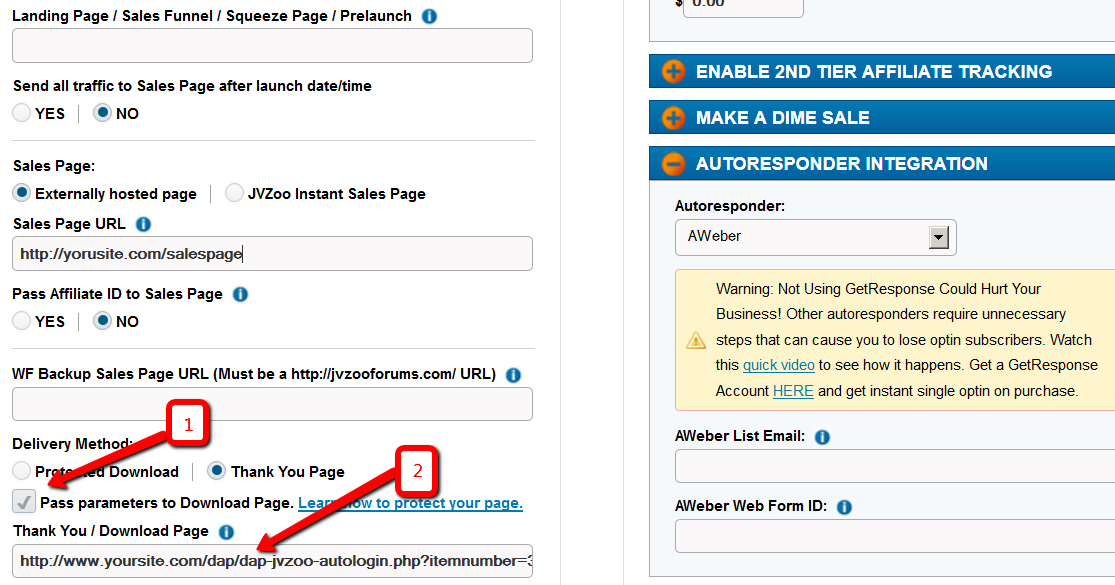
i. Delivery Method -> Pass Parameters : Make sure to check the box that says ‘Pass Parameters to Download Page‘
ii. Download Page: Say that after the purchase is complete, you want the users to land on a members area page where they can download/access their purchased content. Say the url of that page is http://YOURSITE.com/member-home
If you want DAP to auto-login the users to their membership and then redirect to /member-home, enter this in the Thankyou / Download Page textbox and then they can get redirected to the /member-home.
http://www.YOURSITE.com/dap/dap-jvzoo-autologin.php?itemnumber=3&redirect=member-home&errorurl=error-page
Please note:
Replace YOURSITE.com with the actual name of your site.
Here /member-home is just an example. You can enter the url of any page where you want users to be redirected after login.
In the autologin URL, we have omitted “/” in front of member-home and “/” in front of errorurl because JVZoo messes up the formatting if you include “/” in the querystring.
http://www.YOURSITE.com/dap/dap-jvzoo-autologin.php?itemnumber=3&redirect=member-home&errorurl=error-page
itemnumber=It should be the product ID of the DAP product you want the users to get access to
redirect=It should be the URL of the page where the users should land after they get logged-in. If you want them to go to /member-home after automated login, set redirect=/member-home (just the relative path is good, no need to enter full url).
errorurl=It should be the URL of the page where the users should land if there are any errors during account creation
2) External Program Integration
Check the check box next to this field.
In that same section, set the Recommended: Method #1 field to the following URL:
http://yoursite.com/dap/dap-jvzooipn.php
(NOTE: replace yoursite.com with the actual domain name of your site).
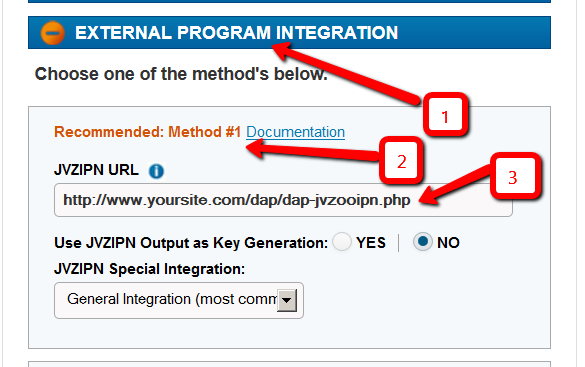
NOTE 1: Make sure your JVZoo Product Name exactly matches your DAP Product Name
NOTE 2: Also make sure you have the “Welcome Email” Subject & Body configured in the DAP Product page with the right merge tags to send out user login/password.
3) Set your JVZoo and DAP Secret Key
Set the JVZoo My Account => JVZIPN Secret Key to match the Secret key in your DAP setup -> config -> Payment Processing => Secret Authorization Key.
You can pick any secret key you want. Just make sure it exactly matches in dap setup -> config area and the JVZoo My Account page.
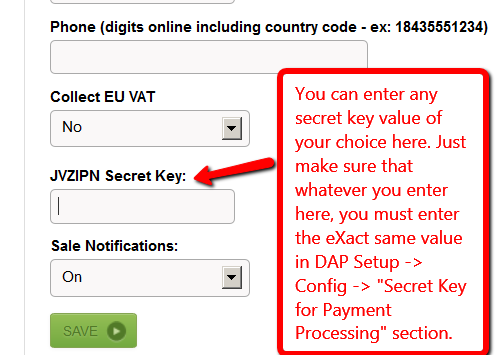
NOTE: You can put in ANYTHING you want in the DAP secret key (in dap setup -> config). Say that you set it to DAPKEY. Now when you go to JVZoo My Account => JVZIPN Secret Key, make sure to set the jvzoo secret key to DAPKEY there too. It has to EXACTLY match whatever you set the dap secret key to.
How it works
When a user completes purchase of the product, JVZoo will send payment notification to DAP to the IPN URL specified above. And if you have setup auto-login, then after the user completes the final purchase, JVZoo will land the users on the final receipt page where if they click on “Access My Purchase”, dap will auto-login the users to their membership and allow them instant access to the product.
UserFlow
NOTE: Use DAP to deliver/protect downloads by protecting the downloads/content in dap products page => ContentResponder section.
* Buyer clicks on the button (button created within your JVZoo account) on your sales page
* Buyer is taken to the JvZoo page where they can complete payment
* Buyer completes the payment successfully
* Buyer is transferred back to whatever you set in the thankyou URL in JvZoo for the product or to the upsell page
* In the meantime, JVZoo notifies DAP about the purchase via IPN
* DAP automatically creates the member account, and sends thankyou email (configured in your dap products page) with login info to the buyer.
* Now if regardless of whether you had 1 product in the sales funnel or multiple upsells/downsells, ultimately the users will land on the final receipt purchase where they will find the ‘access my purchase’ link. When they click on that, dap will automatically login the user to their membership account and allow them instant access to content. The users do NOT have to wait for welcome email to login to membership.
Make sure to setup the thankyou email in the DAP products page for all the products you deliver via DAP.
* When the users login to their membership area or are auto-logged-in, by default, they will be redirected to either product-level logged-in URL or global logged-in url based on whether they have access to just 1 product or multiple products. The product level logged-in url is used if the user has access to just 1 product. The global logged-in url (under dap setup -> config -> post-login redirect url) is used when user has access to multiple products.
If you want to send users to a different page, then just set the ‘redirect’ url in the ‘thank-you/download page’ in JVZoo to point to wherever you want them redirected (see step # 1 for detail at the top of this page) and dap will use that url for post-login-redirect.
* Note: You can create a members area page and redirect users to that page upon purchase. When the users login and access their members area, they can access the purchased products/downloads.
27
Warrior+ WSO Pro Integration
Starting version 4.1, DAP supports integration with Warrior Plus (WSO Pro Standard).
And starting version 4.3.1, DAP now also supports Warrior Plus’s new Adaptive Payments system (WSO Pro Adaptive).
DAP supports both WSO Pro Standard and WSO Pro Adaptive. The same dap script (/dap/dap-wsopro.php) supports both standard and adaptive payments. Only the version of the script that’s included in DAP v4.3.1 has support for WSO Pro Adaptive – older versions of the above script will NOT support WSO Adaptive, and will only support WSO Pro Standard.
How to set it up
If you are on DAP 4.1 or later, you will find a script called dap-wsopro.php in the dap folder.
Set the IPN (instant payment notification) url in your WSO Pro account, to point to the following URL:
http://yoursite.com/dap/dap-wsopro.php
(NOTE: replace yoursite.com with the name of your site).
Make sure product name in DAP exactly matches the product name in WSO Pro.
Also, make sure you have the “Welcome Email” Subject & Body configured in the DAP Product page with the right merge tags to send out user login/password.
How it works
When a user completes purchase of your WSO, WSOPro will send payment notification to DAP to the IPN URL specified above.
DAP will then automatically create the membership account, allow user access to the product and send out the thank-you email configured under the DAP product with the login details.