
Importing Users In Bulk Into DAP
DAP allows you to easily import users in bulk from an external system or database.
Importing users in bulk is the same as adding users one at a time using the single-user-add feature. So whichever way you manually add users, DAP is going to all of the following…
- Create a new account for them using the email with which they’re being added
- Auto-generate a random, unique password for them
- Give them access to the product (into which they’re being imported or being added to)
- Send out the Welcome Email as per the product’s settings (this welcome email can be configured to send them the email & password to the member’s area along with anything else you want)
- Add them to the autoresponder series configured for that product
- … and so on.
When you do a single-user-add, all of this is done for that user in real-time. When you do a bulk-add, then all of the above happens for each user being imported, one at a time, when the DAP hourly cron job runs at the top of every hour. That’s the main difference.
Simple Import
Prerequisites For Simple Import
1) You must have already created the DAP Product into which the users will be imported
2) The user list has to be in a CSV (comma separated) format (one user per line)
For doing a simple import of user data containing just email, first and/or last name, the format of data (per user, per line) should be like this:
Email,FirstName,LastName
Email and FirstName are mandatory. But LastName is optional. So your user data row could be just…
Email,FirstName
Example:
Joe@example.com,Joe,Customer
Jill@anothersite.com,Jill
Bob@another.com,Bob,Member
How to do the actual Import
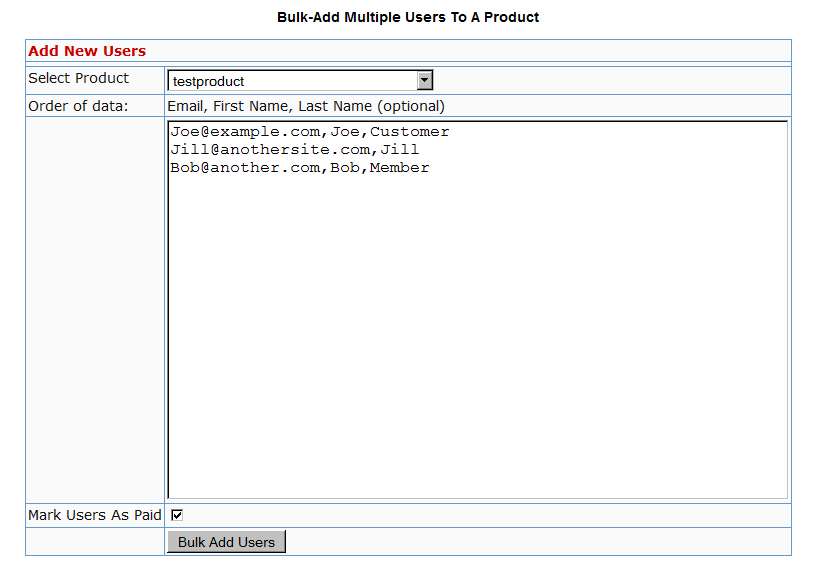
- Go to Users > Add > “Bulk-Add Multiple Users To A Product”
- Paste your CSV list into the large text area
- Select the Product into which you want to import the users
- Check the “Mark Users as Paid” checkbox if you want them to have “Paid” access to the content (just as if they are actual paying members). If you don’t check it, they will all have access as a “Free” user (instead of a “Paid” user), which means they will only have access to content within the Product that you have marked as “Free”.
- Click on the “Bulk Add Users” button. That will first save this entire list as a CSV file in your /dap/bulk folder on your site. And then, the next time the Hourly cron (dap-cron.php) runs, it will add them one by one to the product, and send them emails as per your Product set up. So if your Product has the “Thankyou-Email” subject and body filled out, it will individually send out each of the users that thankyou email.
Extended Import
DAP will also allow bulk import of users with extended profile information. This includes their existing password and other profile data as detailed in this video (Bulk Add Users)
But please make sure you are using at least DAP v4.2.1 and LiveLinks v1.7, because what’s explained below is only available only since then.
Pre-requisites For Extended Import
1) You must have already created the Product into which the users will be imported
2) The user list has to be in a CSV (comma separated) format (one user per line), with the exact format being:
Email,Firstname,Lastname,Password,ProductName, Address,City,State,Zip,Country,Phone,Company, Flag (to indicate Paid or Free user), Access Start Date, Access End Date,UserName
Example:
joe@somesite.com,Joe,Member,test123,Example One-time Product,99 hill ave,Cityname,NY,10001,USA,,Plug and Play Inc,y,2011-03-16, 2012-03-15,JoeMember
The only required fields are Email, FirstName and ProductName. If you do not want to supply a value for any of the optional fields, but still wish to import certain others, then just leave those fields empty in the data row (but the commas should remain) as shown below.
Email,Firstname,,,ProductName,,,,,,,,Flag (to indicate Paid or Free user), Access Start Date, Access End Date,UserName
How to do the actual Import
Create a file with the name /dap/bulk/importusers.csv file so it has the users you want to import in the format specified above.
Run this script on your browser to complete the import, by visiting:
http://YourSite.com/dap/dap-bulkImport.php
Note:
* Replace “YourSite.com” with your actual domain name
* Limit the number of users you are importing with this method to not more than 500 users (rows) at a time. Otherwise the import may timeout, because the import occurs real time, because you’re running the script manually, and not via cron. If the user already exists in dap, then the script will just skip that user and move on to the next user in the bulk add list.


