Secure RSS Feeds

Starting DAP v4.2, each of your members can now get their own unique RSS feed link that they can use with a feed reader (like Google Reader, FeedBlitz, iTunes, etc) to get a custom RSS feed with content that they’re eligible to view.

To give each of your members their own unique RSS Feed URL, just insert the following line of code into the top of the “Member Links” or “My Content” type page, or wherever you want your users to see their personalized RSS feed link…

If your blog is in the root…

http://YourSite.com/feed/?key=%%ACTIVATION_KEY%%

If your blog is in a sub-folder (say “/blog”)…

http://YourSite.com/blog/feed/?key=%%ACTIVATION_KEY%%


The text %%ACTIVATION_KEY%% in the above URL will be replaced with their own custom key, like…

http://YourSite.comcom/feed/?key=123456789

They can then copy that link, enter that into any feed reader, and it will show content specific to their account.

Custom Feed Link Security

Another useful feature we’ve added, is that the custom feed link also does IP count validation. So if they share  the feed link with others, then after “X” unique IP login attempts (where “X” is configurable by you, the DAP Admin, in Setup > Config), their account will automatically get locked out.

DAP Shopping Cart Overview

The DAP built-in shopping cart has a lot of great updates in DAP 4.2.

What does the shopping cart offer?

=> Coupon support
=> Add Custom Fields to Your Order/checkout Form

=> Support for Order/Checkout Form customization at product level.  For ex – Show “Coupon Code”, Show “How did you hear about us?”, Show “Comments”, CART header/footer html, Show “Ship-To Address on Checkout”, Show “Terms And Conditions”, Request “Phone” on Checkout?, Request  “Address2″ on Checkout? etc

=> FULLY integrated with wordpress so your order/checkout page will carry the look&feel of your wordpress theme.
=> Multiple cart items support – (you can now use ADD-TO-CART button to allow buyers the option to add multiple items before they finalize purchase)
=> Unlimited upsells

What you need in order to use the DAP Shopping Cart:

1. You need an Authorize.net merchant account or Paypal Payments PRO account
2. If you want to sell subscription-based products, then you also need Automated Recurring Billing (ARB) enabled in your Authorize.net account.
3. You must have SSL (secure server) enabled on your web site. Ask your web host to enable SSL/HTTPs for your site.

What it looks like when its implemented on your site:

WordPress version (cart appears within your WP page)

1) Buy Now
2) Add-to-cart

NON-WordPress version (stand-alone cart page)

1) Buy Now
2) Add-to-cart

Setting Up The Cart

=> Create the product that you want to sell in DAP Admin => Products / Levels => Manage Products Page

=> Customize the cart/order page in DAP Admin => Payment Processing => Cart Options Page

=> Generate the Primary Buy Button in DAP Admin => Payment Processing => Generate Buy Button Page

NOTE: If you do not want to offer upsells, just set the ‘Payment Success Page’ to point to the final landing page. Otherwise point it to the next upsell page in the flow.

=> If you want the checkout and checkout confirmation pages to have the look&feel of your wordpress theme, then create the following wordpress pages and use the URL of these pages in the button generation page above:

-  A WordPress page with the merge tag %%DAPCART%% (this is the page where Credit Card and other info is collected from the user).

-  A WordPress page with the merge tag %%DAPCARTSUMMARY%% (this is the page where users can see the items added to their cart.. just applies to add-to-cart button).

=> Generate the Upsell/No Thanks Button in DAP Admin => Payment Processing => Generate Buy Button Page

If you want to offer more upsells, just point the ‘Payment Success Page’ to the next upsell page in the flow.

DAP Shopping Cart Plugin

This plugin replaces ALL files from both the “Paypal Payments Pro” Upsell-Tree plugin as well as the “Authorize.net” Upsell-Tree Plugin

Starting DAP v4.2, we have consolidated both the Authorize.net & Paypal Payments Pro Upsell-Tree Plugins into one simple set of files, and it has been named the DAP Shopping Cart, which will allow you to both accept one time and recurring payments, as well as do 1-Click Upsells.

This consolidated set of files is named DAPShoppingCart.zip , and is available for download from the members’ area at http://DigitalAccessPass.com/dap/ .

Upgrading from DAP v4.2

If you are upgrading to DAP v4.2 from a previous DAP version, and you’ve been using Authorize.net or Paypal Payments Pro to accept payments, then you must also upgrade to the new DAP Shopping Cart.

So all you need to is…

1) Download the DAPShoppingCart.zip file from the members area

2) Unzip it to your desktop

3) Upload all files inside directly to your main “dap” folder on your site. (do not upload the folder named DAPShoppingCart – upload only the files inside this folder)

Self Service Store – DAP 4.2 updates

How Self-Service-Store (SSS) worked prior to DAP 4.2

In DAP 4.1, the credits could only be redeemed at product level. So if you wanted to allow users to redeem their earned credits/points towards individual videos, posts, pages etc., you had to create separate child product for each piece of content you wanted to sell because in the self-service-store, the users did not have the option to purchase individual content. They had to purchase the entire child product.

Good news is that DAP 4.2 will allow users to redeem credits at individual content level !!!

DAP 4.2 will support content-on-demand. Users DO NOT have to purchase the entire child product. They can redeem credits towards individual content (that are part of a child product)  and pick their own content release schedule rather than a SET drip schedule.   So week 1,  they can redeem credits toward video 1 and week 2, they can redeem credits towards video 3 skipping video 2.  Or they can redeem credits towards both video 1 and video 3 on week 1. They can control how the content is released.

DAP 4.1 flow

1) Say you have 2 master products – Master Product A (10 credits) and Master Product B (20 credits).

2) Say you added video 1/ video 2 / post 1 / post 2 under the child product C. Say that you assigned 5 credits to Child Product C.  So to purchase Child product C, the user will have to spend 5 credits.
Make sure you added / associated the child product C to master product A.

3) Say you added video 3/ video 4 / post 3 / post 4 under a child product D. Say that you assigned 12 credits to Child Product D.   So to purchase Child product D, the user will have to spend 12 credits.
Make sure you  added / associated the child product D to master product B.

4) User 1 purchases Master Product A. The user will get 10 credits.

5) User 1 purchases Master Product B. The user will get 20 credits.

NOTE:  The total credits are at master level and the credits earned towards a master can only be redeemed towards child products that are associated to that master.
So when a user buys Master Product A., user will have 10 credits that the user can use towards any child products that are associated to the Master Product A.

When a user buys Master Product B, user will have 20 credits (you can check by clicking on ‘Credits’ in manage users page for that master). The user can use the credits earned by purchase of Master Product B towards any child products that are associated to the Master Product B.

The user cannot use the credits earned from Master Product A towards child products of Master Product B.

You can assign multiple child products to a master. You can assign the same child to multiple masters.

6) User 1 logs in  and visits the self-service-store page :

The user will see child product C listed under Master Product A.

The user will see child product D listed under Master Product B.

Now the user can redeem the credits earned from the purchase of Master Product A (10 credits) to purchase the child product C (5 credits). The user can redeem the credits earned from the purchase of Master Product B (20 credits) to purchase the child product D (12 credits).

THE USERS CANNOT PURCHASE INDIVIDUAL CONTENT IN DAP 4.1.   THEY HAVE TO PURCHASE THE ENTIRE CHILD PRODUCT.

DAP 4.2 flow

1) Say you have 2 master products – Master Product A (10 credits) and Master Product B (20 credits).

2) In DAP 4.2, you can decide whether you want credits to be redeemed at content level for your store (In DAP admin => Self-Service-Store => Select your child product => Allow credits to be redeemed at content level). By default the users can only redeem credit towards the entire child product.  But you can configure the child products to allow credits to be redeemed at content level.

If you decide to allow credits to be redeemed at content level for 1 child, then do the same for all child products to keep the look&feel of your store consistent. Otherwise the store will look messy.

3) Say you allow  credits to be redeemed at content level in your store.  In this case you will have to assign content level credits in the DAP admin => Self-Service-Store page ( Self Service Content: “ContentResponder” area).

DAP automatically protects content that you add in the content responder area.

You CANNOT have the same product participate in both self-service-store as well as participate in dripping in dap products page. If you want to have the same child product participate in both self service store and the regular content dripping outside of store, then create a copy/clone of the child product (in dap products page) and give it a different name.

Make sure you added / associated the child product C to master product A.

Make sure you added / associated the child product D to master product B.

4)  Say you added video 1/ video 2 / post 1 / post 2 under the child product C. Say that you assigned 1 credit to each content.  So to purchase the entire Child product C, the user will have to spend 4 credits  (video 1 + video 2 + post 1 + post 2).   OR the user can purchase individual content for 1 credit each.

3) Say you added video 3/ video 4 / post 3 / post 4 under a child product D. Say that you assigned 2 credits to the videos (video 3 & 4) and 4 credits to the posts (post 3 & 4).   So to purchase Child product D, the user will have to spend 2+ 2+ 4+ 4 = 12 credits.

4) User 1 purchases Master Product A. The user will get 10 credits.

5) User 1 purchases Master Product B. The user will get 20 credits.

NOTE:  The total credits are at master level and the credits earned towards a master can only be redeemed towards child products that are associated to that master.
So when a user buys Master Product A., user will have 10 credits that the user can use towards any child products or contents under the child products that are associated to the Master Product A.

When a user buys Master Product B, user will have 20 credits (you can check by clicking on ‘Credits’ in manage users page for that master). The user can use the credits earned by purchase of Master Product B towards any child products or contents under the child products that are associated to the Master Product B.

The user CANNOT use the credits earned from Master Product A towards child products of Master Product B.

You CAN assign multiple child products to a master. You CAN assign the same child to multiple masters.

6) User 1 logs in  and visits the self-service-store page :

The user will see child product C listed under Master Product A. User will see the individual content listed under child product C and they can purchase individual content or the entire child product.

The user will see child product C listed under Master Product B. User will see the individual content listed under child product D and they can purchase individual content or the entire child product.

Now the user can redeem the credits earned from the purchase of Master Product A (10 credits) to purchase the child product C (4 credits) or purchase individual content under child product C (video 1/ video 2 / post 1 / post 2). The user can redeem the credits earned from the purchase of Master Product B (20 credits) to purchase the child product D (12 credits) or purchase individual content under child product C (video 3/ video 4 / post 3 / post 4).


Testing Autoresponder And Broadcast Emails

Here’s how you test emails in the system before making them live.

Testing Autoresponder Emails

  1. Create a test DAP Product called “Test Product”
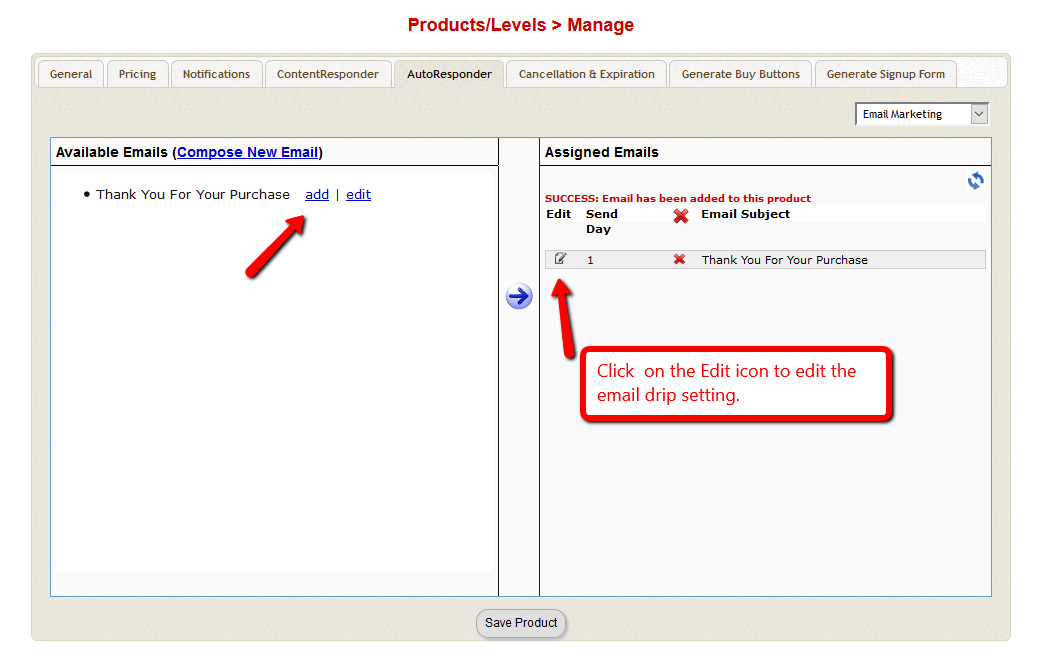
  2. Set up the email drip for this product
  3. Give yourself (or a new test user, but with a real email id that belongs to you) access to this DAP Product on the Users > Manage page (for existing users) or Users > Add page for new users
  4. Run the hourly-cron manually, by going to http://YourSite.com/dap/dap-cron.php . That should send out the day 1 drip for that test user.
  5. Go to Users > Manage page, and back-date the Access Start Date for this test user for the test product, back by one day. So DAP now thinks he bought the product “Yesterday”.
  6. Now run the cron manually again. This time, DAP will send out the day #2 drip for this user.
  7. So every time, move the user’s access start date back by as many days as you want, to trigger that day’s autoresponder email. And each time run the cron manually.

Testing Broadcast Emails

  1. Create a test DAP Product called “Test Product” (or if you have previously created one above, then use the same one)
  2. Add 3-4 test users to this product
  3. On the Emails > Broadcast page, schedule a broadcast email to be sent to “All Users of Product <<Test Product>>”
  4. Run the hourly-cron manually, by going to http://YourSite.com/dap/dap-cron.php . That should send out the broadcast to that test product.
  5. Log in to the email id’s of all the test users that you added to this product, and make sure the email arrived in the inbox.

DAP Shopping Cart / Upsell Plugin – Authorize.net

Selling through Authorize.net, 1-Click Upsells, Downsells and One-Time Offers (OTO’s) are all now extremely simple to implement using the DAP shopping cart / upsell plugin for Authorize.net.

This post explains how to create buy buttons for selling through Authorize.net.

If you are selling through Authorize.net. DAP itself will act as your shopping cart, and buyers can checkout and make purchases by staying right on your web site.
Your site visitors never have to leave your site in order to make a purchase.

With DAP 4.2:
1) you can customize the shopping cart checkout page (for ex – turn off or on the collection of shipping info in the checkout page, display terms&conditions etc).
2) you can also get the checkout page to display within wordpress so your wordpress look&feel is retained during the buyer’s checkout experience.

The “Upsell-Tree Plugin” for Authorize.net is your actual shopping cart. You need to install this plugin even if you just want to accept one-time or subscription payments via Authorize.net, and have no need to do Upsells, Downsells or OTO’s).

What you need before you can use this plugin

1. You need an Authorize.net merchant account
2. If you want to sell subscription-based products, then you also need Automated Recurring Billing (ARB) enabled in your Authorize.net account.
3. You must have SSL (secure server) enabled on your web site. Ask your web host to enable SSL for your site.
4. You must have a working version of DAP 3.5+.

Installation & Setup of UpsellTree

1. You need to install / upgrade to dap 4.2/ live links 1.7.

2. Follow standard procedure for installing DAP (OR) upgrading your DAP & LiveLinks versions. Nothing different there.
3. Purchase the UpsellTree plugin, login to your DAP account and download the plugin zip file, AuthnetUpsellTree.zip .
4. Unzip AuthnetUpsellTree.zip to your desktop. It will unzip the files to a new folder on your desktop, called “AuthnetUpsellTree”.
5. Upload all the files inside, directly to your “dap” folder on your web site. DO NOT upload the folder itself.

Authorize.net Settings:

6. Log in to your Authorize.net account, go to the “Settings” page.
7. Click on the “Silent Post URL”.
authnet_silentpost
8. Change it to: http://YourSite.com/dap/dap-silentpost.php . Be sure to change the text “YourSite.com” to your actual domain name.
authnet_silentpost_submit
9. On the same settings page, click on the “API Login ID and Transaction Key” link towards the bottom, and make a note of your “API Login ID” and “Transaction Key” on a piece of paper. That page also lets you create a new Transaction key or modify your existing one.
authnet_settings
That’s it from the Authnet side.

DAP Admin Panel Settings:

10. Now log in to your DAP Dashboard and go to “Config => Payment Processing – Authorize.net” as shown below.

11. Enter the “API Login ID” and “Transaction Key” that you noted down earlier (Step #9 above) into the respective fields, and click “Update” next to the fields to save the changes.
authnet_dap_config
12. This step applies to you only if you are already using 1ShoppingCart with DAP (if not, skip to next step):
Be sure to remove the “Email Order” cron job from your web hosting control panel (“Cron Jobs” screen), because you don’t want your orders to be double-processed.

DAP Shopping CART Customization

cartoptionspage

13. Go to the “Payment Processing => Cart Options’ page. You can customize the DAP shopping cart checkout page here. The customization needs to be done at product level (if you want to generate ‘BUYNOW’ type of button for your products) AND/OR customize at cart level (select General Settings in the products dropdown on the Cart Options page) if you want to generate ADD-TO-CART type of button.

Say that these were your settings for a product called ‘Paid Product 1′.

Show “Coupon Code”      N
Show “How did you hear about us?”  Y
Show “Comments”  Y
Show “Ship-To Address on Checkout” N
Show “Terms And Conditions” Y
Set “Terms And Conditions”   -  Please accept the terms&conditions by clicking on the checkbox.
Require “User Acceptance of Terms & Conditions”  N
Request “Phone” on Checkout?  N
Request “Fax” on Checkout?  Y
Request “Address2″ on Checkout?   Y

Here’s how the checkout page will look for the above cart options.

A)  Checkout page –   BuyNow button -  NON-Wordpress version of the Checkout Page

As you can see, shipping info is not there in the checkout page and the ‘howdidyouhearaboutus’, ‘comments’, ‘terms&conditions’ got added to the checkout page based on the settings in the Cart Options page above.

B)  Checkout page –   BuyNow button -  WordPress version of the Checkout Page (on a test site with Mystique theme)

As you can see, the checkout page is now rendered withing a wordpress page.  The fields -  ‘howdidyouhearaboutus’, ‘comments’, ‘terms&conditions’ got added to the checkout page based on the settings in the Cart Options page above.

Say that these were your settings for ‘General Settings’ in the Cart Options page. These settings will be utilized if you use add-to-cart buttons.

Show “Coupon Code”     Y
Show “How did you hear about us?”  Y
Show “Comments”  N
Show “Ship-To Address on Checkout” N
Show “Terms And Conditions” Y
Set “Terms And Conditions”   -  Please accept the terms&conditions by clicking on the checkbox.
Require “User Acceptance of Terms & Conditions”  Y
Request “Phone” on Checkout?  N
Request “Fax” on Checkout?  N
Request “Address2″ on Checkout?   N

A) Checkout CONFIRM page –   AddToCART button -  NON-Wordpress version of the Checkout CONFIRMATION Page

As you can, the coupon option shows up on the checkout confirmation page as per the CART options above.

The coupon will be applied to each individual item in the cart.

The coupon will only be applied to the products that have been associated to the coupon in the dap admin => add/edit coupons page.

Now when the user clicks on the BuyNow button in the checkout confirmation page  then the checkout page will show up like this :

(Checkout page –   AddToCART button -  NON-Wordpress version of the Checkout Page)


B) Checkout CONFIRM page –   AddToCART button -  WordPress version of the Checkout CONFIRMATION Page


Generate Authnet Buy Button

14. Now it’s time to generate a customized buynow or add-to-cart button.  Go to DAP Payment Processing => Generate Buy Button page and click on the  ‘Auth.net & Paypal Pro’ tab.

Here’s how the page looks:

Follow the steps on that page to complete the button generation.

Step 1 (select product & processor)

a) first select the product for which you want to generate the button

b) next select the payment processor (set it to authorize.net if you want to use authorize.net as your payment gateway).

Step 2 (generate primary buy button)

a) Now you can generate the button code.  First select the button type (addtocart or buynow).  Use buynow for subscription products as well as one-time buy products.

b)  The Payment Success Page/URL  is very critial part of shopping cart flow.  DAP uses the URL set in this field to redirect users upon purchase to that page.  If you do not want to offer upsells and just want to use basic shopping cart feature without upsells, then just set the URL of your thankyou page in this field. DAP will automatically login the users upon purchase completion to their membership area and then  redirect users to whatever you set in the Payment Success Page. If you do want to offer upsells, then set the payment success page to the URL of the first upsell page in the flow.

Ex – http://yoursite.com/thankyou

Ex – http://yoursite.com/myupsellpage

c) Button/Image

If  you set the Button/Image to point to the location of buynow or addtocart image, dap will use that image for the button.

Ex – /dap/image/buy.jpg

Ex – /dap/image/addtocart.jpg

If you do not have any image, then leave it blank.

d)

If you want the DAP checkout page (where users enter CC, address etc, to have your WordPress theme look & feel, instead of a basic HTML page’s look & feel, then create a WP page with the merge tag %%DAPCART%% in the page body, save it, and enter the URL of that page here.

Enter the full URL to the page here.

For ex – http://yoursite.com/checkout-page/       (note:   this wordpress page just needs to have %%DAPCART%% )

This is how the page will look when it renders in wordpress (button type is ‘BuyNow’)

NOTE: If you leave the field empty, dap will use the non wordpress version of the checkout page.

e) Cart Summary Page in WordPress

Only needed if the button type is “Add To Cart“.  Not needed for ‘BuyNow/Subscription‘ button.

If you want the “Add To Cart” Summary Page (where users can see all the cart items, quantity, amount etc) to have your WordPress theme’s look & feel, instead of a basic HTML page’s look & feel, then create a WordPress page with the merge tag %%DAPCARTSUMMARY%% in the page body, save it, and put the URL of that page here.

Enter the full URL to the page in this field.

This is how the page will look when it renders in wordpress for button type = AddtoCart.

You cannot leave this field empty for ‘addtocart’ buttons.

NOTE: If you leave the field empty, dap will use the non wordpress version of the summary page.

f)

Only applicable to  button type = “Add To Cart“.  Not used for ‘BuyNow/Subscription‘ button. This should contain the URL of the page to which you want to take the users if they add items to cart and then want to ‘go back to shopping’… they are not ready to checkout yet.

You can put the full url of the page where you have other ‘add-to-cart’ buttons so the user can continue shopping.

You cannot leave this field empty for ‘addtocart’ buttons.

=====================================

ALL SET.

Now generate the BuyNow /AddToCart / Subscription button HTML code for your product, which you can then directly paste into your sales page.

Note:  The price, trial price, and recurring options are all taken from your Product settings from DAP products page.

authnet_buybutton_code

Generate Authnet Upsell Page Buy Button / No Thanks  code

15.  If you’re doing upsells, the only thing you need to do is, set the “payment_succ_page” field in button code generated above to the upsell page.

for ex – Payment Succ Page URL =    https://yoursite.com/myupsellpage

Now to generate the button code for the upsell page, go to DAP Admin => Payment Processing => Generate Buy Button page. Click on Auth.net & Paypal Pro tab.

Then go to section  3 -   Generate “Upsell” / “No-Thanks” Button

a)  Choose the right button type –

AddtoOrder (to allow the user to add the upsell item to cart)   OR

No Thanks (the upsell item on this upsell page will be ignored, the transaction will be completed with the current cart items).

b)

User is directed after ‘AddToOrder’ or after ‘No, Thanks’ to whatever you set in the Payment Succ Page. If you want to offer more upsells, then set the url of the next upsell page in this field.  DAP will first add this order to the cart, then redirect users to the next upsell page.  If no more upsells, you can set the url of the thankyou page in this field. DAP will first add this order to the cart, then redirect users to the thankyou page.

For ‘No, Thanks’, you can set the url of the next upsell page in this field or set the URL of final thankyou page in this field.  If the URL of next upsell page is set, DAP will just ignore the current product being upsold to the user and redirect user to the next upsell page. If no more upsells, you can set the url of the FINAL thankyou page in this field.  DAP will redirect users to the thankyou page.

NOTE:

You can repeat this process for unlimited upsells, downsells and one-time offers. No limits.

Product Price:

For a 1-time purchase product, this is the product’s purchase price. For a recurring product, this is the “recurring” price (what the customer gets charged month after month).
B) Trial Amount: This is only if there’s a trial amount. If no trial, leave this empty.
C) Recurring Count: How long is your subscription? If you said “Forever”, then enter the number 9999 here. If it ends after 6 months, then enter 6 here.
16. Set these fields to valid values.
17. NOTE: The DAP Authorize.net allows 1 trial. So in the recurring cycle fields, make sure “Payment/Trial Period #2″ and “Payment/Trial Period #3″ are both the same (set to same number of days: like 30). Example below shows the setting for a “7 day” trial period, followed by recurring payments every “30 days”.
authnet_recurring_cycle
18. If you are not offering a trial, then just set the Trial Amount to $0.00. But if you really wanted to offer a FREE TRIAL, then you must set the Trial Amount to at least $0.01 (1 penny).
19. Once you’ve saved the product, you can now click on any of the two new “Generate… Button Code” links that are located right below the product list combo box.
newproductspage2

That’s it. The upsell page can be a wordpress page or a static HTML page.

While it looks like a LOT of steps, that is only because we have to explain the steps in detail so they are clear. In reality, it is very simple to set up, and starting from scratch, if you have DAP & SSL already installed, it shouldn’t take you more than 1/2 hour to set up your 1-Click Upsells/Downsells/OTO’s. And if you’re not using Upsells/Downsells, then it can be done even faster.

If you have any further questions, feel free to open a support ticket, and we will assist you in getting this going.

Content entered here will appear under the Terms And Conditions on the checkout page.

Custom Fields

Support for Admin Defined Custom Fields in DAP

In DAP 4.2, we have added the support for admin defined custom-fields. You can define your own custom fields in DAP admin panel, accept/store the custom fields via DAP Free Signup/Registration form and it can be viewed/managed in the DAP admin panel.

We have also added the ability to allow the admins to refer to the custom field values via merge tags within DAP email messages (auto-responder/broadcast).

Here’s a screenshot of the  DAP admin panel => Users => Custom Fields page.

(Click to enlarge)

Here’s the steps to define your own ‘custom’ field in DAP admin panel => Users => Custom Fields page.

Step 1:

Database Field Name

Define the fieldname. DAP will use the name defined here to manage this field. The database field name is also used within the dap direct signup form/html so when the user’s enter a value for the field during sign-up, DAP will store it in the right database field.

If you want to accept any custom field via the DAP direct signup form, then use the database field name defined here as the  field name in the direct signup HTML code generated from DAP products page.
Ex -

<tr>
<td>Tax ID:</td>
<td>
<input type=”text” name=”custom_tax” size=”10″></td>
</tr>
<tr>

Step 2:

Label (will appear on User-Facing Pages)

The Label will appear on the user’s profile page. The database field name is only for internal use… the label is what the user’s will see.

Screenshot of user profile page with sample custom fields – Social Security and Tax ID.

Here the label names are Social Security and Tax ID.

(Click to enlarge)


Step 3:

Description

Just for Admin User to describe the custom fields. Not displayed to the user.

Step 4:

Show Field Only To Admin

NOTE: If you want the users to see and update the custom field, set ‘Show Field Only To Admin’ to ‘N’.

If this is set to “Y”, then only admin will see this field in the DAP admin -> manage users page (when you click on the user’s name).

How to use Custom fields in DAP Direct Signup Form

Say you defined a custom field with the database field name = tax_id in the dap custom fields page and you want to accept tax_id  in the Free Signup Form that you generated in DAP Products page.

Say this is the free signup form you generated from dap products page.

<form name=”dap_direct_signup” method=”post” action=”http://contentresponder.com/dap/signup_submit.php”>

<table>

<tr>    <td>First Name: </td>    <td><input type=”text” name=”first_name” size=”10″></td></tr>

<tr>    <td>Email:</td>    <td><input type=”text” name=”email” size=”10″></td></tr>

<tr>    <td colspan=”2″><input type=”submit” name=”Submit” value=”Sign Up”></td></tr>

</table>

<input type=”hidden” name=”productId” value=”1″><input type=”hidden” name=”redirect” value=”/blog/login?msg=Success!%20Your%20membership%20account%20has%20been%20created.%20%20Check%20your%20email%20address%20in%20a%20few%20minutes%20for%20your%20password”>

</form>

Just add this to the direct signup form.

<tr>
<td>Tax ID:</td>
<td>
<input type=”text” name=”custom_tax” size=”10″></td>
</tr>
<tr>

NOTE: Add ‘custom_’ in front of the custom field’s database field name. So if the database field name is “tax”, then in the form, add custom_tax (as you see above)

So your final free signup form will look like this:

<form name=”dap_direct_signup” method=”post” action=”http://contentresponder.com/dap/signup_submit.php”>

<table>

<tr>    <td>First Name: </td>    <td><input type=”text” name=”first_name” size=”10″></td></tr>

<tr>    <td>Email:</td>    <td><input type=”text” name=”email” size=”10″></td></tr>

<tr>    <td>Tax ID:</td>    <td><input type=”text” name=”tax_id” size=”10″></td></tr>

<tr>    <td colspan=”2″><input type=”submit” name=”Submit” value=”Sign Up”></td></tr>

</table>

<input type=”hidden” name=”productId” value=”1″><input type=”hidden” name=”redirect” value=”/blog/login?msg=Success!%20Your%20membership%20account%20has%20been%20created.%20%20Check%20your%20email%20address%20in%20a%20few%20minutes%20for%20your%20password”>

</form>

That’s it. Put the direct/free signup form code on your squeeze page and see the form convert into something like this :

You can do the same for each custom field you want to accept in the dap free signup form. Just create the custom field in DAP Admin -> Users -> Custom Fields Page and then add the field to the free signup form as shown in the example above for tax_id.

How to send user’s custom field value in the auteresponder/broadcast emails:

You can send custom field values in the DAP emails by using merge tags like this  -  %%custom_tax_id%%

Add ‘custom_’ in front of the custom field’s database field name.

So if you have defined a custom field called ssn (here database field name = ssn) in your database.

To include this field in the autoresponder/broadcast email, just add this – %%custom_ssn%%.

That’s it. When the user receives the email, dap will automatically replace the merge tag with the user’s ssn value.

Say your email message body contains the following text:

Your taxId is %%custom_tax_id%%

When the user receives the message, it will look like this (in this example, the user’s taxId = 9999999):

Your taxId  is 9999999

you defined a custom field with the database field name = tax_id in the dap custom fields page)

RSS Feed Protection

As of 4.1, DAP does not yet have a unique member-level RSS feed link (coming in v4.2).

So once you protect a page or post in DAP, you can make it either completely disappear from your feed (for all users, members and non-members alike), or you can show partial text (by turning on sneak-peek), but in that case you must make sure you have a “more” tag entered into each of your posts.

So if your blog post is showing in its entirety, then….

1) You may not have protected the post in DAP at all, so it’s an unprotected post, which will (and should) show up in your feed

2) Or, you have turned on Sneak-Peek and haven’t inserted the WordPress “more” tag (<!–more–>) into each of your posts. If you turn on Sneak-peek, then you must insert more tags into all posts.

Also, if you have turned on Sneak-Peek, then you must also do this…

Go to “Settings > Reading” in WP admin, then set “For each article in a feed, show” to “Summary”.

If it is set to “Full text”, then it will show the full text in the feed, which is not what you want.

Hiding Protected Links On Member Home Page

When you have hundreds of posts or pages protected as part of a DAP Product, the list of links on the DAP Member Home Page (that is the result of using the merge tag %%USERLINKS%%) can get quite long and unwieldy.

So you can choose to hide some of those links from being displayed on the member’s home page.

Here’s how you hide a link from being shown on the member’s home page…

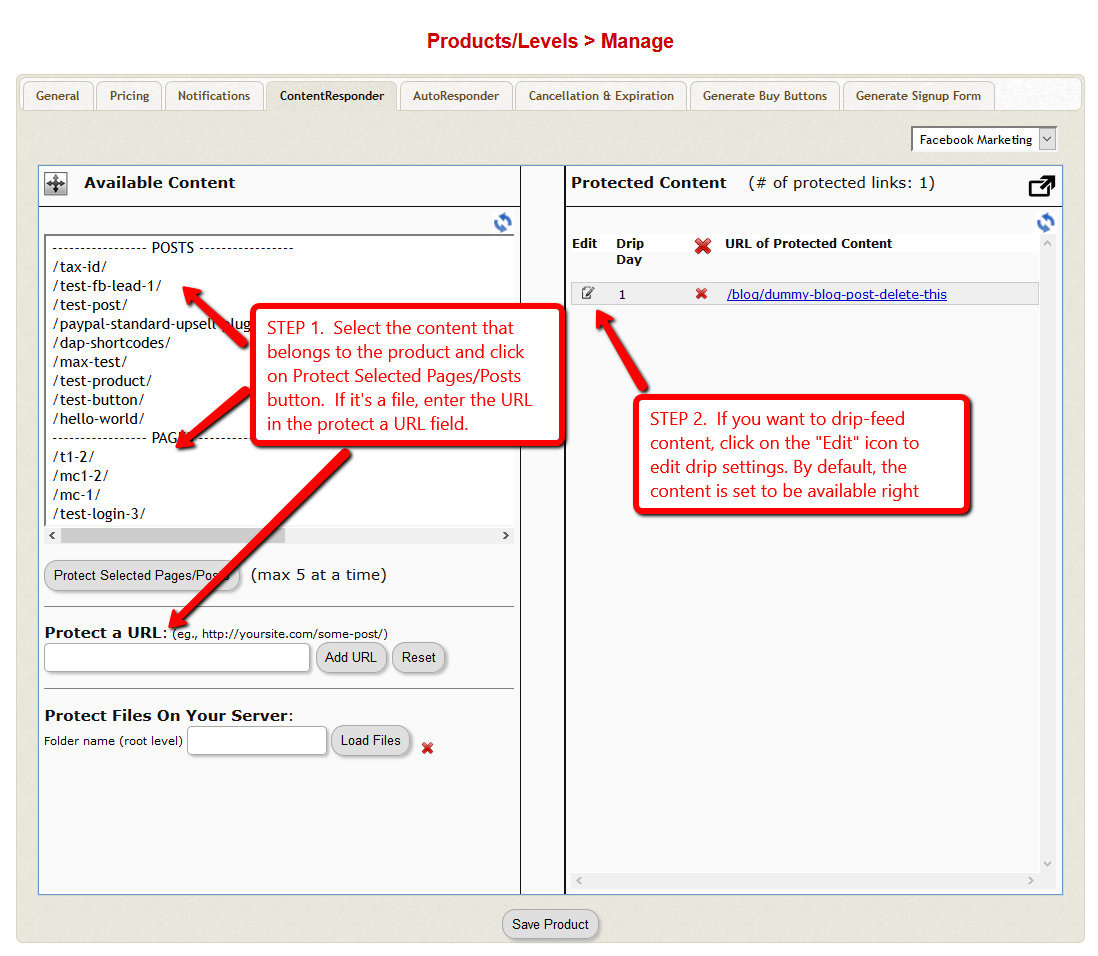
1) Go to the DAP Product in question, scroll down to the ContentResponder section

2) Click on the edit link next to the content in question on the right. The “Edit Files” popup will then show up on the left.

3) Set “Display On User’s Home Page” to “N”.

That’s it.

The content is still part of that product, it is still being protected, but the link simply won’t be displayed on the member home page.

DAP’s “Pause Membership” Feature

How It Works

Joe Member joins your site on 01/01/2011.

He stays a member for about 3 months. Let’s say it’s now mid March. He wants to take a couple of months break. So he goes on a 2 month break. Comes back end of May and wants to resume his membership.

DAP allows him to pick up right where he left off – which is continuing to receive content as of April (04/01/2011), even though today’s date is May 25th, 2011.

So while he took a break, other members who did not take a break in membership, continued to pay for those 2 months, and continued to receive content dripped through those months. So it is only fair that when he does come back end of May and resumes his subscription, he does not resume from June’s content, but from April’s content (when he last put his membership on “Pause”).

It’s ok if you’re not dripping content on a monthly-basis, but rather on a “day” basis. So to put it in terms of “days”, when Joe resumes his subscription, since he was already 90 days old in the system when he put his subscription “On Hold”, and comes back another 60 days later (roughly about 2 months), then DAP will start dripping Day #91 content onwards for him, and NOT Day #151 onwards (he didn’t pay for 2 months in between).

This is how DAP works right out of the box. Nothing special to configure. And DAP automatically takes care of pausing the dripping when he is not paying.

WARNING: Just remember that in order for you to put his actual payments on hold, you will need to have a payment gateway like Authorize.net or Paypal Website Payments Pro. Or you must be using a shopping cart like http://1SiteAutomation.com . Using something like Paypal Standard or ClickBank will not allow you to put the actual charging of his credit card on hold.

NOTE: If you actually did want him to start receiving current content even though he left for 2 months, then all you have to do is, once he comes back and starts paying again, just extend his access end date on his account (which will initially be showing 03/31/2011 – end of March, when he left) and modify it and make it 05/31/2011. So when his next payment comes in after he resumes, DAP will extend his access end date to 06/30/2011 – which means, he can now access all of the current content.