
Protecting Files
DAP File Protection
DAP is one of the few membership plugins that can protect all kinds of web site files on your web site. But this feature comes with a few caveats. Read this page completely before you decide.
DAP can protects files “in-place” – meaning, the exact same files that will actually be accessed by your members when they’re eligible to.
Most other membership plugins resort to all sorts of “gimmicks” – like hiding the real location of the main file, cloaking it, trying to obfuscate the link, etc.
Not only is it a inefficient way of securing files, but it’s also extremely insecure.
On top of that, with other membership plugins, you cannot send protected links via email, because that would then give away the location of the true file, which they are not protecting.
DAP is among the very, very few membership plugins that protect files in place, which means even if the true location of the file is passed around by your members to their non-member friends, the file cannot be accessed without having to log in first with a valid member account that is actually eligible to access that file.
DAP provides the ultimate security for your files – and ultimate peace of mind for you – like no other plugin can, knowing that your content can never be illegally shared online with un-authorized users.
And DAP can protect any kind of file – including videos, audio, images, reports, zip files, even Javascript files – with any kind of extension: like .pdf, .doc, .zip, .jpg. .js, .mp3, .mp4, .mov., etc etc.
RECOMMENDED: Amazon S3 File Storage
Highly Recommended
The ideal and best way to store files is to store them on Amazon S3, and then use a plugin like our own S3MediaVault.com to insert secure, expiring links to those files within your WordPress pages. That way, the page itself is protected by DAP, your files on Amazon S3 are protected by the S3MediaVault plugin, and you have two layers of protection for your content.
If you decide to store your files on Amazon S3, then ignore the rest of this article, and head over to Storing files on Amazon vs your Webhost
The steps below are only useful if you are going to use all of your files on your own web hosting account – which is not ideal and is not recommended.
Section I: Protecting Files Under WordPress
This is the easiest way to protect files on your server, in DAP.
1) Upload them to your WordPress blog when you are writing a new post. All such files will be stored in a folder called “wp-content/uploads/….“.
For large files, you could simply upload them directly using FTP, directly into the “wp-content/uploads/” folder and DAP is configured right off-the-shelf to “look” for any file inside the “wp-content/uploads/” folder. But once the file is under the “wp-content/uploads/…” folder (either directly under it, or under a sub-folder, like wp-content/uploads/videos/), you will now still need to let DAP know that this file is to be protected as part of a Product.
NOTE: You DO NOT have to upload files using the WP file uploader (like some of our competitors force you to do!). You can use regular, plain ol’ FTP, using a client like FileZilla or CuteFTP, or your webhost cPanel’s FTP feature.
2) Go to the product you wish to protect the file as part of, and then scroll down to the “ContentResponder” section.
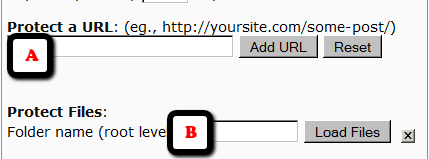
2.1) If you know (or can figure out) the full URL to your file – like http://www.YourSite.com/wp-content/uploads/coolreport.pdf – you can simply paste that directly into the field “A” (in the image below)
2.2) Or, if you can’t figure out the full URL, then you can enter “wp-content” (if your blog is directly in your root folder) – or “blog” or “members” (if your blog is not in your root, and is in a sub-folder) into field “B” below, and then click on “Load Files”, and it will show you all files under that folder. And you will be able to scroll through and look for your file. And there click on the “Add” link right next to that file name you wish to protect.
Once you do (2.1) or (2.2) above, the file will get added to the Product, and will now be protected.
Section 2: Protecting Files Outside of WordPress
This is NOT RECOMMENDED, unless you are technical and you know what you’re doing.
There is a one-time setup process involved, if you wish to protect files outside of your WordPress directory.
1. You need to add the following code to the .htaccess in the root of your web site. So, in your web site’s root folder (where you have your home page – like index.php or index.html for example)…
i) if you already have an existing .htaccess file there, then just open it, COPY the text from below and PASTE it at the very end of this file.
ii) If there is no .htaccess in your root folder, then create one, and then open it, COPY the text from below and PASTE it at the very end of this file.
NOTE: BE SURE TO MAKE A BACK-UP OF YOUR EXISTING .htaccess FILE FIRST
#Paste this at the very end of your .htaccess file

#in your web site's root folder
<IfModule mod_rewrite.c>

#dap

RewriteEngine On

RewriteBase /

RewriteCond %{REQUEST_FILENAME} -f

RewriteCond %{REQUEST_FILENAME} !-d

RewriteCond %{REQUEST_FILENAME} !dapclient.php

RewriteCond %{REQUEST_URI} !^/dap/

RewriteCond %{REQUEST_FILENAME} !(.*)(\.php|\.css|\.js|\.jpg|\.gif|\.png|\.txt)$

RewriteRule (.*) /dap/client/website/dapclient.php?dapref=/$1&plug=wp&%{QUERY_STRING} [L]
</IfModule>
Doing the above enables file protection for files outside your WordPress installation folders.
2) Now go to the DAP Product you wish to protect the file as part of, and then scroll down to the “ContentResponder” section. Then…
- If you know the full URL to your file – like http://www.YourSite.com/reports/coolreport.pdf – you could simply paste that directly into the field “A” from the image above (make sure you “visit” this URL first and verify that there is actually such a file at this link)
- OR… if you can’t figure out the full URL, then you can enter the text “reports” (the name of your top-level folder where your file is) into field “B” from the image above, and then click on “Load Files”, and it will show you all files under that folder. And you will be able to scroll through and look for your file. And there click on the “Add” link right next to that file name you wish to protect.
The file is then added to the Product, and will now be protected as part of that Product.
That’s it.
Testing File Protection
Open a different browser (not different window – a totally different browser – like, if you’re logged in as DAP admin in FireFox, then open IE) and try to access your file directly and see if DAP redirects you to the login screen.
If not, take a deep breath – it’s NOT DAP 🙂
It’s just that you probably missed something during the setup.
Revisit the steps above, and if you still can’t figure it out, you might want to think about uploading the file to Amazon S3.
This feature can be hit-or-miss depending on server software, PHP version, security software on your server, etc. So if it works, then great.
If it doesn’t work, then it is specific to your server. So if you want us to log in to your site and troubleshoot this, if you are a Platinum member, we can do this for free.
And if you’re not a Platinum member, you will have to purchase a premium support slot in order for us to log in to your site and troubleshoot this.
So while you can try it and see if it works, especially if you’re protecting just a couple of ebooks and reports, if it doesn’t work, then it’s in your best interest for the long-term, to switch to Amazon S3 for hosting your premium files.
Recommended Reading
If you have a number of large files to deliver to your members, then you should consider hosting your files on Amazon S3. And here’s why…


