
4
How To Test Member Access
We do NOT recommend testing what your regular member’s user-experience, while you are logged in as DAP/WP Admin.
Being logged in as DAP Admin and WP admin gives you certain privileges that your regular user/member won’t have. So you may see things that your members won’t be seeing. Or you may not see things that a regular user would normally see.
Either way, you may not be seeing what you’re supposed to see when you mix user testing with admin privileges.
So we recommend that you use two completely different browsers for testing: say, Chrome (or your primary browser) for WP & DAP Admin, and Firefox (or other) for logging in as regular user.
That way, you won’t have to keep logging in and out of DAP and or WP to test as both admin and user.
Keep them both separate.
If you are wondering how can the DAP Admin actually login as a member to see what they’re seeing – a critical feature during initial testing as well as troubleshooting a live site when a member says they’re having trouble accessing certain content, then continue reading.
You can use our “Login As Member” feature, where the DAP Admin would go to http://YourSite.com/dap/loginAs.php.
This page will present 3 form fields:
1) Email id of member you wish to log in as.
2) DAP Admin Email
3) DAP Admin Password
If you do not know what your DAP admin email / password is, you can click on your admin name in DAP Admin -> Users-> Manage page and update your admin password. The DAP Admin password is NOT the same as your WP admin password.
Once DAP verifies that it is indeed the DAP Admin trying to log in as someone else, DAP will log you into the site as that member whose email id you entered in (1) above.
NOTE: The Login As Member (LAM) feature does NOT mean that you can use just one browser to log in as both DAP Admin and regular member. You still need to use two separate browsers – one for DAP admin (like Chrome) another for regular member (Firefox). All LAM does is give you a workaround for logging in as someone else, because starting 4.4.x, the DAP Admin can no longer see what the member’s password is in order to log in as them.
Modifying Link Text For Content
When you protect a page, post or file URL in DAP on the “ContentResponder” tab, every protected link – and eligible (for display, based on dripping) link will show up on the “My Content” page.
If you wish to modify the “Link Text” (the actual text that is displayed when the user sees the link), then…
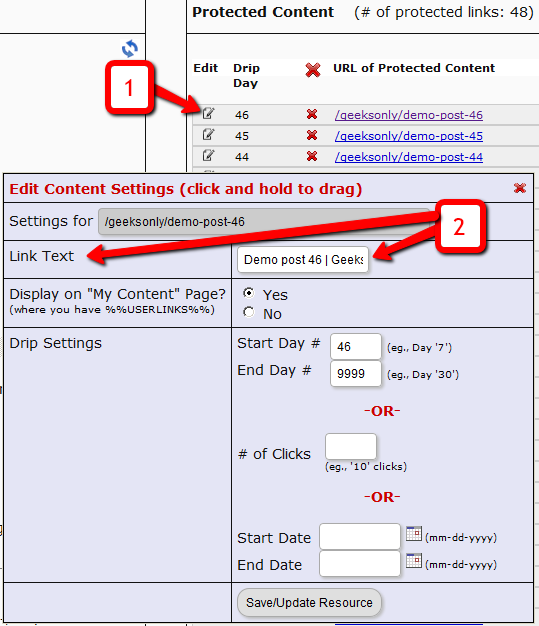
1) Click on the “Edit” icon next to any protected link under the “Protected Content” section, and that will bring up the “Drip Settings” popup.
2) In that popup, you can customize the “Link Text” field with any text you want.
Protecting Draft Content
Now, normally, links to pages or posts show up in the left-hand side of the ContentResponder tab of the DAP Product only after they’ve been published.
But sometimes, for whatever reason, you may wish to protect pages or posts even before they are published – like in a “Draft” or “Pending Review” status. So here’s what you do.
As soon as you first create a new post or page, and tab out of the title field, and even before you save the post as a draft, or publish it, WordPress will create and display the permalink for that post/page, based on the text in your title.
So, if your page title is “Protecting Draft Pages”, then the default permalink will take on the structure http://YourSite.com/protecting-draft-pages – basically a lower-case version of the title, with hyphens separating the words. Like this…
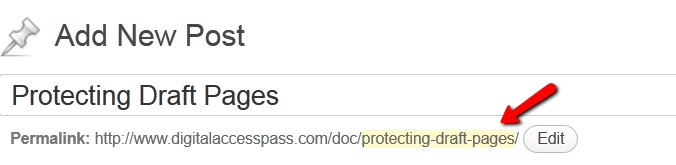
You can then copy that entire permalink from where it is displayed, go to the DAP Product’s ContentResponder section, scroll down to the section that says “Protect a URL”, and then paste the entire permalink there (http://YourSite.com/protecting-draft-pages), and click “Add URL”.
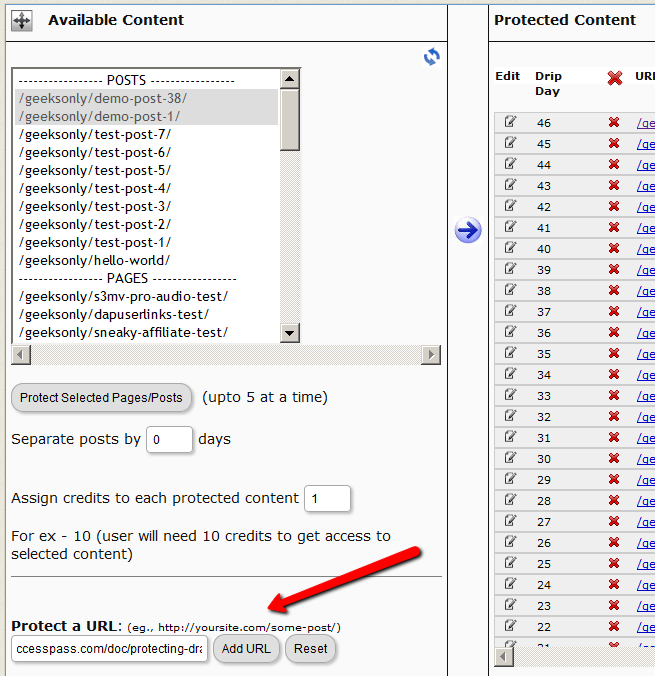
That will protect this page or post in advance of it being published.
2
Download Protection: Fact & Fiction
FACT: Anything that you put out on the web, can be downloaded – one way or the other.
FACT: People who are out to steal stuff, will steal it no matter what.
FACT: By taking security too far, you will only annoy and irritate 99% of your members who have absolutely no intention of ripping you off or stealing your content in any way.
DAP provides built-in security for files and video and just about any other type of file extension – like .pdf, .zip, .doc, etc. DAP will make sure that even if the URL to the actual file gets passed around, the person trying to access the file will have to log in first before they can access the content. So your content is safe from un-authorized users, with DAP protecting it.
However, what about a valid, paying member? When they get access to a protected PDF or .zip or even a video, can DAP prevent them from downloading the file to their desktop? If a paying member who has legitimate access to a PDF file, can download the PDF to their desktop, can they not then turn around and upload it to their own web site, or send it as an attachment via email to their friends? Is there any way to make files not downloadable at all?
Sure they can. But trying to build a Fort Knox around your content, is not really the best thing for your members.
Taking Security Too Far
Like we mentioned above, anything that’s out there on the web, can be duplicated, copied, downloaded – in one way or the other. Nothing is 100% secure.
- You could use “Streaming Only” technology to make sure even legitimate, paying members cannot download videos from your member’s area. But guess what? There are screen-capture tools – even free ones – that can be used to rip your video, and convert it into a file that can then be passed around on pirate sites. So preventing download of videos would only result in upsetting your legitimate members, because people like to watch videos even when they’re away from their computer – like on their ipad when sitting on a bed or a couch. Making everything “streaming only” means that they must be online and logged in to your member’s area every single time to watch your videos. Not a good thing for your members. You want to upset 99% of your members just to prevent that 1% who may (or may not) steal your content?
- PDF’s can’t really be prevented from being downloaded. Once the PDF reader opens a PDF file, even if it’s by clicking on a link on your web site, it means it’s already downloaded on to the computer in some kind of a “temp” folder. So it has already left your web site and landed on the user’s computer. Nothing much you can do from there. Sure, you could make your PDF’s password protected, but they can pass on the password too to others. You could make your PDF files so that they cannot be copy/pasted, or cannot be printed. But guess what? There are tools out there that will break any kind of encryption or restriction you put on your PDF files, within seconds. And those who want to actually steal your content, also know what those tools are and how to use them.
So can your content be “too secure”? Absolutely. You can make it too hard for 99% of your legitimate members, just to prevent the 1% from stealing it (but they’re going to find a way to steal anyway). What’s the point, really? Those who want to steal, know how to pick your lock. So why make it harder for your real members?
Can people pass on their username/password to their friends to log in to your member’s area? Sure. But DAP will lock their account from further access, if it detects an account getting logins from more than, say “5” (or whatever you set as admin) IP addresses.
Can people download your videos from your site after getting legit access to it, using screen-capture tools, then re-upload to a torrent or black-hate site? Sure, they can.
Can people break your “password-lock”, “print-lock” or any other kind of restriction you place on your PDF files, within seconds? Sure, they can.
No, your content can never be 100% secure. Any one who tells you so, is either lying, or doesn’t have a clue.
Your only goal should be to make it hard for the “casual” abusers, that’s all. Not to make it so hard that even your legitimate members have to jump through hoops to get to it.
The best membership sites we have seen, provide access to their content in multiple formats.
Do you publish video content? Then right below the video, also give them a link to “download” the video and “watch it at their leisure”, publish an “Audio Version” in .mp3 format, publish a “PDF Transcript” of everything said in the video, so they can even “read” the content from your video.
Is your content mostly text? Then offer a PDF version of your blog post or page, so they can download it, print it, and read it offline. Or make a “Read Aloud” version of your blog post and offer it as a .mp3 file, so they can “listen” to your content while at the gym, or while going for a walk, or while driving in their car.
Bottom-line: Don’t worry about the 1% who will never pay you, probably will steal your content, and pass it on to others one way or the other. Just focus on creating great value for the 99% of your paying members who pay you, support you, promote you, and keep coming back month after month after month. And that’s the best use of your time and resources, and that’s the only way to build a successful membership site.
4
The “Smart Login” Process
DAP has a very powerful, flexible and easy-to-use log in flow for your users and members.
- Log in from a dedicated log in page, or
- Log in from the login form on the side-bar (login/logout widget), or
- Log in through the log in form shown on “Sorry, you don’t have access to this content. Please log in first…” kind of error messages.
And we call it the Smart Login, because the login process will work differently under different conditions, all designed to make the user-experience for your member more smooth and consistent with general login standards around the web.
So let’s see the various possible login locations in DAP.
But first, it is important to note that DAP has two main types of logins.
Primary Login
This is where it is considered a “generic” login by your member. For eg., a member came to your web site, and then just generally wants to log in to the member’s area – so they have no “context” – it’s NOT as if they were trying to view a specific page or post, got challenged with a login form, and then logged-in from there. That makes this a “Primary Login“.
Examples of this are…
a) Dedicated Login Page: You have a dedicated login page, like http://YourSite.com/login/ – which is what you’ve entered in to “Setup > Config > Login URL“. The body of this page has the DAP merge tag for the login form, which is %%LOGIN_FORM%%
b) Login/Logout Widget on any page of your web site. This is also considered a primary login. The reasoning here is that if they’re logging in through a sidebar widget, it means that they just want to log in to the member’s area, so it is considered primary login.
Secondary Login
This is a login action that HAS “context”. Say, a member landed deep into your site (not the home page, not the dedicated login page) and were challenged by the “In Page Error Message” that says something like “Sorry, you must log in before you can view this content” and are presented with a login form right on that very same page. They were trying to read something before they were asked to log in first – which means, they must be returned to the same page they were trying to view BEFORE they were asked to login. So that makes this a “Secondary Login“.
Examples of this are…
a) Any custom “Error Page”, where you have inserted the DAP merge tag for the login form, %%LOGIN_FORM%%.
b) DAP’s “In-Page Error Message” which says “Sorry, this is private content – you must log in first before you can view this”.
c) Log in form showing up on a page when “Sneak-Peek” is enabled.
Redirection Rules
Based on whether it’s a Primary Login or a Secondary Login, your member will be redirected to a different location.
1) If it is a Primary Login action, then…
a) They’re taken to the “Post-Login URL” if set at a Product-level AND they have access to just one Product.
b) They’re taken to the GLOBAL “Post Login URL” (under Setup > Config) if you have NOT set anything at a Product-level, OR if they have access to more than one Product.
This scenario is the only one where the Post-Login URL is ever used (whether it’s the Product-level or Global-level).
1) If it is a Secondary Login action, then…
They’re always redirected back to the same page they were on (or were trying to access) before they were challenged to log in first to view the content.
Bottom-line:
Primary Login is predictable, and you (the DAP Admin) control where they go right after they login.
Secondary Login depends on “context”, and they’re taken back to whatever page they were on, before they logged in.
5
Secure RSS Feeds
Once you protect a post in DAP, you can …
a) Make it completely disappear from your feed except for authorized users who have valid access to the post and are using a member-specific RSS feed URL
-OR-
b) You can show a “Summary” of every post, by turning on sneak-peek and making sure you have inserted the “<!–more–>” tag entered into each of your posts.
Troubleshooting RSS Feeds
If your blog post is showing in its entirety in your feed, then….
1) You may not have protected the post in DAP at all, so it’s an unprotected post, which will (and should) show up in your feed
-OR-
2) You have turned on Sneak-Peek and haven’t inserted the WordPress “more” tag (<!–more–>) into each of your posts. If you turn on Sneak-peek, then you must insert more tags into all posts. Also, if you have turned on Sneak-Peek, then you must also do this…
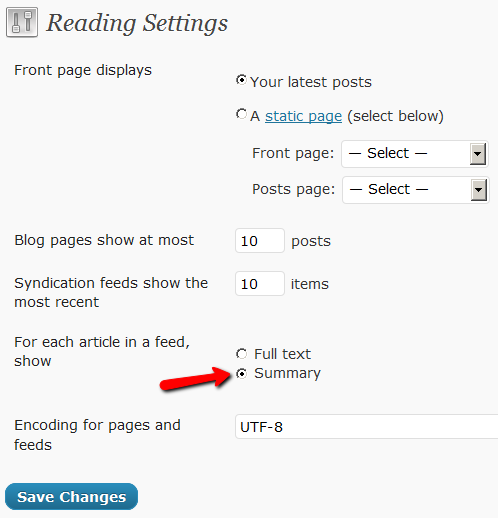
Go to “Settings > Reading” in WP admin, then set “For each article in a feed, show” to “Summary“.
If it is set to “Full text”, then it will show the full text in the feed, which is not what you want.
Custom RSS Feed Links For Members
Starting DAP v4.2, each of your members can now get their own unique RSS feed link that they can use with a feed reader (like Google Reader, FeedBlitz, iTunes, etc) to get a custom RSS feed with content that they’re eligible to view.
To give each of your members their own unique RSS Feed URL, just insert the following line of code into the top of the “Member Links” or “My Content” type page, or wherever you want your users to see their personalized RSS feed link…
If your blog is in the root…
http://YourSite.com/feed/?key=%%ACTIVATION_KEY%%
If your blog is in a sub-folder (say “/blog”)…
http://YourSite.com/blog/feed/?key=%%ACTIVATION_KEY%%
The text %%ACTIVATION_KEY%% in the above URL will be replaced with their own custom key, like…
http://YourSite.comcom/feed/?key=123456789
They can then copy that link, enter that into any feed reader, and it will show content specific to their account.
Custom Feed Link Security
Another useful feature we’ve added, is that the custom feed link also does IP count validation. So if they share the feed link with others, then after “X” unique IP login attempts (where “X” is configurable by you, the DAP Admin, in Setup > Config), their account will automatically get locked out.
4
DAP’s “Pause Membership” Feature
How It Works
Joe Member joins your site on 01/01/2011.
He stays a member for about 3 months. Let’s say it’s now mid March. He wants to take a couple of months break. So he goes on a 2 month break. Comes back end of May and wants to resume his membership.
DAP allows him to pick up right where he left off – which is continuing to receive content as of April (04/01/2011), even though today’s date is May 25th, 2011.
So while he took a break, other members who did not take a break in membership, continued to pay for those 2 months, and continued to receive content dripped through those months. So it is only fair that when he does come back end of May and resumes his subscription, he does not resume from June’s content, but from April’s content (when he last put his membership on “Pause”).
It’s ok if you’re not dripping content on a monthly-basis, but rather on a “day” basis. So to put it in terms of “days”, when Joe resumes his subscription, since he was already 90 days old in the system when he put his subscription “On Hold”, and comes back another 60 days later (roughly about 2 months), then DAP will start dripping Day #91 content onwards for him, and NOT Day #151 onwards (he didn’t pay for 2 months in between).
This is how DAP works right out of the box. Nothing special to configure. And DAP automatically takes care of pausing the dripping when he is not paying.
WARNING: Just remember that in order for you to put his actual payments on hold, you will need to have a payment gateway like Authorize.net or Paypal Website Payments Pro. Or you must be using a shopping cart like http://1SiteAutomation.com . Using something like Paypal Standard or ClickBank will not allow you to put the actual charging of his credit card on hold.
NOTE: If you actually did want him to start receiving current content even though he left for 2 months, then all you have to do is, once he comes back and starts paying again, just extend his access end date on his account (which will initially be showing 03/31/2011 – end of March, when he left) and modify it and make it 05/31/2011. So when his next payment comes in after he resumes, DAP will extend his access end date to 06/30/2011 – which means, he can now access all of the current content.
22
Conflict With “Cache” Related Plugins
DAP Now Works With WP Super Cache
If you’re having weird issues – like members logging in and seeing other people’s profile information, or logging in as a valid user and being told “Sorry, you don’t have access to this content” – then it’s probably because of a “cache” plugin.
Do not use cache plugins on your membership site
DAP now fully works with WP Super Cache (and possibly other cache plugins too).
You just need to make sure that you exclude your member content (including the login page) from being cached.
Cleaning Up After Your Cache Plugin
Follow the steps below to clean up some the junk left behind by cache plugins (regardless of whether you see them in your plugins section, and regardless of whether they are currently active).
1) You wish to disable your cache plugin that is currently enabled
2) You previously had one enabled at some point in the past
3) You don’t believe you ever had a cache plugin enabled in the past
4) You were redirected to this page by the DAP support team because of potential caching-related issues
- De-activate the plugin if it is still active
- Open your wp-config.php file.
- If there are lines in there that look like this…
define(‘WP_CACHE’, true); //Added by WP-Cache Manager
define( ‘WPCACHEHOME’, ‘/home/wp-content/plugins/wp-super-cache/’ ); //Added by WP-Cache Manager - Then comment out both lines, by adding a “//” at the beginning of each line, like this.
- //define(‘WP_CACHE’, true); //Added by WP-Cache Manager
//define( ‘WPCACHEHOME’, ‘/home/wp-content/plugins/wp-super-cache/’ ); //Added by WP-Cache Manager - Go to your /wp-content/plugins/ folder. See if there’s a folder in there called “cache”. If yes, then rename it to “_cache”.
Now re-test whatever the issue was before, and it would have probably been resolved now.
That should do it.
If the issue still persists, let us know via a support ticket.
DAP Starters – FAQ
>> 1. I want to have an Add to cart button for each product. I have a PayPal business account that I want to use. I want to have DAP host the add to cart buttons. Where do I put my paypal info in at? < <
See – http://www.digitalaccesspass.com/doc/integrate-dap-generated-buttons-with-paypal/
>> 2. Also it would be nice to be able to set up an OTO/up sale for each product. The OTO will be the same for every product. < <
Add a redirect tag as shown below to the button code generated by dap.
Say the OTO page is http://yoursite.com/otopage, then add the following redirect tag to your button code that you generate in DAP:
(Note: replace yoursite.com above with the name of your site. )
>> 3. After the customer makes the purchase I want them added to my Aweber auto responder. < <
Please see: http://www.digitalaccesspass.com/doc/aweber-integration/ For paid products, always integrate DAP -> Aweber.
For free products, you can use either aweber webform -> DAP OR DAP direct signup form -> aweber.
If you want to use aweber -> DAP, use http://www.digitalaccesspass.com/doc/use-aweber-webform-to-signup/
If you want to use DAP -> AWeber, use http://www.digitalaccesspass.com/doc/aweber-integration/
To create a DAP free/direct signup form, use this –
http://digitalaccesspass.com/doc/adding-users-via-dap-signup-form/
>> 4. People sign-up with their email through an Aweber sign-up form. At the end of a few dripped emails using Aweber they can buy a low-priced product. Whats the best way to set this up ? <<
Create a free product in DAP.
Use Aweber webform -> DAP to integrate aweber free list to DAP free product.
When the users signup using the aweber free form, they will also be signed up in DAP.
Encourage these users to update their paypal email address in their DAP userprofile after they become member that way when they become paid members (applies to payment via Paypal only), DAP will add the paid product under the same user account under which they had free product.
See – http://www.digitalaccesspass.com/doc/use-aweber-webform-to-signup/
Create the paid product in DAP.
Integrate DAP with the payment processor so when they purchase the product, DAP will be notified and the user account will be created in DAP.
Update the 3rd party notification field in DAP products page to notify the paid aweber list.
Add product chaining rule in DAP to remove access from free product when the user gets access to the paid product.
Add rule in aWeber to automatically remove user from free list when they get added to paid list.
When the user makes purchase, DAP will add the new product to their existing account, remove free product from their account, add them to the new aweber list and aweber will remove them from the free list.
>> 5. There are two subscription products: Monthly ($10, recurring) and Annual ($100, Recurring). A subscriber tries Monthly for two month and then decides to “upgrade” to an Annual subscription, which is cheaper in the long-run. Is there a way to automate this for the subscriber’s choice?
Answer:
Create 2 products in dap – monthly subscription and annual subscription product
The recurring settings for monthly will be as shown below:
http://screencast.com/t/UinkvvTq
The recurring settings for annual will be as shown below:
http://screencast.com/t/TG6zzTVx
Setup product chaining rule in dap to automatically remove user’s access to monthly product if they subscribe to annual.
1) user purchases monthly product
They will get 30 days access initially. When the next payment comes in at the end of the month, dap will extend access by another 30 days.
2) now after the user purchases monthly product, they want to upgrade to annual payment option.
They will click on the buy button to complete purchasing the annual subscription.
DAP will now give them access to the annual product with a start date of current date and end date of 365 days from today.
The product chaining rule will trigger and dap will remove this user’s access to monthly product. So now in manage users page, you will see the user is tied to annual product and not the monthly product.
You do need to take some manual action in this scenario. You will have to login to the payment gateway (authnet or paypal) and remove the users old subscription to monthly). DAP will not automatically remove user’s monthly subscription profile in the payment gateway.
>>6. How do i make sure the email drip feed via DAP autoresponders are working?
Add a new user via DAP admin panel
Wait for the top of the hour for cron to run
Then check the user’s email box at the top of the hour to see if the day-1 drip emails went out.
If the user is on say day 2 of membership… then they will receive the day 2 drip emails at midnight (server time) because when the cron runs for the first time for that day (at midnight), it will pick up all users that are on day 2 of their membership and send out day 2 emails.
>> 7. All of the products are in one file called DLmmmDL. All files in this folder are zipped. The file is located where dap was installed. I want this file and the files in it protected. < <
If you have a wordpress site, ideally you should upload the files that you want to protect under /wp-content/uploads folder. You can create a subfolder under uploads and upload the files there. DAP looks under /wp-content/uploads folder by default for file protection. After uploading files under /wp-content/uploads, go back to dap products page and protect the full URL of each zip file. See – http://www.digitalaccesspass.com/doc/protecting-regular-site-files/ >> 5. I want an affiliate section to where people can sign up and sell my products. I dont see where to create a link in my footer that says affiliates. < < You can update the theme footer to include the hyperlink of your affiliate signup page. See – http://www.digitalaccesspass.com/doc/instant-affiliates/ >> 6. Of course it needs to send an email to the customer once they pay so they can download their products. <<
See – http://www.digitalaccesspass.com/doc/troubleshooting-welcome-email-delivery/