Merge Tags in WordPress Posts

Here are the merge-tags that you can use in your WP posts, and what they mean.

%%MSG%%

1) Create a WP “page” with the slug “error”, and it can be accessed at http://YourSite.com/error/

2) In the body of the page, put the text %%MSG%% – followed by whatever copy you want.

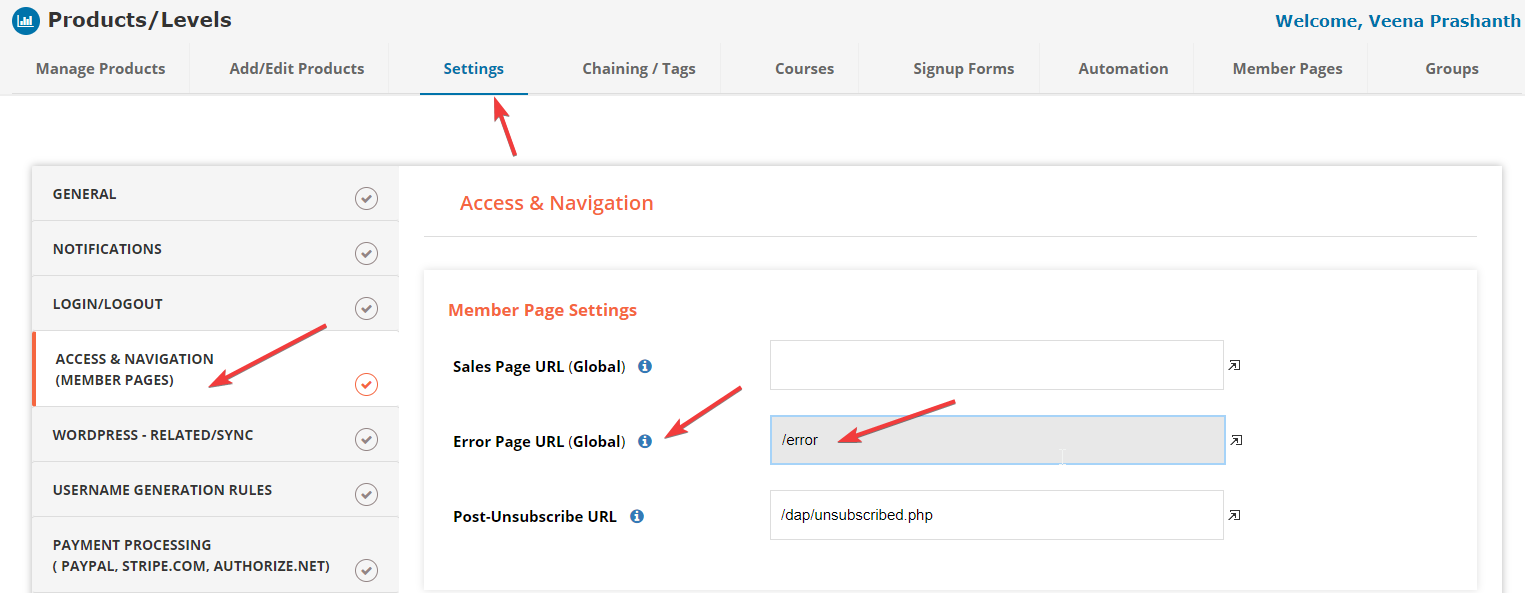
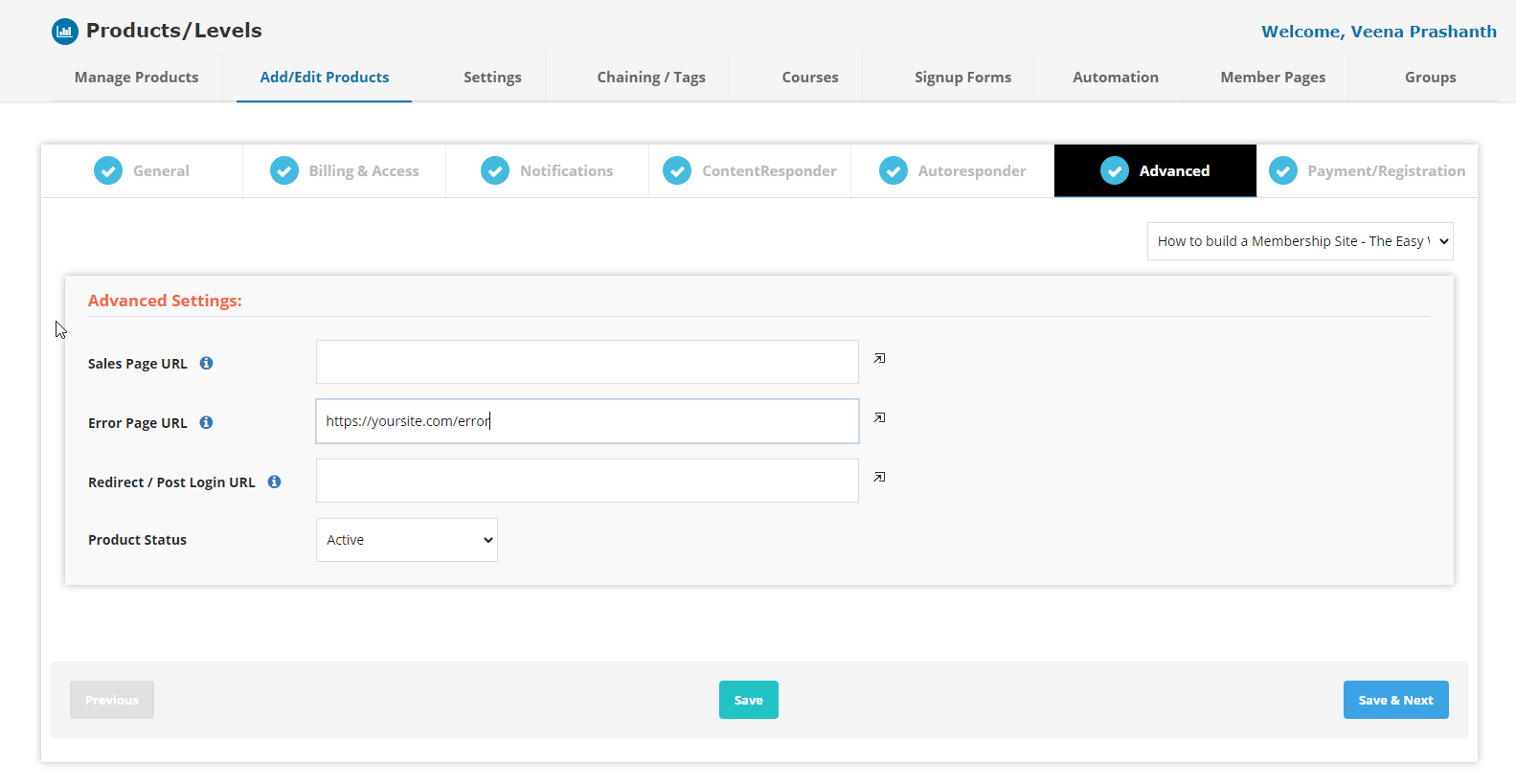
3) Enter the URL from Step #1 on your “Products” page, in the field “Error Page URL”

4) Logout of DAP, and log back in for the changes to take effect.

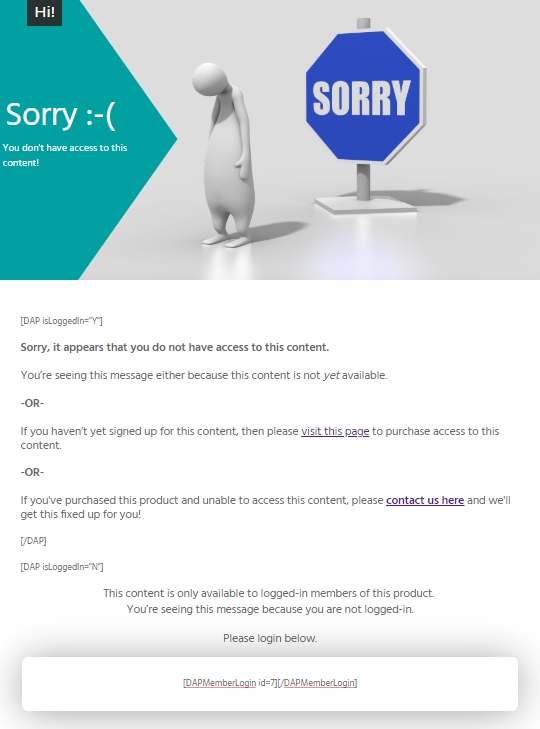
Impact: When someone tries to visit a link that has expired, or a link that they don’t have access to, they will be redirected to the above URL, and the system error message will be shown where you put in the merge code %%MSG%%.

%%SALES_PAGE_URL%%

This text in your blog post/page content, will be replaced by the “Sales Page URL” field from the Products page.

%%AFFDETAILS%%

This will be replaced by the entire Affiliate section from the default home page at YourSite.com/dap/

%%USERPROFILE%%

This will be replaced by the user profile from the default home page at YourSite.com/dap/

%%USERLINKS%%

This will be replaced by the user links section (the list of what products and what links user currently has access to) from the default home page at YourSite.com/dap/

%%FIRST_NAME%%

This will be replaced by the first-name of the user.

%%EMAIL%%

This will be replaced by the email id of the user.

%%MEMBER_HOME_PAGE%%

This will be replaced by whatever is in “Config > Advanced > URL of your User-Profile page”

%%AFF_LINK%%

This will be replaced by the raw affiliate link of the member. If you want it to show up as a link in your blog post, use it like this:

<a href=”%%AFF_LINK%%”>%%AFF_LINK%%</a>

Login/Logout Widget

DAP has a Login/Logout Widget that you can use in any widget-ready theme.

Log in as WP admin, and look under “Appearance > Widgets”.

You’ll see the widget. Drag this widget on to any customizable part of your theme.

The widget puts the DAP login form right on your sidebar.

When a user is not logged in, they will see the login form.

When they are logged in, they just see a “Logout” button.

The “Unlimited” License

* With this license, you can install and use DAP on any number of web sites you own. This means:

1) You can NOT use it for a “JV” (say a partnered membership site) with another business owner
2) If you are a web developer or designer, you can NOT use it for your clients’ web sites
3) Installation is free only for the first web site. Additional installations can be purchased for just $29.97 per installation.

* When you purchase the lifetime, unlimited license, you own this license for life. You get free support and updates for 1 year.

* If you don’t wish to upgrade after the first year, then you never have to pay a single penny to us every again, and you can continue to keep using this license on unlimited sites, for life.

* But if you want updates after the first year, you just pay a nominal fee (for ALL sites inclusive), which buys you updates for another year from that point.

Upgrading Your DAP License

You can upgrade your license to a bigger license (say, “1-site” to “3-site” – or “3-site” to “Unlimited”) at any time by just paying the difference.

Please note that if you upgrade, your “Free Support/Free Upgrades” dates will not be extended.

They will stay the same as your original license purchase.

Unlocking Users

DAP has a feature where if a user logs in from more IP addresses than you’ve configured (default: “5″), then his account automatically gets “Locked”, and both he and you (the admin) will get an email stating that the user’s account has been locked.

And you could then unlock them yourself, or wait for the user to send you an email and ask to be unlocked.

Either way, here’s how to “Unlock” Users:

  1. Search for the User by email on the “Users > Manage” screen
  2. Click on the name. You are now in “Edit User” screen where you can see the user’s full details
  3. Next to user’s name, you will now see a button called “Unlock User” (You will see this only if the status of the user is “Locked”, and won’t see it for other regular users).
  4. Click on the “Unlock User” button. That’s it.

When you click the button, the user’s login records are deleted, and the previously recorded IP addresses are deleted.

So he basically starts with a new count.

If you want to configure how many different IP addresses a user is allowed to login from, do it on the “Config > Advanced” tab.

Cancellations and Refunds

DAP employes a very unique “Pay As You Go” model.

It’s very similar to the “Pay As You Go” model used by cell phone companies.

You pay first, then new content (or “cell phone minutes” in the mobile world) gets released to you. You stop paying, you don’t get new content (minutes).

So let’s say a member (Joe Customer) joined your membership site this month, and this is January. So he’s on Month #1 in January.

When he first signs up (free or paid trial, or actual 1st month’s subscription), then his start and end dates in DAP on your site look like this:

Start date: Jan 1, 2009
End date: Jan 31, 2009

(Of course, DAP uses actual dates like “01/01/2009″, but “Jan 1, 2009″ is easier to read for most people, especially an international audience – so using the above date format just for the purposes of this post).

Then, let’s say, his February subscription payment comes in. Now DAP “extends” his access to your content by a month. So now the dates look like this:

Start date: Jan 1, 2009
End date: Feb 28, 2009

Now your member Joe has access to all content from Jan 1 to Feb 28 (meaning, about 60 days worth of “dripped content”).

Then end of February, he decides to cancel his membership for whatever reason (or his credit card gets declined or rejected while processing payment for Feb). So no payment comes in for March.

Now because no payment came in, DAP doesn’t really do anything about his access dates. So they continue to stay at:

Start date: Jan 1, 2009
End date: Feb 28, 2009

So any content that you have configured to be dripped on, say, Day #61 (which is Month #3), won’t be available to Joe, even though he continues to remain an “Active” member within DAP, and continues to get your autoresponder and br0adcast emails, and even continues to have access to your affiliate program and continues to earn commissions.

Actually, it gets even better – just because Joe’s end date expired, he basically now has NO access to ANY content on your web site (even Month #1’s content).

[Note: Just so you know, DAP does have a feature to enable "Access to Previously Paid-for Content". Keep reading for details.]

Now all Joe has lost is just the “access to the content”.

So let’s say you exchange emails with him, ask him why he wanted to cancel, and try to convince him to come back (or get him to use a new, valid credit card).

Now remember that Joe is still at the end of February’s content (Month #2). So whenever the next payment comes in (be it in March, April, or 1 year later), Joe now gets access only to the 3rd month’s content, and not, say, the 10th month content.

So even though it is now say, May, because Joe’s next payment came in just now, his access dates now look like this:

Start date: Jan 1, 2009
End date: March 31, 2009

So that’s how DAP takes care of your content and makes sure that when members cancel or their payment doesn’t come in for whatever reason, your content cannot be accessed by unauthorized users.

But let’s say you want to be really fair and look like a “generous, honest” guy to your members. In that case, you want to make sure that if someone cancels their subscription 6 months after being with you, you don’t want to ’screw’ them just because they stopped paying you. Who knows, they’ll probably come back if you keep showing to them what kind of content you’re building. Or they may buy your other products.

So now you want to make sure that they get access to the last 6 months worth of content, for which they have actually paid for.

There is a Configuration element in DAP where you can just turn this feature on, and members can instantly start access all “Previously Paid-for Content”.

So that’s how DAP puts a unique twist on cancellations and refunds.

DAP’s Incredibly Powerful Affiliate Program

You probably already know that DAP has an In-built Affiliate Program where all your Members are automatically enrolled as Affiliates.

And as soon as they have an account on your site (free or paid), they get an instant affiliate link that they can immediately start using to promote your membership site.

But what we’ve built here is NOT “Yet Another Affiliate Program” (YAAP) (YAWN!)

Here’s our own, very unique twist which completely turns the concept of an Affiliate Program on it’s HEAD – and your Affiliates are going to LOVE YOU for this…

Scenario #1

A) WEBSITE NOT RUNNING DAP

  • Buyer arrives at your site through an affiliate link
  • They see that you don’t have Paypal as an option and they will not pay by any other means
  • They email you / call you and let you know that they will only pay by Paypal
  • Of course you’re not going to say no. So you tell them your Paypal id
  • Buyer sends payment offline
  • Buyer gets the product, You get the sale, AFFILIATE GETS SCREWED

Now consider the same scenario on a web site using DAP…

B) WEBSITE POWERED BY DAP!

  • Buyer arrives at your site through an affiliate link
  • They see that you don’t have Paypal as an option and they will not pay by any other means
  • They email you / call you and let you know that they will only pay by Paypal
  • Of course you’re not going to say no. So you tell them your Paypal id
  • Buyer sends payment offline (doesn’t matter if it’s Paypal, sends you a check in the mail, pays you by phone, or heck, let’s say she drives over to your house and hands you CASH!)
  • Once you somehow get the payment from the buyer (offline), then you ‘Add’ them manually to your DAP-powered site (through DAP Admin Panel). DAP then creates their account and sends your buyer the welcome email.
  • Buyer gets the email. Clicks on the link, arrives at your site, and now LOGS IN.
  • Since their browser already has the affiliate cookie set, at that very point when the user is logging in, DAP awards the Affiliate with this purchase, even though the purchase happened offline.
  • Buyer gets the product, You get the sale, AFFILIATE GETS HER COMMISSIONS (Yippee!!)

IS THIS COOL OR WHAT? :-)

But Wait, There’s more! (You knew I would say that, didn’t you? ;-)

SO YOU ASK: Hey Ravi, so what happens if the buyer uses one computer when clicking on the affiliate link (say, at home), but makes the purchase from another computer (say, at work). Now the affiliate is screwed, right? Hehehe… <insert evil laughter here>

Scenario #2

A) WEBSITE NOT RUNNING DAP

  • Buyer arrives at your site through an affiliate link from HOME computer
  • Buyer is impressed, joins your list, keeps doing research.
  • Days or weeks later, Buyer buys the product from WORK computer (or FRIEND’s computer)
  • Buyer gets the product, You get the sale, AFFILIATE GETS SCREWED

Now consider the same scenario on a web site using DAP

B) WEBSITE POWERED BY DAP!

  • Buyer arrives at your site through an affiliate link from HOME computer
  • Buyer is impressed, joins your email list, keeps doing research.
  • Days or weeks later, Buyer buys the product from WORK computer (or FRIEND’s computer)
  • Buyer logs in to your membership site and starts browsing around through WORK computer
  • Still no Affiliate sale – no worries. Just watch what happens…
  • Obviously (or in all probability), Buyer will log into your membership site from HOME computer at SOME point (hey, she can’t download those files at work now, or she can’t always be worried about her bossing catching her red-handed doing OTHER STUFF at work, can she?)
  • Doesn’t matter when she again logs in to your site from the original computer (HOME) which has the affiliate cookie – doesn’t matter if it’s after days, weeks or years (yeah, years, really!)
  • When Buyer logs in from original computer which has the cookie, DAP correctly awards the sale (better late then never!) to the right Affiliate.
  • Buyer gets the product, You get the sale, AFFILIATE GETS HER COMMISSIONS (Yippee!!)

Haha, In Your Face (Ok, that’s what my 10 year old daughter says to me whenever she “gets” me :-) .

Ok, now how about this REALLY crazy scenario:

Scenario #3:Paying A Per-Lead Commission To Your ClickBank Affiliates

WEBSITE POWERED BY DAP (of course, no one else has probably even thought about this!)

You already know that DAP supports ClickBank purchases, and you can turn off the display of your affiliate section if you are using ClickBank’s own affiliate program, instead of DAP.

But wait – that does not mean that you can’t use the two affiliate programs IN TANDEM to pull of something really crazy – like awarding your ClickBank affiliates with a commission just for sending you a lead – meaning, the lead just signs up for your “free” newsletter – and of course, if they go on to purchase something from your web site (assuming you are selling through ClickBank), then they get the usual CB commissions.

So here’s how it works:

  • Every member on your DAP-powered site gets their own affiliate link that looks like:
    http://YourSite.com/dap/a/?a=1234
  • And their CB affiliate link for your product would look like

    http://affnick.merchantnick.hop.clickbank.net

  • Now DAP’s affiliate link has the capability of redirecting to any page on your site (or any page on any web site) by adding the destination URL to the affiliate link.
  • So, now your affiliate adds their CB affiliate link to the END of their DAP affiliate link, like this:
    http://YourSite.com/dap/a/?a=1234&p=http://affnick.merchantnick.hop.clickbank.net
  • So when someone clicks on this above link that your affiliate is promoting, then two things happen:
    a) The DAP affiliate cookie is set
    b) The CB cookie is also set
  • So within DAP, you can set up just a Per-Lead Affiliate Commission for your Product (which is say, a free newsletter or a free PDF, or whatever)
  • So when the referred user signs up at your membership site, they first get paid the Per-Lead Commission
  • If they then go on to purchase other products from your web site (which obviously you’re selling through ClickBank, otherwise, this whole section is of no meaning to you), then they get the Per-Sale commission from ClickBank too!

Your head spinning yet?

Of course, then there’s still all the other cool affiliate features in DAP, like…

  • Commission Override: Give special treatment to your Top Affiliates and JV partners by giving them higher commissions than the rest of your affiliates.
  • Pay affiliates both one-time or monthly recurring commissions for the life of the subscriber.
  • Automatic Affiliates: All Users automatically are automatically enrolled as Affiliates
  • Pay-Per-Lead and Pay-Per-Sale
  • Ready-made Affiliate Links Displayed for Users
  • Affiliates can Redirect their Affiliate link to ANY page on your site after setting their affiliate cookie.
  • Affiliate-Analytics:
    * Real-time Earnings Reporting
    * Real-time Payment Report
    * Real-time Traffic Stats for both Affiliates and Admin (with referers)
  • Paypal Mass-Pay Ready: You get a Paypal Mass-Pay ready, fully formatted affiliate list with all commissions listed.
  • Offline Payments: Export Affiliates for payment, pay them using any offline means (eg., checks), and then once the checks have been mailed, you can mark them all as “Paid”.
  • Process Refund for Affiliates: When you process a “refund”, DAP will also reverse the affiliate commission. It will not reverse the Pay-per-lead amounts. Only the Pay-per-sale amount is negated.
  • Instant Affiliate: Direct 1-click Affiliate Signup

So just thought I would share some details about the cool features of the Affiliate Module that is built right into DigitalAccessPass.com and is available right out of the box, just waiting for you to start signing up an army of affiliates from day 1!

Also check out our documentation to see the other stuff that DAP does.

Removing User Access To A Product And Deleting Users

Removing User Access to a Product

1. First search for user in the “Users > Manage” screen.

2. At the end of the user’s row of information, you’ll see a link called “Remove”.

Every time you click on “Remove”, the user’s access is “rolled back” by a month (or the recurring period of the product). So if they have been a member for 3 months, then the first time you click on “Remove”, the user’s access is rolled back by 1 month, so the user now has access to your content for 2 months. So, two more clicks on “Remove” and the product is completely removed from the user’s account. We realize this is a little bit of an inconvenience when removing large number of users from a product, so in the next release, we will be adding a feature that makes it easier.

Deleting users

If you wish to completely remove the users from your database, then check the checkbox next to the user’s row, and then in the upper right hand section, click on the “Go” button next to the text “Fully Delete Selected Users from the database”. That should do it.

How To Directly Sign-up Affiliates

How to directly sign up Affiliates without them having to buy a product

You can use a feature of DAP called “Instant Affiliate” where you send your affiliates this link:
http://YourSite.com/dap/e/?e=EMAILID&fn=FIRSTNAME

… and ask them to substitute EMAILID with their email id, and FIRSTNAME with their first name.

And when they visit the modified link, they will automatically be signed up as an affiliate.

————————

In fact, they can even skip the first name, in which case the link becomes:

http://YourSite.com/dap/e/?e=EMAILID

NOTE 1: They can use the same link to not only signup as a new affiliate, but also continue to use this as their final affiliate link that they can start promoting right away and start sending you affiliate traffic.

NOTE 2: Also remember that in this case they will be signed up using “NoName” as their first name, which they can always change later on the user profile screen.
When you do #2, they will get an account in DAP but not be associated with any product. So it will be hard to send just the affiliates an email.

NOTE 3: When affiliates sign up directly using this method, they will NOT be associated with any “Product” and will show in your “Manage Users” screen with access to NO product at all.

Of course, they can always go on to purchase a product from your web site, and if they use the same email id, then the product(s) they purchase will be associated with the same email address and will be added to their existing account, and NO new account will be created for them.

————————

Your affiliates can take this one step further and redirect their visitor to any page on your web site (or any web site, for that matter) after setting the affiliate cookie. Just add the text “&p=URL” at the end of the above affiliate link.

So, the link with redirection will look like this:

http://YourSite.com/dap/e/?e=EMAILID&p=URL

Replace the text URL with any link (like http://YourSite.com/anypage.php). So it would look like…

http://YourSite.com/dap/e/?e=affiliate@somesite.com&p=http://YourSite.com/anypage.php

How Do Members Get Added To Your Membership Site

(OR) How do members get access to the content

(OR) How does someone become a member?

With DAP, you can add users to your membership site in 3 different ways.

1.  PURCHASE: Someone buys your product or subscribes (“Paid” member with access to both free and paid content)

2.  FORM SIGNUP: Someone signs up through a signup form (“Free” members with access to only free content)

3. ADMIN ADDED: You add them as a member directly through the DAP Admin Control Panel (you can mark them as either “free” or “paid”)

All three are explained in detail below.

1. PURCHASE

*You first create a “Sales Page”.

On your sales page, depending on which payment processor you use, you go to Paypal/1ShoppingCart/ClickBank and create a new product with the EXACT same name as the product you created within DAP, and get the ‘Buy Button’ link from your Payment Processor. Publish this “Buy Button” on your sales page.

* Your visitor goes to your sales page

* They purchase your product

* Your payment process (Paypal/1ShoppingCart/ClickBank) notifies DAP that you have a new purchase.

* If the product names match, DAP automatically creates an account for them, generates a random password, and sends them an email with their email/password. You can customize the contents of this email on the “Templates” screen in your DAP Admin Control Panel. Integration with your shopping cart explained elsewhere (see documentation for setup).

That’s it!

That’s how “buyers” get added to your membership site and get access to the product they just purchased.

2.  FORM SIGNUP:

You wish to give someone a “Free” membership.

NOTE: “Free” members who do not have a payment associated in DAP (which means they have not purchased anything) will have access only to content that you have marked as “Free”.

Once you have created a Product in DAP, and have added content (blog post/page links, links to files, etc), and have saved it, on the Product page, below the Product name list, you will see a link called “Direct Signup HTML”. (See image below). You must first select a Product before you can copy the correct form HTML.

Fig 1. Direct Signup Link on Products page

dap-direct-signup

Fig 2. Form HTML that you get on clicking the Direct Signup Link


dap-direct-signup-onclick

This HTML gives you the full HTML form code that you can publish on any page of your web site. This form only collects an email address and a first name.

Take this HTML code and publish it on page of your web site where you want sign up users. This could be a WP page or post too.

Note: When you see the above HTML code, there’s a field in there that looks like this:

<input type=”hidden” name=”redirect” value=”http://YourSite/Your-login-page-link/?msg=Success!%20Your%20membership account%20has%20been%20created.%20%20Check%20your%20email%20address%20in%20a%20few%20minutes%20for%20your%20password“>

Don’t forget to change the text above, where it says “http://YourSite/Your-login-page-link/?…” to point to your actual domain name and to your actual login page (if you have customized it).

Then, when someone enters their email address and first name and signs up through the signup form, DAP creates an account for them using that email address, creates a random password, and sends them an email with their email/password.

After that, you can drip any content or emails on them that are marked as “Free” (when adding content or emails).

At some later point, if they purchase any of your “Paid” products (see the “1. Purchase” section above), then as long as they use the same email id during purchase, DAP will automatically give them access to all of the “Paid” content in the Product that they just purchased.

3. ADMIN ADDED:

If you wish to directly give someone access to a Product and all its content and emails, you can add them directly from the DAP Admin screen (Users > Add/Edit).

You just need their email id and their first name (both of which they can change subsequently) to add them to a Product.

While adding them, you have the option of marking them as a “Paid” user by checking the “Mark as Paid” checkbox.

If you don’t check this check box, then they will be added as a “Free” user and get access only to “Free” resources (content/emails).

But if you check the “Mark as Paid” checkbox, then they will get access to all “Paid” content and emails, just like someone who is actually a “Paid” member.