
Setting Up Cron Jobs

(Note: You can get this setup as part of your free installation. But if you insist on doing it yourself, keep reading :-)

There are two cron jobs (back-end, scheduled jobs) that you need to setup.

A) dap-cron.php (mandatory – once an hour)

This is the main one. It sends out broadcast emails, autoresponder emails, handles bulk member imports, affiliate commissions processing, clean up, etc. This one is mandatory.

B) dap-emailorder.php (optional – every 10 minutes)

This is the email order processing cron, used ONLY for 1ShoppingCart. Skip setting this cron up if you’re not using 1ShoppingCart or 1SiteAutomation.com.

Path to DAP

Visit the url below in a browser window (replace YourSite.com with your actual domain name):

http://YourSite.com/dap/getpath.php

This will show something like this in your browser:

/home/path/to/yoursite.com/dap

This is your “Path to DAP” to your root folder.

To the end, add “/dap-cron.php”. So that makes your new “Path to DAP” to be:

/home/path/to/yoursite.com/dap/dap-cron.php

This is your new “Path to DAP”. Make a note of this on a piece of paper, or in a notepad/text editor window.

Setting up the Cron jobs

A) dap-cron.php

This one is mandatory. Should be set up to run Once Every Hour. This hourly process is what sends out all the scheduled broadcast (bulk) emails and processes different types of “bulk actions” – like importing a large list of customers into DAP from an external system, for instance.

  1. Log in to your web host’s control panel (or cpanel)
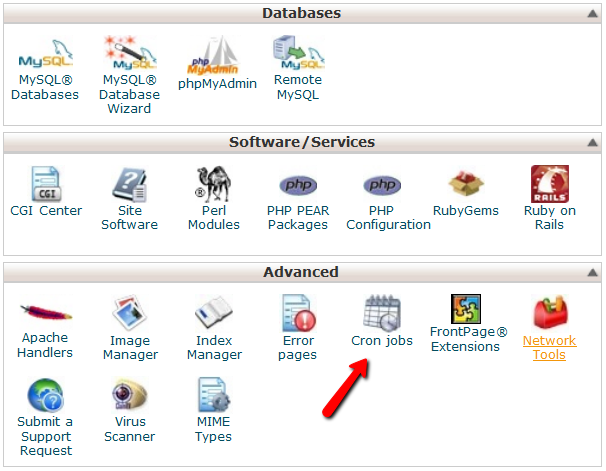
  2. Look for the icon “Cron Jobs” in the “Advanced” section – usually towards the bottom of that page, and click on it.
  3. On the next window, in the “Common Settings” drop down, select “Once an hour (0 * * * *)“.
    And in the “Command” field, enter this:/usr/bin/php<insert space>/home/path/to/yoursite.com/dap/dap-cron.php
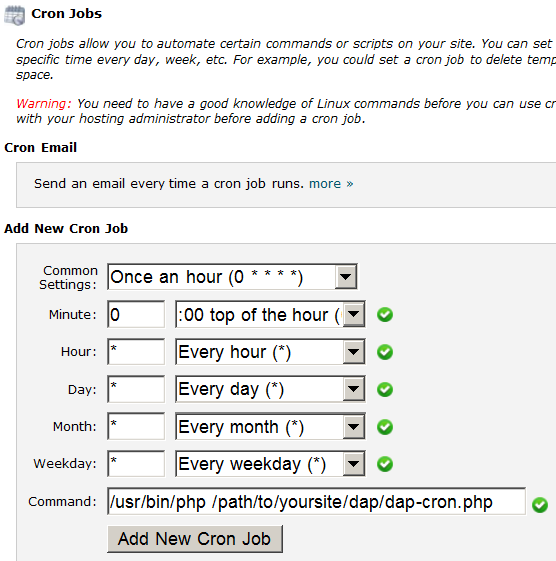
    NOTE: <insert space> above is just a note to you that means you must hit the spacebar and insert an actual space between the two pieces of text.
  4. Click on “Add New Cron Job”.

That’s it for this one.

B) dap-emailorder.php

Follow this step ONLY if you’re using 1ShoppingCart or any private label of 1SC – like 1SiteAutomation.com.

This cron job should be set up to run once every 10 minutes. This is the script that processes all of your recurring orders initiated by 1ShoppingCart or private label. So, if you set this up to run once every 10 minutes, then every 10 minutes, it will log in to your billing email address (you can configure what this email id is within the admin control panel on the “Config” screen) and process the email notifications that you have received from 1ShoppingCart (and its private labels).

Running it sooner than once every 10 minutes – like say, once every minute or even once every 5 minutes – is resource intensive, and is not a good idea. Your web host may not not even allow it in the first place. But even if they do, it’s not recommended.

Follow steps A(1) through A(4) above. Only difference is in what you’re going to be entering in the “Command” field.

For this cron job, it is…

/usr/bin/php<insert space>/home/path/to/yoursite.com/dap/dap-emailorder.php

Only difference between the two cron jobs is in the name of script that is being run. For the hourly cron (A), it was dap-cron.php. For the 10-minute cron (B), it is dap-emailorder.php.


MISCELLANEOUS NOTES:

1. Where you see the text <insert space>, replace with an actual space (hitting the space bar).

2. Cron Email Reports:

Your webhost control panel allows you to set an email address where it can send the cron output. So login to your Webhost Control Panel > Cron Jobs page, and remove your email address from that page (where it says “Please enter an email address where the cron output will be sent”).

3. To check if you have set up the cron job correctly, you can set DAP Admin -> Setup -> Config -> Log Level to “Log All Activity (During Troubleshooting)” . Then go to DAP Admin -> System -> Logs . Empty the logs by clicking on the “Empty Logs” link, and then revisit the screen and refresh the page, after say 10 minutes (to verify the running of dap-emailorder.php) or at the top of the hour (to verify the running of dap-cron.php).

4. To force run a cron (manually), click on this link:

http://YourSite.com/dap/dap-cron.php
(to run hourly cron)

http://YourSite.com/dap/dap-emailorder.php
(to run the email order cron that runs every 10 minutes)

Replace YourSite.com with the actual domain name of your web site.

35 comments ↓

#1 Kate Anderson on 01.17.10 at 12:02 pm

For those using Plesk servers, click on “Cron Jobs” from within your hosting account – then enter in:

0 for the minute
* for the hour
* for the day of the month
* for the month
* for the day of the week

Then the string above. So to set a cron up for every hour of every day, your cron job would look like this:

0**** /usr/local/php5/bin/php /var/www/vhosts/your-website.com/httpdocs/dap/dap-cron.php

#2 1-Click Upsells With Paypal Website Payments Pro — DAP Documentation on 02.08.10 at 10:11 pm

[...] to you only if you are already using 1ShoppingCart with DAP (if not, skip to next step): Be sure to disable the “Email Order” cron job from your web hosting control panel (“Cron Jobs” screen), because you don’t want [...]

#3 Upsell Tree: 1-Click Upsells, Downsells & OTO’s using Authorize.net — DAP Documentation on 02.08.10 at 10:13 pm

[...] to you only if you are already using 1ShoppingCart with DAP (if not, skip to next step): Be sure to remove the “Email Order” cron job from your web hosting control panel (“Cron Jobs” screen), because you don’t want [...]

#4 Sergiu Simmel on 02.22.10 at 1:58 pm

Just to be on the safe side: If I have, say, 2 sites (WordPress) hosted by the same company (say, DreamHost), and I need DAP on both, and they are both integrated with the same shopping cart (say, 1SC), would the cron jobs interfere with each other? Is this a situation that has been tested and supported well?

#5 Ravi Jayagopal on 02.22.10 at 8:22 pm

Sergiu,

Not a problem at all. We ourselves are running multiple web sites: http://Techiiies.com , http://MyWebmasterInABox.com , http://DigitalAccessPass.com , http://S3MediaVault.com – just to name a few – all through the same 1Shoppingcart account (our private label is http://1SiteAutomation.com ). And we have hundreds of DAP users who have DAP installed on multiple sites all powered by same 1SC account. No problems.

Just don’t use the “exact” same product name on different sites, that’s all. Product name is the key. As long as the product names are unique, you can use DAP on unlimited sites all powered by the same shopping cart like 1SC.

DAP has been battle tested for about 16 months now on live web sites. You can rest assured about that.

- Ravi Jayagopal

#6 Ravi Jayagopal on 03.02.10 at 9:53 am

Mark,

“Command to run” is the same as “Path to PHP” above.

You will need to find this out from your web host.

- Ravi Jayagopal

#7 Mike Hays on 05.11.10 at 6:34 pm

I’m on hostgator and in the Add new con job there is a “Common Settings” drop down. What should I do with that? Also there is a Minuite, Hour, Day, Month, Weekday that needs to be set. What goes there?

#8 Mike Hays on 05.11.10 at 6:35 pm

Can you setup both cron jobs even if you are using only PayPal but plan on using Clickbank later?

#9 Veena Prashanth on 05.13.10 at 7:14 pm

See this post:

http://www.digitalaccesspass.com/doc/all-about-dap-cron-job/

#10 Shannon on 06.01.10 at 3:07 pm

anyone using Host Gator… here is their “path to PHP”

/usr/bin/php

#11 Installation / Pre-Installation FAQs — DAP Documentation on 10.10.10 at 12:02 am

[...] Setting up Cron Jobs [...]

#12 Russell on 11.29.10 at 9:45 am

Hi Ravi,

Using godaddy.com for now. Setup cron job. Any way to test it and make sure its working?

Suppose I wait for it to run, then look at the log.

Can you let me know if you have any other experience with this on godaddy?

Thank you,
Russell

#13 Veena Prashanth on 11.30.10 at 10:01 am

You can use the CSV format to broadcast email to 1 test user and see if the job made it to the System -> Job Queue with a status of NEW.
If the cron is setup correctly, it should run once every hour and you should see the job status change to COMPLETE.

#14 david on 12.07.10 at 1:31 pm

I want to make sure I am right on the cron job.
/usr/local/php5/bin/php /home/.xyz/theromc/theromc.com/dap/dap-cron.php
 
is the right?

#15 david on 12.07.10 at 2:01 pm

this is the error message I receive so I must have got it wrong.  Can you help me?  /bin/sh: /usr/local/php5/bin/php: No such file or directory

#16 Veena Prashanth on 12.07.10 at 6:20 pm

Yes, it looks right. I am assuming the path to PHP on your host is /usr/local/php5/bin/php.

#17 Veena Prashanth on 12.07.10 at 6:21 pm

>> Can you help me?  /bin/sh: /usr/local/php5/bin/php: No such file or directory <<

Looks like the path to php on your host is NOT /usr/local/php5/bin/php.

Try this path – /usr/bin/php. See if that works.


#18 Troubleshooting Bulk-Add & Bulk-Import Of Users — DAP Documentation on 12.25.10 at 10:48 pm

[...] i) Setting up Cron [...]

#19 David Scott Lynn on 07.03.11 at 4:21 pm

If my hosting service supports cron jobs, but has no cPanel type interface, is there a command line procedure to set up cron jobs?

The hosting service is hub.org, and they use a more techy-style (bare-bones) interface, which is over my head, but I am learning how to do stuff with it.

I’m using hub.org because they work closely with Semiologic Pro, who provides the plug-in platform I use with WordPress.

Unless you think there is a better alternative to Semiologic Pro, I’m okay with learning how to use the interface at hub.org, unless you think I’m wasting a lot of time and brain power in doing so.

The owner at hub.org is extremely helpful, and just does most of the stuff people need set up himself. And he does it FAST!

Thanks,
DSL

#20 Veena Prashanth on 07.03.11 at 5:18 pm

Hi David,

Setting up the dap cron job takes just a few minutes if the host provides a good interface. Most webhosts have a good cpanel interface to setup cron. Infact setting up cron is included in the DAP free installation. But the free installation is only for hosts that provide easy-to-use CPanel interface to setup cron.

If your host requires a different method to setup cron, then you can consult them and maybe have them help you setup the cron command.

#21 Emma on 01.17.12 at 3:15 am

Our professional techie who sold us DAP set up the cron jobs with these addresses: /usr/lib/php /home/angusm/public_html/amacoachingschool.org/dap/dap-cron.php and:
/usr/local/lib/php /home/angusm/public_html/members/dap/dap-cron.php
but no broadcasts have ever worked on either site for a year (when we delete old ‘successful’ broadcasts in DAP control-panel, they are all still there and subscribers are not getting the mailings. the host is arvixe (apparently these sttingsw work in my technical guy’s hostgator account) so different settings needed for arvixe? Anyone know what they are and how to make DAP work in this configuration?
Thx Em x

#22 Veena Prashanth on 01.17.12 at 10:20 am

Emma,

The path to php is incorrect.

Remove all the dap cron settings you have in the webhsot cpanel and instead use this cron command:

/usr/bin/php /home/angusm/public_html/amacoachingschool.org/dap/dap-cron.php

Set it up to run once every hour.

#23 Jeff on 01.26.12 at 7:52 am

Hi there.

I’m looking to add a couple of elements to my membership site. I need a little direction and if anyone else has experience with this – your help is greatly appreciated too.

Scenario #1: Declined/Expired Credit Cards. Right now, I have no way to go through all the declined and expired credit cards. When you have a membership site of 10,000 people, there are too many to go through daily. So I need a way to display that information in the backoffice and get the customer to update his payment information.

—> Ideas: I was thinking there had to be a way to show a post/page if they weren’t a member or add them to a membership if they stopped.. and then remove them if they added again. Not sure.

Scenario #2: I’m leaving money on the table. With 10,000 members – is there a way to cross-sell and promote other items in the backoffice without showing them what they already bought?

Any help is appreciated.

Thanks!
Jeff

#24 Veena Prashanth on 01.26.12 at 11:54 am

Jeff,

Right now the declined/expired card cannot be updated directly in dap but we will add support for this in dap soon.
What payment gateway/processor do you use?

As far as promoting items without showing what they already bought is concerned, we will be updating dap shortcodes to allow you to do that (show content when a user does not have access to a given product(s) ) . It will be part of upcoming dap release (dap 4.3).

#25 Jeff on 01.26.12 at 12:42 pm

I’m using Authorize.net.

#26 Veena Prashanth on 01.26.12 at 1:28 pm

Thanks. We plan on integrating dap->authnet so all the updates can be manged within dap sometime this year.

#27 Dan on 03.22.12 at 10:53 pm

Can I just that you guys are awesome! DAP is an amazingly awesome piece of software, and the manual is so comprehensive. You have thought of everything!

#28 Veena Prashanth on 03.23.12 at 11:04 am

Thanks Dan :) .

#29 Heiko & Andre on 10.04.12 at 10:59 am

Hey,

I get a syntax error on line1:

dap-cron.php: line 1: syntax error near unexpected token

Any idea on this?

Thanks and greetings

Heiko & André

#30 Joe on 10.05.12 at 1:48 am

For those of you using DreamHost, When you enter the path for dap-cron.php you have to use the URL not the path provided from the DAP script.

/usr/local/php5/bin/php http://www..com/dap/dap-cron.php

I followed the directions as above and it would not work, but now I have done this and it works fine.

#31 Veena Prashanth on 10.05.12 at 1:53 pm

Thanks Joe :) .

#32 Veena Prashanth on 10.05.12 at 1:55 pm

Heiko & André,

You might not have uploaded the files fully. Please download dap again from our site and upload to your site. See if the syntax error goes away.

#33 Heiko & Andre on 10.09.12 at 11:07 am

Hey Veena! :-)

Can we do this although there is already an active membership program running? (Like with real members ;-) ) Don’t want to kick them out!

Thanks again and many greetings! :-)

André

#34 Veena Prashanth on 10.09.12 at 3:36 pm

Hi André,

Sure, you can upgrade to latest version of dap. It wont affect your current members.

Please read these instructions :

http://www.digitalaccesspass.com/doc/upgrading-to-latest-version-dap/

If you do not want to upgrade to the latest version, then download dap from our site, extract contents of the zip file, then upload just dap-cron.php to the dap folder on your site. See if the error goes away.

Thanks,
Veena

#35 Heiko & Andre on 10.10.12 at 5:16 am

Hey Veena,

since we are running on the latest version – I checked file sizes (with forklift) and they all seem okay. I replaced the dap-cron.php with a freshly downloaded one.

Will keep you updated, if it works now! :-)
Thanks for the awesome quick support! You guys rock! :-)

Leave a Comment