
1ShoppingCart Email Order Processing
If you’re using 1ShoppingCart or 1SiteAutomation.com (our private label of 1SC), if you want your users to be automatically logged in to their DAP membership area upon completion of purchase, then refer to this documentation on how to setup Login Xpress with 1ShoppingCart.
If you only sell one-time products, then the 1SC Login Xpress is the only thing you will need to integrate DAP and 1SC.
However, if you sell RECURRING products via 1SC, then you need to set up the email parsing of orders to allow DAP to process recurring payment notification from 1SC, as described below.
The reason for this, is that 1ShoppingCart, while very robust as a cart, does not trigger payment notification messages on the backend (like Paypal can do with IPN) when recurring payments comes in for a member.
So, we at DAP have created an exclusive “Email Order Processing” feature, where DAP will log in to your billing email inbox (where your 1SC email notifications come in) and then check your emails as if it were your personal assistant, and then process any orders that match your DAP Product names.
That is how DAP is able to do automated processing of Cancellations and Failed Recurring Payments.
For 1ShoppingCart and ClickBank, DAP does “Email Parsing” of orders.
Setting Up “Email Parsing”
Basically all you will be doing here is telling DAP where your payment notification emails from 1SC come in, and how to go fetch those emails so the recurring payments can be processed automatically, without you having to lift a finger.
1. Log in to your 1SC account. Then go to “Setup > Orders”. Copy the email id that you have entered into the “Order Notice Email – Primary Destination” field. Please note that 1SC DOES NOT send recurring billing notifications to the email id in the “Secondary Destination”. So be sure you use the email id from the “Primary Destination” field.
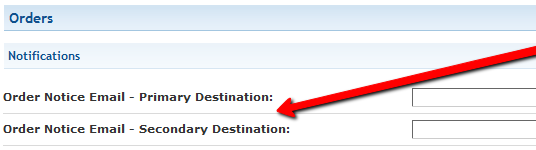
So let’s say you have set the primary destination email currently, to point to say ‘billing@yoursite.com’. Now make sure that the emails in your billing@yoursite.com inbox remain in ‘Unread‘ status, because when DAP logs in to check your recurring notifications, it will be looking at only Unread emails. It will not touch the ones that are already read.
2. Go to DAP Admin Dashboard > Setup > Config > Payment Integration .
3. On this screen, configure the following fields…
Email Server Where Order Emails Come In : mail.yoursite.com
Email Server Protocol (pop3/imap) : imap (no need to change this)
Email Server Port : 143 (probably won’t need to change this)
Email Server Protocol (ssl/nossl) : nossl (probably won’t need to change this)
Email Server User Name : billing@yoursite.com (enter email id copied from Step #1 above)
Email Server Password : yourpassword (the password to your email inbox for the above email address)
That’s it as far as setup is concerned.
Additional Notes
4. Set up your sales page as you would normally do when accepting payment through 1ShoppingCart. The only thing you need to make sure is to use the exact same “Product Name’ in your cart as well as within DAP.
So, if you set up a product called “My Membership Site” within DAP, then use the same name “My Membership Site” in your 1SC product name.
5. During installation, a Cron job (dap-emailorder.php) would have already been set up in your web hosting cpanel, to run every 10 minutes. So, every 10 minutes, DAP will automatically check the email id specified in Email Server User Name (the email id from Step 1).
If there is a payment notification (first time or recurring payment) for a product name that matches a product name in DAP, then it will automatically add that customer to DAP as a member if they’re a new member, or if they’re an existing member and it was a recurring payment notification, then DAP will “extend” their membership access by a month (or whatever your recurring cycle is), so that they will continue to get access to your membership site until the next payment comes in.
Testing
Try out some test purchases first. Make sure you try out the full purchase and full user experience, end-to-end.
WARNING 1: If you ever change the name of your product in 1ShoppingCart, or within DAP, make sure that both DAP and 1SC Product names are in sync.
WARNING 2: Do not use SKU in 1SC while defining the product. DAP will not parse the emails correctly if you use SKU.
More: Troubleshooting 1ShoppingCart Integration


