Entries Tagged 'FAQ' ↓
May 4th, 2010 — 3rd Party Integration, Access Control, Admin, Config, Customization, DAP, Database, LiveLinks, Setup, Users, WordPress, WordPress FAQ
NOTE: This content is for advanced users only, who understand the concept of user tables, database, etc. If you don’t understand any of this, then just ignore this – you don’t really need to know this in order to use DAP. This is only an explanation for those who wish to go under the hood of DAP and its integration with WordPress.
As you probably already know, WordPress has its own user database.
DAP has its own User database, and doesn’t use the WordPress database – for many reasons, not limited to the following…
1) Ability to store more user information than what WordPress allows
2) More powerful user search, profile updates, affiliate information, etc.
So, if you want to use any WordPress based plugins – like WordPress Forums or Subscribe2Blog – these forums are looking at WordPress’ native user database.
Now comes the necessity of “syncing” the DAP user data and your WordPress user data.
In the DAP Dashboard, in “Setup > Config > Advanced“, you will see two settings for syncing DAP & WP user data.

(1) Sync DAP User data and WP User data
If you turn this to “Y” (for “Yes”), then every time someone logs into DAP, their DAP user data (just name and email) is automatically “synced” with WordPress user data. If you set this to “N”, then no data will be transferred from DAP to WordPress.
(2) Sync WP data only for PAID users
This one matters only if you have set (1) above to “Y”.
If you want only your “PAID” members to be synced with WordPress, then set this to “Y“.
If you want both “FREE” and “PAID” members synced with WordPress, then set this to “N“.
Here’s how it actually works:
- For the sync to work, you must first setup and save the above 2 config settings
- After you save the above two config settings, make sure you log out of DAP and re-log in (if you are/were logged in and testing as a regular user), because only then, the Config settings above will take effect.
- Your user must log in through a DAP login form (not the WP login form).
- Make sure the user is redirected to any part of your WordPress blog after log in. This can be done via “Logged In URL” setting in DAP Config.
- The user can be redirected to any WP page, WP post or even your blog home page – that’s the only time the ‘syncing’ kicks in.
- When user lands on any page/post of your WP blog, then the DAP LiveLinks plugin (which you have already installed & enabled) kicks of the “sync”, copies the logged in member’s name and email over to the WordPress user table, and also automatically logs him into your WordPress blog.
That’s all there is to it.
Also see: Forum Integration
April 21st, 2010 — Access Control, FAQ, Products, Protecting Content, Protection FAQ, Setup, Troubleshooting
User Can’t Access Content
By far, this is the most frequently asked support question. So let’s start by addressing that real quick…
If a User can’t access a piece of content (blog Post, Page, File, etc), then there are only a very few reasons for that…
- User doesn’t have any access to the DAP Product (where the content in question is protected as part of).
- User is a FREE user having FREE access to this specific Product, but the content within the Product itself has been marked as being available to PAID users ONLY.
- User does have access, but access has expired
- User account status is Inactive because they’ve not yet double-opted in
- User account status is Locked (because they reached the IP login limit, and got locked out of their account)
In all cases, the main place to start troubleshooting is with the Users > Manage page. Search for the user’s email id (who is reporting or experiencing the content-access issue). See what Products they have access to, check their Access Start & End dates, check their account status, etc.
So let’s go over some of the basics, and some more detailed solutions for such issues.
Important Basics
Use two different browsers for testing. Not two different browser tabs, but 2 completely different browsers – like Chrome and FireFox, or FireFox and Internet Explorer. Log in as DAP admin using one browser, and then as a regular user in another browser. That way, you keep the access separate, and your testing will be clean and easy.
If you are using, say, Firefox, you are logged in to DAP admin, and are browsing your blog or trying to access content on your blog, then you will only have access to the content that the admin user has access to. You, as the DAP Admin, DO NOT have automatic access to every product by default. You will have to manually give yourself access to every product you create. And if you want yourself to have “PAID” access, then you have to mark yourself as “PAID”.
That is because, if DAP gave you automatic access to all products, then you will go ahead and protect a blog post, try to access that blog post, and DAP will give you access to that content because you as admin have automatic access to the product. And then you will wonder “Hey, I protected a blog post, but I’m still seeing it.
It’s Probably Not DAP
We realize that your first gut reaction is to blame DAP
. That’s what we would’ve done too, if we hadn’t developed DAP.
But please note that whatever issue it is, you can be 99% sure that it’s not a bug. Because access-related bugs are extremely rare. We also do a lot of pre-release testing, then we release a beta version, then we get hundreds, if not thousands of people to try the beta, iron out the issues, and then release the final version to everyone else. So if there were a bug, it would’ve been caught a long time before it gets to you.
So we request you to approach things with an open mind, and try to think through calmly (and logically
why a certain user does not have access to a certain piece of content.
Now, on to more specific issues and specific answers…
1) I have protected a blog post as part of a Product. But I can still access it.
Short Answer: If you have protected a post/page/file, try to access it, and are able to do it, then it means you DO have access to it. Now let’s troubleshoot so that you understand the “how” and the “why”.
- Have you protected the page/post by adding it to a Product? If you don’t add it to a DAP Product, the post/page/file won’t be protected.
- Who are you logged in as? As DAP Admin? Or as a regular member?
- Now by logging in as DAP Admin, if you search for this logged-in user by email id or last name on the “Users > Manage” page, you will see that the user probably does have access to the product to which the post belongs
- Are you already logged in a a user who has access to that link?
- Maybe logged in as DAP Admin, who maybe already has access to the Product, which is why you are able to access the link? If so, either log out of DAP, or visit your blog in a completely new browser (if you’re logged in as DAP Admin in FireFox, then visit your blog using Internet Explorer).
2) I have protected a blog post as part of a Product. The User’s account shows as having access to it when I look him up in the DAP Dashboard, but the actual user cannot access it in their browser.
Short Answer: If you have protected a post/page/file, try to access it, and are able to do it, then it means you DO NOT have access to it. Now let’s troubleshoot so that you understand the “how” and the “why”.
- Who are you logged in as? As DAP Admin? Or as a regular member?
- Whoever you are logged in as, make sure that user (admin user or regular user) has access to the product to which the post belongs
- Have you added the post as a “PAID” or as “FREE”?
- If you have marked the post as “PAID”, make sure the user also is a “PAID” user (either there must have been a real transaction, or you must have manually marked him as “PAID”). Because free users cannot access content that has been marked as “PAID”.
- Maybe the user’s access to the product has expired. Check the user’s “Access Start Date” and “Access End Date” for that product. The start date should be current (not be in the future) and the end date should be current (shouldn’t be in the past, which means his access to the product has expired)
3) Free user can’t see protected content
You’ve created a free product with pages or posts that are only accessible to this membership type. The problem is that the users can’t actually access this content.
1. Log into your DAP system and go to the Products/Levels > Manage page.
2. Select your product in the General Settings tab, then click the ContentResponder tab.
3. In the Content Responder tab, you’ll see “edit” hyperlinks beside each of the pages/posts you’ve protected. Click the one for the page that’s causing the problems.
4. The “Drip Settings” popup will open now. In that popup, set “Is Free? (i.e., Accessible toFree users too?” to “YES”.
5. Click Save/Update resource.
4) I don’t want the links to all my protected blog posts showing up on my blog’s home page
Make sure you have “Sneak-Peek” turned off in the DAP Admin Config section. Once you do that, posts that are protected will not be displayed on the home page as well as if someone tried to visit the link directly.
5) Why do I see the “Lock” symbol on my blog’s home page?
It’s possible that you have no published posts (it’s a new blog), or you have probably protected all of the posts by adding them all to a DAP Product.
6) I have protected a blog post, but the entire blog post shows up, with the lock image at the very bottom
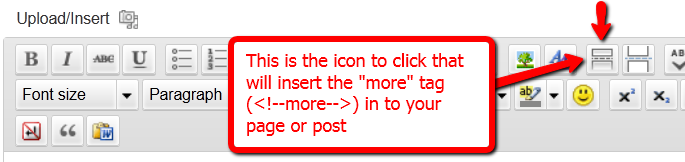
This is probably because you have turned on “Sneak-Peek”, but have not inserted the “More” tag into the post/page in question.
- Do you want a part of the protected content (like a “snippet”) to show even for users who are not eligible to access the post or page? If yes, then go to “Setup > Config > Advanced > WordPress Sneak Peek: Show snippets of post (upto the `More` break) even for protected posts?” and change the setting to “Y”, and save.
- If you turn on Sneak-Peek, then you *must* insert the WordPress “More” tag into every single blog post and page that you currently have protected.
So for the above issue, do one of the following…
1) Turn Sneak-Peek to off (set it to “N”)
- OR-
2) Insert the WordPress “More” tag into the post/page.
Doing either one should resolve this issue.
7) Members getting locked out because access end date is in the past
The only time a member’s access end date goes into the past, if their recurring payments are no longer coming in.
Which means, either they have canceled (or gotten a refund), or your membership level’s lifecycle has ended (like, if your Product/Level was a micro-continuity subscription program that lasts only for 6 months).
If the payments are still coming in, their end dates should keep getting extended by DAP automatically.
If payments are coming in, but the dates are not getting extended, then the payment link between DAP and your Payment Processor somehow broke, and you need to visit the Payment Processor integration documentation for your specific payment processor, and troubleshoot why the payments are coming in fine, but DAP is not processing them.
To ensure members’ access does not stop, make sure that their payments do not stop, and the recurring cycles in the product match that of your payment processor. Say, if your payment processor is processing recurring payments every 30 days, then DAP’s recurring cycles (on the Product page) should also be 30. If it’s 31, then DAP’s should also be 31.
Tip: It’s not a bad idea to set DAP’s recurring cycle day to 1 more than your payment processor’s recurring cycle, just in case your payment processor takes an extra day to process the actual payments. So in that case, if you have set your Payment processor to charge every 30 days, you could set DAP’s recurring cycle to 31 (one extra day grace period, just in case the recurring payment does not get processed on time).
I have newly setup DAP. Protected a blog post as part of a Product. But I can still access it, and I am not logged in.
If this is a new site that has just setup DAP, it is possible that the DAP changes that need to go into your .htaccess file at the main folder of your blog in question, didn’t go in correctly.
- Step AA: Open the .htaccess file at the root of your blog, then see if there’s text that looks like this:
#—– START DAP —–
RewriteCond %{REQUEST_FILENAME} -f
RewriteCond %{REQUEST_FILENAME} !-d
RewriteCond %{REQUEST_FILENAME} !(.*)(\.php|\.css|\.js|\.jpg|\.gif|\.png|\.txt)$
RewriteCond %{REQUEST_FILENAME} (.*)/wp-content/uploads/(.*)
RewriteRule (.*) /dap/client/website/dapclient.php?dapref=%{REQUEST_URI}&plug=wp&%{QUERY_STRING} [L]
#—– END DAP —–If you see it, then simply open a ticket, and we’ll troubleshoot.
- Step BB: If you don’t see it, then log in as WP Admin, go to “Settings > Permalinks”. Then pick a permalink structure OTHER than “default”. Then save the setting. Even if something other than “default” is already picked, simply hit the save button anyway. That’s when the .htaccess gets updated. Now go to Step AA above and verify the text in the .htaccess file. If it’s still not there, just open a ticket.
9) After a member logs in, they’re unable to view the member page – they get a “Sorry, cannot access” type error.
Some questions to ask that will hopefully lead you to the answer…
- Did you log in as them in a fresh browser and was your experience the same problem? Or is it a user-error on their behalf?
- What product did they purchase?
- Do they have valid “non-expired” access to the product?
- What is the “Logged-In URL” field of that Product in DAP? Is that the right URL to which they should be going to after they log in?
- If so, then is the “Logged-In URL” page or post actually protected as part of that same product that they actually purchased?
- If that field is empty, what is the value of the global setting under “Setup > Config > URL to which user is redirected to, right after log in” field?
- What is the actual URL that they’re “Supposed” to see after they login? If you went there directly, what do you see?
NOTES
1) DAP Admin does not have access to content by default. You need to give access to the DAP admin to the products in the DAP Manage Users Page.
2) If a user reports they cannot access content, it could be because their access has expired. So…
a) Login as DAP Admin, go to DAP Users > Manage page, search for user by email id (or other).
b) Make sure they have “valid” access to the product
c) Look at their access start and end dates. If access end date is earlier than the current date then you can manually extend access for legitimate users by clicking on the ‘Modify link’ under ‘Product Access’ in DAP manage users page.
d) Make sure that if it’s a PAID USER, then the user record is marked as ‘Paid or has a transaction Id’ under the ‘Trans Id’ column in DAP manage users page.
Users marked as “FREE” can only access content that is marked as “Free” in the DAP products page -> Content Protection area.

December 5th, 2009 — Access Control, Customization, FAQ, Protecting Content, Protection FAQ, Setup
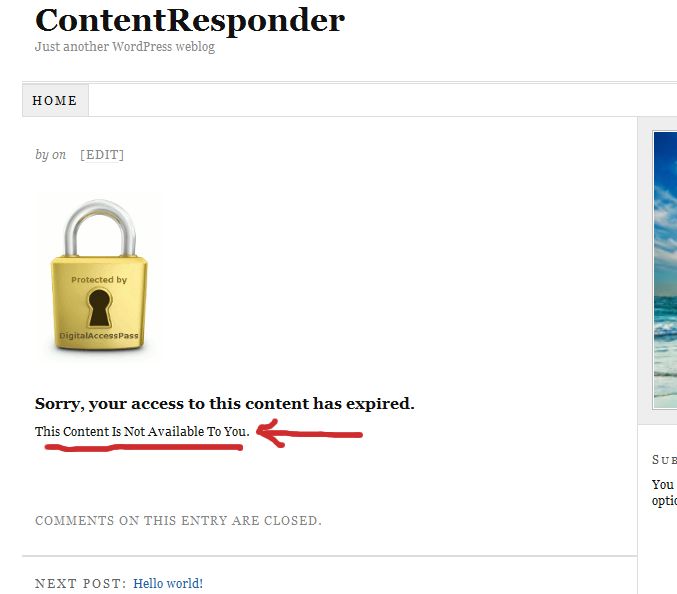
When your visitor encounters a “Sorry, you’re unable to access this content” page that has the DAP Padlock image on it, you can customize the text that shows up below the padlock by doing this:

1) Open the file error.php that is stored in the /dap/inc/ folder.
2) RENAME it as (or COPY it as) customerror.php.
3) You can put ANY kind of HTML content within this. Images, javascript, css,, buttons, text, whatever. Any HTML can be used in this file.
4) Upload this new file customerror.php back to same folder /dap/inc/
5) error.php doesn’t matter any more. Whether you delete it, or just leave it alone, the fact that there is a customerror.php file in the same directory means that DAP won’t even bother about error.php any more.
6) Future updates of DAP will not touch your customerror.php file. So updates or upgrades will not mess with your custom error page copy.
November 25th, 2009 — FAQ, Installation, Installation FAQ, Web Hosting
DAP works off-the-shelf on almost all decent web hosts.
But as in any industry, some hosts are just outdated, run old and outdated software, do not offer a choice to upgrade to the latest server software (like a recent version of PHP or MySQL). And some are just plain not helpful at all.
If you had a choice of picking a new web host, then here are the web hosts we use ourselves, and highly recommend, and they have everything readily available that DAP needs to run smoothly.
Recommended Web Hosts
VPS Hosting
LiquidWeb: If keeping your site(s) running almost all the time, and having insanely great support from your web host, are both important to you, then you should go with a VPS server from LiquidWeb. For about $50 a month, you can get yourself a great server, with terrific up-time and support. And did we say support is crazy good?
Shared Hosting
If you can’t afford the $50 a month for a VPS server, or don’t see the value of very high site availability or great support, then the next best option is shared hosting, where you share a server with other business owners. Not all shared hosts are made equal. And that’s why we highly recommend the following web hosts more than the others.
1) LiquidWeb: Our #1 recommendation for shared hosting as well
2) HostGator: Excellent reputation for reliable servers as well as support
2) HostMonster and Blue Host: We think they might just be two different names for the same hosting service owned by the same parent company. Feel free to correct us if we’re wrong.
NOT Recommended (FAIL)
DreamHost
We’ve had so many issues with Dreamhost, many of them on our own various web sites, most of them not even running DAP, and are just simple WordPress blogs. And some are actually plain HTML web sites. And the web sites go down all the time, emails go missing, get delivered late (if at all), and just problem after problem with their service. A majority of our sites had been hosted with DreamHost for about 5-6 years, and we recently moved most of them over to LiquidWeb.
The funniest thing with Dreamhost is that when any of your web sites hosted with them go down, and you go to open a support ticket, you’ll almost always find that even their own web site – dreamhost.com – is down most of the time! And they always use a different domain – dreamhoststatus.com – maybe hosted at Hostgator? LOL! – to notify customers that various servers or services are down. Would you trust a web host that can’t even keep their own site up and running? We certainly don’t. So 2 thumbs down for DreamHost.
GoDaddy
GoDaddy is great for registering your domain names. For hosting? Not so much.
We do have a large number of DAP users hosted on Godaddy, and they all either totally love it, or hate it. No middle ground.
We’ve ourselves seen many issues with some GoDaddy-hosted sites. Their email systems don’t always work consistently on all servers. It works great for some, while some of our other users have reported that even simple admin notification emails from DAP don’t get sent correctly. To compound the issue, Godaddy queues up even real-time emails on their end, and only send them out as batches. Which means even instant “Thank You” emails sent to your buyers with their membership login info, may not get sent for a couple of hours, even though DAP has actually sent them out, but are being intercepted and put on a queue by Godaddy to be sent out “later” in a “batch”.
The main issue we’ve seen with GoDaddy is that they don’t allow the use of a PHP library called “imap”, which is a very important library for doing email-based order processing. So this means, if you’re using 1SiteAutomation.com (or any other private label of 1ShoppingCart) and wish to do automated cancellations using DAP’s email order processing, this will not be possible if you’re using Godaddy.
So the bottom-line is, do not use Godaddy if you have a choice. And you simply cannot use GoDaddy if you’re planning to use 1SiteAutomation (or any other private label of 1ShoppingCart) with DAP.
1and1
We wholeheartedly recommend AGAINST using 1and1 for your web hosting. These guys are so stuck in the 90′s, and provide you with some really primitive admin tools.
For instance, the process for setting up a cron job on 99.99% of the other hosts takes about 2 minutes, because it’s point-and-click-and-type.
On 1and1, if you see the tutorial they’ve provided ( http://faq.1and1.com/scripting_languages_supported/cron_jobs/3.html ), they’ve made it very complicated, that it would take us too much time just to setup a simple cron job! And spending 20 minutes for something that normally takes 2 minutes on other hosts, is simply not worth our time. So if you’re on 1and1, we won’t be able to set up cron jobs for you for free. We would have to charge you to set it up for you, so just be aware of that. 1.5 thumbs down for 1and1.
ZippyKid
They don’t support DAP. So do not host your membership site with them.
What Does It Mean If Your Host Is Not Listed Here?
If your host is not shown here, then don’t worry – it doesn’t mean that DAP won’t work on your host.
These just happen to be the ones we have used, have done countless installations on, for our DAP users, and highly recommend (and recommend against in some cases) if you have the option of picking a new web host.
This is exactly why we offer a 30-day money-back guarantee when you purchase DAP – so that you can make sure DAP can run on your current web site, and also help you decide if DAP will work for you.
So there’s no risk to you, regardless of who you are hosting with.
November 25th, 2009 — FAQ, Installation, Installation FAQ, Setup
How to get DAP installed for FREE!
(Same information below is required for paid installations & upgrades too)
NOTE: Please DO NOT email us this information. You must open a support ticket for this.
Go to http://www.DigitalAccessPass.com/support/ , open a new ticket, and enter the information below into the ticket – after filling in the blanks, of course.
Your Email Id Used During Purchase: __________
Domain name: __________
FTP Host name: __________
FTP Username: __________
FTP Password: __________
Link to Your WordPress Blog: __________
WordPress Admin Username: __________
WordPress Admin Password: __________
Which one of these Payment Processors do you wish to use to accept payments for your membership site?
(Paypal/1Shoppingcart/ClickBank/etc): ______________
Web Site Control Panel Info (to create cron jobs):
Control Panel Link: __________
Username: __________
Password __________
November 23rd, 2009 — Customization, Plugins, Setup, Widgets, WordPress, WordPress FAQ
DAP has a Login/Logout Widget that you can use in any widget-ready theme.
Log in as WP admin, and look under “Appearance > Widgets”.
You’ll see the widget. Drag this widget on to any customizable part of your theme.
The widget puts the DAP login form right on your sidebar.
When a user is not logged in, they will see the login form.
When they are logged in, they just see a “Logout” button.
June 24th, 2009 — 1ShoppingCart, Admin, ClickBank, Control Panel, FAQ, Integration with Shopping Carts, Payment Integration, Payment Setup and Integration FAQ, Paypal, Products, Setup, Username & Password, Users
(OR) How do members get access to the content
(OR) How does someone become a member?
With DAP, you can add users to your membership site in 3 different ways.
1. PURCHASE: Someone buys your product or subscribes (“Paid” member with access to both free and paid content)
2. FORM SIGNUP: Someone signs up through a signup form (“Free” members with access to only free content)
3. ADMIN ADDED: You add them as a member directly through the DAP Admin Control Panel (you can mark them as either “free” or “paid”)
All three are explained in detail below.
1. PURCHASE
*You first create a “Sales Page”.
On your sales page, depending on which payment processor you use, you go to Paypal/1ShoppingCart/ClickBank and create a new product with the EXACT same name as the product you created within DAP, and get the ‘Buy Button’ link from your Payment Processor. Publish this “Buy Button” on your sales page.
* Your visitor goes to your sales page
* They purchase your product
* Your payment process (Paypal/1ShoppingCart/ClickBank) notifies DAP that you have a new purchase.
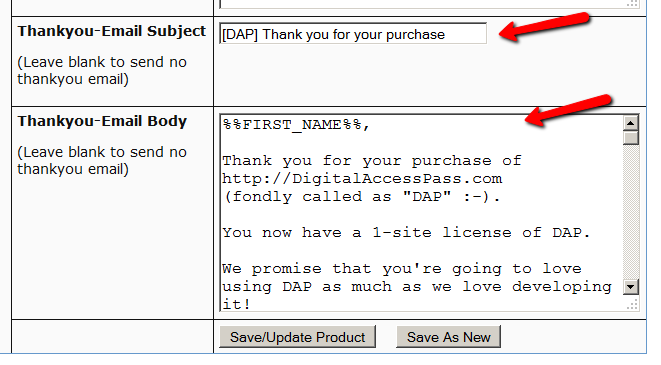
* If the product names match, DAP automatically creates an account for them, generates a random password, and sends them an email with their email/password. You can customize the contents of this email on the “Templates” screen in your DAP Admin Control Panel. Integration with your shopping cart explained elsewhere (see documentation for setup).
That’s it!
That’s how “buyers” get added to your membership site and get access to the product they just purchased.
2. FORM SIGNUP:
You wish to give someone a “Free” membership.
NOTE: “Free” members who do not have a payment associated in DAP (which means they have not purchased anything) will have access only to content that you have marked as “Free”.
Once you have created a Product in DAP, and have added content (blog post/page links, links to files, etc), and have saved it, on the Product page, below the Product name list, you will see a link called “Direct Signup HTML”. (See image below). You must first select a Product before you can copy the correct form HTML.
Fig 1. Direct Signup Link on Products page

Fig 2. Form HTML that you get on clicking the Direct Signup Link

This HTML gives you the full HTML form code that you can publish on any page of your web site. This form only collects an email address and a first name.
Take this HTML code and publish it on page of your web site where you want sign up users. This could be a WP page or post too.
Note: When you see the above HTML code, there’s a field in there that looks like this:
<input type=”hidden” name=”redirect” value=”http://YourSite/Your-login-page-link/?msg=Success!%20Your%20membership account%20has%20been%20created.%20%20Check%20your%20email%20address%20in%20a%20few%20minutes%20for%20your%20password“>
Don’t forget to change the text above, where it says “http://YourSite/Your-login-page-link/?…” to point to your actual domain name and to your actual login page (if you have customized it).
Then, when someone enters their email address and first name and signs up through the signup form, DAP creates an account for them using that email address, creates a random password, and sends them an email with their email/password.
After that, you can drip any content or emails on them that are marked as “Free” (when adding content or emails).
At some later point, if they purchase any of your “Paid” products (see the “1. Purchase” section above), then as long as they use the same email id during purchase, DAP will automatically give them access to all of the “Paid” content in the Product that they just purchased.
3. ADMIN ADDED:
If you wish to directly give someone access to a Product and all its content and emails, you can add them directly from the DAP Admin screen (Users > Add/Edit).
You just need their email id and their first name (both of which they can change subsequently) to add them to a Product.
While adding them, you have the option of marking them as a “Paid” user by checking the “Mark as Paid” checkbox.
If you don’t check this check box, then they will be added as a “Free” user and get access only to “Free” resources (content/emails).
But if you check the “Mark as Paid” checkbox, then they will get access to all “Paid” content and emails, just like someone who is actually a “Paid” member.
April 1st, 2009 — Access Control, File Resources, Protection FAQ, Setup
Section I: Protecting Files Under WordPress
This is the fastest, easiest way to protect files. And this is what is highly recommended.
1) Upload them to your WordPress blog when you are writing a new post. All such files will be stored in a folder called “wp-content/uploads/….“.
For large files, you could simply upload them directly using FTP, directly into the “wp-content/uploads/” folder and DAP is configured right off-the-shelf to “look” for any file inside the “wp-content/uploads/” folder. But once the file is under the “wp-content/uploads/…” folder (either directly under it, or under a sub-folder, like wp-content/uploads/videos/), you will now still need to let DAP know that this file is to be protected as part of a Product.
NOTE: You DO NOT have to upload files using the WP file uploader (like some of our competitors force you to do!). You can use regular, plain ol’ FTP, using a client like FileZilla or CuteFTP, or your webhost cPanel’s FTP feature.
2) Go to the product you wish to protect the file as part of, and then scroll down to the “ContentResponder” section.
2.1) If you know (or can figure out) the full URL to your file – like http://www.YourSite.com/wp-content/uploads/coolreport.pdf - you can simply paste that directly into the field “A” (in the image below)
2.2) Or, if you can’t figure out the full URL, then you can enter “wp-content” (if your blog is directly in your root folder) – or “blog” or “members” (if your blog is not in your root, and is in a sub-folder) into field “B” below, and then click on “Load Files”, and it will show you all files under that folder. And you will be able to scroll through and look for your file. And there click on the “Add” link right next to that file name you wish to protect.
Once you do (2.1) or (2.2) above, the file will get added to the Product, and will now be protected.

Section 2: Protecting Files Outside of WordPress
There is a simple, one-time setup involved if you want to protect files outside of your WordPress directory.
1. You need to add the following code to the .htaccess in the root of your web site. So, in your web site’s root folder (where you have your home page – like index.php or index.html for example)…
i) if you already have an existing .htaccess file there, then just open it, COPY the text from below and PASTE it at the very end of this file.
ii) If there is no .htaccess in your root folder, then create one, and then open it, COPY the text from below and PASTE it at the very end of this file.
NOTE: BE SURE TO MAKE A BACK-UP OF YOUR EXISTING .htaccess FILE FIRST
#Paste this at the very end of your .htaccess file
#in your web site's root folder
<IfModule mod_rewrite.c>
#dap
RewriteEngine On
RewriteBase /
RewriteCond %{REQUEST_FILENAME} -f
RewriteCond %{REQUEST_FILENAME} !-d
RewriteCond %{REQUEST_FILENAME} !dapclient.php
RewriteCond %{REQUEST_URI} !^/dap/
RewriteCond %{REQUEST_FILENAME} !(.*)(\.php|\.css|\.js|\.jpg|\.gif|\.png|\.txt)$
RewriteRule (.*) /dap/client/website/dapclient.php?dapref=/$1&plug=wp&%{QUERY_STRING} [L]
</IfModule>
Doing the above enables file protection for files outside your WordPress installation folders.
2) Now go to the DAP Product you wish to protect the file as part of, and then scroll down to the “ContentResponder” section. Then…
- If you know the full URL to your file – like http://www.YourSite.com/reports/coolreport.pdf – you could simply paste that directly into the field “A” from the image above (make sure you “visit” this URL first and verify that there is actually such a file at this link)
- OR… if you can’t figure out the full URL, then you can enter the text “reports” (the name of your top-level folder where your file is) into field “B” from the image above, and then click on “Load Files”, and it will show you all files under that folder. And you will be able to scroll through and look for your file. And there click on the “Add” link right next to that file name you wish to protect.
The file is then added to the Product, and will now be protected as part of that Product.
That’s it.
Testing File Protection
Open a different browser (not different window – a totally different browser – like, if you’re logged in as DAP admin in FireFox, then open IE) and try to access your file directly and see if DAP redirects you to the login screen.
If not, take a deep breath – it’s NOT DAP
It’s just that you probably missed something during the setup.
Revisit the steps above, and if you still can’t figure it out, you might want to think about uploading the file to wordpress (see Section I above) .
If you need help, then just open a support ticket with as many details as possible, and we’re standing by to help you.
Recommended Reading
If you have a number of large files to deliver to your members, then you should consider hosting your files on Amazon S3. And here’s why…
March 15th, 2009 — Access Control, Content Dripping, File Resources, Products, Protecting Content, Protection FAQ, Quick Start, Setup
- Log in to DAP Dashboard and go to the “Products/Lists” page.
- Select the product to which you want this blog post/page to be a part of
- Scroll down to the “ContentResponder” section
- On the left, you will see a list of blog posts & pages that have been published (if you scroll down in the window where the list of “posts” show, you will also see list of “pages”)

- Select one or more (hold Ctrl + Click to select multiple)
- Click on “Add Selected Posts/Pages” to protect the posts/pages.
- The post(s)/page(s) will now show up on the right-hand side of the box.
- Click on “edit” next to each link to configure dripping for individual posts/pages.
March 9th, 2009 — Access Control, Config, Customization, FAQ, Personalization, Protection FAQ, WordPress, WordPress FAQ, WordPress Plugins
Now DAP already provides you with a built-in, out-of-the-box login form, at YourSite.com/dap/login.php . But if you want to put this form “within” your WordPress blog, so as to give your login form the same Look & Feel as the rest of your blog, then do this…
1) Create a WordPress Page (not “Post”) with the text %%LOGIN_FORM%% in the body of the page, and a title of say, Login, and save the new page. If you used the text “Login” for the title, then the actual link to this page would be YourSite.com/blog/login
2) This page now shows up as “Login” along with the rest of your “pages” on your blog.
3) Go to DAP Admin > Setup > Config . Scroll down to the field Login URL
In the text box, enter the full link to your login page from Step 1:
http://YourSite.com/blog/login
Or if your blog is in the root, then…
http://YourSite.com/login
That’s it! When someone clicks on the “Login” link that now shows in your “Pages” menu, they will now see a nicely formatted login form.

Related: Where is the Logout Link?